8 min read
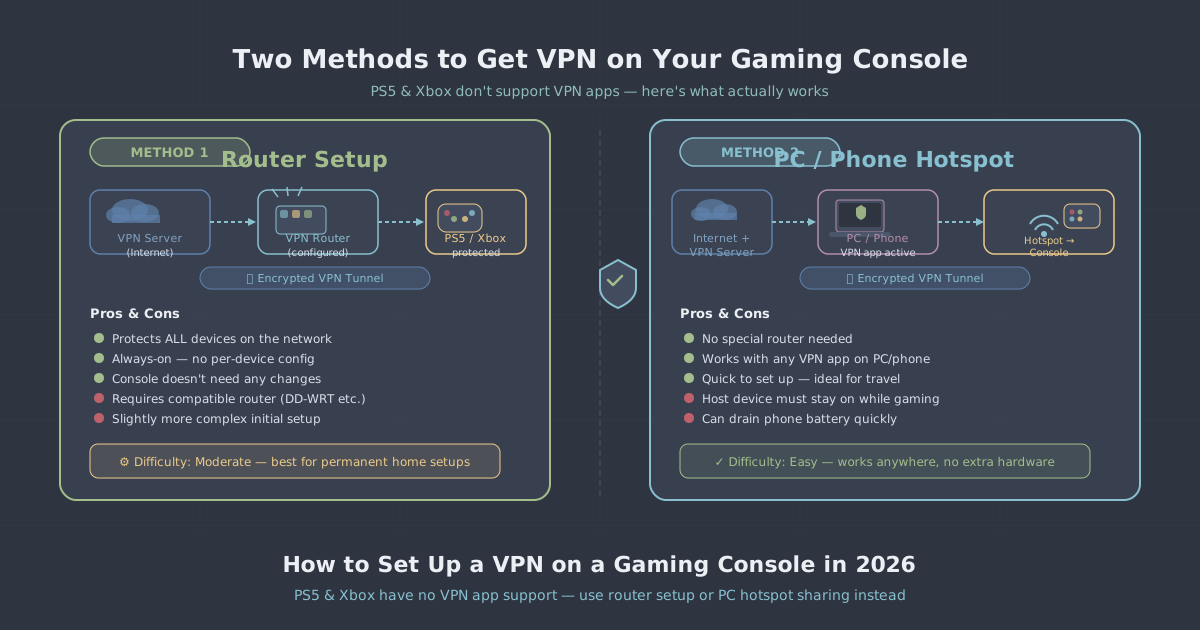
Gaming consoles are closed systems. Sony and Microsoft don't allow third-party VPN apps on the PS5 or Xbox Series X|S, which leaves console gamers without the straightforward option available on phones and laptops. That doesn't mean you're stuck—it just means the setup works a little differently.
There are two practical routes: configuring VPN directly on your router, so every device on your home network benefits automatically, or sharing a VPN connection from a laptop or PC to your console over a hotspot or ethernet. Both methods work reliably. This guide explains each one step by step, so you can choose whichever fits your setup.
Before diving in, it's worth knowing what you're actually gaining. A VPN on your console encrypts your traffic, masks your IP address from matchmaking servers and game publishers, and can reduce exposure to DDoS attacks—a real concern in competitive play. It can also help when travelling, letting your console behave as though it's back on your home network. If you want the broader picture first, our explainer on what a VPN does is a good starting point.
Method 1: VPN on Your Router
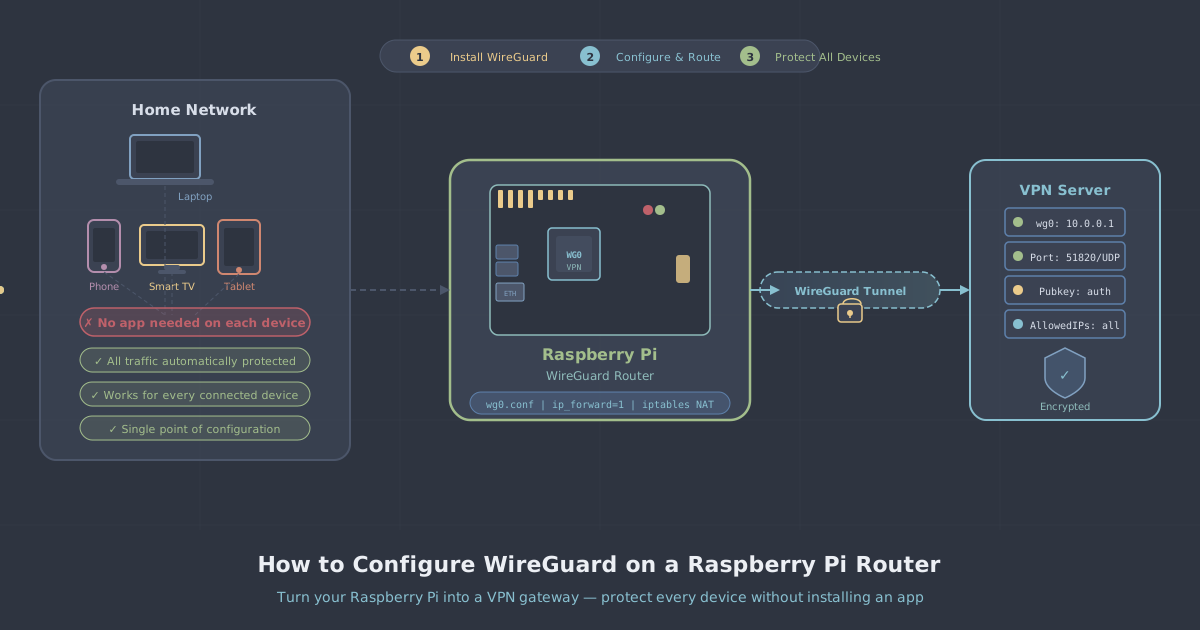
Installing a VPN at the router level means every device connecting through that router—your PS5, Xbox, smart TV, phone—uses the VPN automatically. You configure it once and forget about it.
What you need
- A router that supports VPN client mode (not all consumer routers do—check your model's documentation)
- A PremierVPN account with your credentials and server details to hand
- About 20–30 minutes
Common routers that support VPN client mode include those running DD-WRT, Tomato, or OpenWRT firmware, as well as certain ASUS models running AsusWRT-Merlin. If your router doesn't support it natively, you have two options: flash it with compatible firmware (more advanced, carries some risk) or buy a router that already supports it.
General setup process
- Log in to your router's admin panel—usually at
192.168.1.1or192.168.0.1in your browser. - Find the VPN or WAN section. On DD-WRT routers this is under Services > VPN; on AsusWRT-Merlin it's under VPN > VPN Client.
- Select your protocol. WireGuard is the recommended choice for performance—it has lower overhead than OpenVPN, which matters on router hardware that doesn't have a dedicated CPU for cryptography.
- Enter the server address, your account credentials, and the configuration details from your PremierVPN account dashboard. For WireGuard, you'll download a
.conffile and import it directly. - Save and apply. The router will establish the tunnel.
- Verify the connection by checking your external IP address from a connected device. PremierVPN's IP leak test tool is useful here—it confirms your IP and checks for DNS leaks at the same time.
Once the tunnel is up, your PS5 or Xbox connects to the router as normal over Wi-Fi or ethernet and the VPN is transparent to them. There's nothing to configure on the console itself.
A note on performance
Router CPUs are modest compared to a phone or laptop. If your router is encrypting and decrypting all traffic in software, you may see a reduction in throughput. WireGuard is considerably lighter than OpenVPN in this regard, which is why it's the better choice for router deployments. If your internet connection is fast and your router is older hardware, test your speeds before and after to get a sense of any impact.
Method 2: Shared Hotspot from a Windows PC
If your router doesn't support VPN client mode and you don't want to replace it, you can share a VPN connection from a Windows laptop or desktop to your console. The PC acts as an intermediary—it connects to the VPN, then shares that connection to the console over Wi-Fi or ethernet.
What you need
- A Windows PC with PremierVPN installed (download the Windows app here)
- Either a spare ethernet cable, or a Wi-Fi adapter that supports hosted networks
Sharing over Wi-Fi hotspot (Windows 11)
- Connect your PC to the internet as normal and connect to PremierVPN. Choose a server location appropriate for what you're doing—check the server locations list if you're unsure.
- Open Settings > Network & Internet > Mobile hotspot.
- Set "Share my internet connection from" to your active network adapter (the one with internet access).
- Turn on Mobile hotspot.
- On your PS5 or Xbox, go to network settings and connect to the hotspot your PC is now broadcasting. Use the hotspot name and password shown in Windows.
- Run a connection test from the console to confirm it's online.
Your console is now routing its traffic through the PC, which is tunnelled through PremierVPN. The console itself has no idea a VPN is involved.
Sharing over ethernet (more reliable)
A wired connection between the PC and console will generally be more stable and introduce less latency than a hotspot, especially in a busy household. The process is similar but uses Internet Connection Sharing (ICS) instead of the mobile hotspot feature.
- Connect your PC to the internet and establish the PremierVPN connection.
- Connect an ethernet cable from your PC's ethernet port to your console.
- Open Control Panel > Network and Sharing Centre > Change adapter settings.
- Right-click on the VPN adapter (it will likely be labelled "PremierVPN" or "WireGuard Tunnel") and select Properties.
- Under the Sharing tab, tick "Allow other network users to connect through this computer's Internet connection" and select the ethernet adapter connected to your console.
- On the console, set your network connection to wired and configure it to obtain an IP address automatically (DHCP). The PC will assign one.
Method 3: Shared Hotspot from a Mac
The same principle applies if your only spare machine is a Mac. Install the PremierVPN macOS app, connect to a server, then go to System Settings > General > Sharing and enable Internet Sharing. Share from your active network connection (Wi-Fi or ethernet) to either Wi-Fi or ethernet, depending on how you're connecting the console. The console connects to the Mac's shared network just as it would to any router.
If you want a step-by-step walkthrough of the Mac app itself, see the macOS setup guide.
Choosing the Right Server Location
The server you connect to affects both performance and what the connection looks like to matchmaking systems. A few practical points:
- For lower ping: pick a server geographically close to you. The VPN adds a hop in the routing, so you want that hop to be short.
- For accessing region-locked content or game releases: pick the server location matching the region whose store or servers you want to reach.
- For competitive play: the closest server with a stable connection is almost always the right choice. Routing through a distant server will increase your ping noticeably.
You can see all available locations on the PremierVPN server locations page. If online gaming performance is a priority, the Gaming VPN page covers WireGuard's advantages for latency-sensitive traffic in more detail.
Testing Your Connection
Once your console is routing through the VPN, it's worth confirming the setup is actually working before you start a session.
- On a phone or laptop connected to the same source (the hotspot or router), visit the IP leak test. You should see the VPN server's IP address, not your home ISP's IP.
- Run the network connection test built into your PS5 or Xbox. It should pass and report a valid IP address.
- If the console reports a NAT type of Strict or Moderate when it was previously Open, your router or PC may need UPnP or port forwarding configured. This is a common side-effect of routing through a VPN and is separate from VPN functionality itself.
Common Issues and Fixes
| Problem | Likely cause | Fix |
|---|---|---|
| Console can't find the hotspot | Hotspot not broadcasting on 2.4 GHz | Switch Windows Mobile Hotspot band to 2.4 GHz in hotspot settings |
| Console connects but has no internet | ICS not applied to correct adapter | Recheck sharing is set on the VPN adapter, not the physical one |
| High ping in-game | Distant VPN server selected | Switch to the nearest available server |
| NAT type changed to Strict | VPN blocking UPnP or port discovery | Enable UPnP on the router, or use a dedicated IP for consistent port behaviour |
| Connection drops mid-session | PC sleep or power-saving interrupting hotspot | Disable sleep mode on the PC while gaming |
Which Method Should You Use?
The router method is cleaner and more permanent—set it up once and every device benefits without any ongoing effort. It's the right choice if you have a compatible router and want a set-and-forget solution.
The hotspot or ICS method is better if you want flexibility—connecting the VPN only when you choose, switching server locations quickly, or testing things out before committing to a router-level change. It's also the practical option if your router simply doesn't support VPN client mode and you'd rather not replace it.
Both approaches give your console the same practical benefits: your IP address is masked from game servers and third parties, your traffic is encrypted between your home and the VPN server, and you have control over which region's infrastructure your connection routes through.
If you're yet to set up PremierVPN on your PC or Mac, the Windows setup guide and macOS setup guide will get you running in a few minutes, after which the console steps above follow straightforwardly.