Set Up PremierVPN on iPhone & iPad
Download from the App Store and connect in under two minutes. Fast, private connections via WireGuard to 52+ servers worldwide.
Requirements
Download PremierVPN
PremierVPN is available on the Apple App Store. Visit our downloads page to find the link:
Go to DownloadsTap the App Store badge on the downloads page, or search for "PremierVPN" directly in the App Store on your device.
Install & Open
Tap Get (or the cloud download icon) and confirm with Face ID, Touch ID, or your Apple ID password.
Once installed, tap Open from the App Store, or find the PremierVPN icon on your Home Screen.
Sign In
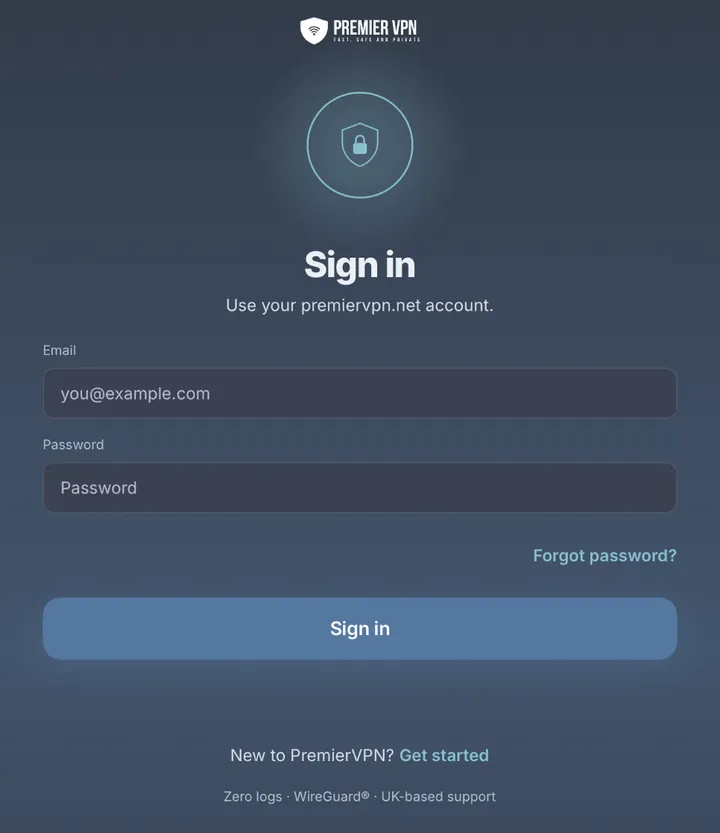
Enter your PremierVPN portal login details and tap Sign In. The app will authenticate with our servers and load your account details and server list.
Use your portal login
Sign in with the same email and password you use at portal.premiervpn.net. This is your account login, not a separate VPN credential.
If you have two-factor authentication enabled, you'll be prompted for the 6-digit code from your authenticator app.
Don't have an account? Visit portal.premiervpn.net/register to create one and subscribe to a plan.
Allow VPN Configuration
iOS will prompt you to allow PremierVPN to add a VPN configuration. Tap Allow and authenticate with Face ID or your passcode.
This is a one-time setup — iOS requires this permission for any VPN app. You won't be asked again.
Choose a Server & Connect
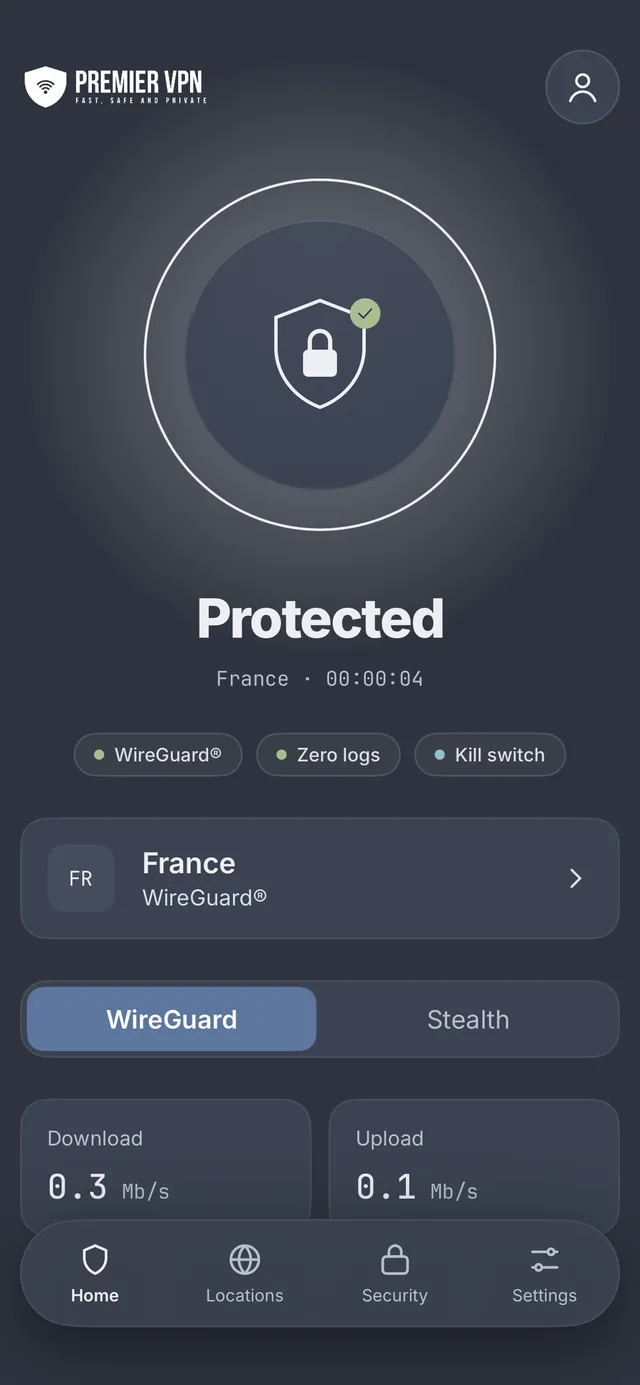
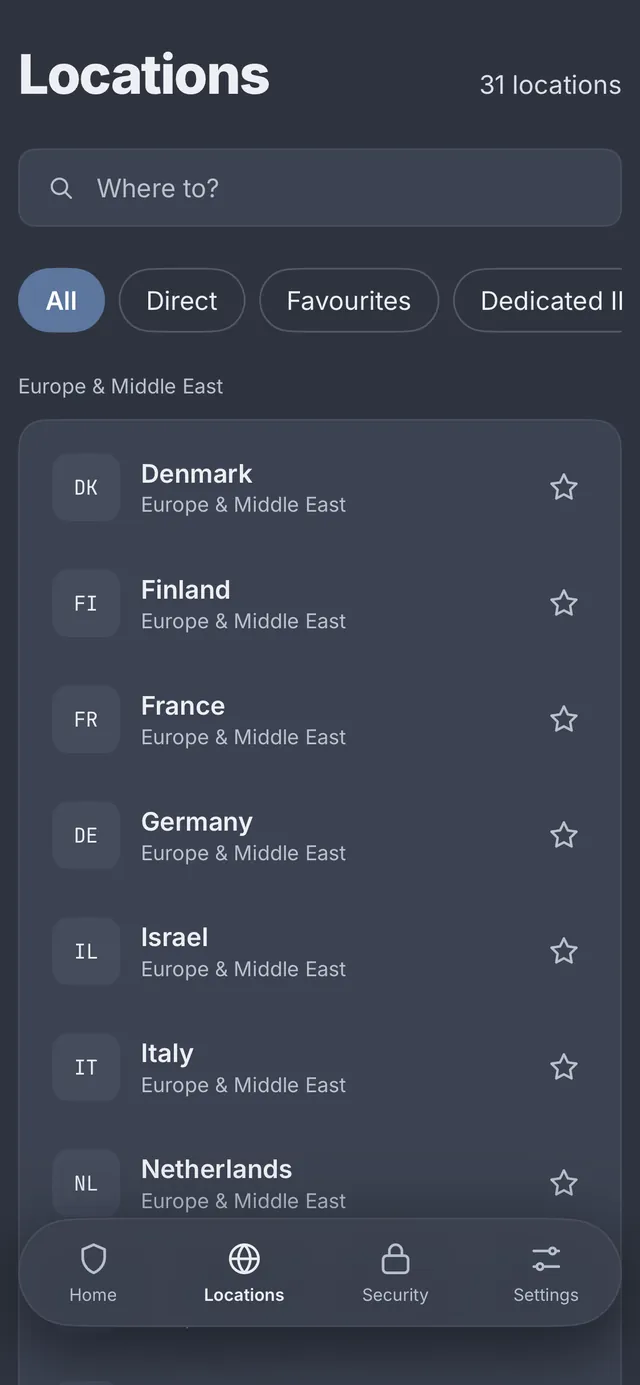
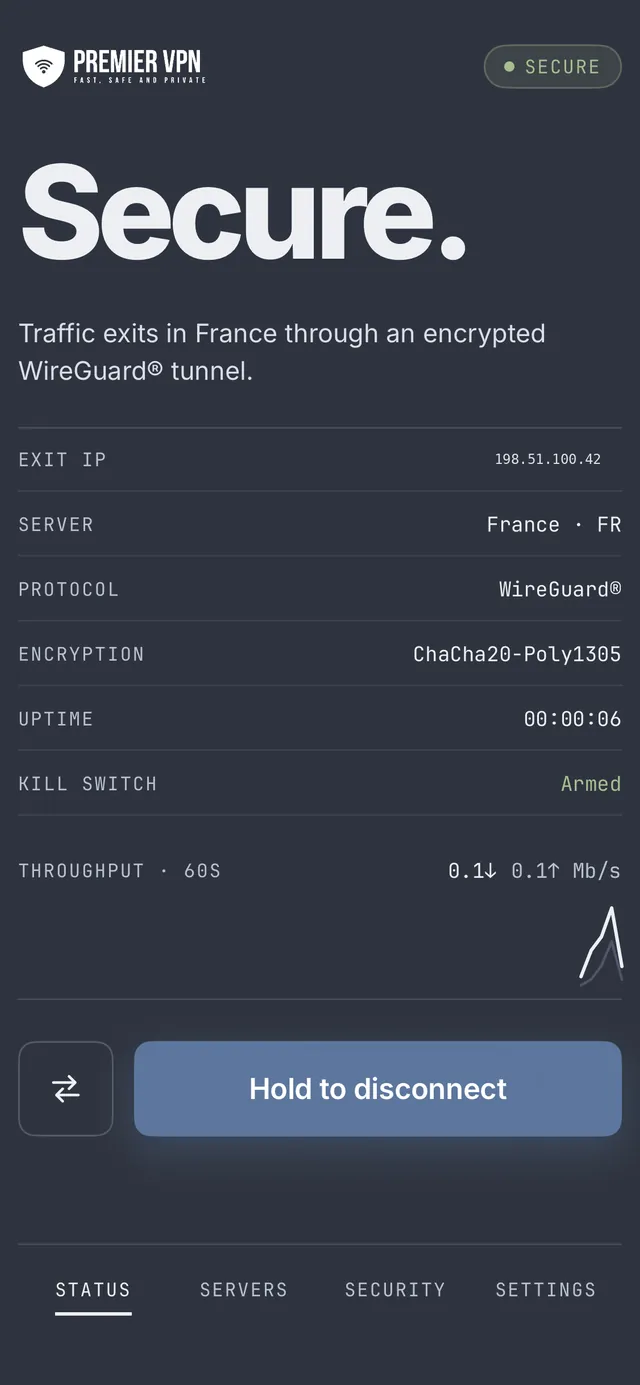
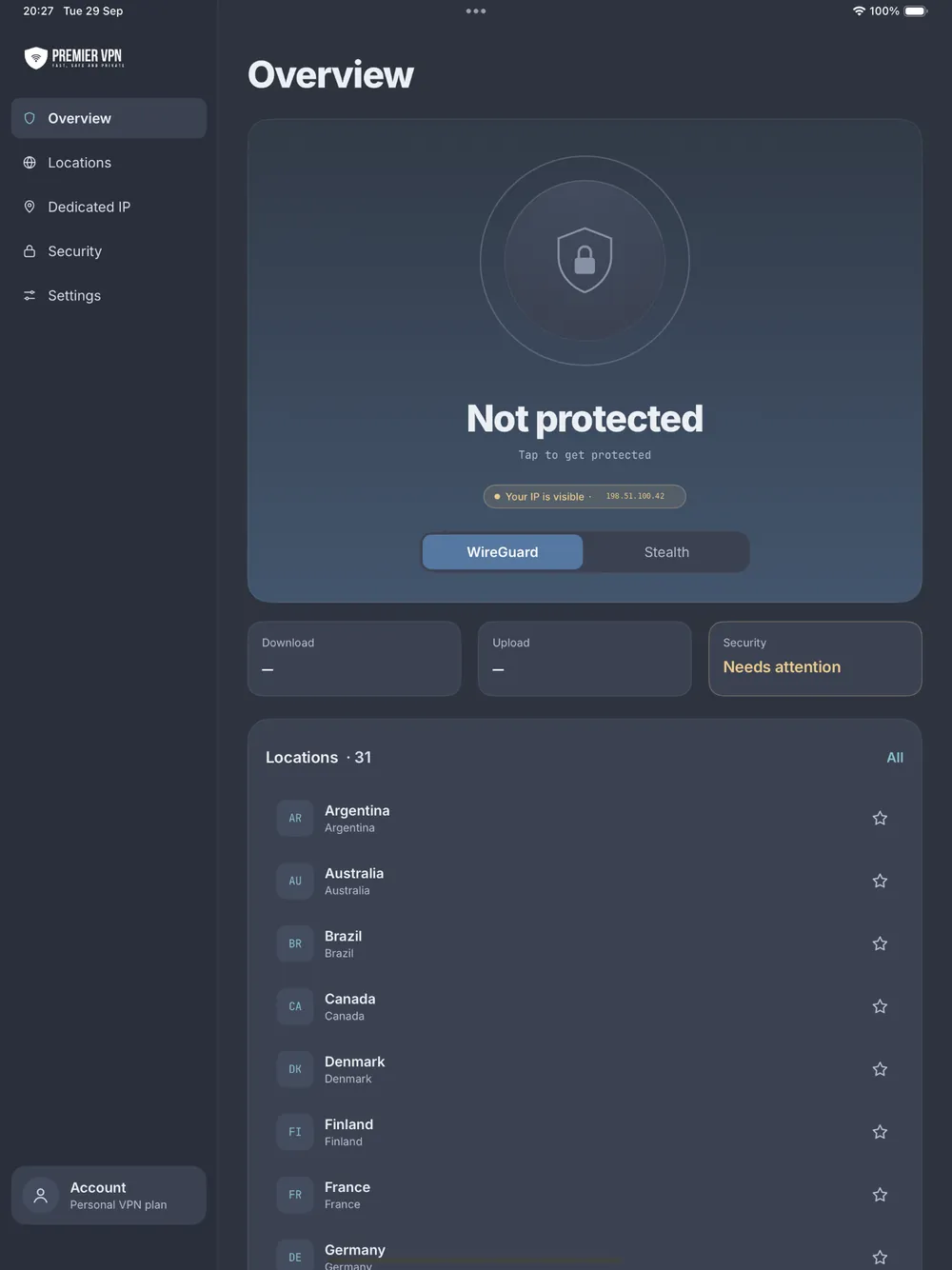
From the dashboard, tap the server list to browse available locations. Choose from 52+ servers across the globe, sorted by region. Tap a server to select it, then tap Connect.
Tip: For the fastest speeds, choose a server close to your physical location.
To disconnect, tap the Disconnect button on the dashboard. The padlock will return to the unlocked state.
Key Features
WireGuard Protocol
Modern, fast, and secure VPN protocol for optimal performance.
Kill Switch
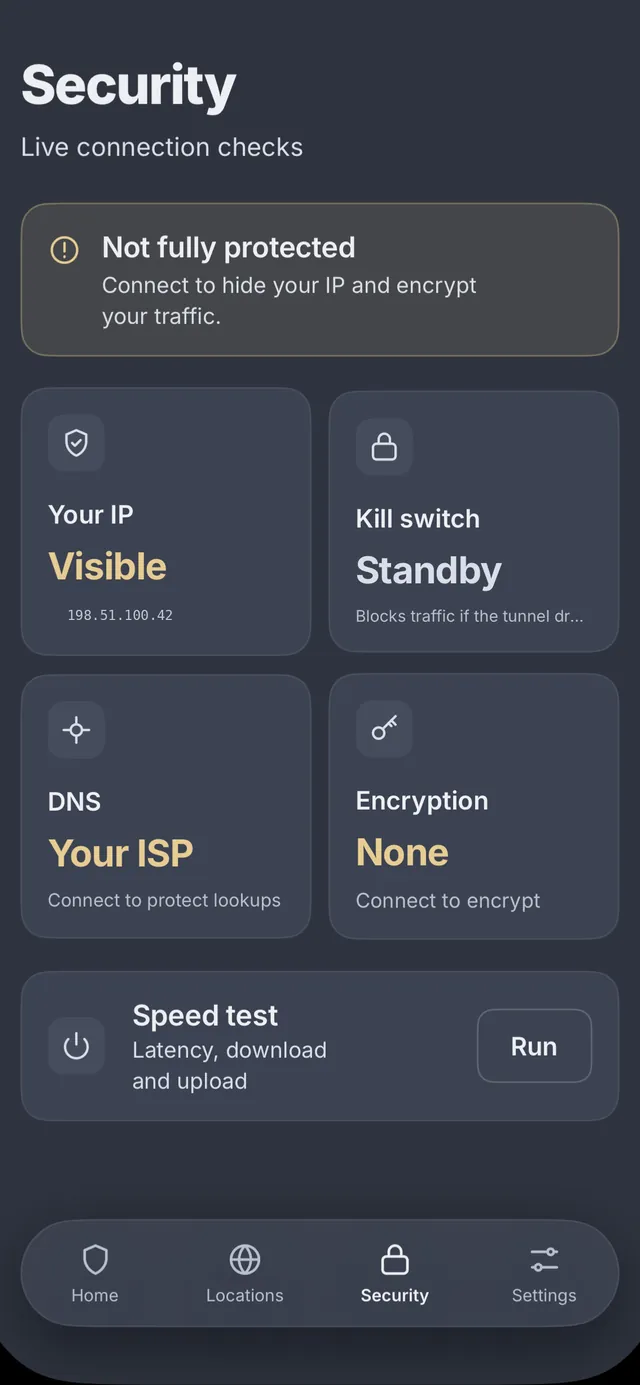
Blocks all internet traffic if the VPN drops, preventing data leaks.
DNS Leak Protection
All DNS queries are routed through the encrypted VPN tunnel.
52+ Servers
Global network across multiple countries and regions.
Speed Test
Built-in tool to test your connection speed while connected.
Auto-Connect
Automatically connect to VPN when joining untrusted Wi-Fi networks.
Settings
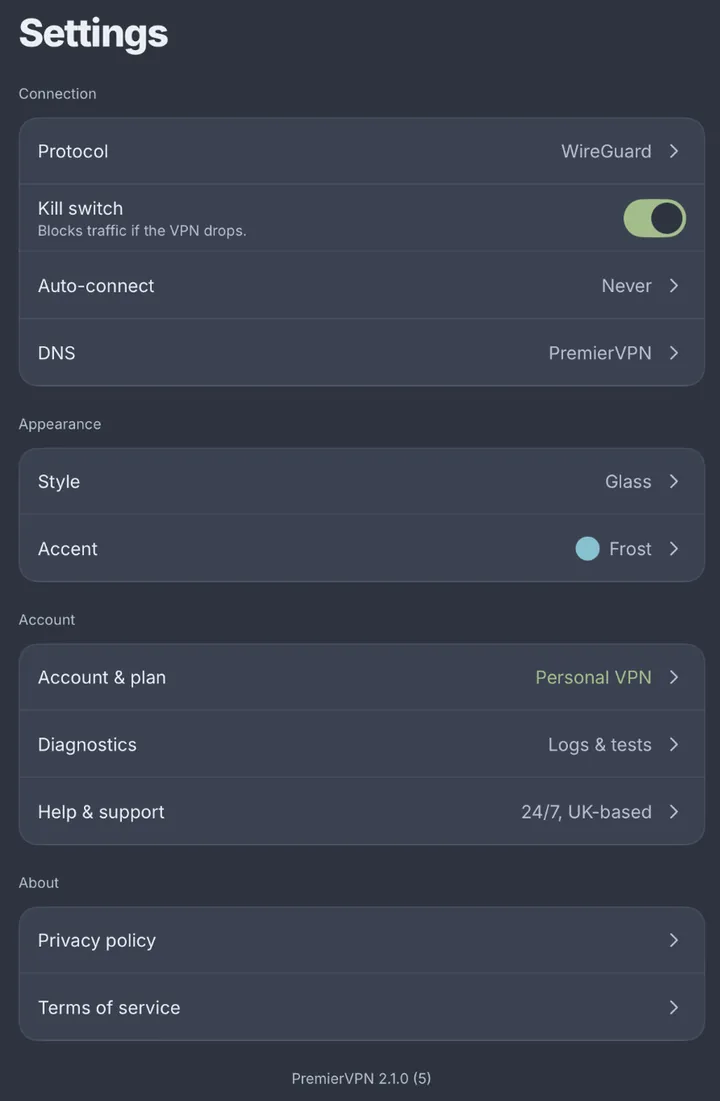
Access settings by tapping the Settings tab. Configure your security and connection preferences.
Security Settings
| Setting | Default | Description |
|---|---|---|
| Kill Switch | ON | Blocks all traffic if VPN disconnects unexpectedly. |
| DNS Leak Protection | ON | Routes all DNS queries through the VPN tunnel. |
| Connect on Demand | OFF | Automatically reconnects VPN when network changes. |
| Stealth Mode | OFF | Uses an advanced encrypted transport for stable connections on restrictive networks. Recommended if you experience connection drops or difficulty connecting. |
Tip: We recommend keeping Kill Switch and DNS Leak Protection enabled at all times for maximum security.
Troubleshooting
- Check your internet connection (try loading a website without the VPN)
- Try a different server location
- Enable Stealth Mode in Settings — this helps on networks that block or throttle VPN traffic
- Close and reopen the app
- Restart your iPhone or iPad
Select a server closer to your physical location for the best speeds. Use the built-in Speed Test feature to compare server performance and find the fastest option.
Enable Connect on Demand in Settings so the VPN automatically reconnects. If you're on a network with strict traffic policies (hotel Wi-Fi, corporate networks), try enabling Stealth Mode in Settings — it uses an advanced encrypted transport that maintains a stable connection on restrictive networks.
The app uses your portal login credentials — the same email and password you use at portal.premiervpn.net. Verify you can log in at the portal first. Check for typos in your email and password. If you've forgotten your password, reset it here.
Make sure you're running the latest version from the App Store. Try restarting your device. If the issue persists, delete the app and reinstall from the App Store.
Go to iOS Settings → General → VPN & Device Management. Delete any old PremierVPN configurations, then open the app again — it will prompt you to add a fresh VPN configuration.
Visit our Support & Help Centre or open a support ticket and we'll get back to you within 24 hours.
Ready to get started?
Download PremierVPN for iPhone & iPad from the App Store and protect your connection in minutes.