Using secure.premiervpn.net? We've upgraded! Migrate your account to our new portal in seconds, or continue using the old portal. Migrate Now
Setup Guide

Set Up PremierVPN on Android

Works on Android phones, tablets, and Android TV. Download from Google Play and connect to 50+ servers worldwide via WireGuard.

Requirements

Android 8.0 or later
An active PremierVPN subscription
Internet connection (Wi-Fi or mobile data)
PremierVPN Portal account credentials
1

Download PremierVPN

PremierVPN is available on the Google Play Store. Visit our downloads page to find the link:

Go to Downloads

Tap the Google Play badge on the downloads page, or search for "PremierVPN" directly in the Play Store. Look for PremierVPN: Fast & Secure VPN by JSR CREATE Limited.

The app is free to download — you need a PremierVPN subscription to connect.

2

Install & Open

Tap Install and wait for the download to complete.

Once installed, tap Open from the Play Store, or find the PremierVPN icon on your home screen or app drawer.

3

Sign In

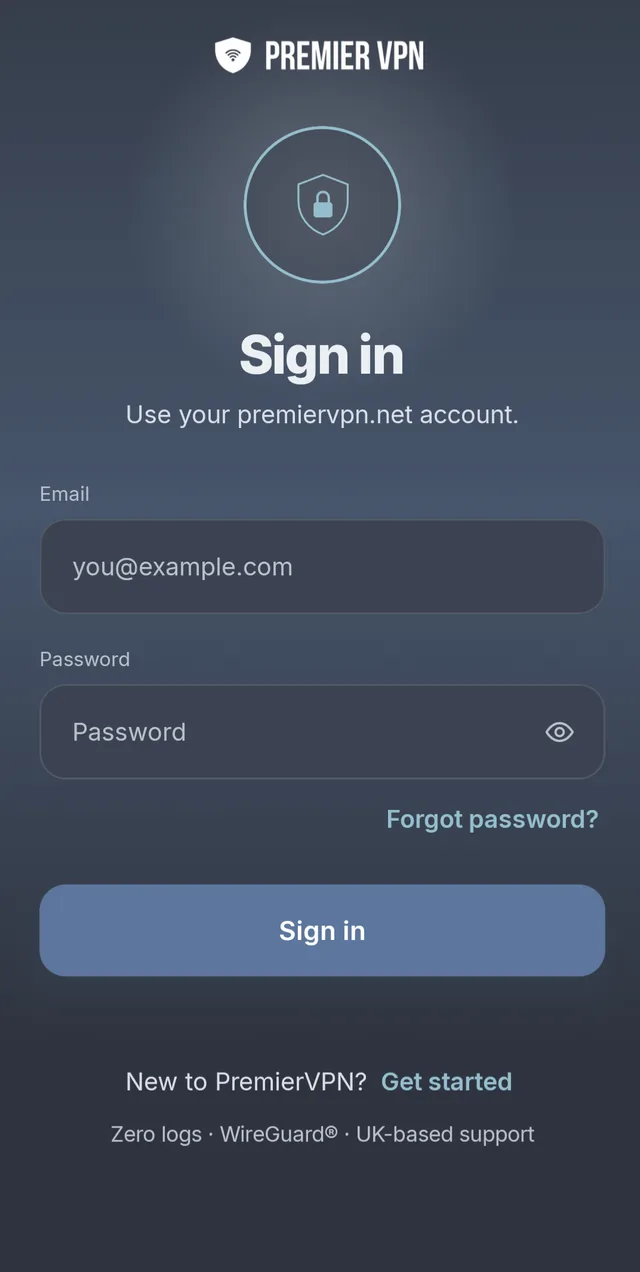
Enter your PremierVPN portal login details and tap Log In. The app will authenticate with our servers and load your account details and server list.

Use your portal login

Sign in with the same email and password you use at portal.premiervpn.net. This is your account login, not a separate VPN credential.

If you have two-factor authentication enabled, you'll be asked for the 6-digit code from your authenticator app.

Tap the eye icon next to the password field to show or hide your password.

Don't have an account? Visit portal.premiervpn.net/register to create one and choose a subscription plan.

4

Grant VPN Permission

The first time you connect, Android will ask: "Allow PremierVPN to set up a VPN connection?" Tap OK.

This is a standard Android requirement for all VPN apps. Look for the key icon in your Android status bar — this confirms the VPN tunnel is active.

Connect

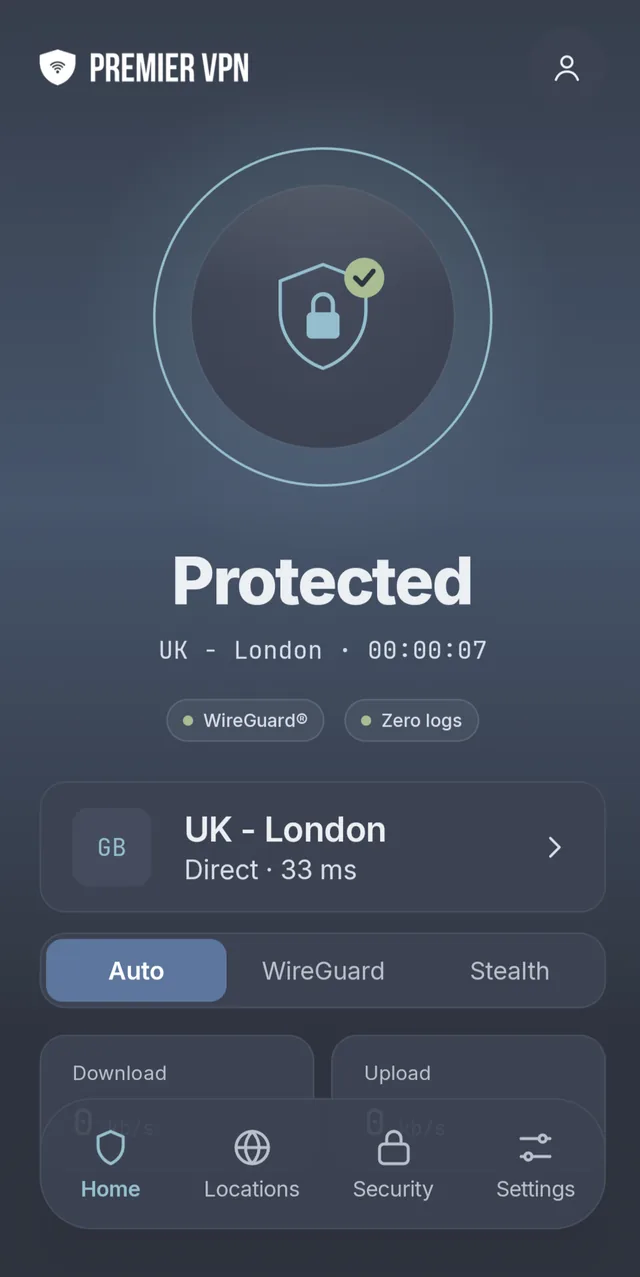
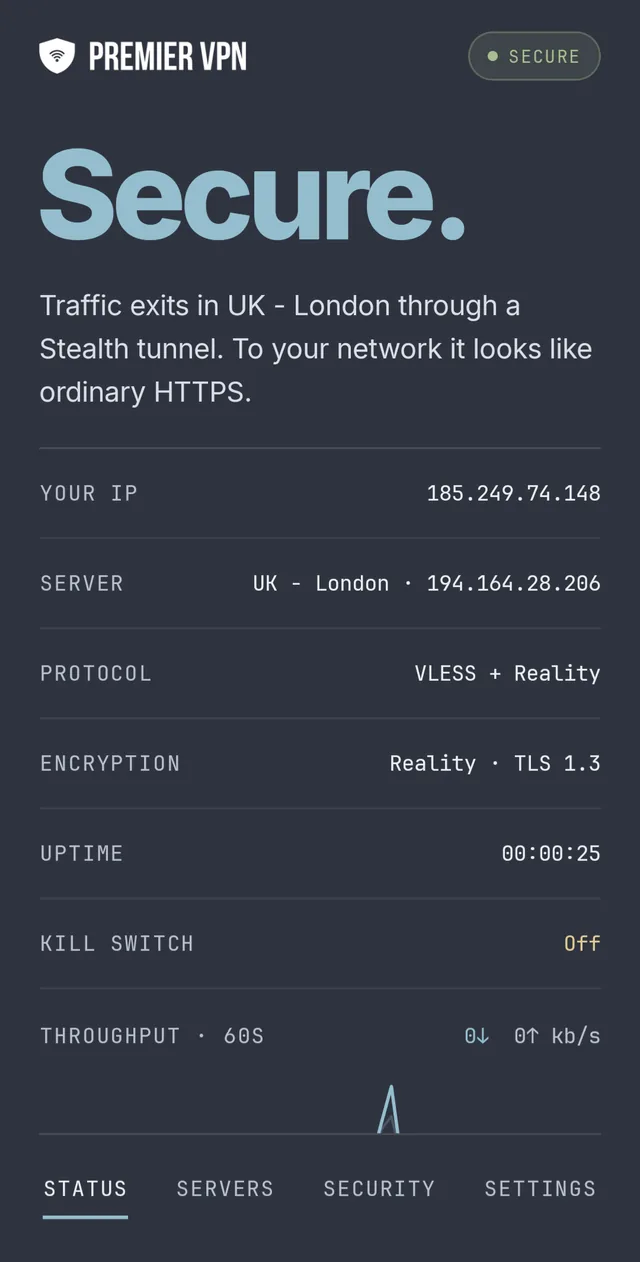
Tap the large shield button in the centre of the dashboard. The button turns green when you're connected. You'll see your new IP address, the server name, and a timer showing how long you've been connected.

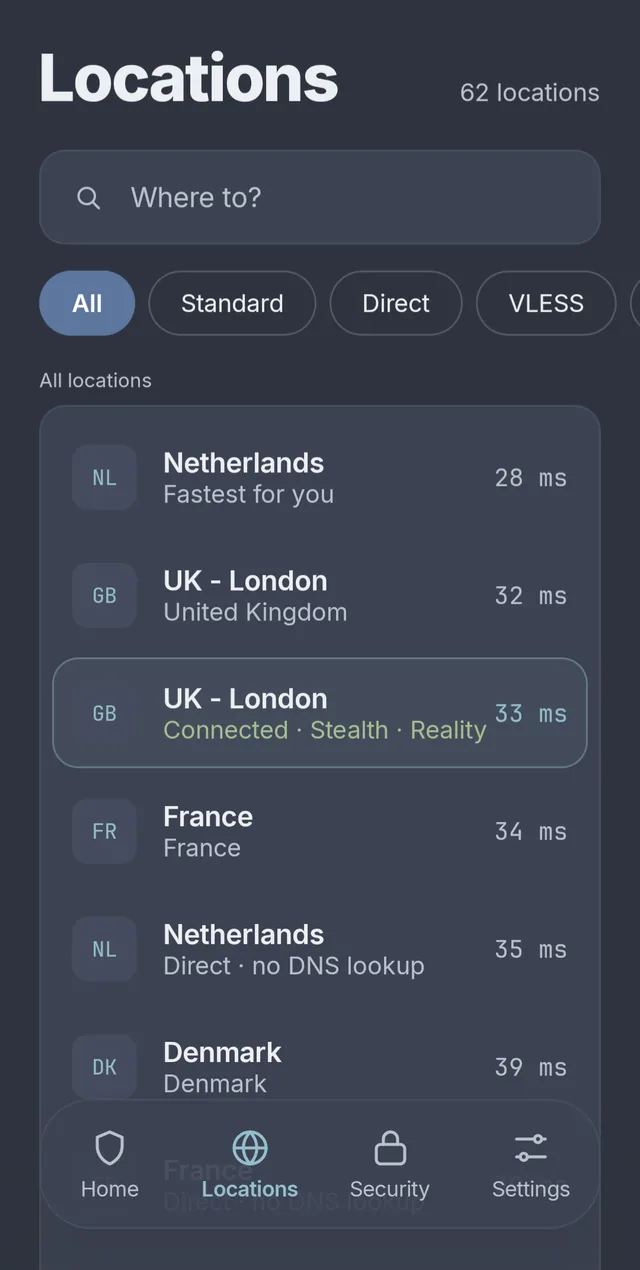
To choose a different server, tap the Servers tab at the bottom. Browse the list or search for a specific location. Tap a server to connect — if you're already connected, the app switches automatically.

To disconnect, tap the shield button again.

Tip: For the fastest speeds, choose a server close to your physical location. Use the built-in Speed Test to compare server performance.

Key Features

Split Tunnelling

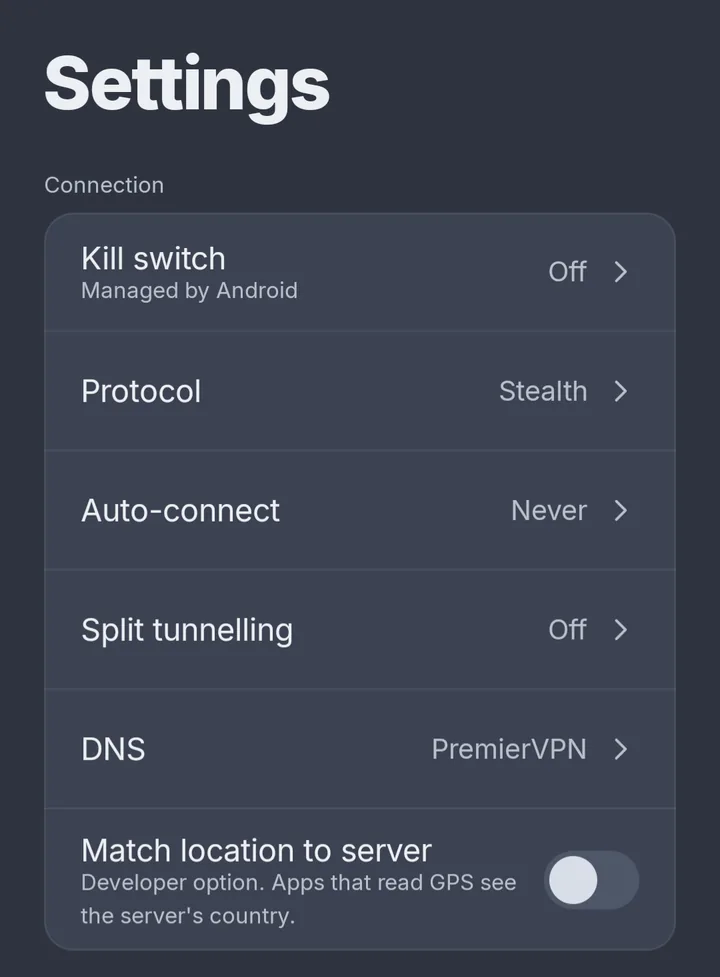
Choose which apps bypass the VPN and use your normal internet connection. Go to Settings → Split Tunnel and select your apps. Changes take effect on the next connection.

Auto-Connect on Untrusted Wi-Fi

PremierVPN automatically connects when you join a Wi-Fi network that isn't in your trusted list. Enable in Settings → Auto-connect on untrusted Wi-Fi. Add your home and work Wi-Fi to the trusted list so the VPN only activates on public networks.

Kill Switch (Always-on VPN)

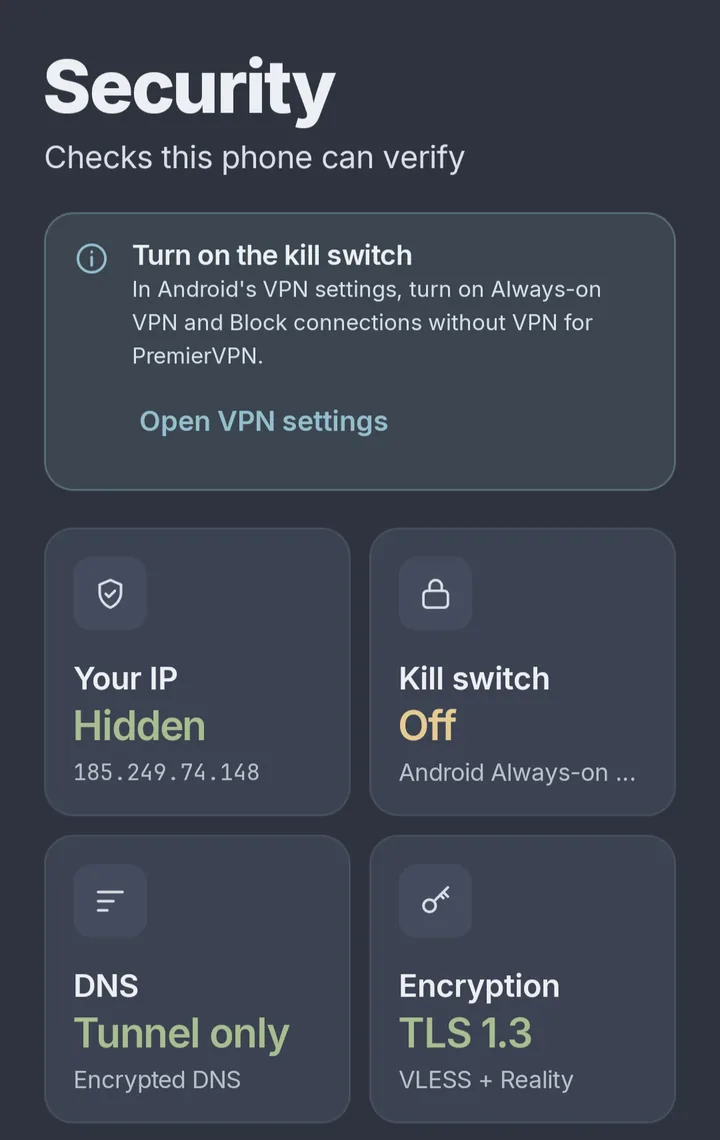
For maximum protection, enable Android's built-in kill switch. Go to Settings → Always-on VPN & Kill Switch (opens Android system settings). Find PremierVPN, tap the gear icon, and enable Always-on VPN and Block connections without VPN. No data ever leaks outside the tunnel.

Ad Blocker

Toggle Ad Blocker in Settings to route DNS through AdGuard servers, blocking ads and trackers at the network level. Works across all apps while connected.

Server Bookmarks

Tap the bookmark icon next to any server to save it as a favourite. Access your bookmarked servers from the Bookmarked tab on the Servers screen.

Home Screen Widget

Long-press your home screen, tap Widgets, and find PremierVPN Status. Quick access to VPN status, session time, and bandwidth — without opening the app.

Android TV

PremierVPN works on Android TV with a dedicated interface designed for your remote control.

1

Install from Play Store

Open the Google Play Store on your Android TV and search for PremierVPN. Install it as normal.

2

Sign In with Your Remote

Use your TV remote to navigate the email and password fields. Sign in with your portal.premiervpn.net credentials. If you have 2FA enabled, you may need to disable it temporarily or log in on your phone first.

3

Navigate with D-pad

Use the arrow keys on your remote to move between the sidebar (Connect, Servers, Settings) and the main content area. Press OK/Select to activate buttons.

4

Connect

Navigate to the large circle button and press OK to connect or disconnect. Use the Servers tab to change your server location.

Tip: For always-on protection on your TV, go to Settings → Always-on VPN & Kill Switch to open Android TV system settings.

Troubleshooting

  1. Check your internet connection is working without the VPN
  2. Try a different server location
  3. Restart the app
  4. Make sure you've granted VPN permission when prompted

Enable Auto-Reconnect in Settings. Move closer to your Wi-Fi router if signal strength is weak. Try a server closer to your location.

Try a server closer to you geographically. Run the built-in Speed Test (Settings → Speed Test) to compare servers. If you have Ad Blocker enabled, try disabling it to see if speeds improve.

The app uses your portal login credentials — the same email and password you use at portal.premiervpn.net. Verify you can log in at the portal first. Check for typos. If you've forgotten your password, tap Forgot password? on the login screen or reset it here.

This happens if another VPN app has been used since your last PremierVPN session. Tap OK to grant permission again — it's normal Android behaviour.

Split tunnel changes require a reconnect. Disconnect and reconnect after changing the split tunnel settings for them to take effect.

Remove and re-add the widget. Make sure PremierVPN is not being battery-optimised — go to Android Settings → Battery → PremierVPN and set to "Unrestricted".

Pull down to refresh the server list. Check your internet connection. The app includes a built-in server cache, so servers should appear even with brief connection interruptions.

Visit our Support & Help Centre or open a support ticket and we'll get back to you within 24 hours.

Ready to get started?

Download PremierVPN for Android from Google Play and protect your connection in minutes.

Stay Ahead of Online Threats

Get VPN tips, security insights, and exclusive offers delivered straight to your inbox. No spam — just the essentials.

Unsubscribe at any time. We respect your privacy.