Black Friday Our biggest deal of the year is coming soon Get notified →
Setup guide · Mac · Version 1.1.0

Set up PremierVPN Firewall for Mac

PremierVPN Firewall shows every app's connections on your Mac, in and out, and lets you allow, block or be asked about each one. It works on its own and recognises PremierVPN automatically, so it never blocks the VPN. Installing takes about two minutes.

  • macOS 14 Sonoma or later, Apple silicon or Intel
  • Free, no account needed
  • Pro with any active PremierVPN plan

PremierVPN-Firewall-1.1.0.dmg · 4.9 MB
SHA-256 6e77fb9c06c16b1e7928c3015d4199ad55530da7f7a16cb59f3768e85bd2b21e

01 Install

Install the firewall

Installing needs two approvals from macOS. The firewall must run from the Applications folder, because macOS only installs firewall extensions from there.

  1. Download PremierVPN-Firewall-1.1.0.dmg, here or from the Downloads page in your account, and open it.
  2. Drag PremierVPN Firewall onto Applications, then open it from Applications.
  3. Choose Get started, then Install.
  4. When macOS says a system extension was blocked, open System Settings › General › Login Items & Extensions › Network Extensions and turn on PremierVPN Firewall. The app's Open System Settings button goes straight there.
  5. When macOS asks to let PremierVPN Firewall filter network content, choose Allow.
  6. Pick what happens when an app connects for the first time (see below), then choose whether to allow notifications.

The status line under the steps reads Installed when the firewall is running. Live connections start filling within a few seconds.

To check the download, open Terminal in your Downloads folder and run shasum -a 256 PremierVPN-Firewall-1.1.0.dmg. The result should be 6e77fb9c06c16b1e7928c3015d4199ad55530da7f7a16cb59f3768e85bd2b21e.

When an app connects for the first time

ChoiceWhat it doesBest for
Allow and tell me (recommended)New apps connect straight away. A notification appears and the app is listed under Needs review, so it can be blocked in one click.Most people
Ask meAn app's first connection waits while a prompt asks what to do.People who know their apps
Block until I allowAnything not yet allowed is blocked. Apps can stop working until they're allowed.Locked-down Macs

You can change this later in Settings › New apps.

  • Notifications are sent when a new app connects, when an app changes, when the kill switch starts holding traffic, and (with Pro) when your Mac joins a new network. Notices for connections blocked by your rules are off by default. Each type can be turned off in Settings › Notifications.
  • Filtering carries on with the window closed and with the app quit. It starts again by itself after a restart.

Recommended: Open at login

Turn on Settings › General › Open at login so Ask prompts and notifications always work. Filtering runs either way.
02 Free and Pro

Free and Pro

The firewall is free without an account. Pro adds DNS filtering, network profiles, longer history and rule import and export, and comes with any active PremierVPN plan. There are no licence keys: you sign in with your PremierVPN account.

FeatureFreePro
See every connection, in and outYesYes
Allow, block or ask per app, rules, Ask promptsYesYes
Kill switch and LockdownYesYes
Works with PremierVPN automaticallyYesYes
History24 hours24 hours, 7 days or 30 days
DNS filtering (ads, trackers, malware, telemetry)NoYes
Network profiles (Home, Work, Public)NoYes
Rule import and exportNoYes

Turn on Pro

  1. Choose Sign in on the DNS filtering or Networks page, or in Settings › PremierVPN account.
  2. Enter your PremierVPN email and password, then the six-digit code if your account uses two-factor sign-in.
  3. Settings then shows Pro, your plan and the paid-until date.
  • The firewall checks your plan with PremierVPN about twice a day. It sends a random install ID, never your connections or history.
  • Offline, Pro keeps working until the last check expires.
  • If your plan ends, Pro features switch off. Rules, settings and known networks are kept, so everything comes back when you renew.
  • An account with no active plan can sign in, but stays on the free features. See plans.
03 Tour

The app at a glance

The window has nine sections, listed down the sidebar (or across the top in the Signal look). ⌘1 to ⌘9 jump between them.

SectionWhat it shows
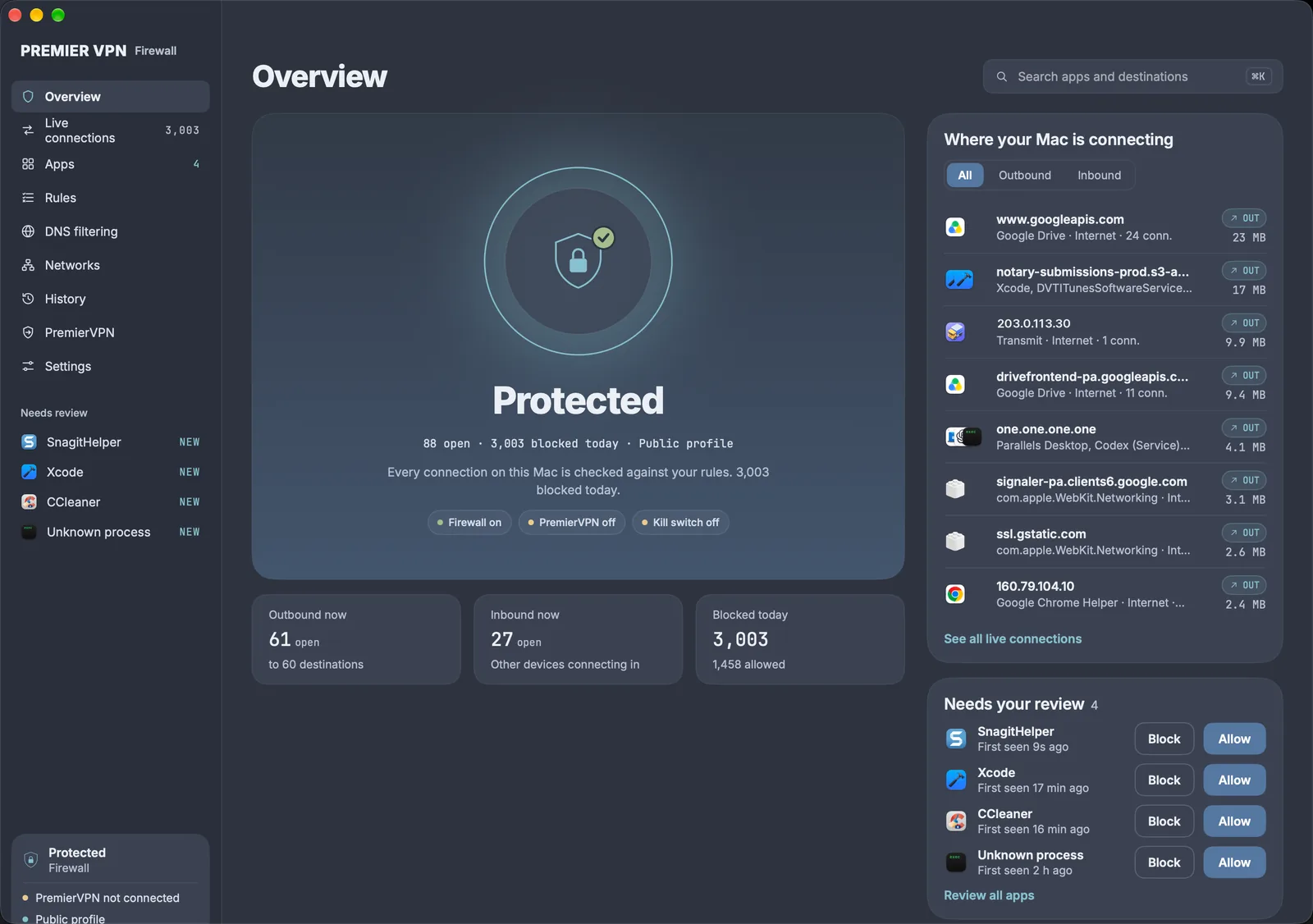
OverviewFirewall status, what's connecting now, blocks today, and apps that need review
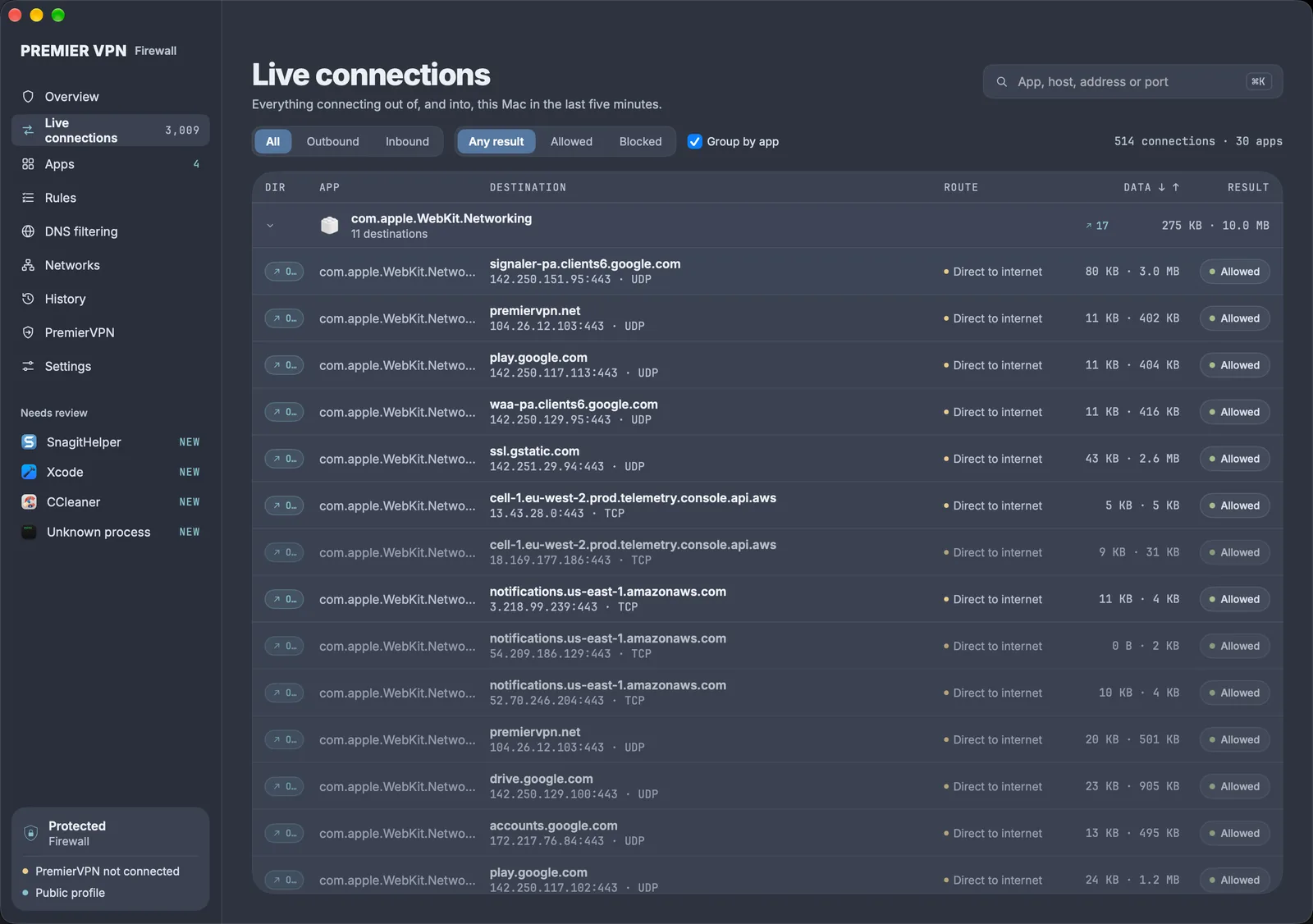
Live connectionsEvery open connection, outbound and inbound, grouped by app. Select one to see why it was allowed or blocked and to change it
AppsEvery app that has used the network, with its permissions, where it connects and its rules
RulesAll rules, the order they're checked in, and rule import, export and reset
DNS filtering ProBlocklists, your own allow and block lists, and recent lookups
Networks ProThe current network, its profile, and every network the Mac has joined
HistoryPast connections and blocked lookups, with filters, CSV export and delete
PremierVPNVPN status, the kill switch and Lockdown
SettingsAccount, new-app handling, notifications, privacy, appearance, recovery and about

Needs review in the sidebar lists new apps and apps that have changed since their rules were made. Selecting one opens it in Apps.

Overview: Protected, open connections and blocks today, where the Mac is connecting, and apps that need review
Overview

Menu bar

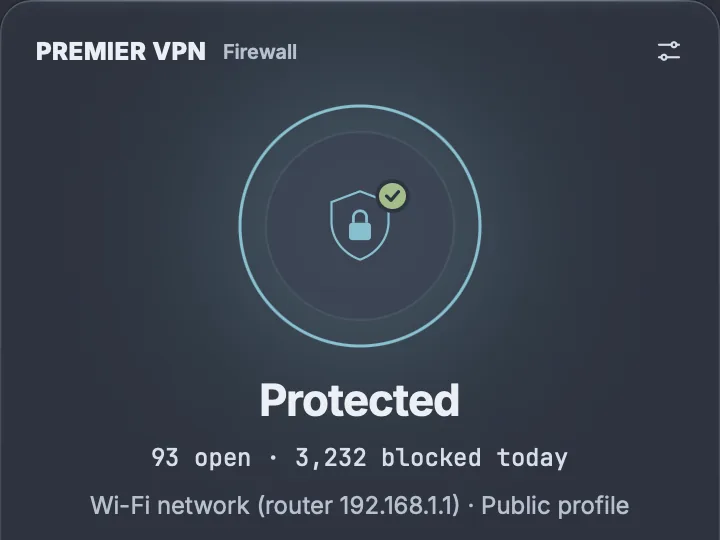
The PremierVPN Firewall icon in the menu bar opens a small panel. It works with the main window closed.

  • Firewall status, PremierVPN status, the kill switch, and the current network profile (Pro)
  • Open and blocked counts, and the last few blocks
  • Lockdown… to turn Lockdown on or off
  • More: pause app rules for 5 minutes or 1 hour, and Quit (filtering continues)

Keyboard shortcuts

ShortcutAction
⌘1–9Go to a section
⌘KSearch connections
⇧⌘LTurn Lockdown off, or open the PremierVPN page to turn it on

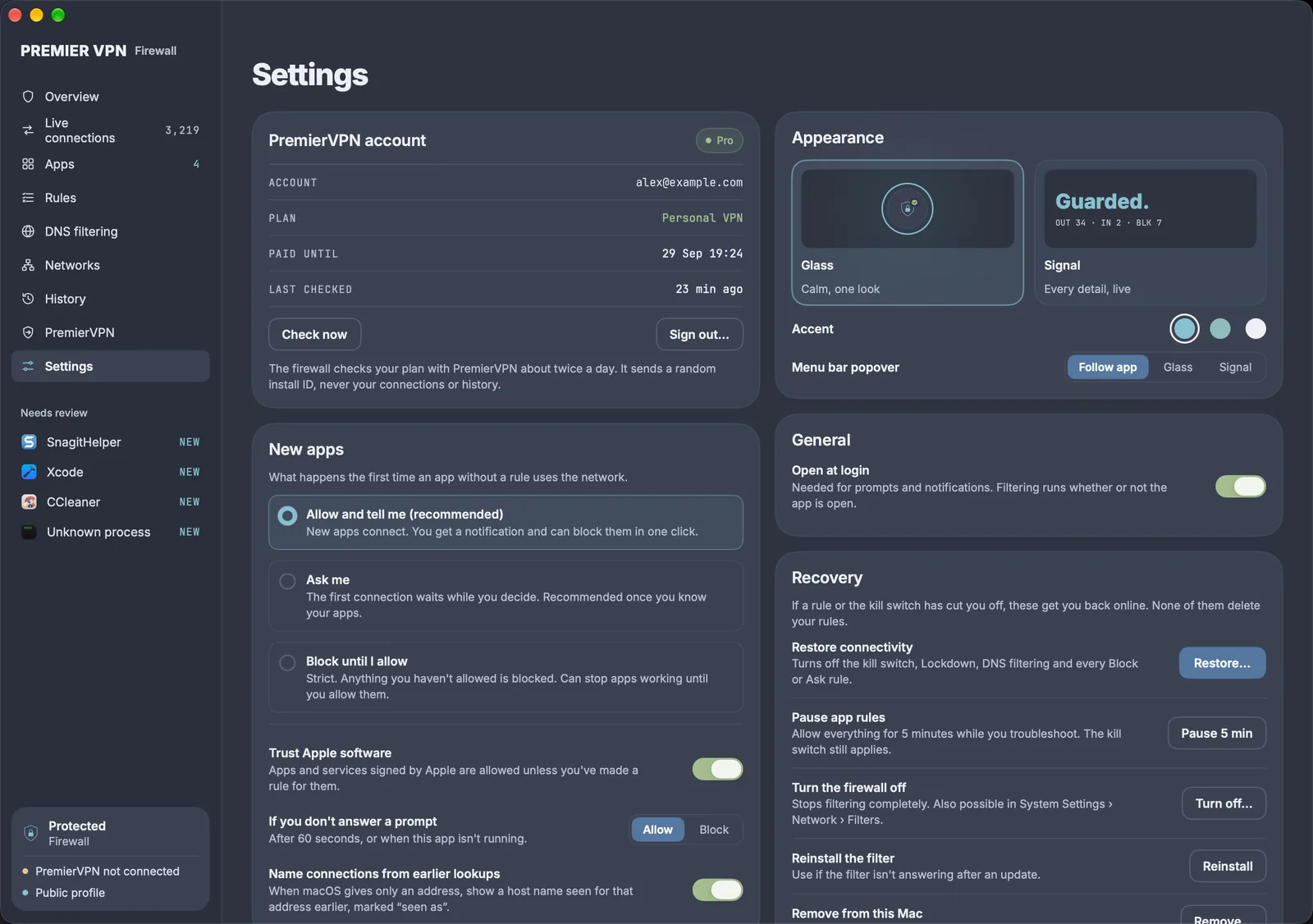
Appearance: Settings › Appearance switches between Glass (calm, one look) and Signal (every detail, live), and sets the accent colour.

The menu bar panel: Protected, open and blocked counts, and the current network and profile
Menu bar panel
04 Control

Allowing and blocking apps

There are four ways to control an app, from quickest to most precise. Apps are recognised by their code signature, not their name, so an app keeps its rules through updates and another app can't pretend to be it.

1. From a connection (Live connections)

Select any connection to open its details. Why gives the sentence that explains the decision, for example "Your rule: Block curl · outbound". Under Change what happens next time:

  • Allow [app] to reach this destination (on a blocked connection)
  • Block this destination for [app]
  • Block all outbound (or inbound) connections for [app]

Changes apply to new connections. Connections already open carry on until they close.

Live connections: connections grouped by app, with destination, route, data and whether each was allowed or blocked
Live connections

2. Per app (Apps)

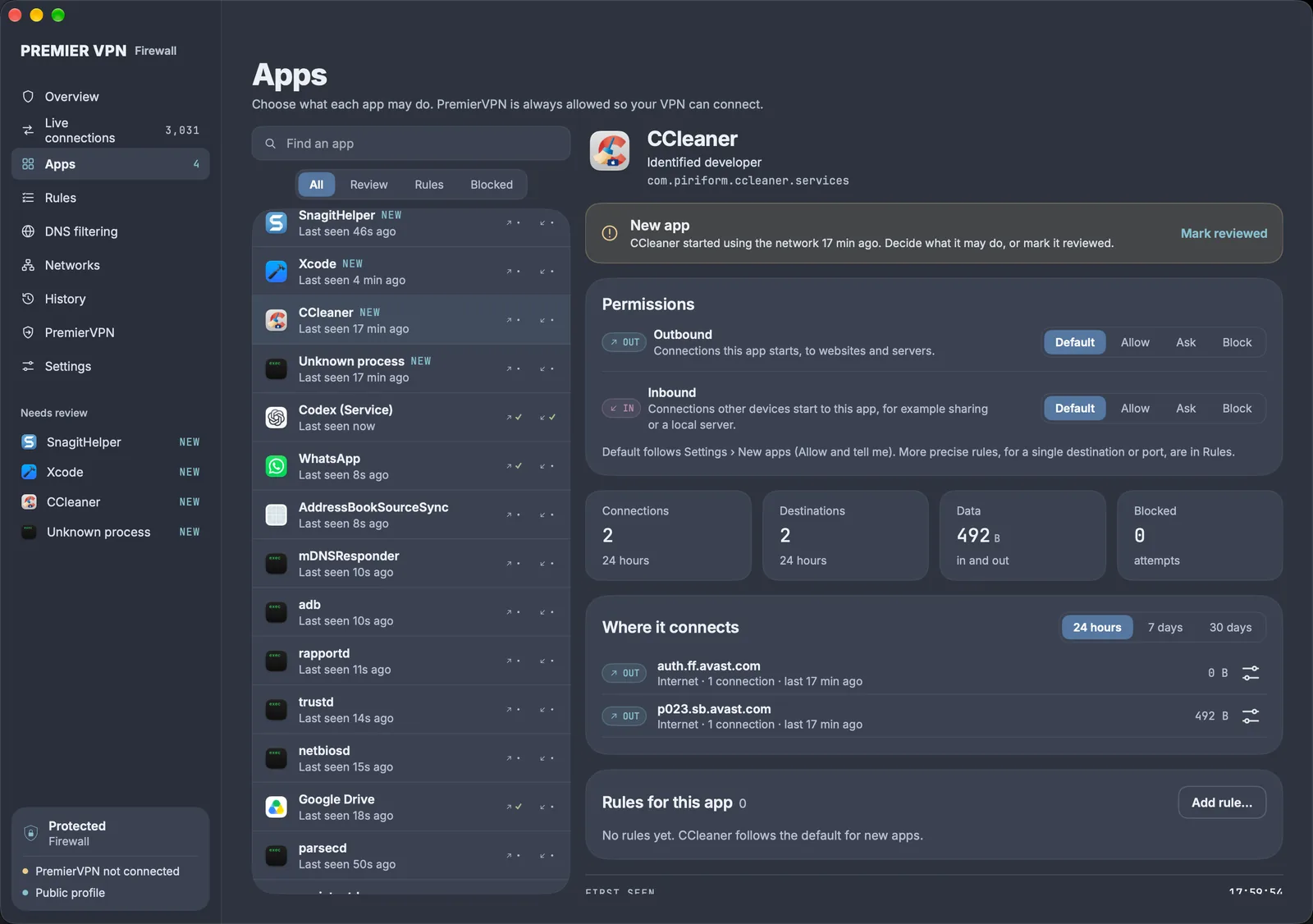
Each app has two permissions: Outbound (connections it starts) and Inbound (connections other devices start to it, for example file sharing or a local server). Each is set to Default, Allow, Ask or Block. Default follows Settings › New apps. The page also lists where the app connects, with one-click allow or block for each destination.

Apps: a new app with its outbound and inbound permissions, connection counts, where it connects and its rules
Apps

3. When asked (Ask prompts)

With Ask me on, or an app set to Ask, a prompt appears at the top right of the screen when the app connects. It shows the app, the destination, the address and whether it's on the local network or the internet.

ChoiceOptions
RememberOnce, 5 min, 1 hour, Always
ForThis destination, Any destination (not available with Once)
AnswerAllow or Block

If nobody answers within 60 seconds, or the app isn't running, the firewall uses the fallback in Settings (Allow by default). Several prompts for the same app are merged. If an app has changed since its rules were made, the prompt says so and falls back to Block.

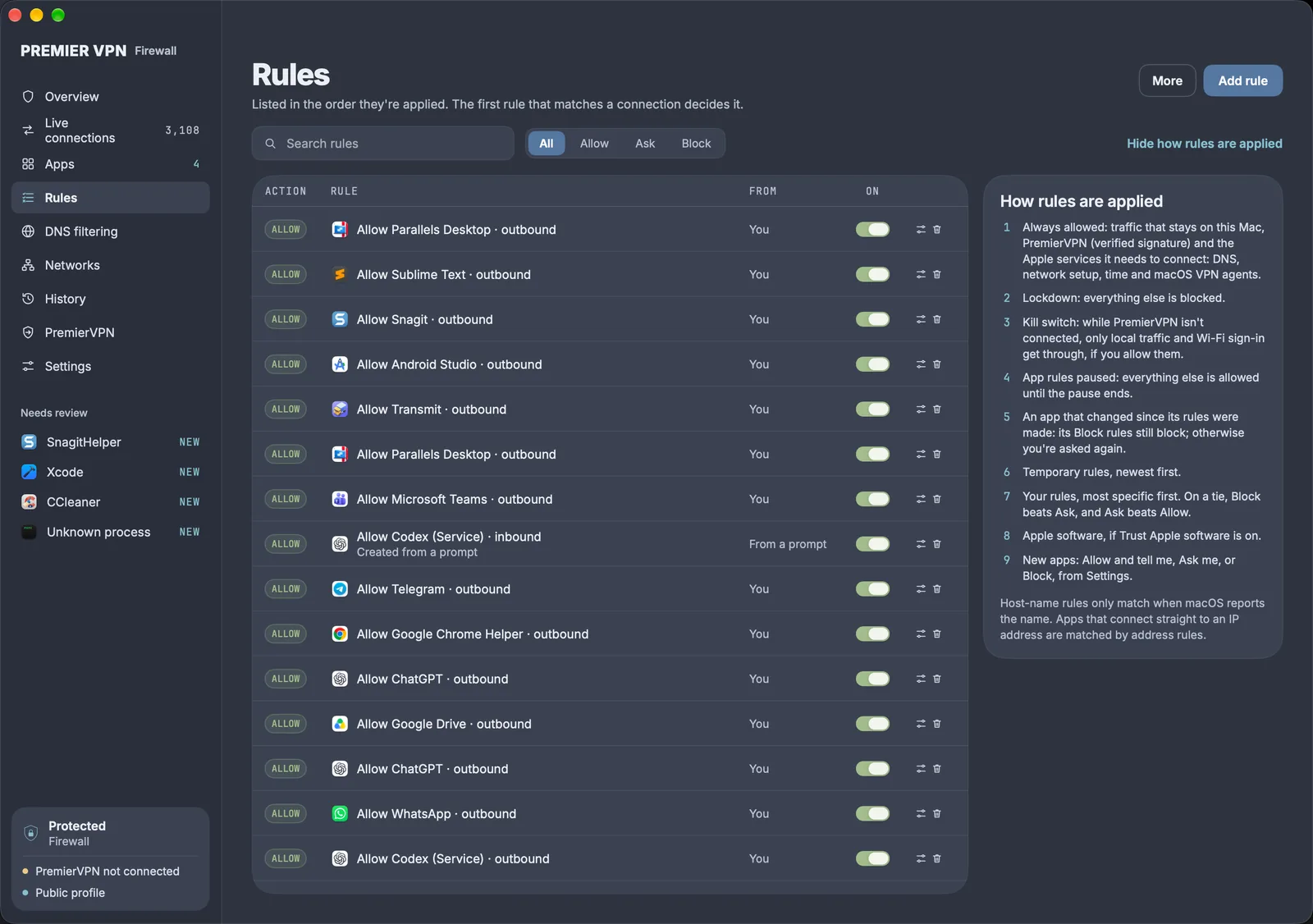
4. Rules (Rules)

Add rule opens the editor. A rule can match:

  • App: one app, or any app
  • Direction: outbound, inbound or both
  • Destination: anywhere, a host name, a domain and its subdomains, an IP address, an address range (for example 10.0.0.0/8), or the local network
  • Port: any, one port or a range (for inbound, the port on this Mac)
  • Protocol: TCP, UDP or both
  • Action: Allow, Ask or Block
  • Expires: never, or after a set time (a temporary rule)
  • Networks Pro: only on Home, Work or Public networks
  • Note: free text

Rules can be switched off without deleting them. Pause app rules (5 minutes or 1 hour) suspends every rule at once, with a banner and a Resume button. With Pro, rules can be exported to a file and imported on another Mac.

When an app changes

If an app's signature or code changes unexpectedly (a different developer, or an unsigned app that has been modified), its Allow rules are put on hold and you're asked again. Its Block rules keep blocking. The app is listed under Needs review as CHANGED.

Rules: every rule in the order it is applied, each with an on and off switch, and how rules are applied
Rules
05 Order

How a connection is decided

Every new connection is checked against this list from the top, and the first step that applies decides it. The same list is shown on the Rules page.

  1. Always allowed: traffic that stays on the Mac, PremierVPN (checked by its code signature), and the Apple services the VPN needs to connect: DNS, network setup, time sync and macOS's VPN agents.
  2. Lockdown, if on: everything else is blocked.
  3. Kill switch, if PremierVPN isn't connected: internet traffic is blocked. Local devices and Wi-Fi sign-in pages get through only if allowed.
  4. Network profile Pro: Public blocks incoming connections and local devices; Work lets in only devices on the same network.
  5. DNS workarounds Pro, with DNS filtering on: private encrypted DNS, and DNS sent straight to outside servers, are blocked.
  6. App rules paused: everything else is allowed until the pause ends.
  7. An app that has changed: its Block rules still block; otherwise you're asked again.
  8. Temporary rules, newest first.
  9. Your rules, most specific first. On a tie, Block beats Ask, and Ask beats Allow.
  10. Apple software, if Trust Apple software is on.
  11. New apps: Allow and tell me, Ask me, or Block until I allow, from Settings.

Every connection records the sentence that explains its decision. It appears in Live connections, History and exports, so "why was this blocked?" always has an answer.

06 PremierVPN

PremierVPN, the kill switch and Lockdown

The firewall never blocks PremierVPN. Every part of PremierVPN is allowed before any other check, including Lockdown and the kill switch, on every protocol: WireGuard, Stealth, IKEv2, VLESS and AmneziaWG. Nothing needs setting up: the firewall recognises PremierVPN by its code signature, which other software can't copy.

VPN status (PremierVPN page)

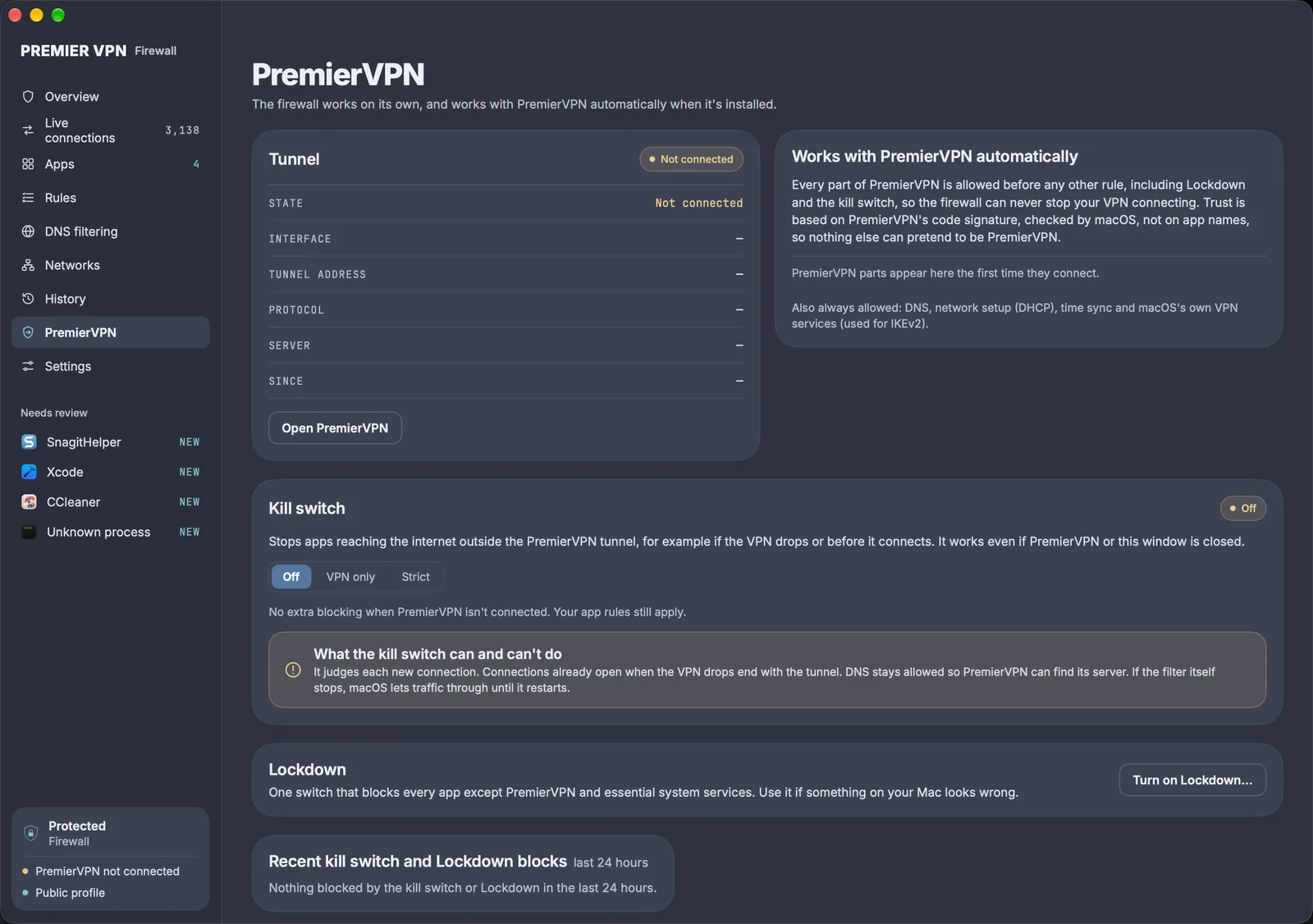
The Tunnel card shows the VPN state, the tunnel interface and address, and when it connected. PremierVPN only counts as Connected when a VPN tunnel is the Mac's main route and that tunnel belongs to PremierVPN. How this was worked out lists the evidence. Other states are Connecting…, Not connected, Not installed and Another VPN is active (a different VPN is the main route; the kill switch doesn't count it as protected).

Works with PremierVPN automatically lists each PremierVPN part that has connected, such as the app and its tunnel extensions.

Kill switch

The kill switch stops apps reaching the internet outside the PremierVPN tunnel, for example if the VPN drops or before it connects. It works with PremierVPN and this app both closed.

ModeWhile PremierVPN isn't connected
Off (default)Nothing extra. App rules still apply
VPN onlyNew internet connections are blocked. PremierVPN, DNS and network setup stay allowed so the VPN can connect. Two switches, both on by default: Allow local network (printers, AirPlay, file sharing) and Allow Wi-Fi sign-in pages (hotel and café Wi-Fi)
StrictAs VPN only, but local devices and Wi-Fi sign-in pages are blocked too. Asks to confirm first; public Wi-Fi may not work until switched back to VPN only

The status chip reads Off, Armed (on, VPN connected) or Blocking (on, VPN not connected). With Pro, a network profile can set a different kill switch mode per network; the page says when it does.

  • It judges each new connection. Connections already open when the VPN drops end with the tunnel.
  • DNS stays allowed so PremierVPN can find its server.
  • If the firewall's extension stops, macOS lets traffic through until it restarts.

Recent kill switch and Lockdown blocks lists the last 24 hours, so you can see what the kill switch caught.

Lockdown

Lockdown is one switch that blocks every app except PremierVPN and essential system services, whatever the VPN state. It's for when something on the Mac looks wrong. Turn it on from the PremierVPN page, the menu bar or ⇧⌘L (each asks to confirm), and off from the same places. The sidebar and menu bar show Lockdown on while it's active.

PremierVPN page: tunnel status, works with PremierVPN automatically, the kill switch modes, Lockdown and recent blocks
PremierVPN
07 Pro

DNS filtering Pro

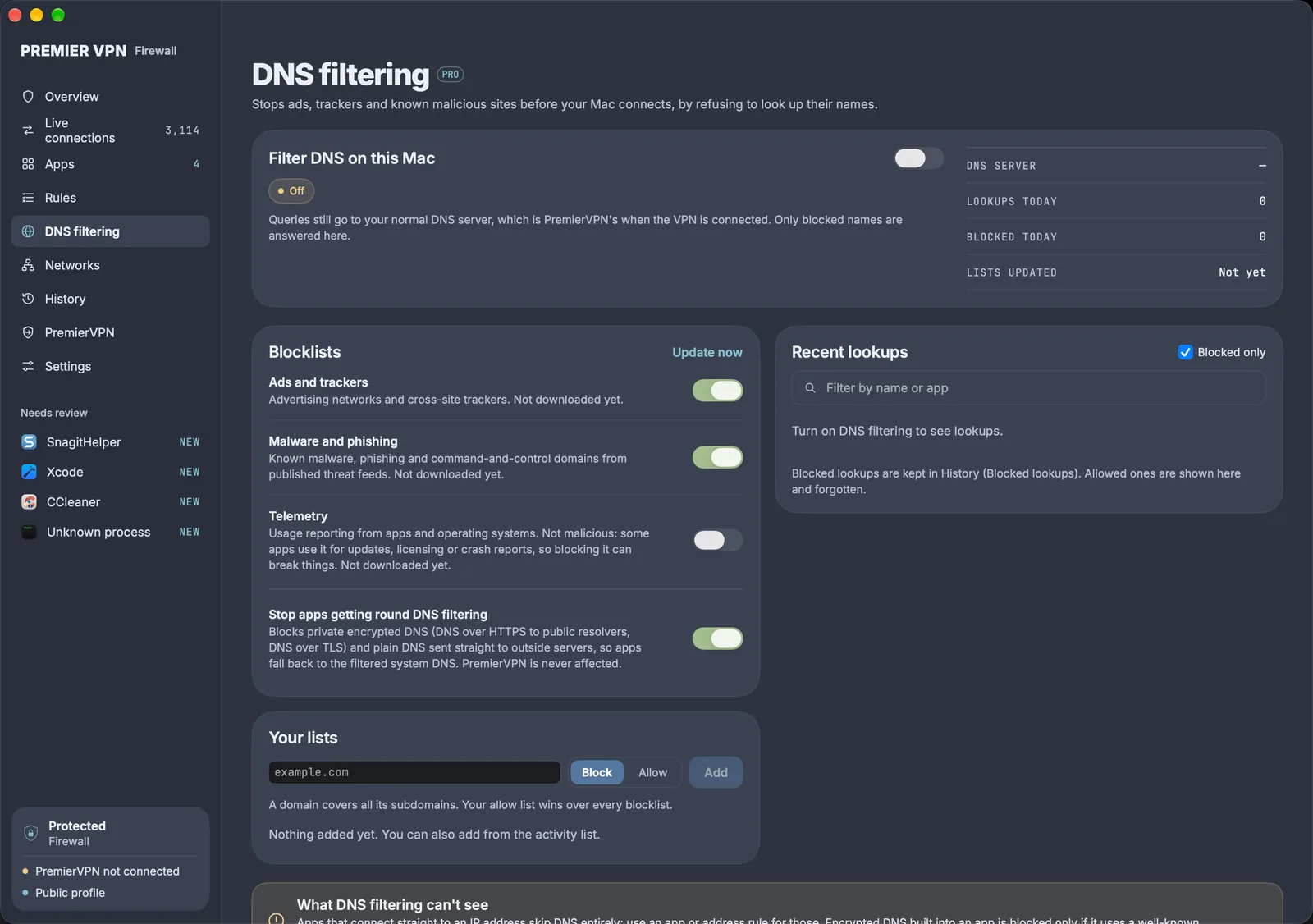
DNS filtering stops the Mac reaching ads, trackers and known malicious sites by refusing to look up their names. It covers every app on the Mac, browsers included. It's off until you turn it on.

To turn it on: go to DNS filtering › Filter DNS on this Mac, then choose Allow when macOS asks to add a DNS proxy. If the approval was missed, Ask again brings it back. The status reads Filtering once it's running.

Blocklists

CategoryWhat it blocksDefault
Ads and trackersAdvertising networks and cross-site trackersOn
Malware and phishingKnown malware, phishing and command-and-control domains from published threat feedsOn
TelemetryUsage reporting from apps and operating systems. Not malicious, and blocking it can break updates, licensing or crash reportsOff

PremierVPN builds and signs the lists; the firewall checks the signature before using them and updates them daily. Update now checks straight away. Each list blocks a domain and all its subdomains.

Your own lists

Under Your lists, type a domain and add it to Block or Allow. A domain covers all its subdomains. The allow list beats every blocklist, so it's the fix when a blocklist stops a site working. Right-click any lookup under Recent lookups to block it, allow it, or allow it for 1 hour.

Stop apps getting round DNS filtering

On by default. Some browsers and apps use their own encrypted DNS, which would skip the filter. This switch blocks private encrypted DNS (DNS over HTTPS to well-known public resolvers, and DNS over TLS) and DNS sent straight to outside servers, so those apps fall back to the filtered system DNS. PremierVPN is never affected.

Seeing what's blocked

  • Recent lookups shows lookups as they happen, with the app, the type and the reason. Blocked only hides the rest.
  • The page shows the DNS server in use, lookups today, blocked today and when the lists were last updated.
  • Blocked lookups are kept in History › Blocked lookups. Allowed lookups aren't stored.

Good to know

  • Lookups still go to the Mac's usual DNS server, which is PremierVPN's when the VPN is connected. Only blocked names are answered by the firewall, with "no such site".
  • Apps that connect straight to an IP address don't use DNS. Use an app or address rule for those.
  • PremierVPN's own lookups are never filtered.
  • With network profiles, DNS filtering can be turned on or off per network.
  • If Pro ends, DNS filtering switches off and the DNS proxy is removed. Settings and lists are kept for when it's renewed.
  • Blocklist credits and licences are linked from Settings › About › Acknowledgements.
DNS filtering: Filter DNS on this Mac, the three blocklists, stop apps getting round DNS filtering, your own lists and recent lookups
DNS filtering
08 Pro

Network profiles: Home, Work and Public Pro

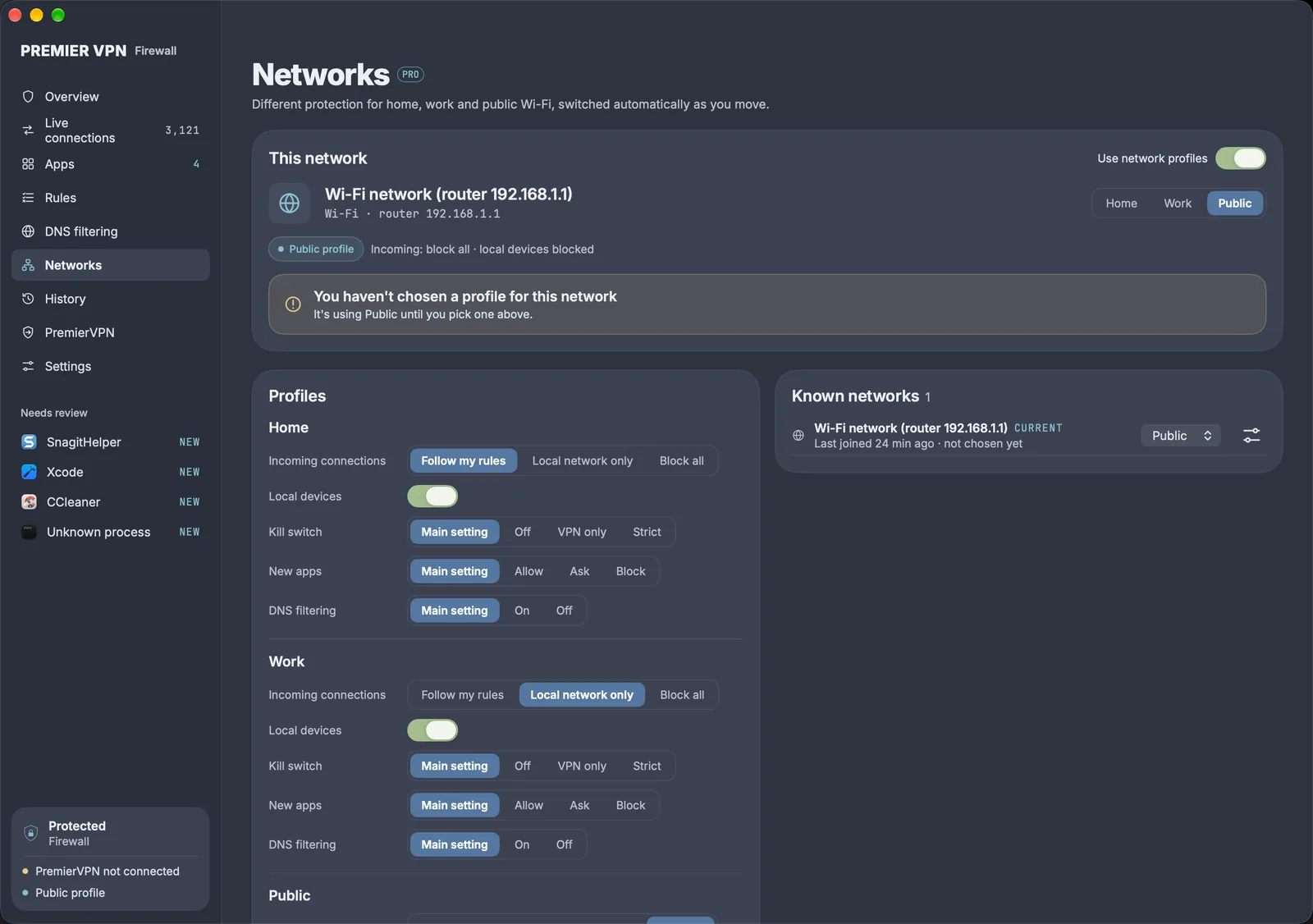
Network profiles give each network its own protection and switch automatically as the Mac moves, for example open at home and locked down on café Wi-Fi. They're on by default once Pro is active; Use network profiles on the Networks page turns them off.

ProfileIncoming connectionsLocal devices (printers, AirPlay, NAS)
HomeFollow my rulesAllowed
WorkLocal network onlyAllowed
PublicBlock allBlocked

Each profile can also override three main settings while it's in use: the kill switch, new apps handling and DNS filtering. Main setting (the default) leaves them as they are. For example, set Public's kill switch to VPN only so public Wi-Fi is never used without the VPN.

Choosing a profile for a network

  • This network shows the current network, whether it's Wi-Fi or wired, its router address and the profile in use. Pick Home, Work or Public there.
  • A network the Mac hasn't seen before uses Public until a profile is chosen. This can be set to Work under Networks you haven't chosen for, but never Home: an unknown network isn't trusted automatically.
  • Choosing Home asks to confirm, because Home lets other devices connect in. Only use it for networks you control.
  • With notifications on, joining a new network sends a notification saying which profile it's using.
  • Rules can be limited to certain profiles in the rule editor (Networks), for example a rule that only applies on Public.

Known networks

Every network the Mac joins is listed with when it was last joined. From the list, change its profile, or use the menu to Rename… or Forget it.

Networks are recognised by their router's hardware address, so no Location permission is needed and nothing is uploaded. It can take a few seconds after joining a network to identify it; until then the Public profile applies. The current profile is also shown on the Overview, the kill switch card and the menu bar.

Networks: the current Wi-Fi network on the Public profile, the Home and Work profile settings, and known networks
Networks
09 Privacy

History and privacy

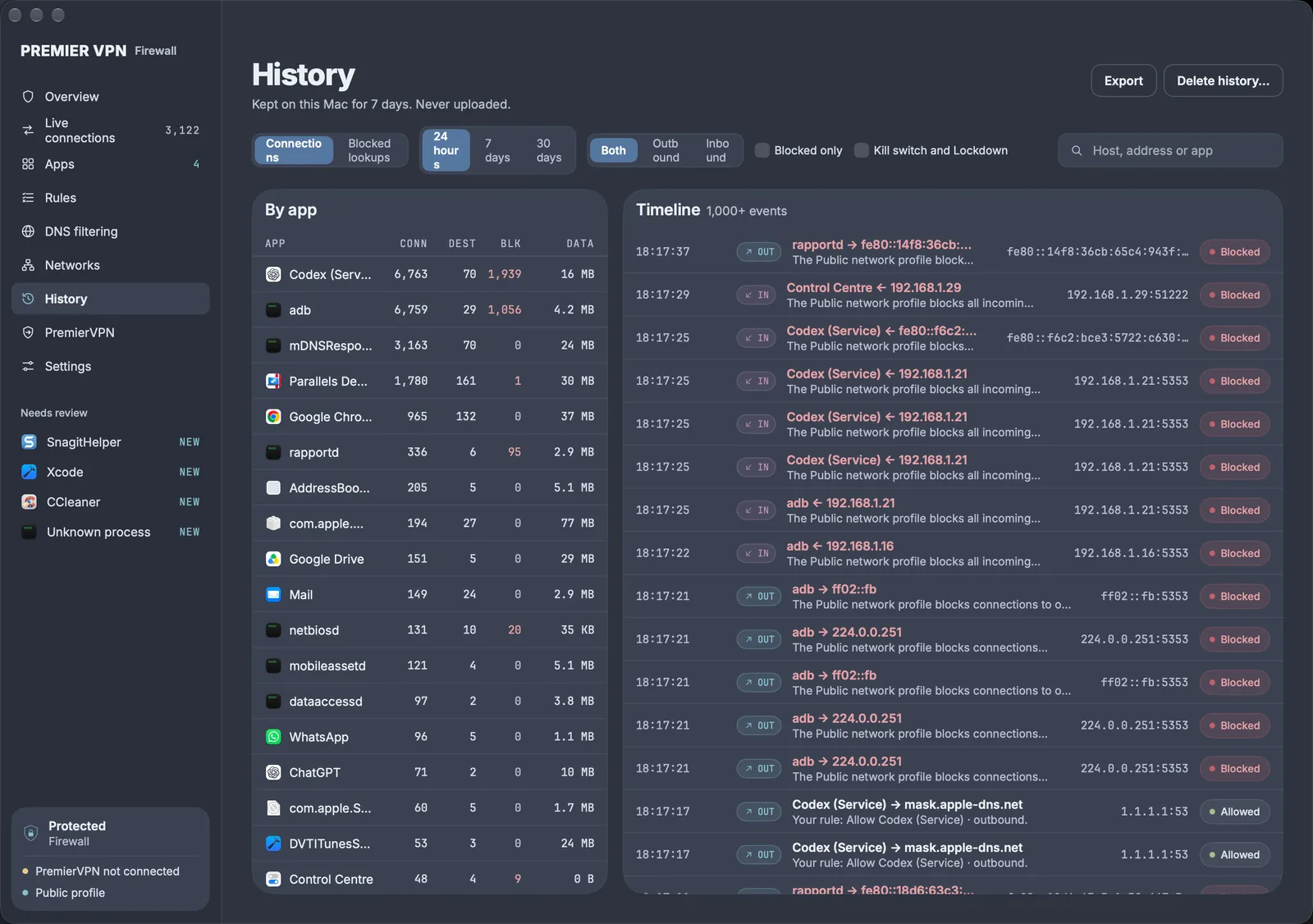
History is kept only on the Mac and is never uploaded. Free keeps 24 hours; Pro keeps 24 hours, 7 days (the default) or 30 days, set in Settings › Privacy › Keep history for.

  • By app: connections, destinations, blocks and data per app. Select an app to filter the timeline.
  • Timeline: every connection with time, direction, app, destination, the reason and the result.
  • Filters: time period, outbound or inbound, Blocked only, Kill switch and Lockdown, and search by host, address or app.
  • Blocked lookups Pro: every name DNS filtering blocked.
  • Export › Export as CSV… saves the filtered history. Hide addresses and host names is on by default and masks them (for example 203.0.x.x, *.example.com), which is safer for sending to support.
  • Delete history… wipes it straight away. Rules aren't affected.

What leaves the Mac

WhatWhenSent to
Nothing about connections, rules or historyNeverNo one
Sign-in and plan check, with a random install IDSigning in, then about twice a dayPremierVPN
Blocklist downloadsDaily, with DNS filtering onFrom PremierVPN
DNS lookupsWith DNS filtering onThe Mac's usual DNS server, as before (PremierVPN's when connected)

The free firewall with no account makes no connections of its own.

History: connections by app, and a timeline of allowed and blocked connections with the reason for each
History
10 Settings

Settings reference

Every option in Settings, with its default. Kill switch options are on the PremierVPN page, DNS options on DNS filtering, and profile options on Networks (covered above).

OptionDefaultWhat it does
PremierVPN account: Sign in / Sign out, Check nowSigned outTurns Pro on with an active plan; shows plan, paid-until date and last check
New apps: Allow and tell me / Ask me / Block until I allowAllow and tell meWhat happens the first time an app without a rule connects
New apps: Trust Apple softwareOnApps and services signed by Apple are allowed unless a rule says otherwise
New apps: If you don't answer a promptAllowUsed after 60 seconds, or when the app isn't running
New apps: Name connections from earlier lookupsOnWhen macOS gives only an address, shows a host name seen for it earlier, marked "seen as"
Notifications: New appsOnWhen an app connects for the first time
Notifications: Kill switchOnWhen the kill switch starts holding traffic because PremierVPN dropped
Notifications: Blocked by your rulesOffAt most once every 10 minutes per app
Privacy: Keep history for24 hours (free), 7 days (Pro)7 and 30 days need Pro
Appearance: Glass / SignalGlassThe look of the window
Appearance: AccentFrostFrost, Teal or Snow
Appearance: Menu bar popoverFollow appFollow app, Glass or Signal
General: Open at loginOffNeeded for Ask prompts and notifications. Filtering runs either way
Recovery–Ways back online if a setting cuts the Mac off (see Troubleshooting)
About: Versions, Acknowledgements–App and filter versions, and blocklist credits and licences
Settings: PremierVPN account showing Pro, new apps, appearance, open at login and recovery
Settings
11 Fixes

Troubleshooting and recovery

If a setting cuts the Mac off, Settings › Recovery › Restore connectivity gets it back online without deleting anything.

Recovery options (Settings › Recovery)

OptionWhat it does
Restore connectivityTurns off the kill switch, Lockdown and DNS filtering, clears network profile overrides, and switches off every Block or Ask rule. The rules are kept, marked as turned off, and can be switched back on
Pause app rulesAllows everything for 5 minutes while troubleshooting. The kill switch still applies. Also in the menu bar (5 minutes or 1 hour)
Turn the firewall offStops filtering completely. Also possible in System Settings › Network › Filters
Reinstall the filterFor when the filter isn't answering after an update
Remove from this MacUninstalls the filter and its system extension

Common problems

ProblemFix
No internet at allRestore connectivity. If the app won't open, turn the filter off in System Settings › Network › Filters
No internet when PremierVPN is offThat's the kill switch working. Connect PremierVPN, or set the kill switch to Off on the PremierVPN page
Hotel or café sign-in page doesn't appearThe kill switch is on Strict. Switch to VPN only with Allow Wi-Fi sign-in pages on
Printer, AirPlay or file sharing stoppedThe network is on Public, which blocks local devices. Choose Home or Work for it on Networks. With the kill switch on, check Allow local network
A website or app breaks with DNS filteringFind the name under Recent lookups and choose Allow (or Allow for 1 hour). If Telemetry is on, try turning it off
An app stopped connecting after an updateLook under Needs review for CHANGED. Open it in Apps and allow it if the update was expected
One app is blocked and shouldn't beLive connections › select the blocked connection › read Why › Allow. Or set the app to Allow in Apps
Pro features are lockedSettings › PremierVPN account › Check now. The plan must be active. "Out of date" means install the latest version
DNS filtering stuck on "Waiting for macOS approval"Choose Ask again and allow the DNS proxy
"Move PremierVPN Firewall to the Applications folder first"Quit, move the app to Applications, and open it from there
Filter shows as not runningSettings › Recovery › Reinstall the filter, then check System Settings › General › Login Items & Extensions › Network Extensions
No Ask prompts appearTurn on Settings › General › Open at login, and keep the app running. Without it, the prompt fallback applies

Still stuck?

Export your history with Hide addresses and host names on and contact support. Our UK team answers tickets 24/7.

12 Maintenance

Updating and uninstalling

Updating

Download the new DMG, drag the app onto Applications and replace the old one, then open it. If macOS asks, allow the extension again. Rules, settings and history are kept.

Uninstalling

  1. Settings › Recovery › Remove from this Mac, and confirm. This removes the filter and its system extension.
  2. Quit the app and drag it from Applications to the Bin.

If the app was deleted first, macOS removes the extension at the next restart, and the filter can also be removed in System Settings › Network › Filters.

Free for Mac

Ready when you are

The firewall is free. Pro, with DNS filtering and network profiles, comes with any PremierVPN plan.

Stay Ahead of Online Threats

Get VPN tips, security insights, and exclusive offers delivered straight to your inbox. No spam — just the essentials.

Unsubscribe at any time. We respect your privacy.

PremierVPN Support