Black Friday Our biggest deal of the year is coming soon Get notified →
Setup guide · Mac · Version 1.0.0

Set up PremierVPN Vault for Mac

Vault for Mac backs up the folders you choose to your encrypted Vault, and optionally to your own drives, automatically and in the background. Files and file names are encrypted on your Mac before they leave it, with a key made from your Vault passphrase, so nobody else can read them. Setup takes about two minutes.

  • macOS 14 Sonoma or later, Apple silicon or Intel
  • A PremierVPN account
  • Any Vault plan, including the free one

PremierVPN-Vault-1.0.0.dmg · 4.0 MB
SHA-256 d0bd79b869ce8a6b8068e70de1c646f123541e93ceffbfcf610b5d191b0f91b1

01 Install

Install the app

Vault for Mac runs in the menu bar and backs up the folders you choose on a schedule. Everything is encrypted on the Mac first, then sent to your online Vault and, if you add them, to external backup drives. You can restore from either.

Your Mac

The folders and files you choose. Encrypted here, with your passphrase. Restores come back here.

Your Vault, online

Over the internet. Encrypted files, names hidden. Older versions and deleted files kept. Also opens in the web Vault.

Backup drives Free

When plugged in. An encrypted copy on external drives. Only your passphrase can open it.

What you need

RequirementDetails
MacmacOS 14 Sonoma or later, Apple silicon or Intel
AccountA PremierVPN account: the same email and password as the client area
Vault planAny Vault plan, a bundle that includes Vault (such as PremierVPN Complete), or the free plan
Two-factor codeYour authenticator app, if two-factor sign-in is on for your account
InternetNeeded for Vault backups. Backups to your own drives work offline
Backup drive (optional)Any external drive, folder or mounted network share. Free on every plan

Install it

  1. Download PremierVPN-Vault-1.0.0.dmg, here or from the Downloads page in your account.
  2. Open the DMG and drag PremierVPN Vault onto the Applications folder.
  3. Open PremierVPN Vault from Applications or Launchpad. The app is signed and notarised by Apple, so it opens without warnings.
  4. A vault icon appears in the menu bar at the top of the screen. The app keeps running there when you close the window, which is what lets scheduled backups happen.

To check the download, open Terminal in your Downloads folder and run shasum -a 256 PremierVPN-Vault-1.0.0.dmg. The result should be d0bd79b869ce8a6b8068e70de1c646f123541e93ceffbfcf610b5d191b0f91b1.

Updating

Download the new DMG and drag the app to Applications again, replacing the old one. Your settings, folders and backups are kept.
02 Setup

First-time setup

Setup takes about two minutes and ends with the first backup starting.

  1. Sign in with your PremierVPN email and password. If two-factor sign-in is on, enter the six-digit code from your authenticator app (pasting it works too).
  2. Step 1 of 4: your Vault passphrase.
    • If you already use Vault on the web, enter the same passphrase. Backups and web uploads then open in both places.
    • If you've never set one, create it now: at least 10 characters, typed twice, and tick that you understand it can't be recovered.
    • Optional: tick Allow unattended backups so scheduled backups run after a restart without asking for the passphrase (see Passphrase and encryption).
  3. Step 2 of 4: name this Mac. Backups go into a folder called Backups › MacBook Pro (or similar) in your Vault. Keep the name generic: folder names aren't encrypted, but your files' names and paths are. If you're reinstalling or replacing a Mac, choose Continue an existing backup so files already in the Vault aren't uploaded again.
  4. Step 3 of 4: choose what to back up. Tick Documents, Desktop and Pictures, and add any other folders, single files or external drives. When macOS asks to allow access to Documents or Desktop, choose Allow.
  5. Step 4 of 4: when to back up. Pick Hourly, Daily or Weekly. Leave Open at login ticked so backups keep running after a restart, and Notify me about problems ticked. Click Start first backup.

The first backup uploads everything you chose, so it can take a while. Later backups only upload new and changed files.

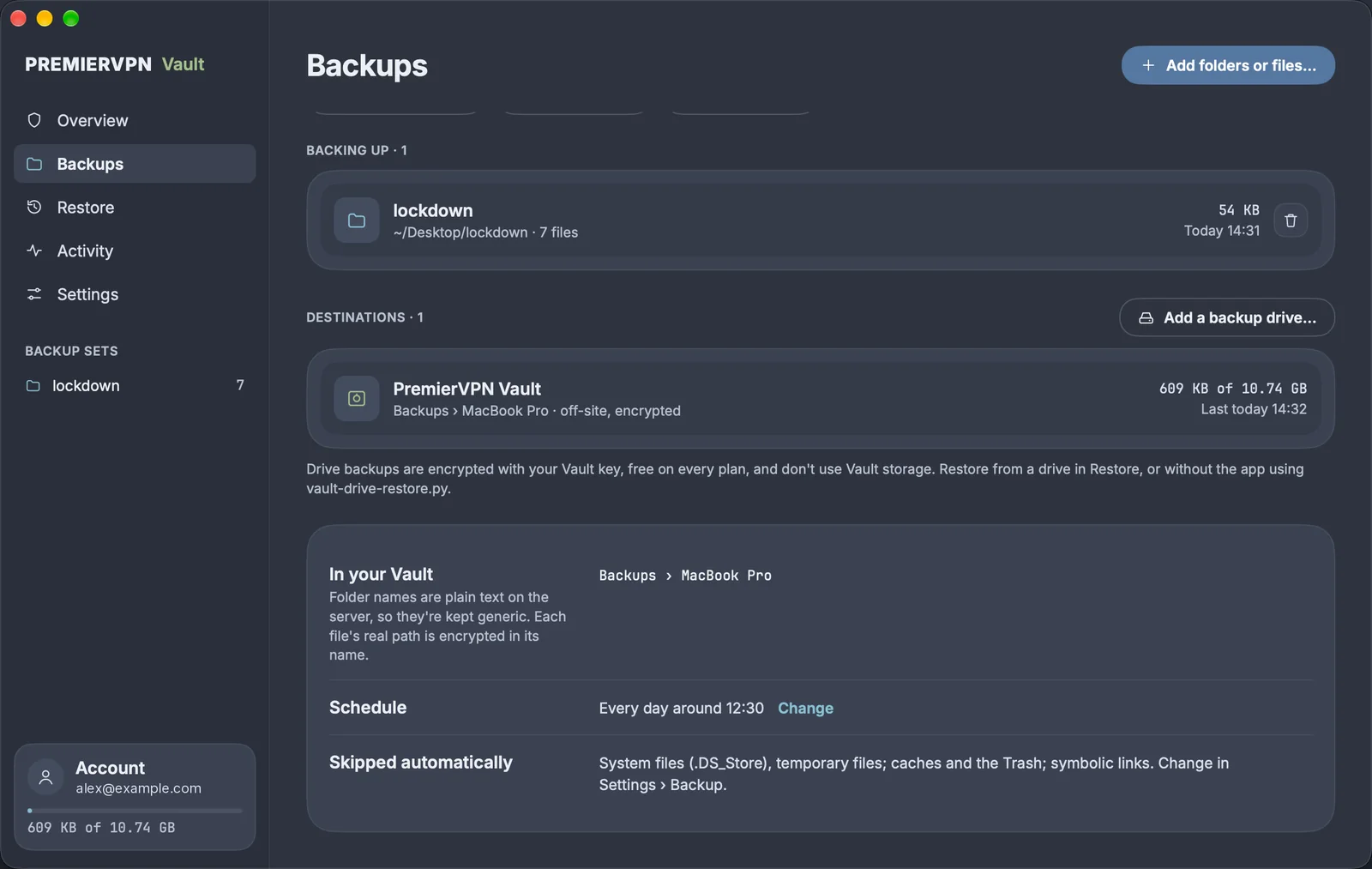
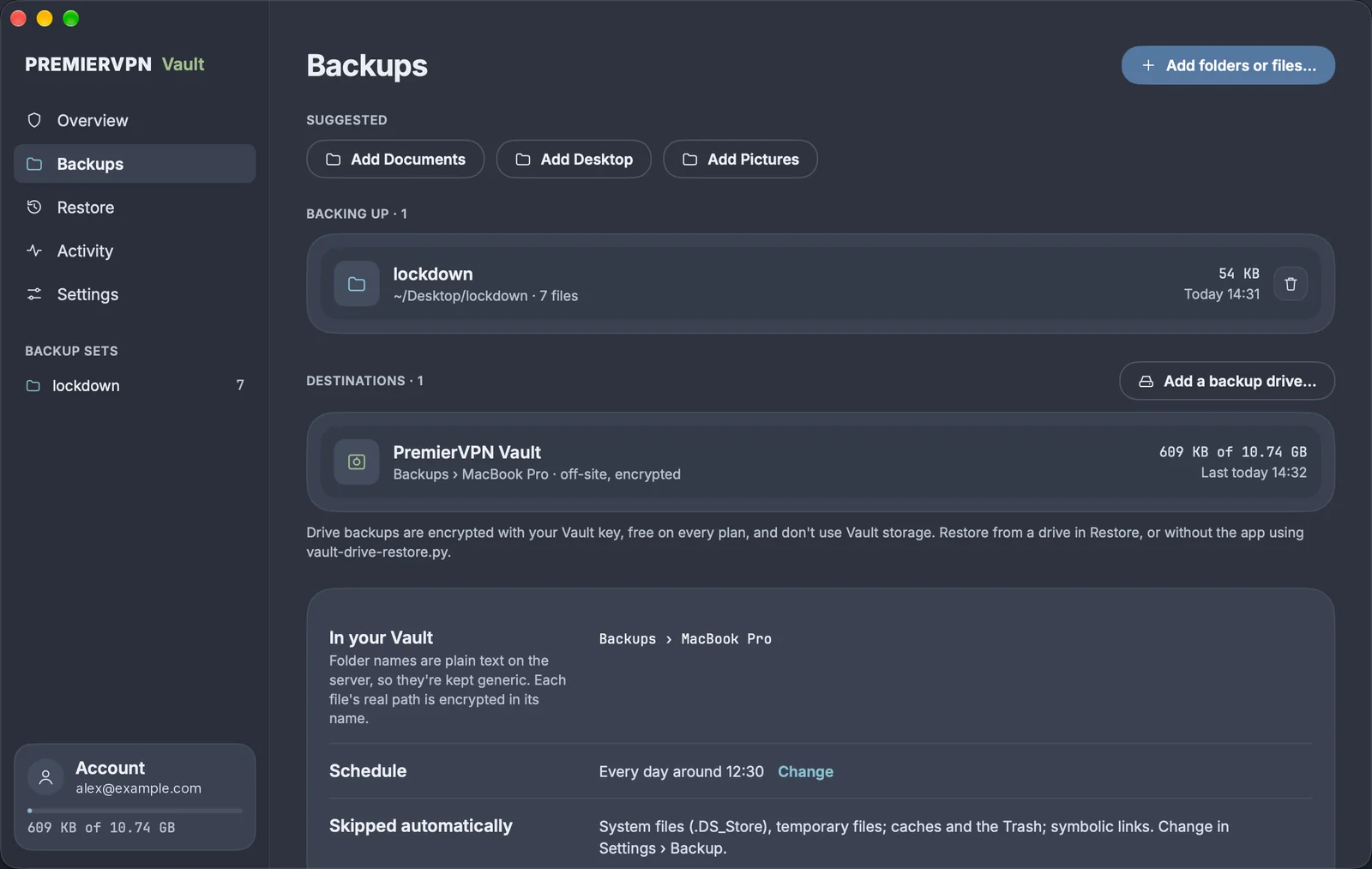
Backups: suggested folders to add (Documents, Desktop, Pictures), the folders being backed up, destinations, and where backups go in your Vault
Backups
03 Encryption

Your passphrase and encryption

Your passphrase is the only way to open your backups. It never leaves your Mac and PremierVPN never sees it.

Your passphrase can't be recovered

If it's lost, nobody can open your files, including PremierVPN support. Keep it in a password manager.

  • What's encrypted: every file's contents and its full name and folder path, with AES-256-GCM, before upload. The Vault stores only encrypted data.
  • Same passphrase as the web Vault: files backed up from the Mac open on the web, and files you upload on the web can be restored in the app.
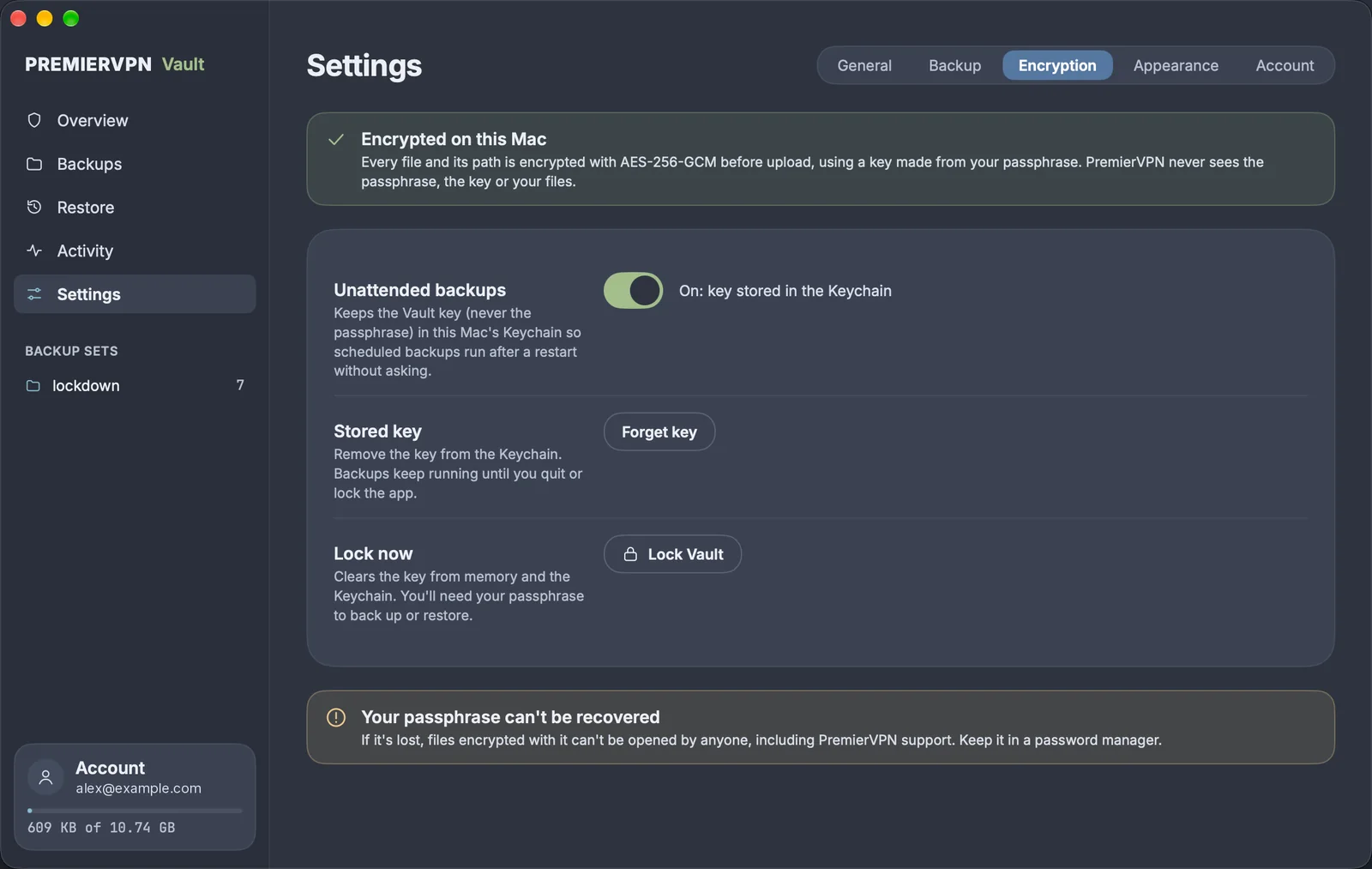
  • Unattended backups (optional): the app can keep the encryption key (never the passphrase) in your Mac's Keychain. Scheduled backups then run after a restart without asking. With it off, backups wait until you unlock the app with your passphrase.
  • Forget key and Lock Vault are in Settings › Encryption. Forget key removes the stored key; Lock Vault also clears it from memory, so backups and restores need the passphrase again.
  • If the passphrase is changed on the web, the app notices on the next backup, locks, and asks for the new one.
Settings, Encryption: Encrypted on this Mac, unattended backups on with the key stored in the Keychain, Forget key, Lock Vault, and a reminder that the passphrase can't be recovered
Settings › Encryption
04 Everyday use

Nothing to do day to day

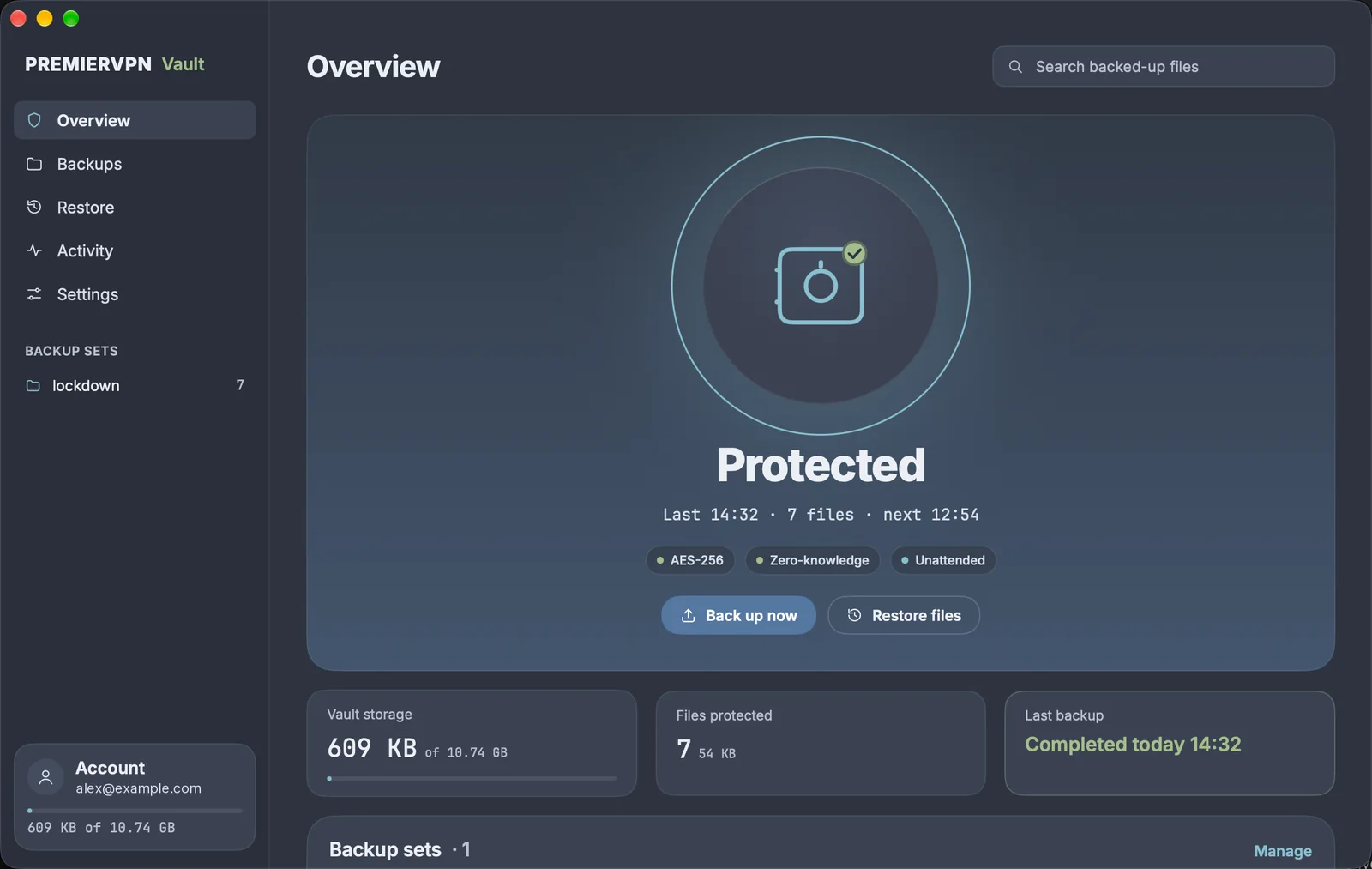
Overview answers three questions: are you protected, when did the last backup finish, and can you restore. The main button under the status does whatever the status needs: Back up now, Pause, Resume or Unlock.

StatusWhat it meansWhat to do
ProtectedThe last backup finished on scheduleNothing
Backing upA backup or drive copy is running; the ring shows progressNothing. Pause stops it after the current file
PausedYou paused backupsResume backups
Attention requiredSome files weren't backed up, a folder is blocked by macOS, or lots of files changed at onceOpen Activity to see which files and why
At riskNothing has been backed up yet, or the last backup is overdueBack up now
Storage fullYour Vault plan's storage is used upFree space in the web Vault, or choose a larger plan
Vault lockedThe app needs your passphrase (after a restart, with unattended backups off)Unlock
Overview: Protected, last backup 14:32, 7 files, next 12:54, with Back up now and Restore files, and Vault storage, files protected and last backup tiles
Overview · Glass

The menu bar icon

  • Outline: idle or locked.
  • Turning dial: backing up.
  • Filled: protected.
  • Outline with !: needs attention.

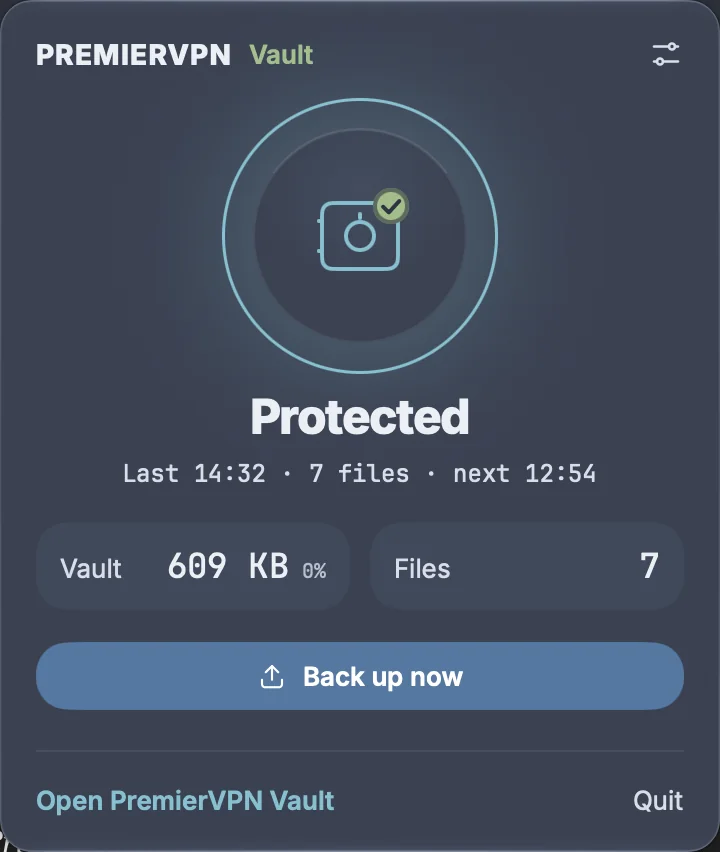
Click it for a small status panel with Back up now and Open PremierVPN Vault.

Screens and shortcuts

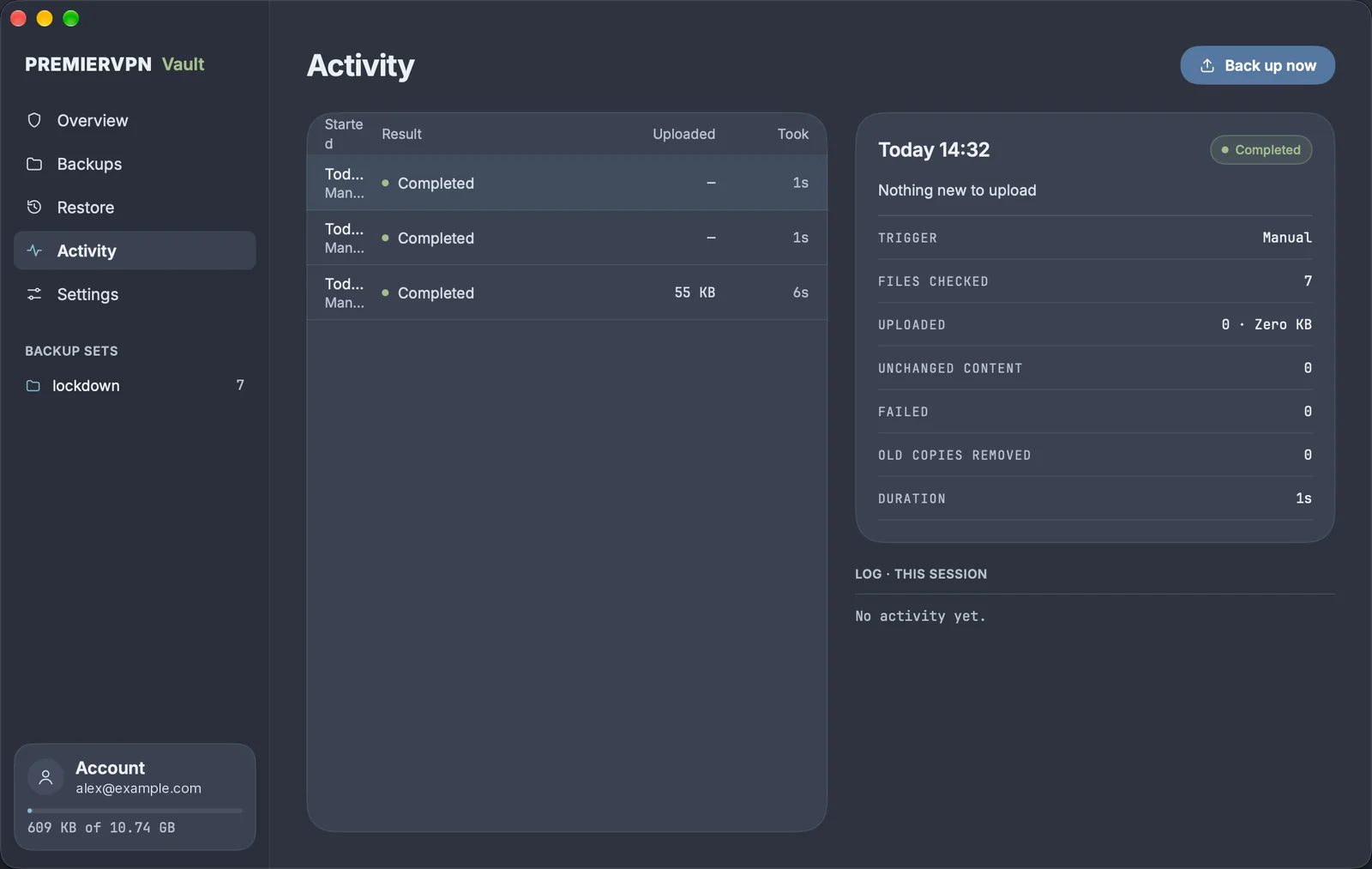
Overview, Backups (what's backed up and where), Restore, Activity (each backup and any files that failed) and Settings. ⌘1 to ⌘5 switch between them, ⌘B backs up now and ⌘K searches backed-up files.

Two looks

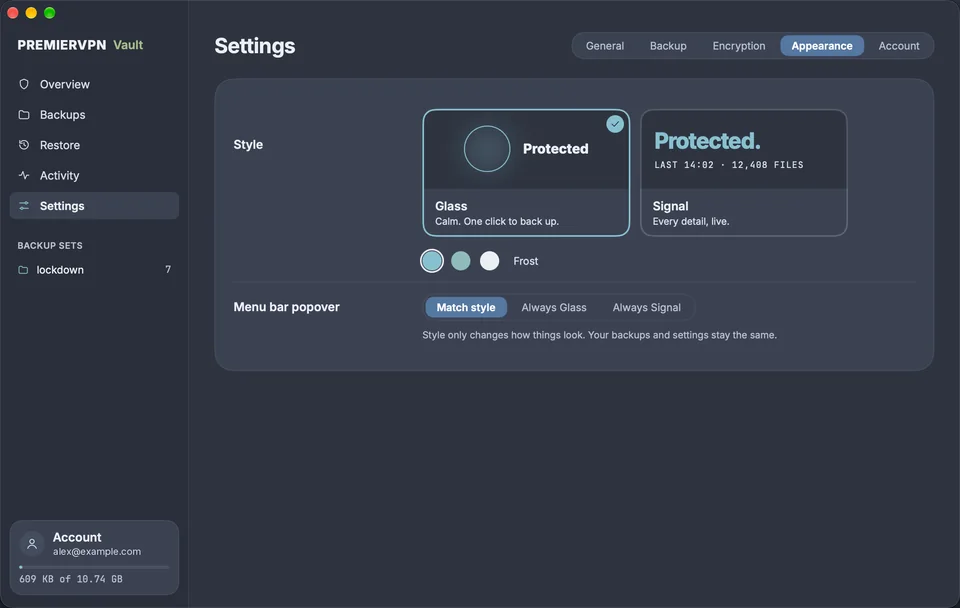
Glass (calm, the default) and Signal (every detail, live). Switch in Settings › Appearance; nothing else changes.

The menu bar panel: Protected, last backup, Vault storage and files, Back up now, Open PremierVPN Vault and Quit
Menu bar panel
05 Schedule

What gets backed up, and when

The app backs up the folders, files and drives listed under Backups, on your schedule, uploading only what changed.

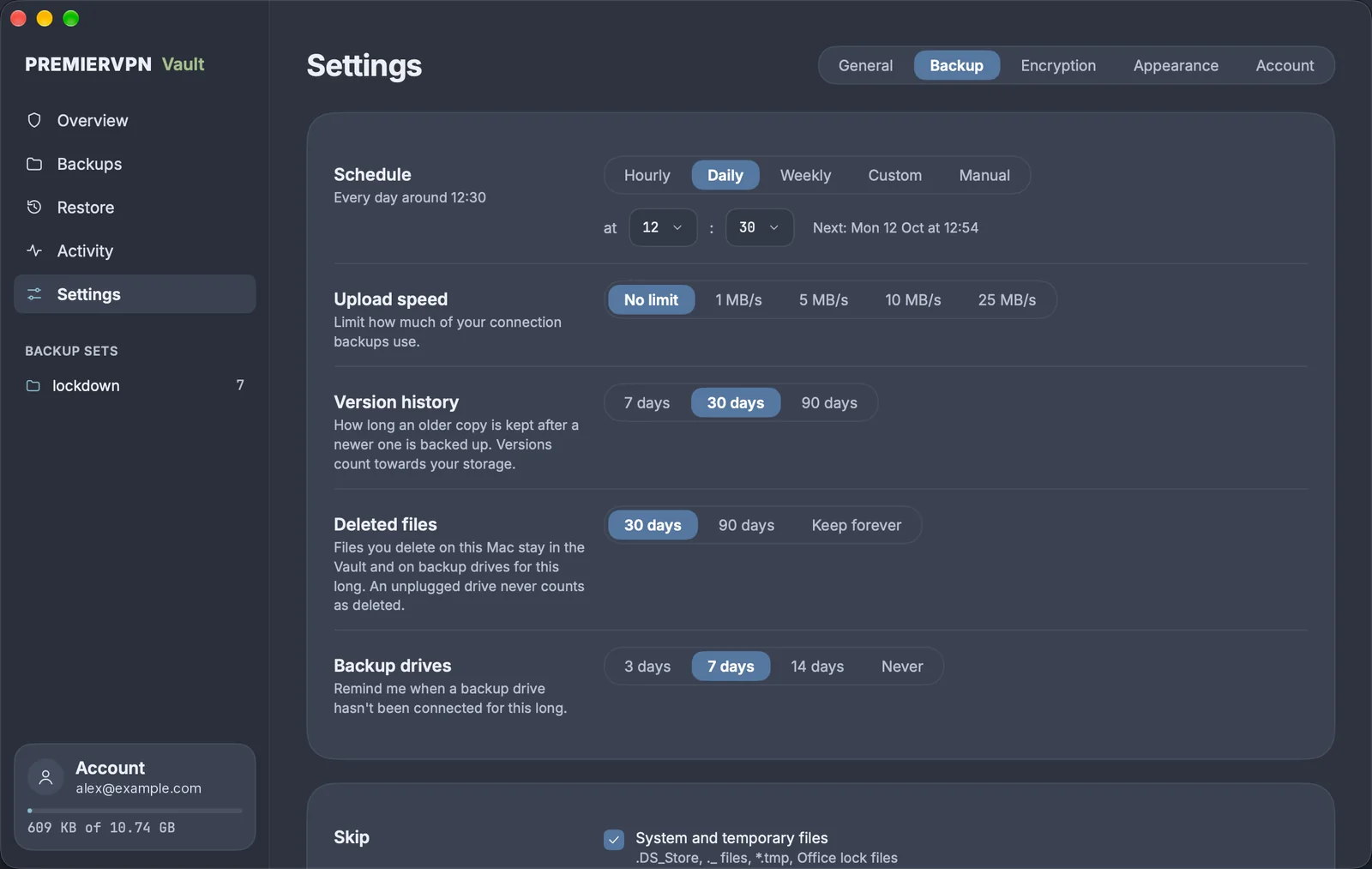
  • Schedule: Hourly, Daily, Weekly, Custom (every 2 to 12 hours) or Manual. Daily and weekly backups start within half an hour of the time you set. If the Mac was asleep, the missed backup starts soon after it wakes.
  • Only changes upload: after the first backup, only new and changed files are sent. A file that was only touched (same contents) isn't uploaded again.
  • Old versions: when a file changes, the previous copy is kept for 30 days by default (7 or 90 days can be chosen). Old versions count towards your Vault storage.
  • Deleted files: a file you delete on the Mac stays in the Vault for 30 days, then it's removed (90 days or keep forever can be chosen). An unplugged drive, or a folder macOS won't let the app read, never counts as deleted.
  • Skipped automatically: system and temporary files (.DS_Store, Office lock files, *.tmp), caches and the Trash, and shortcuts (symbolic links). Developer build folders and your own patterns, such as *.iso, can be added in Settings › Backup.
  • Large files: each Vault plan has a per-file size limit, shown in Settings › Account. Bigger files are listed in Activity and skipped; backup drives have no limit.
  • Safety pause: if 40% or more of your backed-up files change or disappear at once (for example a sync problem or ransomware), backups pause and ask you to check. Choose Back up anyway only when you're sure the changes are expected.
  • Removing a folder from Backups stops future backups of it. Its copies stay in the Vault and can still be restored.
Settings, Backup: schedule (Hourly, Daily, Weekly, Custom, Manual) with the time, upload speed, version history, deleted files, backup drive reminders and what's skipped
Settings › Backup
06 Drives

Backup drives

You can also keep a copy on your own drives, free on every plan and without using Vault storage. A copy at home plus one in the Vault protects against both a failed disk and a lost or stolen Mac.

  1. Go to Backups › Destinations and click Add a backup drive…
  2. Choose the drive, or a folder on it. A network share works too if it's mounted. The app creates a PremierVPN Vault Backup folder inside and starts the first copy.
  3. Add as many drives as you like, for example one at home and one at the office.
  • When it copies: on the same schedule as the Vault, and on its own when a drive that's due is plugged in. Drive copies keep working when you're offline.
  • Unplugged drives are fine: nothing is removed while a drive is away. You'll get a reminder if a drive hasn't been connected for 7 days (change this in Settings › Backup).
  • Encrypted: drive copies use the same passphrase as your Vault, so a lost drive gives nothing away. Don't rename or edit anything inside the PremierVPN Vault Backup folder.
  • Running out of space: the oldest old versions are removed first to make room. Current copies are never removed.
  • Pause or remove a drive with its switch or bin icon in Destinations. Removing it leaves the backup folder on the drive, so you can still restore from it or add it again later.
  • Same disk as the Mac: a folder on the Mac's own disk can be used, but it only protects against mistakes, not against the disk failing.
Backups, Destinations: the PremierVPN Vault destination with storage used and last backup, and the Add a backup drive button
Backups › Destinations
07 Restore

Restoring files

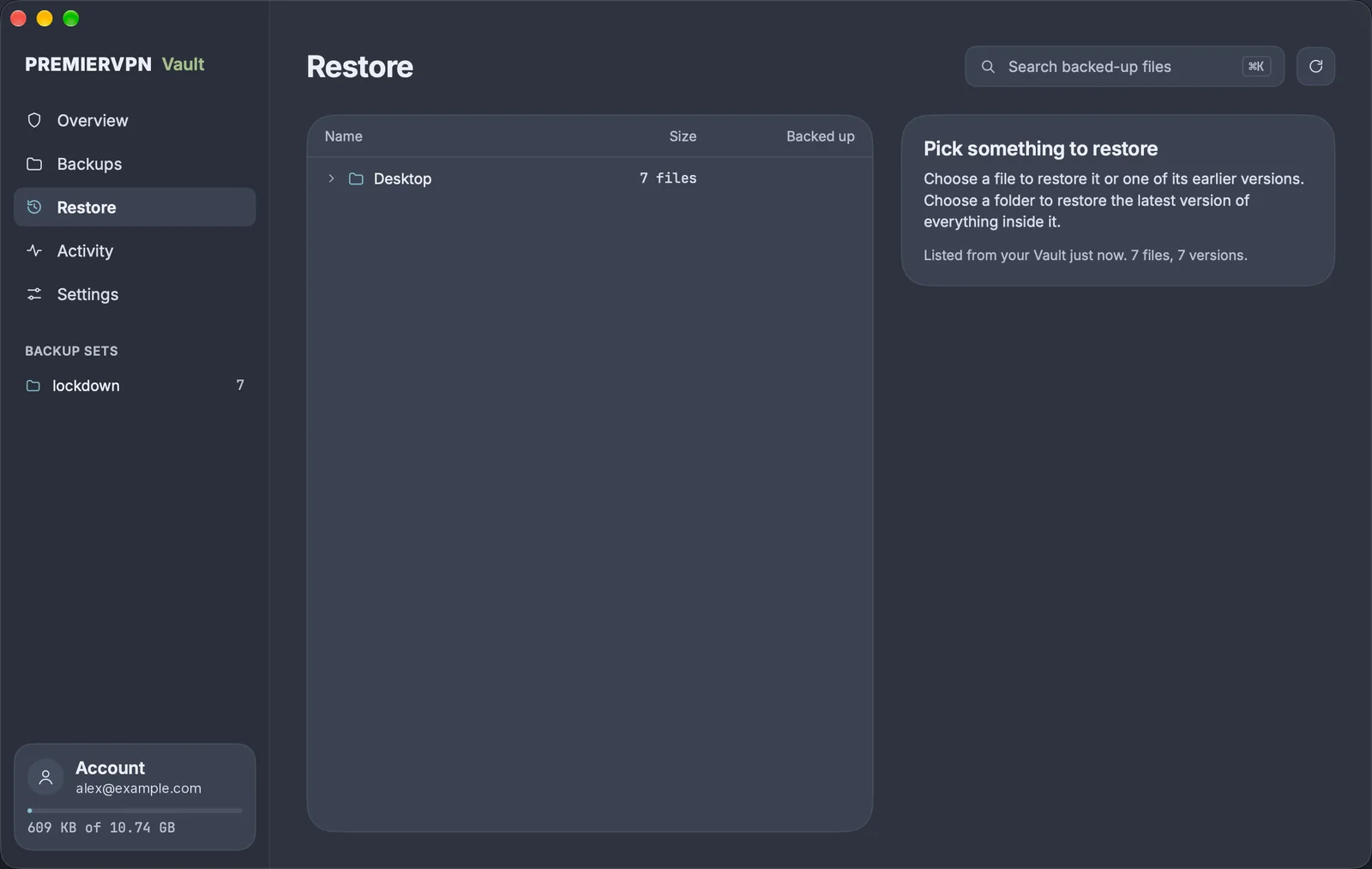
Open Restore to browse everything backed up, with names decrypted on your Mac.

  1. If you have more than one source, pick it at the top: Vault › your Mac or your drive › your Mac. Backups from another Mac on the same account are listed too.
  2. Find the file or folder in the tree, or type part of its name in Search backed-up files (⌘K).
  3. For a file, choose a version: the newest is marked Latest, older ones show the date they were backed up. A folder restores the latest version of everything inside it.
  4. Choose where it goes: Original location puts it back where it was; Another folder… keeps the folder structure inside a folder you choose.
  5. If a file already exists, choose Keep both (adds "(restored)" to the name) or Replace.
  6. Click Restore. Finder opens on the restored files when it's done.
  • Never half-written: if a copy is damaged or was made with a different passphrase, it's skipped and listed.
  • Delete from Vault… (or Delete from drive…) permanently removes a file and all its versions. If it's still in a backed-up folder, it's backed up again next time.
  • On a new Mac: install the app, sign in, enter your passphrase, choose Continue an existing backup for the old Mac (or start a new one), then use Restore.
  • Without the app (backup drives only): our support team can provide vault-drive-restore.py, which restores a drive backup on any computer with Python 3 and your passphrase.
Restore: the backed-up Desktop folder with 7 files, search, and a panel explaining how to restore a file, a version or a folder
Restore
08 Settings

Settings reference

SettingDefaultWhat it does
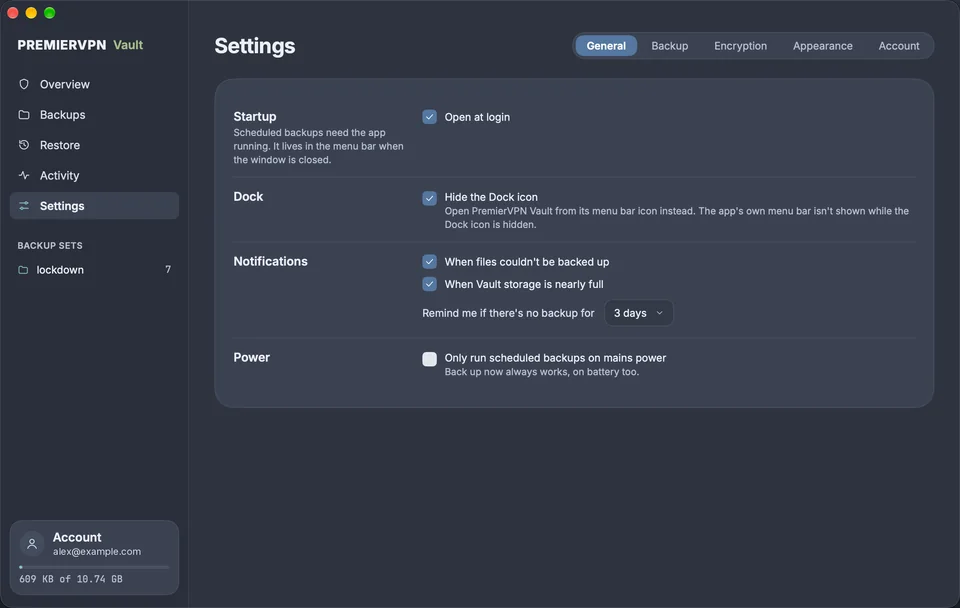
General › Open at loginOn (from setup)Starts the app in the menu bar when you log in, so scheduled backups run
General › Hide the Dock iconOffThe app lives only in the menu bar
General › NotificationsOnAlerts for failed backups and nearly full storage
General › Remind me if there's no backup for3 daysAlert when no backup has finished for this long
General › Only run scheduled backups on mains powerOffSkips scheduled backups on battery; Back up now still works
Backup › ScheduleDailyHourly, Daily, Weekly, Custom or Manual, with the time of day
Backup › Upload speedNo limitCaps upload at 1, 5, 10 or 25 MB/s
Backup › Version history30 daysHow long older copies are kept after a file changes
Backup › Deleted files30 daysHow long a file deleted on the Mac stays backed up
Backup › Backup drives reminder7 daysAlert when a backup drive hasn't been connected for this long
Backup › SkipSystem, temporary and cache filesWhat's left out; your own patterns can be added
Backup › Safety pauseOnPauses when 40% or more of files change at once
Encryption › Unattended backupsOff (unless ticked at setup)Keeps the key in the Keychain so backups run after a restart
Encryption › Forget key, Lock VaultNot applicableRemoves the stored key; Lock Vault also locks the app now
Appearance › Style and accentGlass, FrostChanges how the app looks only
Account › Plan and storageNot applicableYour plan, storage used, per-file limit, Manage plan, Sign out
Settings, General: open at login, hide the Dock icon, notifications, backup reminder and mains power
Settings › General
Settings, Appearance: the Glass and Signal styles, Frost, Teal and Snow accents, and the menu bar panel style
Settings › Appearance
09 Troubleshooting

Messages and fixes

MessageWhat it meansWhat to do
Vault lockedThe app doesn't have your encryption key, usually after a restart without unattended backupsClick Unlock and enter your Vault passphrase
Sign in to keep backing upYou were signed out or your session endedSign in again; your settings and files are kept
Vault suspendedThe account is suspended on our sideContact support
No Vault planThe account doesn't include Vault storageChoose a plan from See plans
Waiting for networkThe Mac is offlineBackups resume automatically when it reconnects
Storage nearly full, Storage fullThe Vault is close to or at its limitUpgrade from Manage plan, skip large folders, or shorten version history
Backup paused for reviewA large share of files changed or disappeared at once (the safety pause)Check the listed changes, then choose Continue or Cancel
Backups are missing from your VaultMany backed-up files were removed from the Vault, for example in the web VaultConfirm to upload them again, or cancel if it was deliberate
Your Vault passphrase has changedThe passphrase was changed elsewhereUnlock with the new passphrase
Vault needs setting up againThe Vault's encryption check is missing on the serverFollow the prompts to set the Vault up again with your passphrase
macOS blocked access to a folderThe app isn't allowed to read that folderSystem Settings › Privacy & Security › Files and Folders (or Full Disk Access), allow PremierVPN Vault
Drive not connected, not backed up recentlyA backup drive hasn't been plugged in for the reminder periodConnect the drive; it backs up automatically
Drive was set up with a different passphraseThe drive's backup belongs to another passphrase or VaultUnlock with the matching passphrase, or use a different drive
Drive fullNo space left on the backup driveFree space, or use a larger drive
File too large for your planThe file is over the plan's per-file limitUpgrade, or keep that file on a backup drive only
Changed while it was being backed upThe file was being edited during the uploadNothing; it's picked up on the next run
Paused for safety (country rule)Your Vault has a Destroy rule for the country you appear to be inDisconnect the VPN, or connect to a server in another country, then try again
Blocked by country rule, Vault wipedThe portal's country rule locked or wiped the VaultContact support; a wiped Vault can't be recovered
Dead man's switch onThe switch is active; automatic backups don't count as activitySign in to the portal or web Vault before it runs out
These settings came from another MacSettings were migrated with Migration AssistantChoose to back up this Mac separately
Needs approval in Login ItemsmacOS hasn't approved open at loginSystem Settings › General › Login Items, allow PremierVPN Vault

Still stuck? Open a support ticket or email [email protected]. Our UK-based team answers 24/7.

Activity: a list of backups with result, amount uploaded and duration, and the details of the latest backup: trigger, files checked, uploaded, failed and old copies removed
Activity
10 Privacy

Privacy and security in brief

  • Zero-knowledge. Every file is encrypted on the Mac with AES-256-GCM before it leaves. PremierVPN can't open your files, see their names or see where they came from.
  • Names and paths are encrypted too. The only plain-text names in the Vault are the generic folders the app creates, such as "Backups" › "MacBook Pro".
  • Your passphrase is never stored. If you turn on unattended backups, the key made from it (not the passphrase) is kept in the macOS Keychain on this Mac only. Forget key removes it.
  • Drive backups are encrypted as well, with a key made from your Vault passphrase. A lost drive reveals nothing without it.
  • Nobody can reset your passphrase. Lose it and the backups can't be decrypted, by you or by us.
  • Country rules and the dead man's switch still apply. The app pauses rather than connect from a country your Vault is set to destroy in, and automatic backups don't count as activity for the switch.
  • Logs hold events only, such as "backup finished". No file names or contents are logged.

Back up your Mac, encrypted

Install Vault for Mac, choose your folders, and it takes care of the rest.

About Vault →

Stay Ahead of Online Threats

Get VPN tips, security insights, and exclusive offers delivered straight to your inbox. No spam — just the essentials.

Unsubscribe at any time. We respect your privacy.

PremierVPN Support