Set Up PremierVPN on Windows
Download, install, and connect to PremierVPN on Windows 10 or 11. Supports both Intel/AMD (x64) and ARM64 devices.
System Requirements
Download the Installer
Head to our downloads page and grab the installer for your system:
Go to DownloadsStandard PCs (Intel / AMD)
Download PremierVPN-Setup-x64.msi
ARM64 Devices
Download PremierVPN-Setup-arm64.msi
Not sure which to choose? Most Windows PCs use the x64 version. If you have a Surface Pro X or a laptop with a Snapdragon / Qualcomm processor, use ARM64.
Run the Installer
Double-click the downloaded .msi file and follow the setup wizard. The default settings are recommended for most users.
The installer will set up the VPN drivers and network components automatically.
Windows SmartScreen warning
If SmartScreen appears, click "More info" then "Run anyway" — this is normal for newly released software and will disappear as more users install the app.
Launch PremierVPN
Once installation completes, PremierVPN will be available from your Start menu. You can also find it in the system tray (bottom-right of your taskbar).
PremierVPN requires administrator privileges to manage VPN connections and firewall rules. You may see a UAC prompt when launching — click Yes to allow it.
Sign In
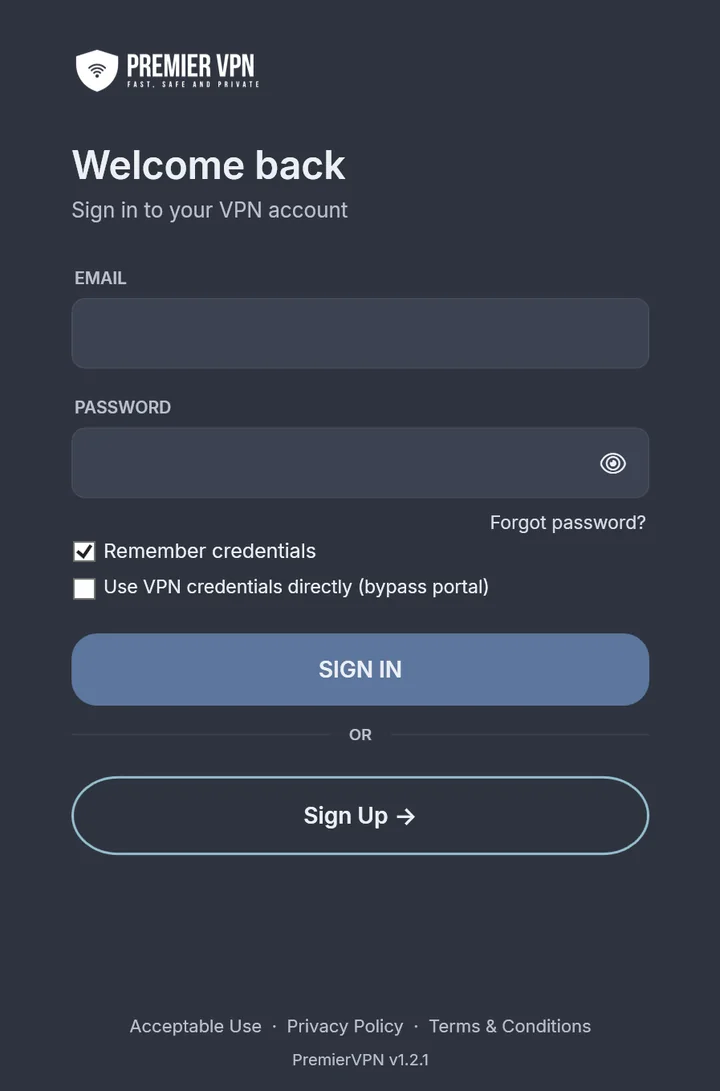
Enter your PremierVPN portal login details — the same email and password you use to log into portal.premiervpn.net.
Use your portal login
Sign in with the same email and password you use at portal.premiervpn.net. This is your account login, not a separate VPN credential.
If you have 2FA enabled on your account, enter the 6-digit code from your authenticator app when prompted.
Your credentials are saved securely so you won't need to log in again unless you clear saved credentials from Settings or log out manually.
Don't have an account? Sign up here or click Create Account in the app.
Connect to a Server
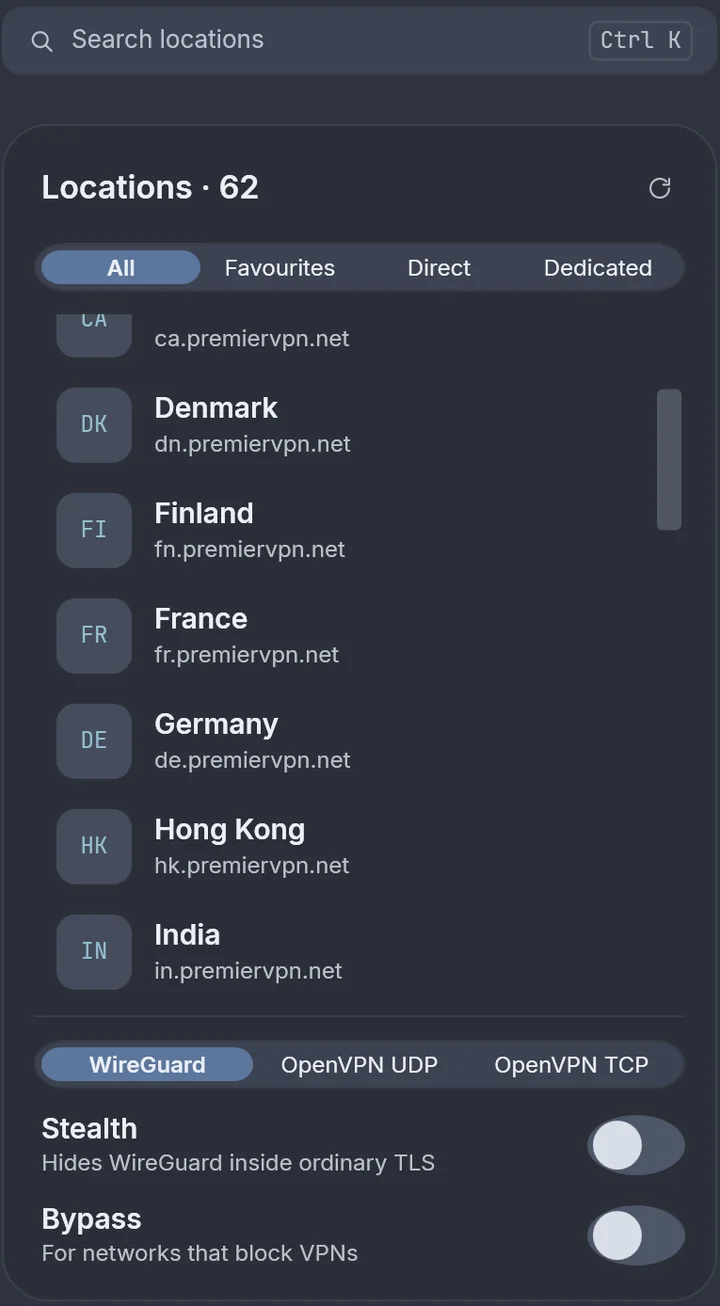
The server list is on the left side of the app, organised into tabs:
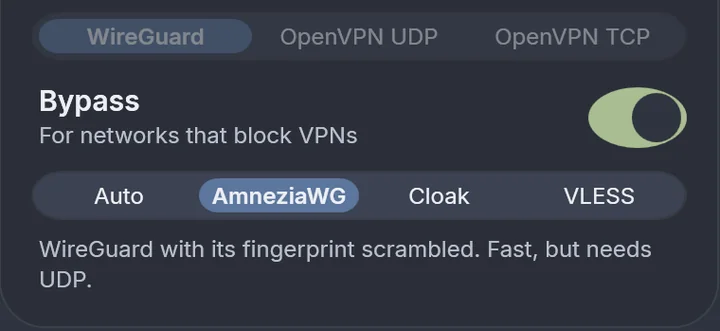
Select your preferred protocol at the bottom of the server list:
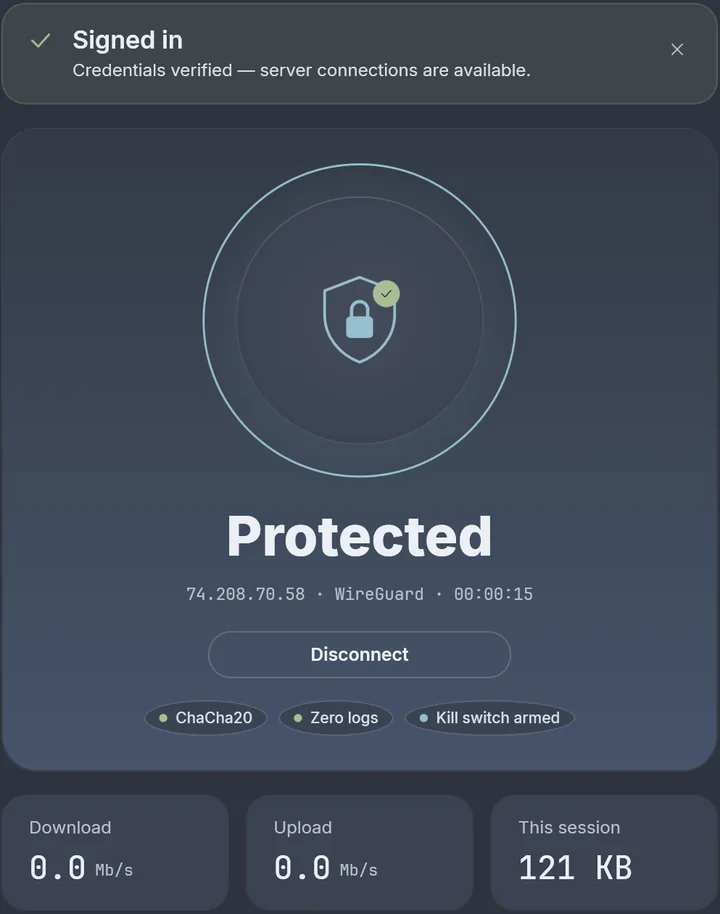
Click the Connect button. The shield icon will animate while connecting and turn green when the connection is established. Your real IP is now hidden.
System Tray
PremierVPN runs in the background via the system tray icon. Right-click it to access:
- Connection status, IP & bandwidth
- Quick connect / disconnect
- Server selection by category
- Settings & Support
Double-click the tray icon to open the main window.
Tips
- Bookmark favourite servers by clicking the bookmark icon next to any server
- To disconnect, click the red Disconnect button
- If a connection gets stuck, click the amber Cancel button to abort and try again
- Manage your account and enable 2FA at portal.premiervpn.net
Settings Overview
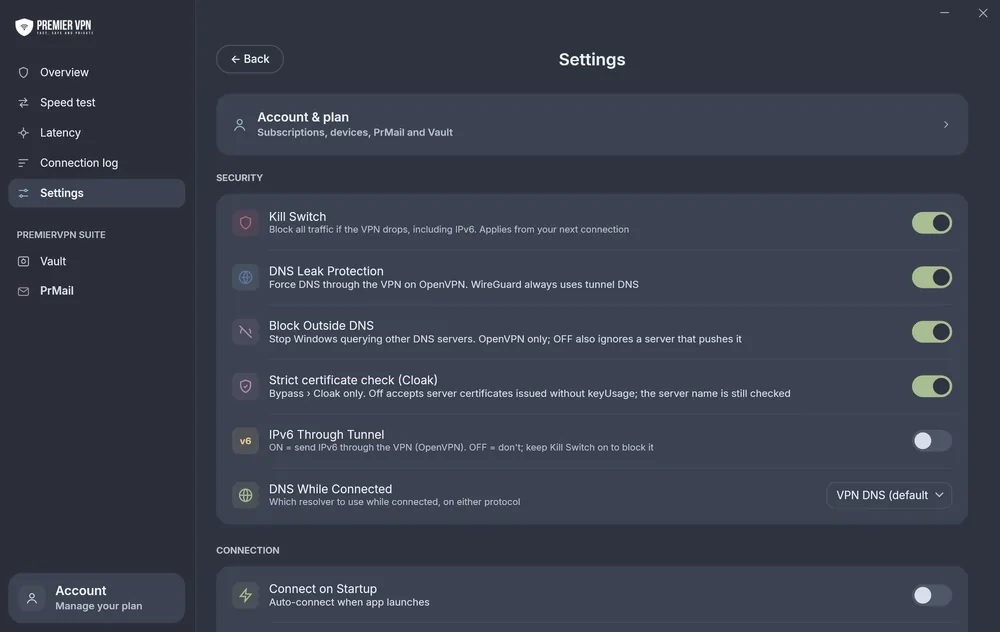
Access Settings from the gear icon in the left sidebar. The default settings are recommended for most users.
Security
| Kill Switch | ON | Blocks all internet traffic if the VPN disconnects unexpectedly, preventing data leaks. |
| DNS Leak Protection | ON | Forces all DNS queries through the VPN tunnel so your ISP cannot see which websites you visit. |
| Block Outside DNS | ON | Prevents any DNS queries from leaking outside the VPN tunnel. |
| IPv6 Through Tunnel | OFF | When off, IPv6 is blocked to prevent leaks. Turn on only if you need IPv6 connectivity. |
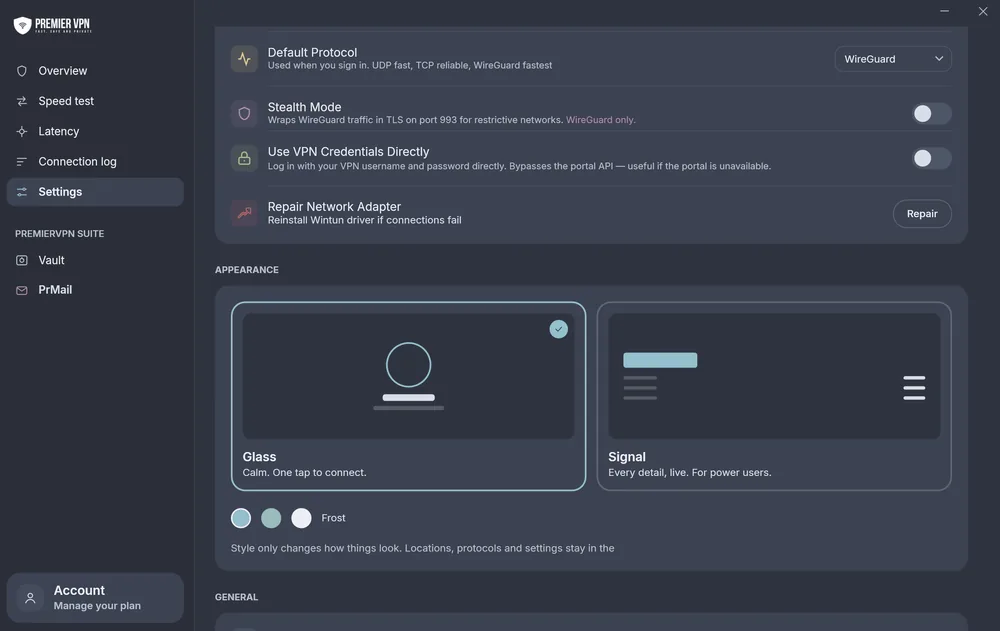
Connection
| Connect on Startup | Automatically connect to your last server when the app launches. |
| Auto Reconnect | Automatically reconnect if the VPN connection drops. |
| Default Protocol | Choose which protocol to use by default (WireGuard recommended). |
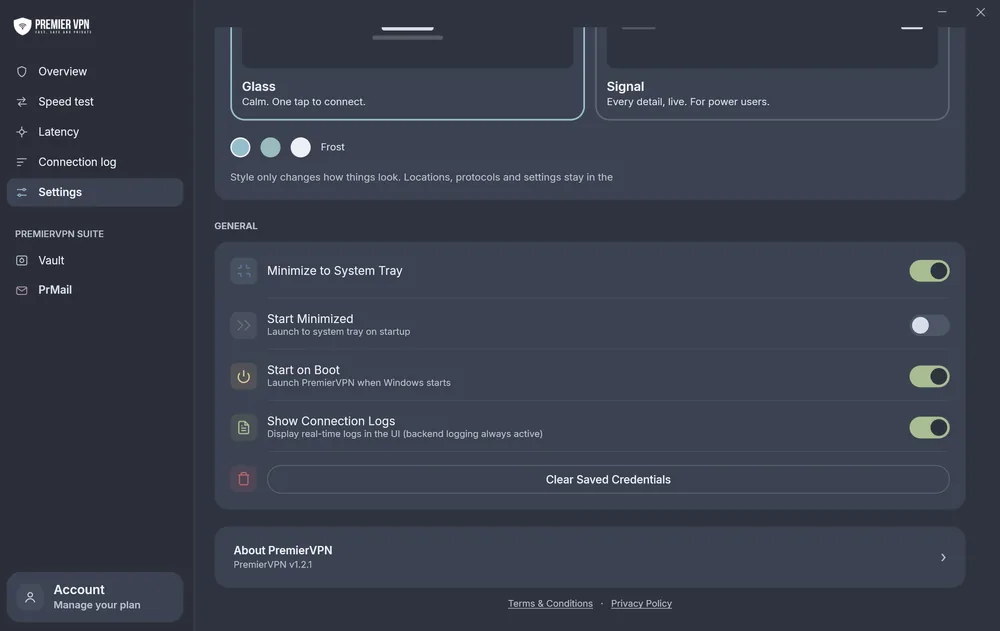
General
| Start on Boot | Launch PremierVPN when Windows starts. |
| Start Minimized | Launch to the system tray instead of showing the main window. |
| Minimize to Tray | Clicking the close button minimizes to tray instead of quitting. |
Troubleshooting
- Try a different protocol (switch between WireGuard, UDP, and TCP)
- Try a different server location
- Check your internet connection is working without the VPN
- Go to Settings and click "Repair Network Adapter"
This usually means the kill switch is still active. Reconnect to the VPN and then disconnect normally. If the issue persists, restart the app — it automatically cleans up stale firewall rules on launch.
- Make sure you are running as Administrator
- Reinstall PremierVPN using the installer
- Check the logs at
%LocalAppData%\PremierVPN\Logs\
This is normal for newly released software. Click "More info" and then "Run anyway" to proceed. The app is safe — as more users install it, this warning will disappear automatically.
The app uses your portal login credentials — the same email and password you use to sign in at portal.premiervpn.net. These are not separate VPN credentials. If you've forgotten your password, reset it here.
Visit our Support & Help Centre or open a support ticket. When contacting support, please include your Windows version, the protocol you were using, and any error messages from the Logs screen (accessible from the left sidebar).
Uninstalling
To remove PremierVPN from your computer: open Windows Settings → Apps → Installed Apps, search for "PremierVPN", click the three dots (…) and select Uninstall.
Ready to get started?
Download PremierVPN for Windows and protect your connection in minutes.