Using secure.premiervpn.net? We've upgraded! Migrate your account to our new portal in seconds, or continue using the old portal. Migrate Now
Setup Guide

Set Up PremierVPN on macOS

Download, install, and connect in under two minutes. Supports macOS Ventura and later, including Apple Silicon and Intel Macs.

Before You Begin

macOS 13.0 (Ventura) or later
A PremierVPN account
1

Download PremierVPN

PremierVPN for macOS is available on the Apple App Store. Visit our downloads page to find the link:

Go to Downloads

Click the App Store badge on the downloads page to open PremierVPN in the Mac App Store, then click Get to install.

2

Open the App

Once installed, open PremierVPN from Launchpad, Spotlight (⌘ + Space, type "PremierVPN"), or your Applications folder.

Since the app is downloaded from the App Store, it's already signed and notarised by Apple — no security warnings to deal with.

3

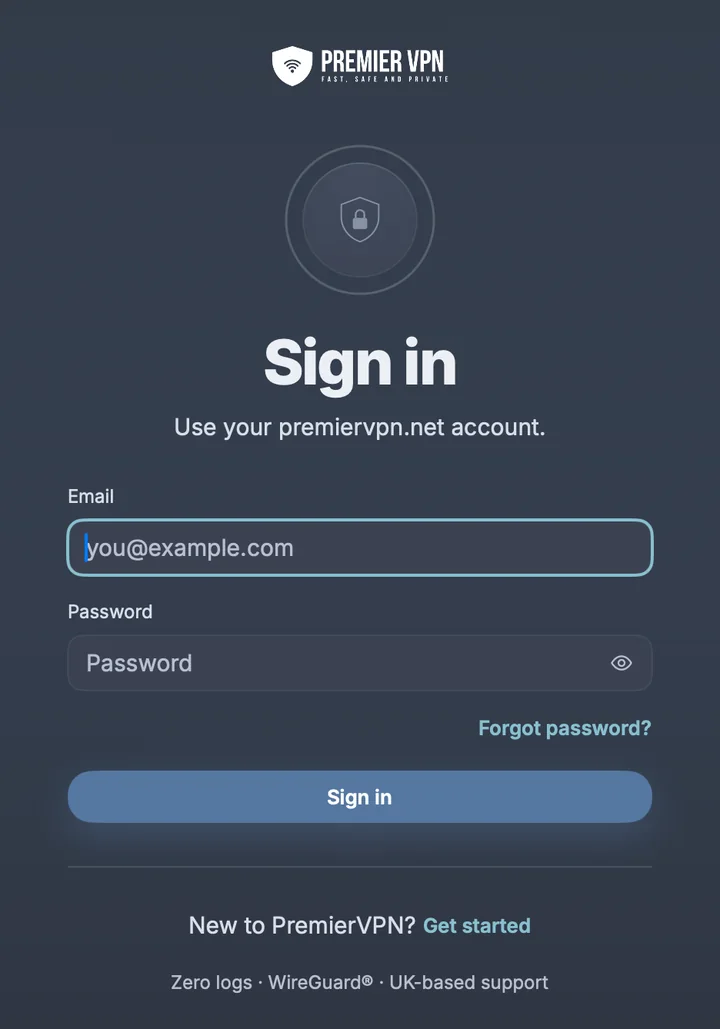
Sign In

Enter your PremierVPN portal login details — the same email and password you use to log into portal.premiervpn.net.

Use your portal login

Sign in with the same email and password you use at portal.premiervpn.net. This is your account login, not a separate VPN credential.

If you have two-factor authentication enabled on your account, you'll be prompted for the 6-digit code from your authenticator app.

Don't have an account? Visit portal.premiervpn.net/register to create one.

4

Allow VPN Configuration

macOS will ask permission to add a VPN configuration. Click Allow and authenticate with your Mac password or Touch ID.

This is a one-time setup — macOS requires it for any VPN app. You won't be asked again.

5

Choose a Server & Connect

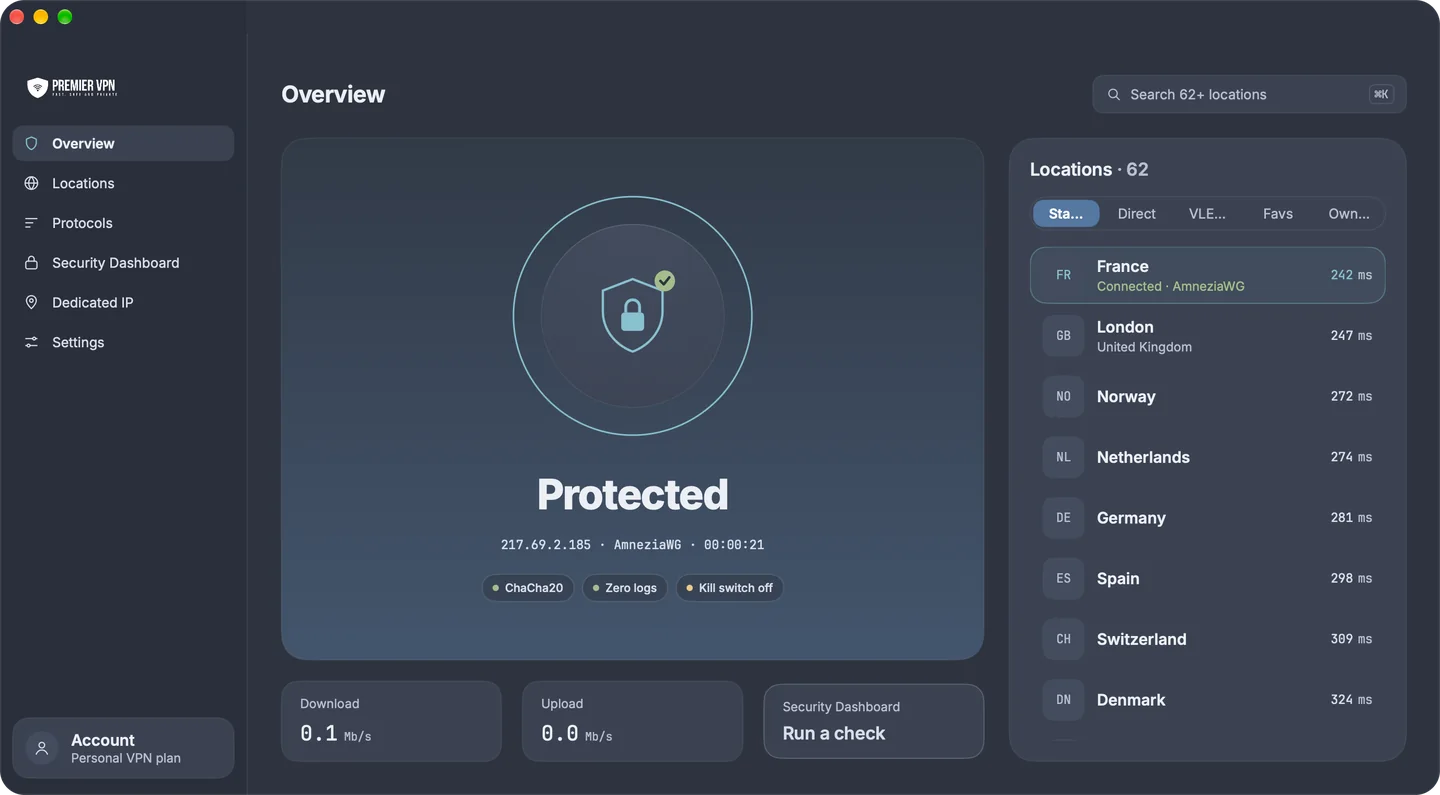
Browse the server list on the left panel. Choose from 25+ locations worldwide, or use the search bar to find a specific country. Click a server to select it, then press Connect.

Double-click any server to connect instantly
Star your favourite servers for quick access
Switch servers while connected — the app handles it seamlessly

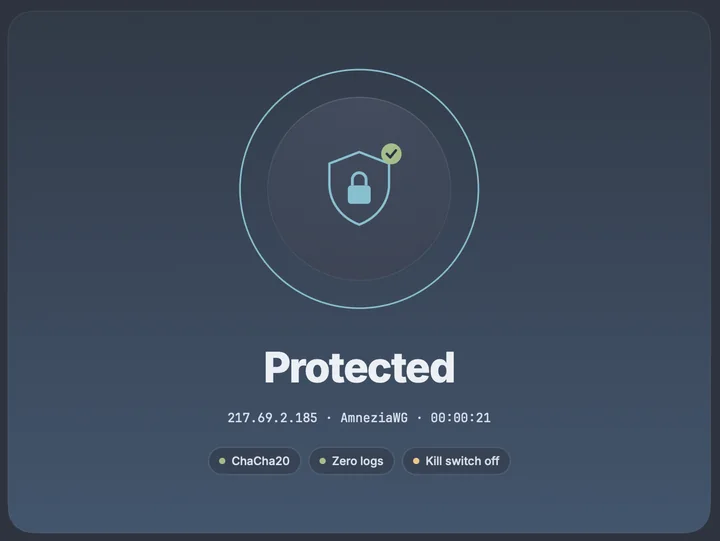
You're Protected

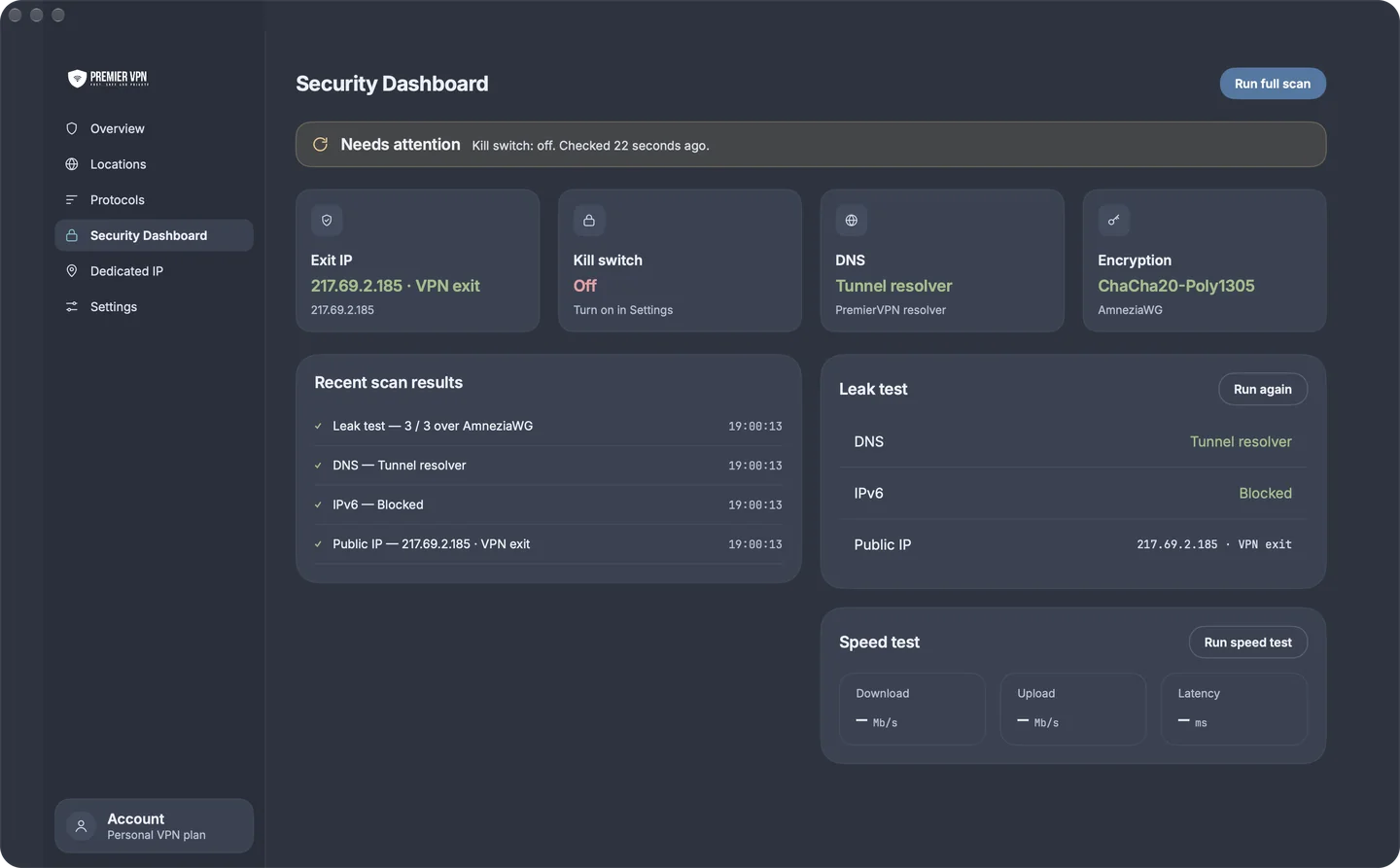
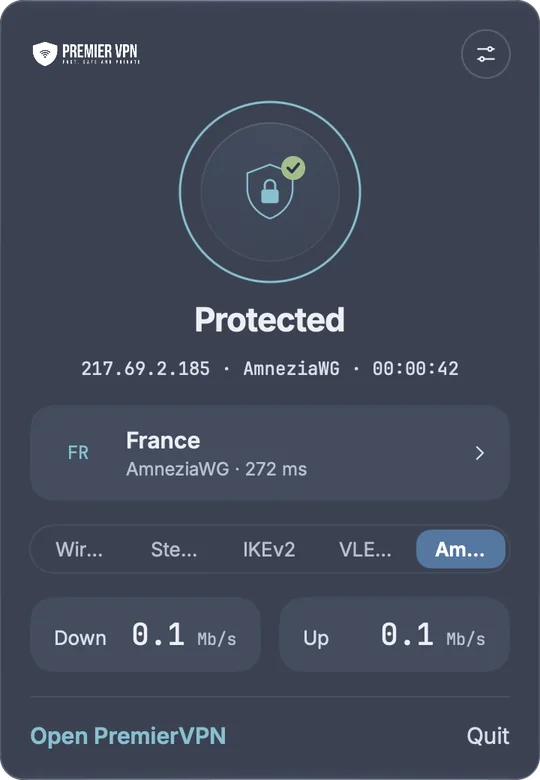
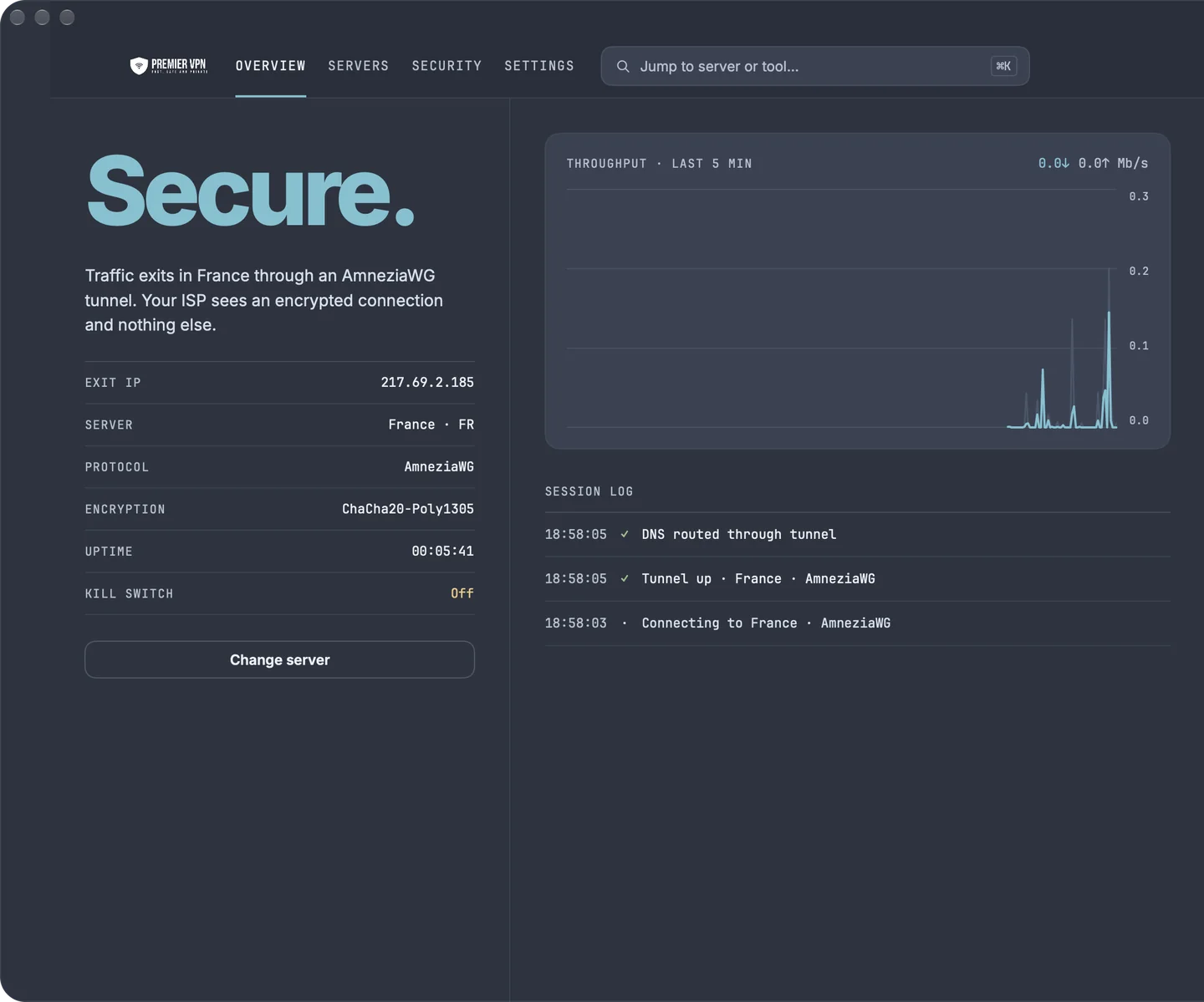
Once connected, the shield icon in your menu bar turns green. Your dashboard shows your new IP address, real-time bandwidth, and session stats. All your internet traffic is now encrypted via WireGuard.

Recommended Settings

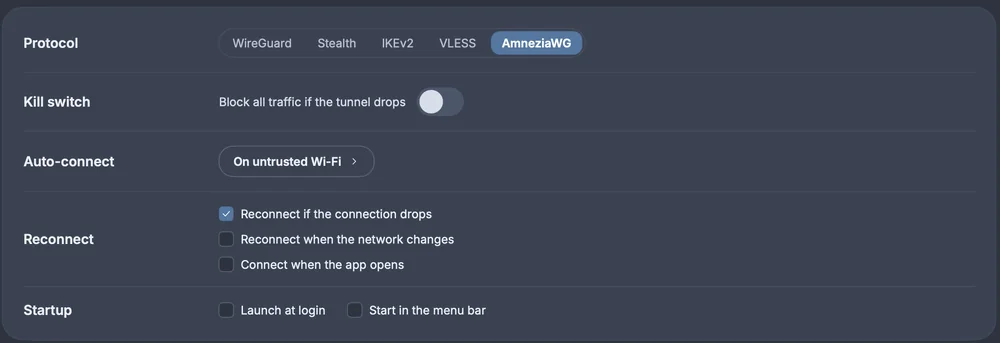
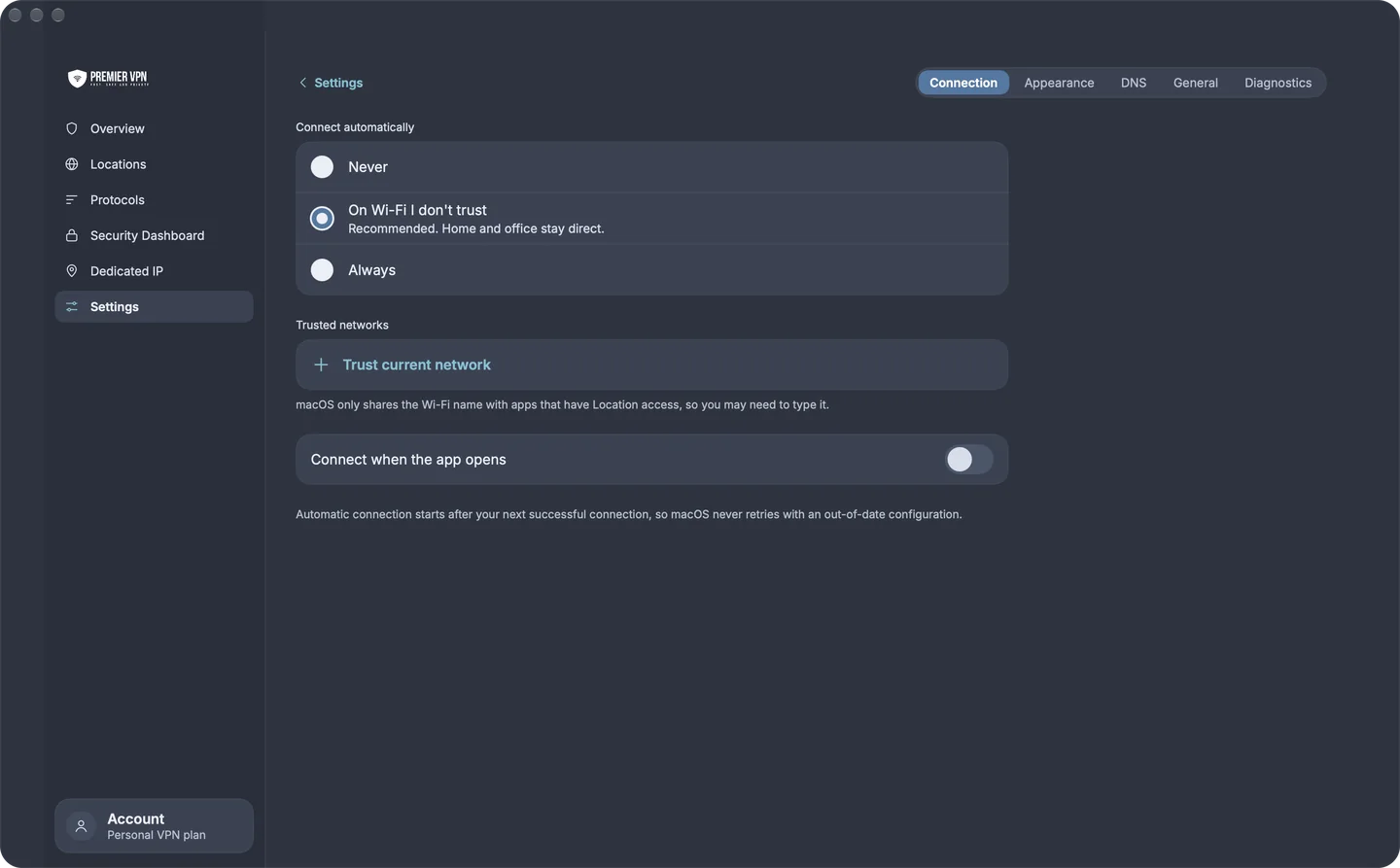
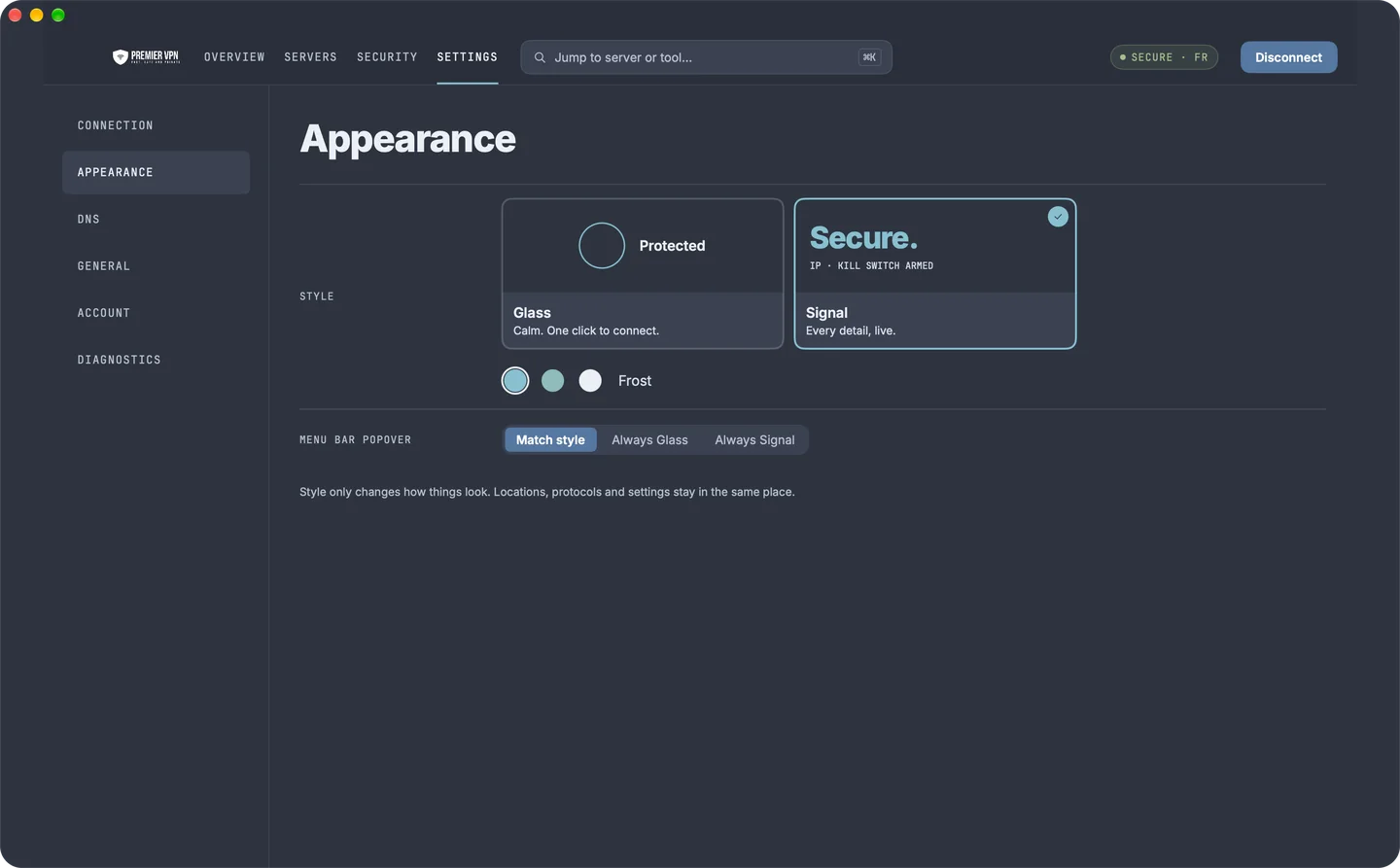
Click the Settings icon in the left sidebar to customise your experience. Here are the key options and their defaults:

Setting Default Description
Kill Switch ON Blocks all traffic if the VPN drops — prevents any data leaking outside the tunnel.
Connect on Demand OFF Auto-starts the VPN when you go online. Enable for always-on protection.
Auto-Reconnect ON Automatically restores the connection if it drops.
Ad Blocker OFF Blocks ads and trackers via DNS filtering.
DNS Leak Protection ON Prevents DNS queries from leaking outside the tunnel.
Start on Login OFF Launch PremierVPN automatically when you log into your Mac.

Tip: For maximum protection, enable Connect on Demand and Kill Switch together. This ensures your Mac is always protected — the VPN starts automatically and blocks all traffic if the connection drops.

Troubleshooting

  1. Check your internet connection is working without the VPN
  2. Try a different server location
  3. Go to System Settings → VPN and make sure PremierVPN's configuration is enabled
  4. Restart the app and try again

Go to System Settings → VPN and check if PremierVPN is listed. If not, try removing and reinstalling the app from the App Store. The permission prompt should appear again on first launch.

This usually means the kill switch is still active. Reconnect to the VPN and then disconnect normally using the Disconnect button. If the issue persists, toggle the Kill Switch off in Settings, disconnect, then turn it back on.

The app uses your portal login credentials — the same email and password you use to sign in at portal.premiervpn.net. These are not separate VPN credentials. If you've forgotten your password, reset it here.

Visit our Support & Help Centre or open a support ticket and we'll get back to you within 24 hours.

Ready to get started?

Download PremierVPN for macOS from the App Store and protect your connection in minutes.

Stay Ahead of Online Threats

Get VPN tips, security insights, and exclusive offers delivered straight to your inbox. No spam — just the essentials.

Unsubscribe at any time. We respect your privacy.