Set Up PremierVPN X on Windows
Download, install, and connect with VLESS + REALITY in under five minutes. Your traffic will look like normal HTTPS browsing — invisible to firewalls and DPI.
Before You Begin
Note: PremierVPN X is a separate app from the standard PremierVPN WireGuard app. You can install both on the same PC — they use different protocols and don't conflict. However, only connect through one at a time.
Download PremierVPN X
Download PremierVPN X from your portal downloads page. Choose the correct version for your PC:
Install the App
Run the downloaded PremierVPN X_1.0.0_x64-setup.exe installer.
Windows SmartScreen warning? If you see "Windows protected your PC", click More info then Run anyway. This appears because the installer is not yet EV code-signed — the app is safe.
Follow the installer prompts. The app installs to your user profile by default — no administrator password is required. PremierVPN X launches automatically after installation and appears in the system tray.
Sign In with Your Portal Account
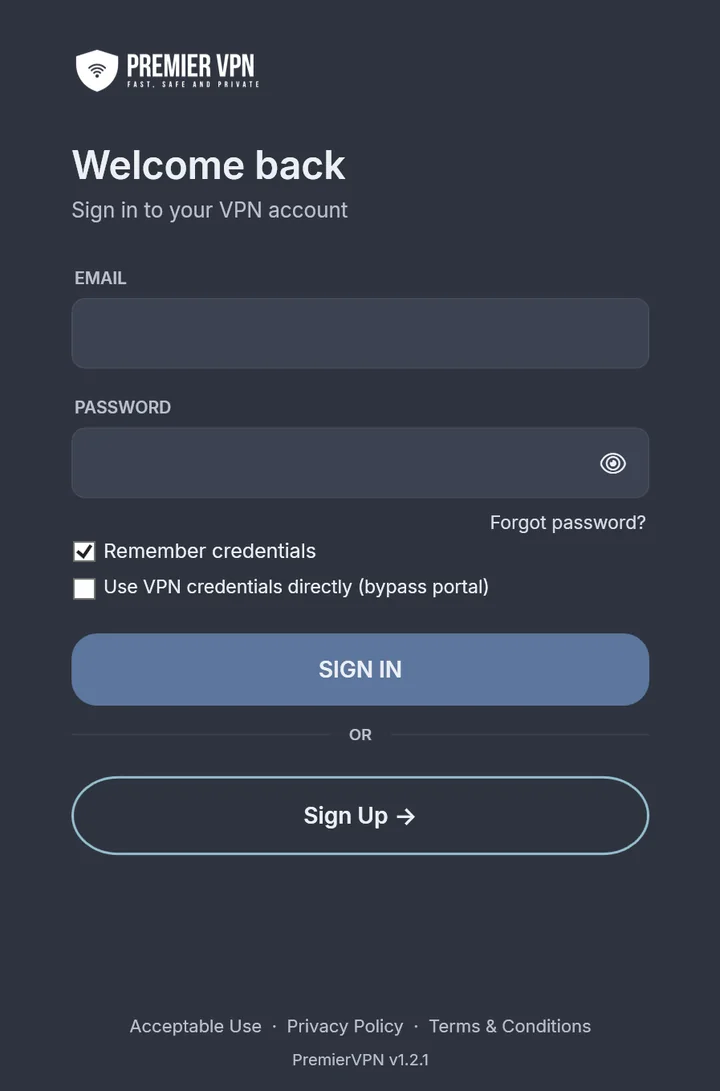
Sign in using the same email and password you use on portal.premiervpn.net. If you have two-factor authentication enabled, you'll be prompted for a 6-digit code from your authenticator app.
Email: Your portal login email
Password: Your portal login password
Your session is stored securely for 90 days — you won't need to sign in again unless you sign out manually.
Don't have an account? Get PremierVPN — one subscription includes both the WireGuard and VLESS apps.
Choose a Server and Connect
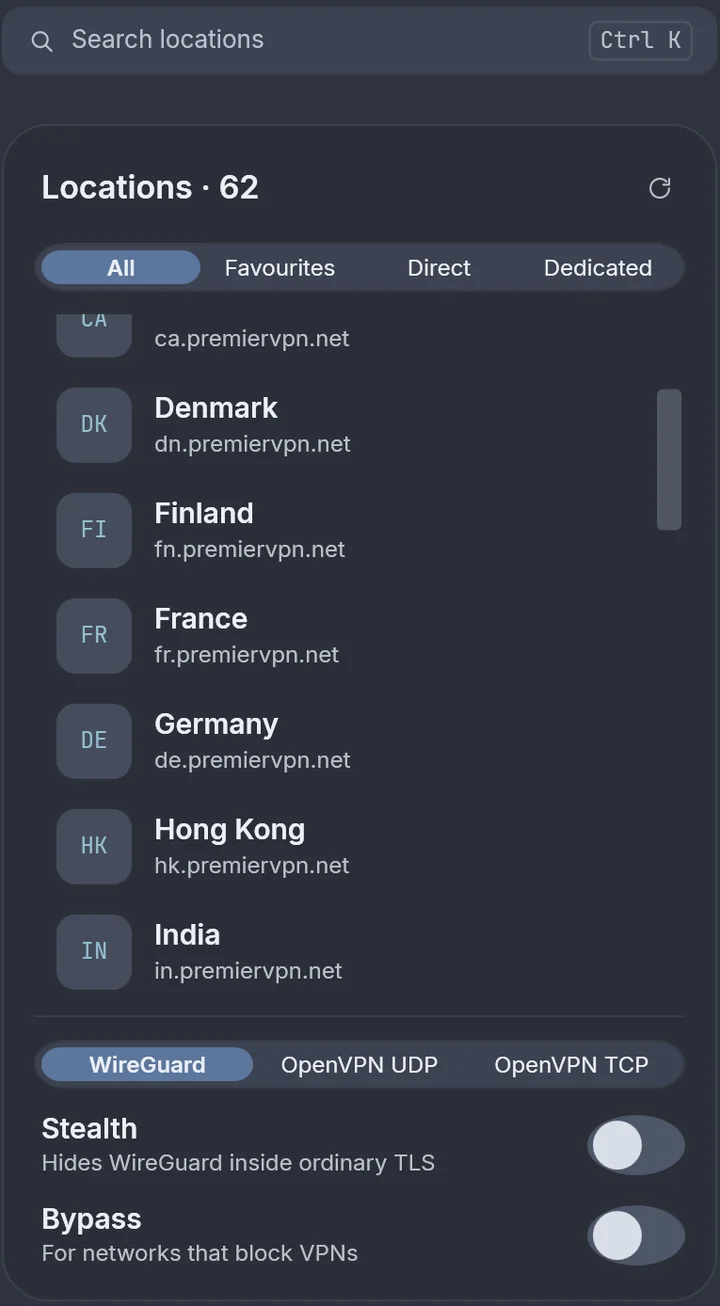
After signing in, go to the Servers page to browse available locations. Click any server to select it, then click the Connect button on the Dashboard.
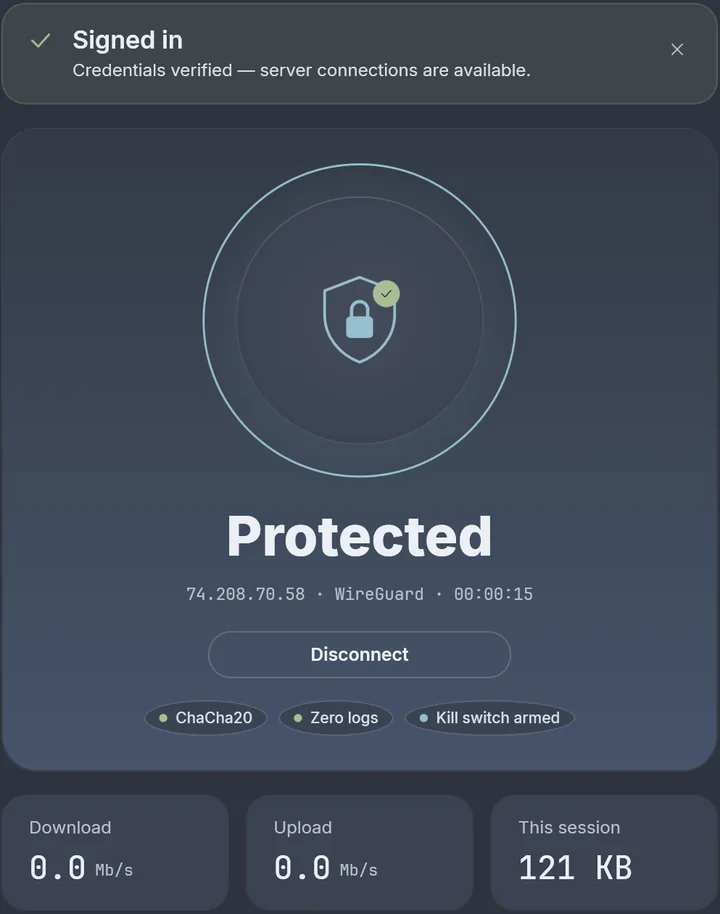
Once connected, the button turns green and shows Disconnect. A session timer starts counting up, and you'll see your server location and REALITY protocol indicator on the dashboard.
The app automatically configures your Windows system proxy — all browser traffic and most desktop apps will route through the encrypted tunnel immediately.
Settings Reference
Auto-connect
Automatically connect to your last server when the app launches.
Auto-reconnect
Reconnect automatically if the connection drops unexpectedly.
Start on Windows boot
Launch PremierVPN X when you log in to Windows (uses Task Scheduler).
Minimise to tray
Keep the app running in the background when you close the window.
SOCKS5 port
Local SOCKS5 proxy port. Default: 10808. Used by apps like Firefox, Telegram, qBittorrent.
HTTP proxy port
Local HTTP/HTTPS proxy port. Default: 10809. Used by the Windows system proxy.
XRay log level
Verbosity of the VPN engine log. "Warning" is recommended for normal use.
Verify Your Connection
Once connected, verify everything is working:
Troubleshooting
Cannot connect — "XRay exited immediately"
The VPN engine binary is not compatible with your CPU architecture. Download the correct installer: x64-setup.exe for most PCs, arm64-setup.exe for Surface Pro X and Snapdragon devices.
Server list is empty or shows unknown servers
Go to the Servers page and click the refresh button. If it still fails, check your subscription is active on the Account page. Sign out and back in if needed.
Connection stays on "Connecting…" indefinitely
Open the Diagnostics page. If the XRay Binary check fails, reinstall the app. If Internet Connectivity fails, check your network. Some corporate networks block outbound port 443 to non-whitelisted IPs — try a mobile hotspot.
Some apps are not going through the VPN
PremierVPN X uses Windows system proxy routing. Some apps (particularly games, certain desktop clients, and system services) bypass the system proxy. For full system-wide routing, use our standard PremierVPN app with WireGuard.
"Windows protected your PC" warning on install
Click "More info" then "Run anyway". This appears when the installer is not code-signed with an EV certificate. The app is safe.
App does not appear in system tray after closing
If "Minimise to tray on close" is enabled, look for the shield icon in the system tray (expand hidden icons). To fully quit, right-click the tray icon and select Quit.
Difference between PremierVPN and PremierVPN X
PremierVPN uses WireGuard with a kernel-level driver — fastest speeds with full system-wide routing. PremierVPN X uses VLESS + REALITY with system proxy routing — designed for networks that block VPN traffic. Both are included in your subscription.
Can I run both apps at the same time?
You can install both, but only connect through one at a time. Disconnect from PremierVPN (WireGuard) before connecting with PremierVPN X, and vice versa.
Need to Report an Issue?
The Diagnostics page has an Export button that saves the application log to a text file. This log contains connection events, error messages, and XRay output — no personal data or traffic content is included. Attach it when contacting support.
Need more help?
Contact Support