Using secure.premiervpn.net? We've upgraded! Migrate your account to our new portal in seconds, or continue using the old portal. Migrate Now
Setup Guide New

Set Up PremierVPN X on macOS

Download, sign in, and connect with VLESS + REALITY in under two minutes. Your VPN traffic will be indistinguishable from regular HTTPS browsing.

Before You Begin

macOS 12 (Monterey) or later
An active PremierVPN subscription
Apple Silicon or Intel Mac
Your portal email and password

Note: PremierVPN X is a separate app from the standard PremierVPN WireGuard app. You can run both on the same Mac — they use different protocols and don't conflict.

1

Download PremierVPN X

Download PremierVPN X from your portal downloads page. The app is a standard macOS .dmg installer.

Go to Downloads

Open the .dmg file and drag PremierVPN X to your Applications folder.

2

Sign In with Your Portal Account

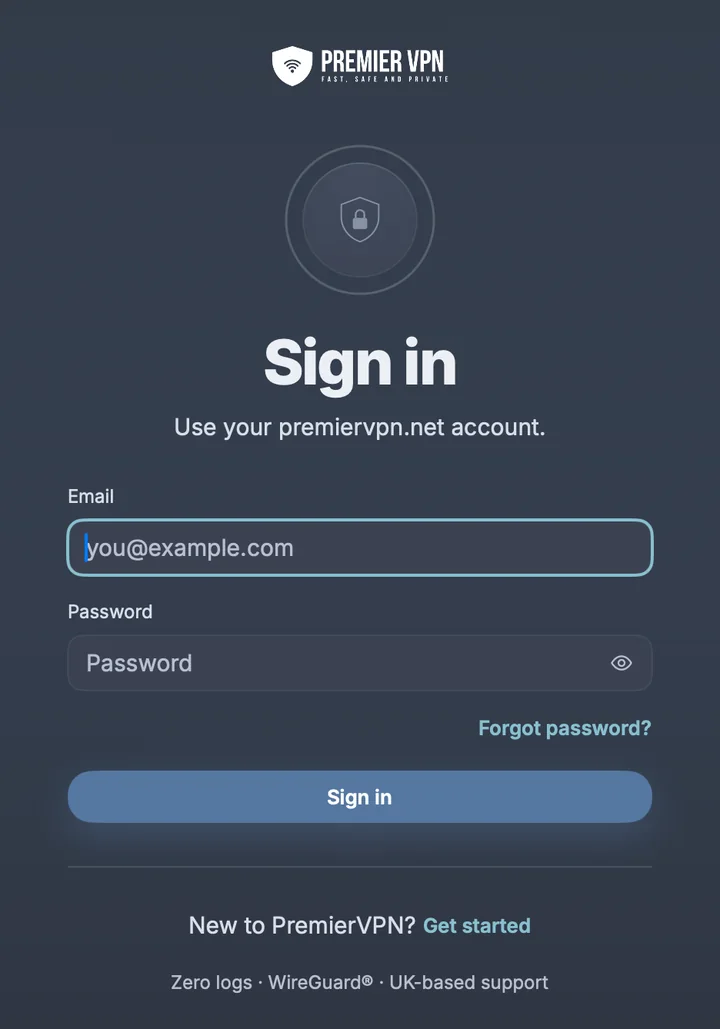
Launch PremierVPN X and sign in using the same email and password you use on portal.premiervpn.net. This is your portal login — not your VPN credentials.

Email: The email you registered with on the portal

Password: Your portal login password

Tick "Remember me" to stay signed in between sessions.

Don't have an account yet? Get PremierVPN — one subscription includes both the WireGuard and VLESS apps.

3

Choose a Server and Connect

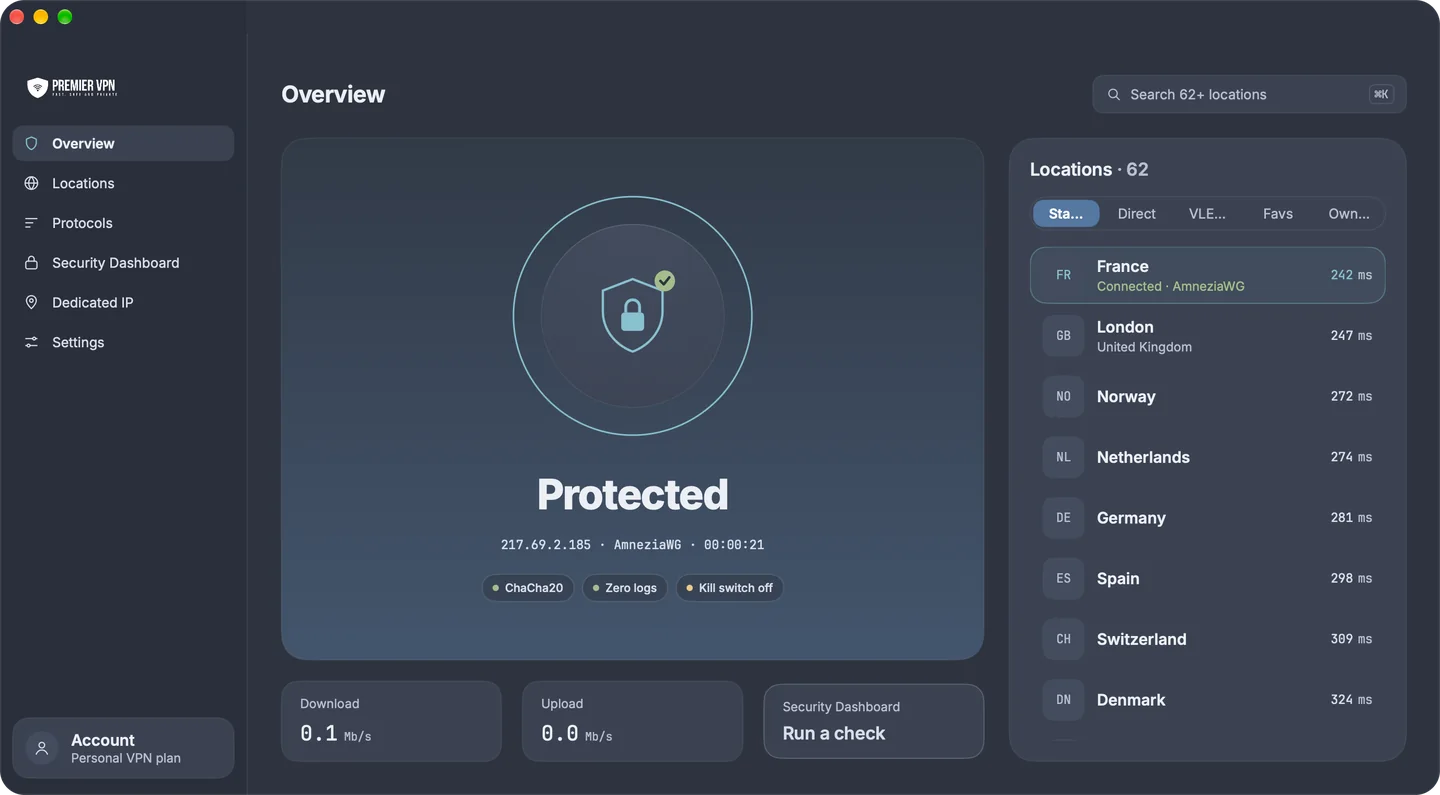
After signing in, you'll see the server list. Select a server location and click Connect. The app fetches your personal UUID and server configuration automatically — there's nothing to configure manually.

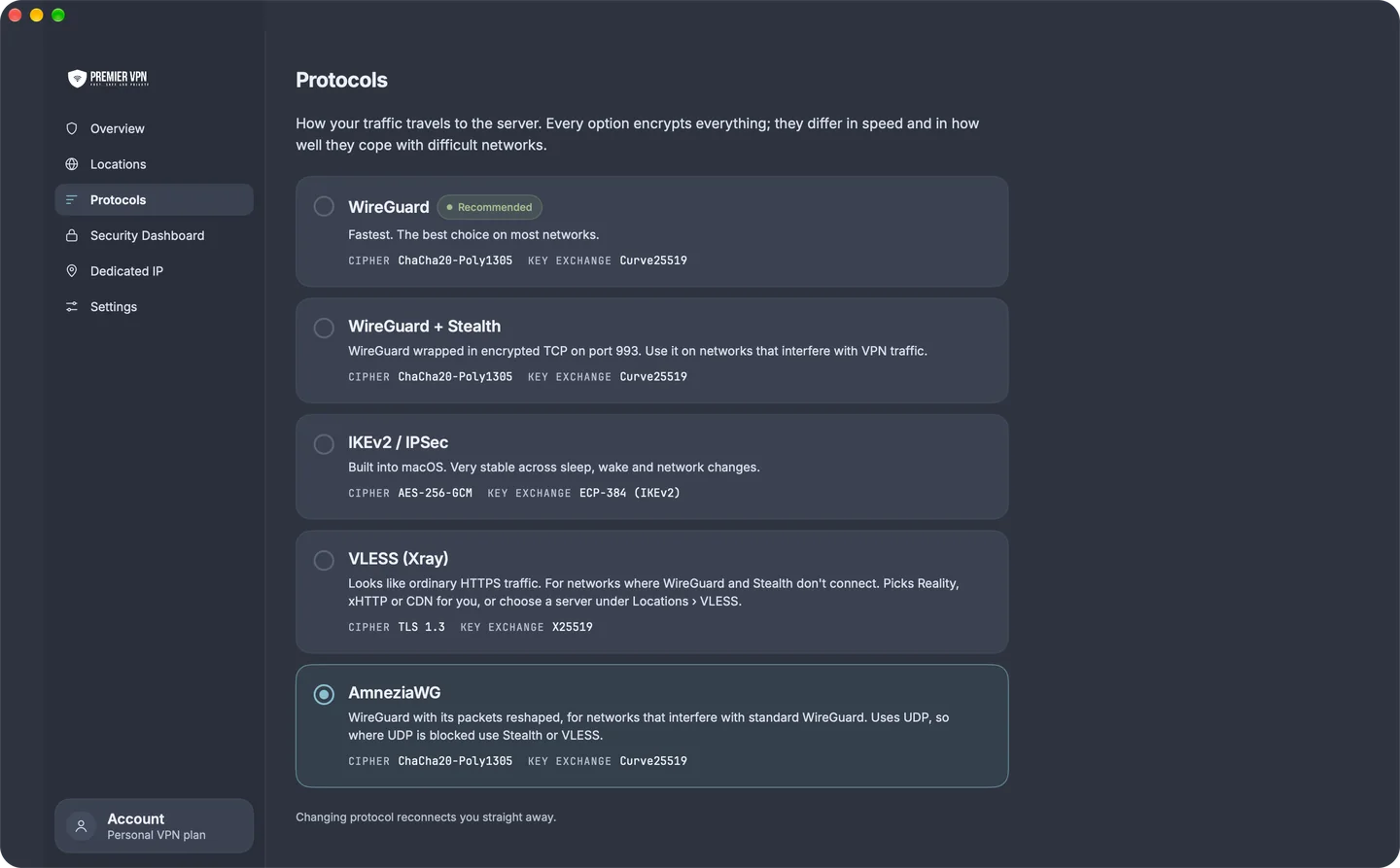
Your connection uses VLESS + REALITY by default. Traffic is encrypted with TLS 1.3 and appears as normal HTTPS traffic to any network observer.

4

Allow the VPN Configuration

On first connect, macOS will ask you to allow PremierVPN X to add a VPN configuration. Click Allow and enter your Mac password if prompted. This is a standard macOS security step — the app needs permission to route your traffic through the encrypted tunnel.

You only need to do this once. Subsequent connections happen instantly.

Verify Your Connection

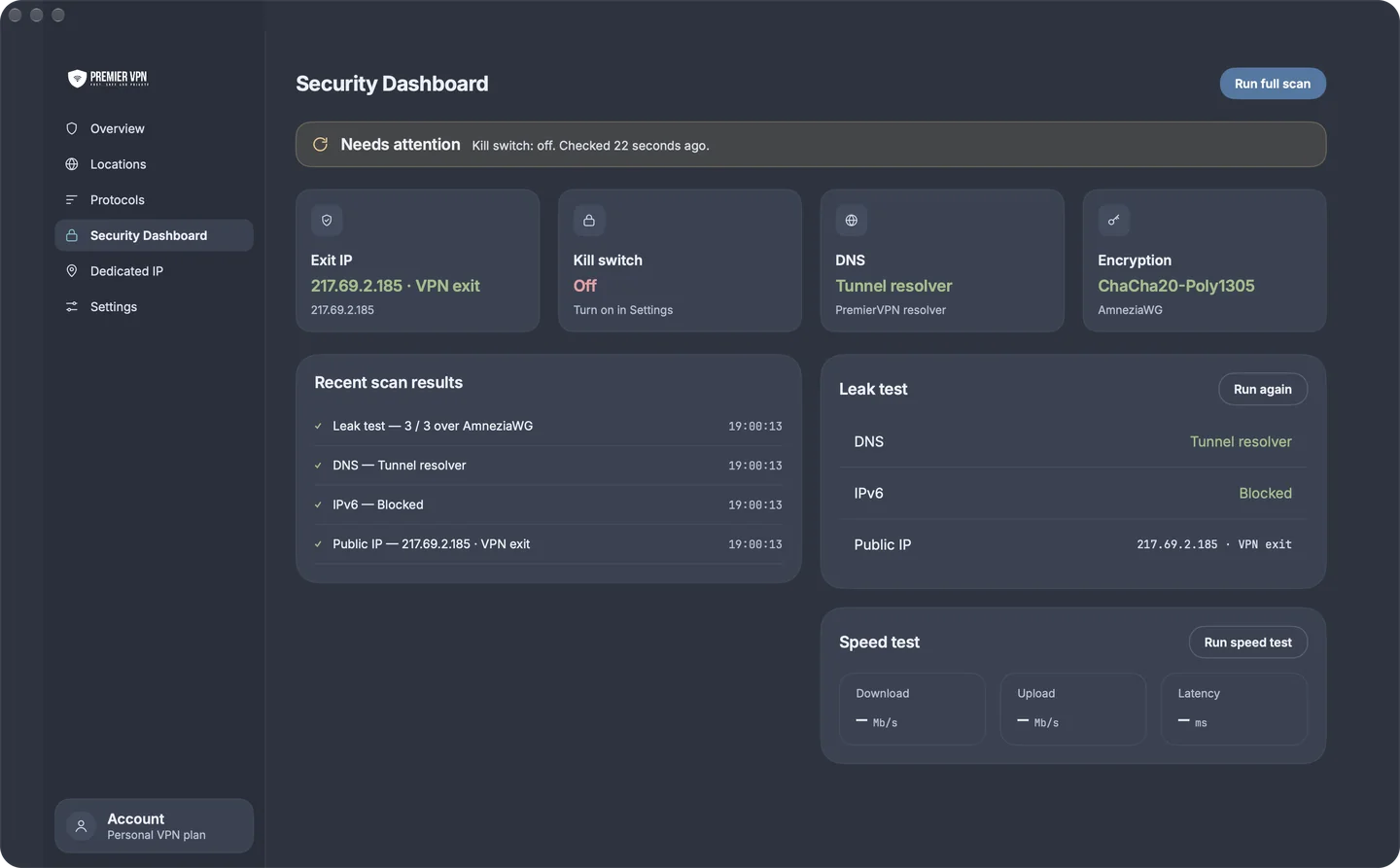
Once connected, verify everything is working:

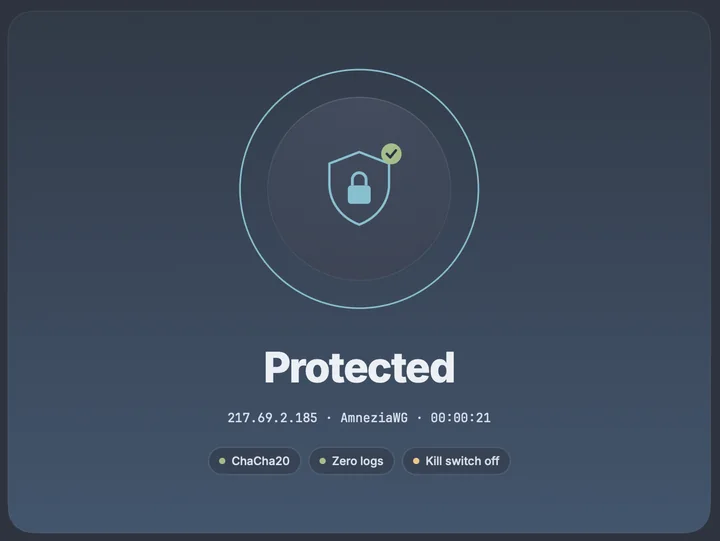
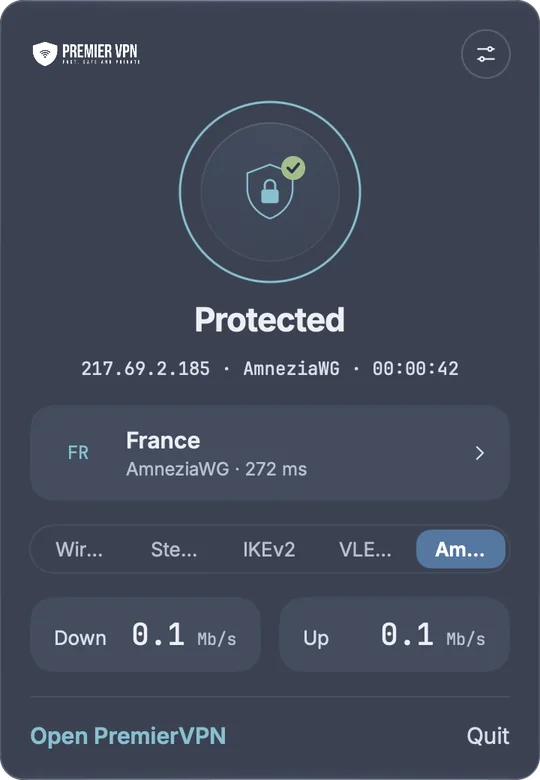
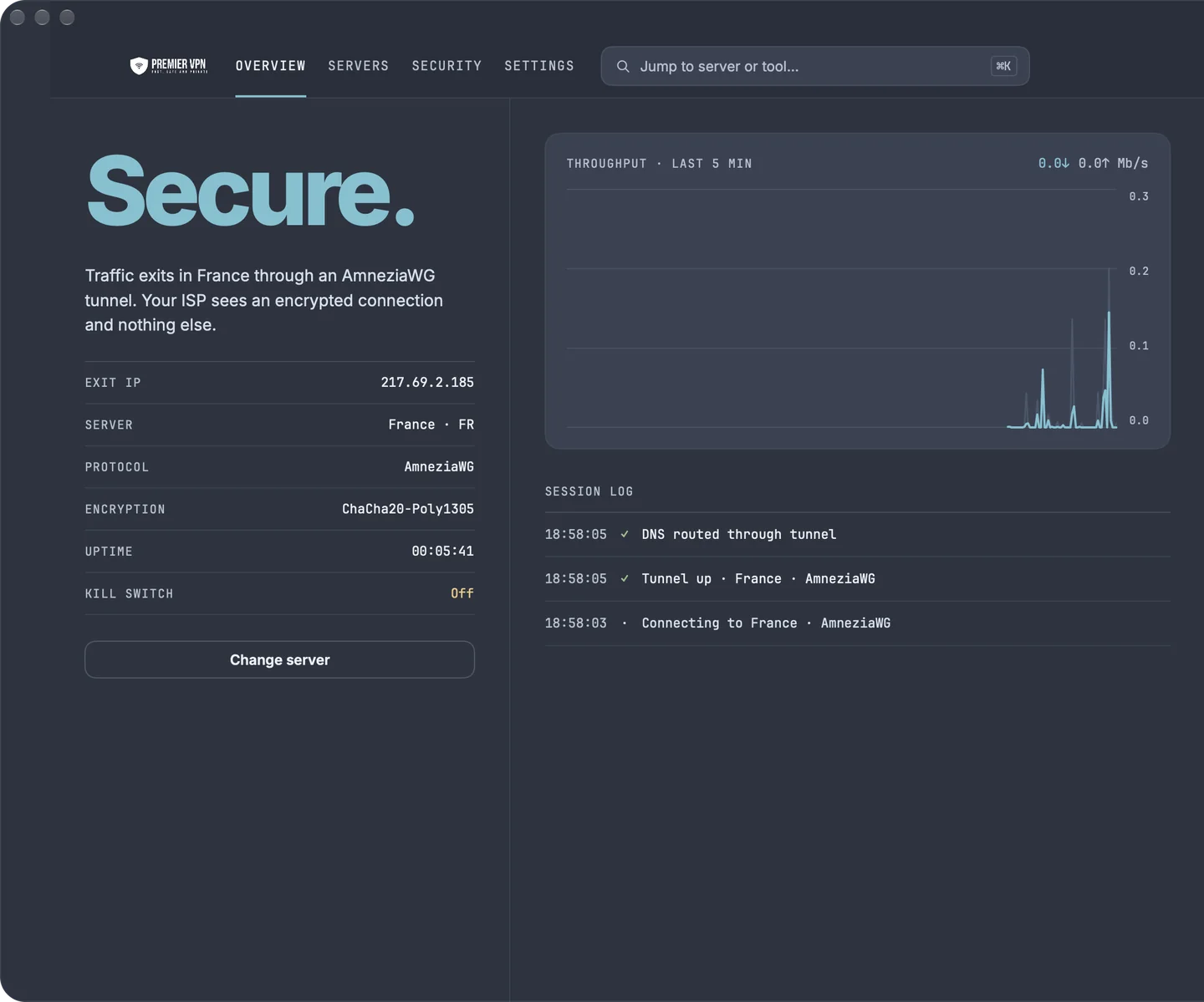
The app shows "Connected" with the server name and your new IP
Visit premiervpn.net/ip-leak-test — your IP should show the server's location
No DNS leaks should be detected

Troubleshooting

Cannot sign in

Make sure you're using your portal login (the email and password from portal.premiervpn.net), not your VPN credentials. If you've forgotten your password, reset it at the portal login page.

Connection fails or times out

Try a different server. If you're on a restrictive network, REALITY should work — but some networks may block the specific server IP. Try servers in different countries.

"No active subscription" error

PremierVPN X requires an active subscription. Log into the portal to check your subscription status and renew if needed.

Difference between PremierVPN and PremierVPN X

PremierVPN uses WireGuard — our fastest protocol for everyday use. PremierVPN X uses VLESS + REALITY — designed for networks that block VPN traffic. Both are included in your subscription.

Can I run both apps at the same time?

You should only connect through one app at a time. Disconnect from PremierVPN (WireGuard) before connecting with PremierVPN X, and vice versa.

Need more help?

Contact Support

Stay Ahead of Online Threats

Get VPN tips, security insights, and exclusive offers delivered straight to your inbox. No spam — just the essentials.

Unsubscribe at any time. We respect your privacy.