8 min read
You've connected to your VPN and you see the green icon. But is it actually working? Is your real IP hidden? Are your DNS queries encrypted? Here are five tests you should run every time you connect.
Test 1: Check Your IP Address
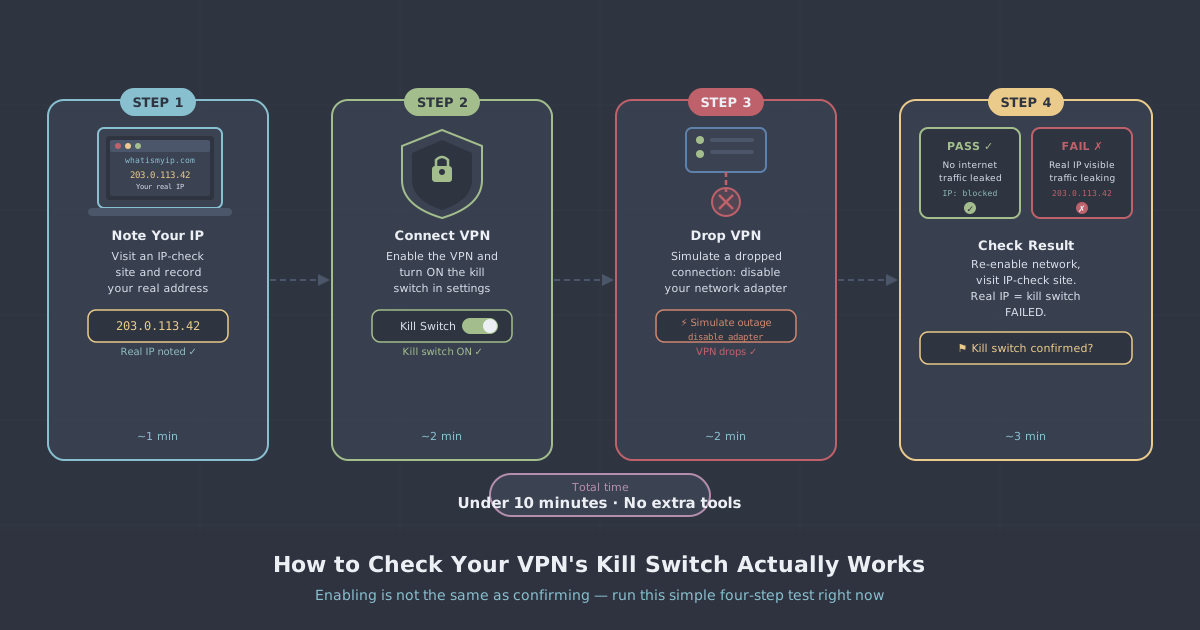
Visit PremierVPN's IP Leak Test and check the IP address shown. It should be your VPN server's IP — not your real one. If you see your actual IP, the VPN isn't routing your traffic properly.
What to look for: The IP should match the country/city of the VPN server you selected.
Test 2: DNS Leak Test
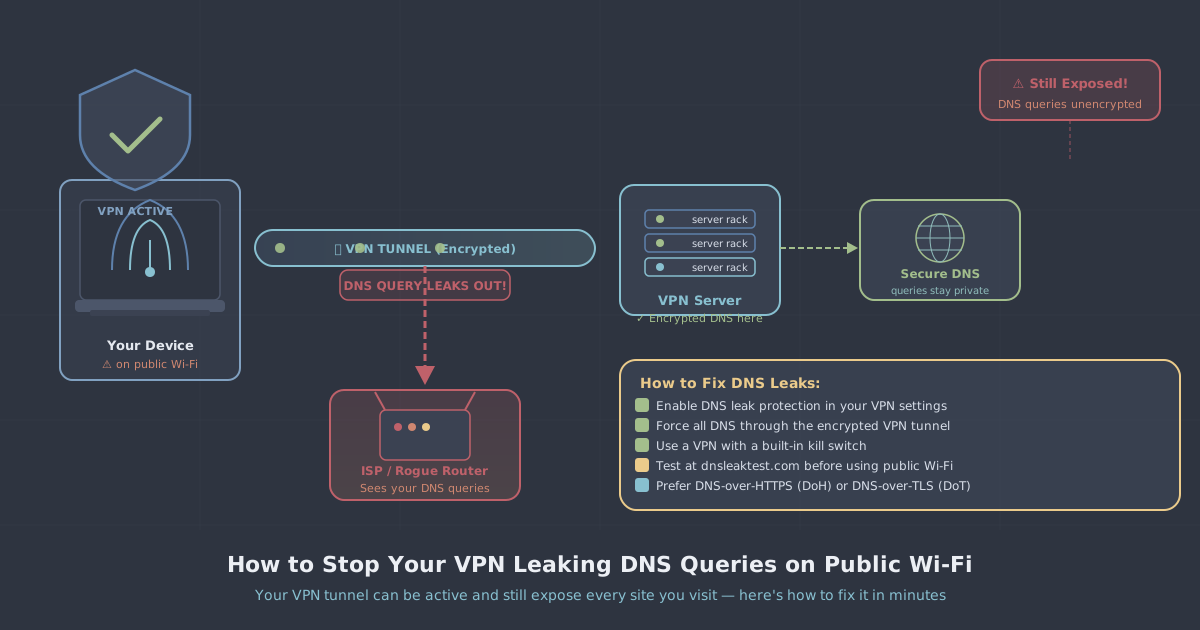
Even with a VPN, your DNS queries can leak to your ISP if the VPN client isn't configured properly. Our IP Leak Test checks this automatically — the DNS servers shown should belong to your VPN provider, not your ISP (like BT, Virgin Media, or Sky).
Red flag: Seeing your ISP's name in the DNS results means your browsing destinations are still visible to them.
Test 3: WebRTC Leak Test
WebRTC is a browser technology that can reveal your real IP address even when connected to a VPN. This is especially common in Chrome and Firefox. Our leak test checks for this automatically.
Fix: If you see a WebRTC leak, install PremierVPN Protect — our free browser extension that blocks WebRTC leaks along with ads and trackers.
Test 4: Speed Test
A working VPN will slightly reduce your speed (typically 5-15% on a UK server). If your speed drops by more than 50%, something may be wrong — try a different server or protocol.
Tip: Always use WireGuard for the fastest speeds. It's our default protocol for a reason.
Test 5: Try Accessing Geo-Restricted Content
The practical test: if you're connected to a UK server, try accessing BBC iPlayer. If it works, your VPN is routing traffic correctly through the UK. If it blocks you, the VPN may not be working or the server's IP may be flagged.
What to Do If Something Fails
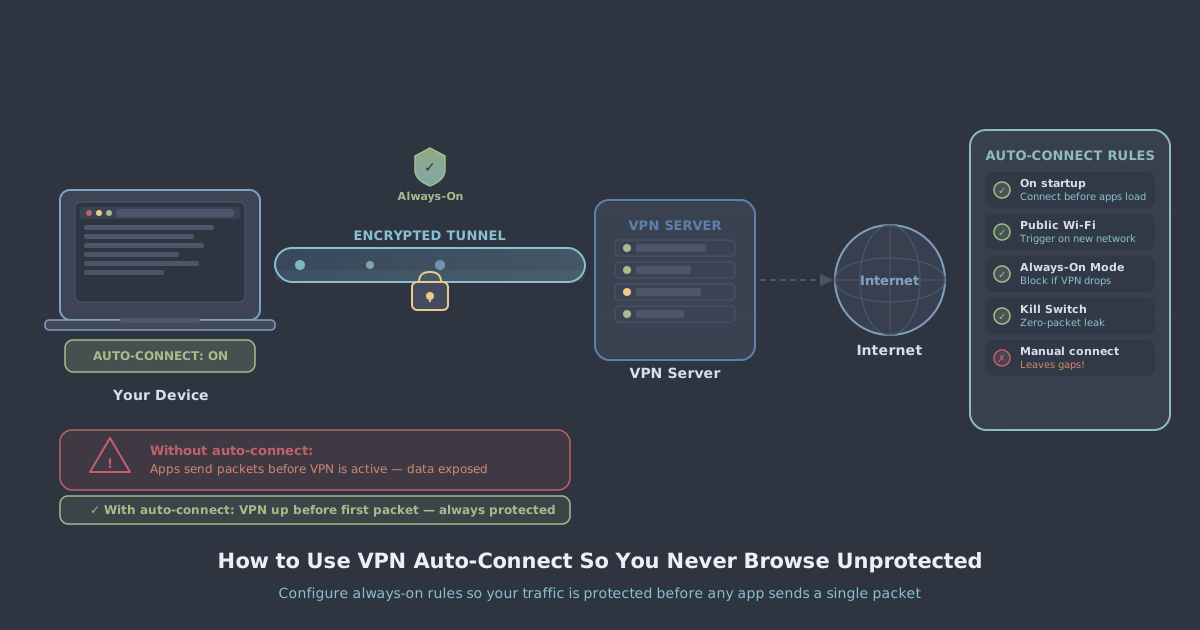
- IP leak: Disconnect and reconnect to the VPN. Try a different server.
- DNS leak: Check your VPN app settings — ensure "Use VPN DNS" or equivalent is enabled.
- WebRTC leak: Install PremierVPN Protect browser extension, or disable WebRTC manually in your browser.
- Slow speeds: Switch to WireGuard protocol. Try a server closer to your physical location.
- Geo-block still active: Clear your browser cookies and try again. Some sites cache your previous location.
Make It a Habit
Run these tests regularly — not just when you first set up your VPN. Server configurations change, apps update, and network conditions vary. A 30-second check gives you peace of mind that your privacy is actually protected.