8 min read
Your phone goes everywhere with you, which means it connects to networks you do not control—coffee shop Wi-Fi, hotel broadband, airport hotspots. A VPN encrypts your traffic before it leaves your device, so those connections cannot be read or tampered with by whoever runs the network. It also masks your IP address, which limits how easily websites and services can track your location.
This guide covers two ways to set up a VPN on a mobile device: using the PremierVPN app (the easier and more capable route) and configuring a VPN connection manually through your phone's built-in settings (useful when you cannot install a third-party app). Both iOS and Android are covered. Pick the section that applies to you.
Why the App Method Is Usually the Better Choice
Both iPhone and Android have native VPN clients built into their operating systems. You can enter server credentials by hand and get a working connection—but those built-in clients support a limited set of older protocols (typically IKEv2 and L2TP/IPsec) and offer no extras whatsoever. There is no kill switch, no DNS leak protection, no protocol switching, and no way to use modern options like WireGuard.
The PremierVPN iOS app and PremierVPN Android app handle all of that automatically. WireGuard is the default protocol on both platforms—it is faster and more battery-efficient than older alternatives, which matters on a device you carry all day. The apps also include a kill switch that cuts internet access if the VPN drops unexpectedly, preventing accidental exposure.
Use the manual method only if your organisation's device policy prevents app installation, or if you are troubleshooting a specific situation. For everyday use, the app is the right choice.
Setting Up PremierVPN on an iPhone (iOS App)
These steps apply to any iPhone running a reasonably current version of iOS. If you want to check the exact requirements first, visit the iOS setup guide on our site.
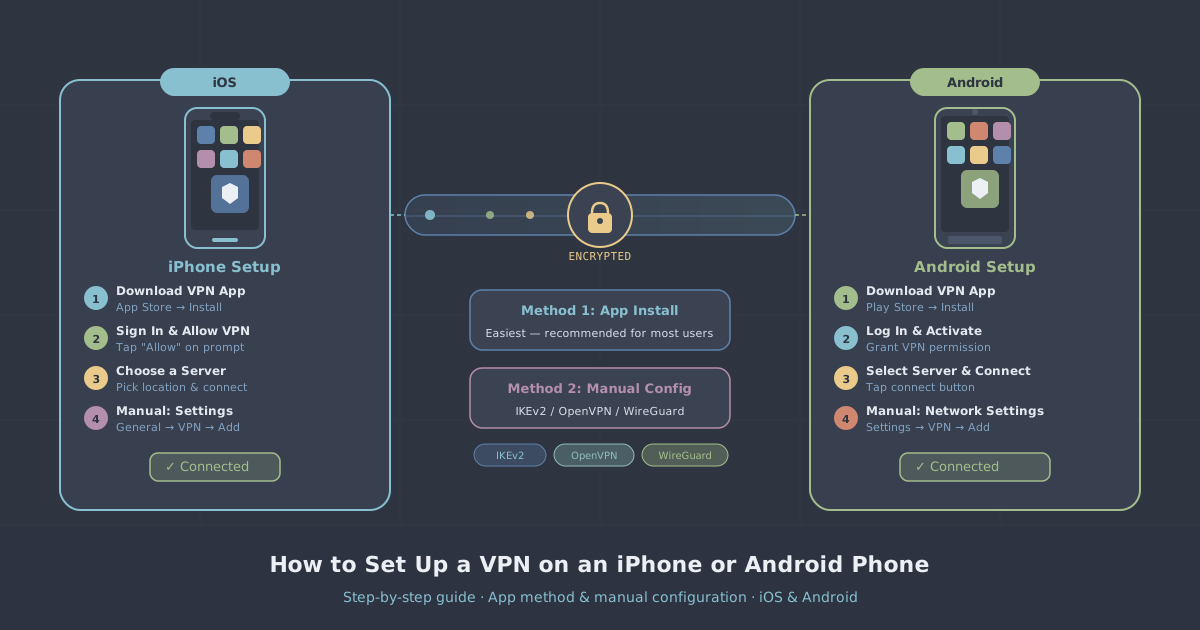
- Download the app. Go to the App Store, search for PremierVPN, and install it. Alternatively, tap the direct link at /premiervpn-ios-app on your device—it will open the correct App Store listing.
- Sign in. Open the app and sign in with your PremierVPN account credentials. If you have not created an account yet, you can do so during this step.
- Allow the VPN configuration. The first time you connect, iOS will ask permission to add a VPN configuration to your device. Tap Allow. You may also be prompted for Face ID, Touch ID, or your passcode to confirm. This is a standard iOS security prompt—it does not grant the app any unusual access.
- Choose a server location. The app will suggest an optimal server automatically, but you can tap the location selector to browse the full list. If you are travelling and need a UK IP address, pick a UK server. If you want to access content available in another country, select accordingly. You can see all available locations at /server-locations.
- Connect. Tap the connect button. The VPN icon (a small padlock or the letters VPN) will appear in the iOS status bar when the tunnel is active.
The app connects over WireGuard by default. If you are on a network that blocks WireGuard—some corporate and university networks do—you can switch to WireGuard Stealth or OpenVPN in the app settings. Both are available without reinstalling anything.
Enabling the Kill Switch on iOS
In the app settings, find the kill switch option and turn it on. When active, it blocks all internet traffic if the VPN connection drops, rather than letting your device fall back to an unprotected connection. On a phone that frequently moves between Wi-Fi and mobile data, this is worth enabling.
Setting Up PremierVPN on an Android Phone (Android App)
Android setup follows a similar pattern. The full walkthrough is available at /how-to-set-up-premiervpn-android-app if you want screenshots alongside the steps.
- Download the app. Open the Google Play Store, search for PremierVPN, and install it—or visit /premiervpn-android-app on your device to go directly to the listing.
- Sign in. Launch the app and enter your account credentials.
- Accept the connection request. When you connect for the first time, Android displays a system prompt asking whether you trust the app to set up a VPN connection. Tap OK. This is Android's standard VPN permission dialogue.
- Select a server. The app picks a recommended server by default. You can browse and choose a different location from the server list if you have a preference.
- Connect. Tap connect. A key icon appears in the Android notification bar to indicate an active VPN tunnel.
Android-Specific Tips
Android's battery optimisation features can sometimes interfere with background apps, including VPN clients. If you notice the VPN disconnecting unexpectedly, go to your phone's battery settings and exempt the PremierVPN app from optimisation. The exact menu path varies by manufacturer, but it is usually under Settings > Battery > App optimisation or similar.
Android also has a built-in Always-on VPN option. You can find it under Settings > Network & internet > VPN. Tapping the gear icon next to PremierVPN reveals the always-on toggle, which keeps the VPN running even after a reboot and blocks connections if the VPN is not active. This achieves the same effect as a kill switch at the operating system level.
Manual VPN Configuration on iPhone
If you need to configure a VPN without the app, iOS supports IKEv2 natively. You will need the server address, your account credentials, and any certificate or pre-shared key details from your VPN provider.
- Open Settings and tap General.
- Scroll down to VPN & Device Management, then tap VPN.
- Tap Add VPN Configuration.
- Set the type to IKEv2.
- Enter a description (any label you like), the server address, your remote ID, and your authentication credentials.
- Tap Done, then toggle the VPN switch to connect.
Bear in mind that manually configured connections on iOS do not have a kill switch and will not automatically reconnect with the same reliability as the app. They are also fixed to a single server—switching requires editing the configuration by hand each time.
Manual VPN Configuration on Android
Android's built-in client supports IKEv2/IPsec and L2TP/IPsec. The steps below cover IKEv2, which is the more secure option of the two.
- Go to Settings > Network & internet > VPN. On some Android skins (Samsung One UI, for example) this may be under Connections > More connection settings > VPN.
- Tap the + or Add button.
- Give the connection a name, set the type to IKEv2/IPSec MSCHAPv2 or the appropriate variant, and enter the server address and your credentials.
- Tap Save, then tap the connection name to connect.
As with iOS, manual configuration on Android lacks the advanced features of a dedicated app. It will get the job done in a pinch, but it is not a substitute for a properly maintained VPN client if you use a VPN regularly.
Choosing the Right Protocol for Your Situation
The PremierVPN apps let you switch protocols from within the settings menu. Here is a quick reference for when to use each one:
| Protocol | Best for | Notes |
|---|---|---|
| WireGuard | Most situations | Fast, low battery drain, default choice |
| WireGuard Stealth | Networks that block standard VPN traffic | Obfuscates the WireGuard handshake |
| OpenVPN | Compatibility with restrictive networks | Slower than WireGuard but widely supported |
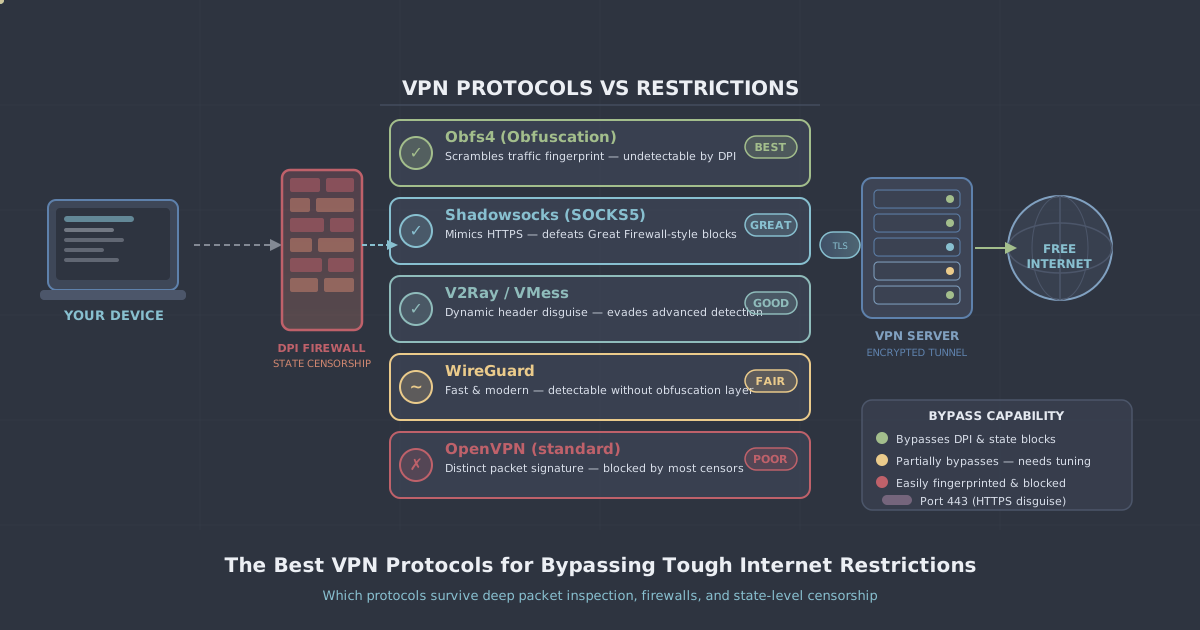
If you are travelling to a country with heavy internet restrictions—China, Iran, or similar—the standard protocols may not work reliably. In that case, the VLESS+REALITY protocol available through PremierVPN X is designed specifically for those environments. PremierVPN X is currently available for macOS and Windows, so for travel to high-restriction countries on mobile, WireGuard Stealth is your best starting point within the mobile apps.
Checking That Your VPN Is Actually Working
Once you are connected, it is worth confirming the VPN is functioning correctly rather than assuming everything is fine. The quickest check is to visit our IP leak test page from your phone's browser while connected to PremierVPN. It will show your apparent IP address and flag any DNS leaks. If the IP shown matches the country of your chosen server and no leaks are detected, your setup is working as expected.
If the test shows your real IP address, double-check that the VPN status bar icon is present and that you are connected to the correct server. On Android, also verify that battery optimisation is not interfering with the app.
A Few Practical Recommendations
The app-based setup is the right approach for the vast majority of mobile users. It takes under five minutes, requires no technical knowledge, and gives you features—kill switch, protocol choice, automatic reconnection—that manual configuration simply cannot match.
If you switch between personal and work use, consider keeping the VPN connected by default rather than turning it on only when you remember. Modern protocols like WireGuard have a minimal impact on battery life and connection speed, so leaving it on throughout the day is a reasonable habit rather than a compromise.
For business users who need VPN access across a team, a business VPN plan provides centralised management rather than individual app setups per device. And if you need a consistent IP address—for allowlisting with corporate systems or banking services—a dedicated IP is worth considering alongside your mobile setup.