8 min read
Connecting to a VPN and assuming you're protected is a reasonable instinct—but it's not always correct. A VPN can be running, the connection indicator can show green, and your real IP address can still be visible to the websites and services you visit. This is called an IP leak, and it happens more often than most people expect.
This guide explains exactly what IP leaks are, the different ways they occur, and how to run a proper leak test yourself. It covers the full picture—not just the two types (DNS and WebRTC) that most articles mention, but the less-discussed failure modes too.
What Is an IP Leak?
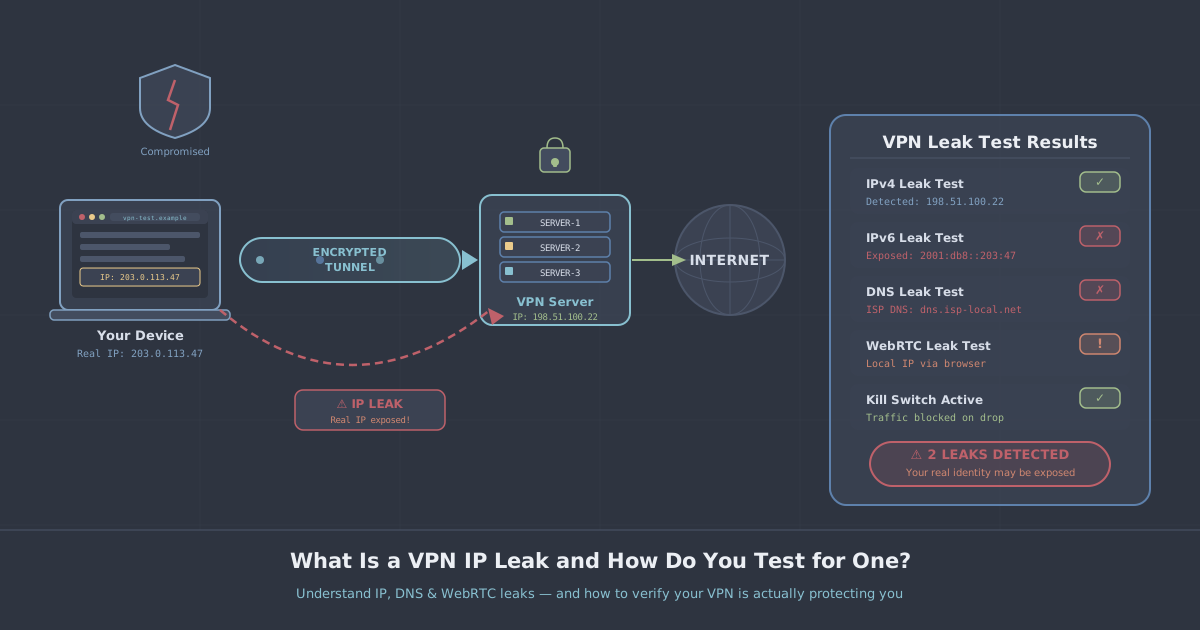
When you connect to a VPN, all your internet traffic should route through an encrypted tunnel to a VPN server. Any website or service you visit should see the VPN server's IP address—not your real one. An IP leak is any situation where your real IP address, or information that reveals your identity or location, escapes that tunnel and becomes visible to outside parties.
The word "leak" is apt: the tunnel is not fully sealed. Traffic that should stay inside it slips out through a gap, usually caused by a protocol, browser feature, or operating system behaviour that the VPN client does not intercept or block.
Leaks do not always mean your VPN has been hacked or is fundamentally broken. Often they are configuration issues, edge cases, or conflicts with other software. That is precisely why testing matters—it tells you whether your specific setup, on your specific device, is working as intended.
The Main Types of IP Leak
DNS Leaks
Every time you type a domain name into your browser, your device sends a DNS query to translate that name into an IP address. When a VPN is working correctly, those queries go through the VPN tunnel and are resolved by the VPN provider's DNS servers—so your ISP cannot see which sites you're looking up.
A DNS leak occurs when those queries bypass the tunnel and go directly to your ISP's DNS servers instead. Your IP address may be hidden, but your browsing activity is still visible to your ISP through the DNS requests. This is one of the most common leaks, and it can happen when:
- The VPN client does not force DNS through the tunnel
- Your operating system falls back to its default DNS configuration
- You are using a split-tunnel setup where DNS is not handled correctly
- The VPN connection drops briefly and DNS continues on the default path
WebRTC Leaks
WebRTC is a browser technology that enables real-time communication features—video calls, voice chat, peer-to-peer file sharing. To establish direct connections between users, WebRTC needs to discover IP addresses, and it uses a mechanism called ICE (Interactive Connectivity Establishment) to do so.
The problem is that WebRTC can bypass your VPN tunnel entirely and reveal your real IP address—even when you are connected. This is not a flaw in the VPN itself; it is a browser-level behaviour. Chromium-based browsers and Firefox are both susceptible, and it affects any VPN protocol because the leak happens inside the browser, not at the network layer.
You can mitigate WebRTC leaks by disabling WebRTC in your browser settings, or by using a browser extension that blocks WebRTC requests. PremierVPN's free PremierVPN Protect browser extension includes WebRTC leak protection alongside other privacy features.
IPv6 Leaks
Most people think of IP addresses as the familiar four-number format—192.168.1.1—which is IPv4. IPv6 is the newer protocol, using longer addresses, and it is increasingly supported by ISPs and devices. Many VPN clients are configured to handle IPv4 traffic but do not fully route IPv6 traffic through the tunnel.
If your ISP assigns you an IPv6 address and your VPN does not handle it, websites that support IPv6 can see your real IPv6 address even when your IPv4 address is masked. The fix is for the VPN client to either route IPv6 through the tunnel or block it entirely. If you are unsure whether your setup handles this, testing will tell you.
Kill Switch Failures
A kill switch is designed to block all internet traffic if the VPN connection drops unexpectedly—preventing any unprotected traffic from leaving your device during the gap. When a kill switch is absent, misconfigured, or fails to activate in time, your real IP address can be briefly exposed during reconnection.
This matters most for users who are concerned about continuous protection: torrent users, journalists, people in high-risk environments. A VPN that connects and encrypts traffic but lacks a reliable kill switch offers weaker protection than it appears to.
Traffic Outside the Tunnel (Split Tunnelling)
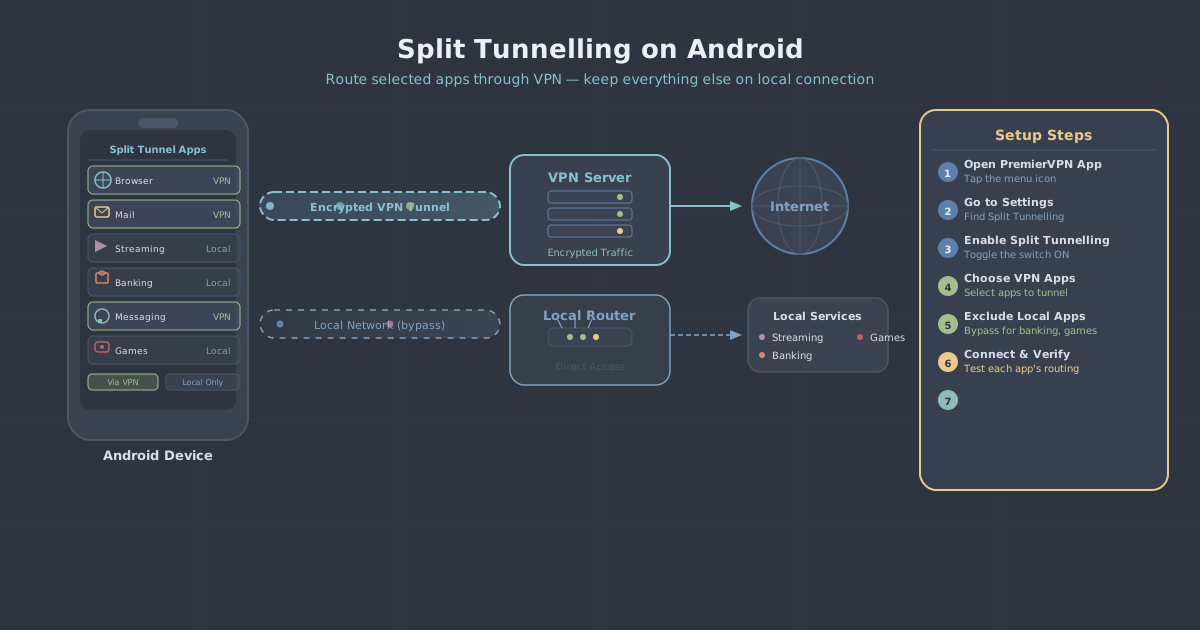
Split tunnelling is a feature that lets you choose which apps or destinations route through the VPN and which connect directly. Used intentionally, it is a useful tool. Used carelessly—or when applications are misconfigured to bypass the VPN without the user realising—it becomes a leak.
If you have set up split tunnelling and forgotten which apps are excluded, those apps are sending traffic with your real IP. This is technically working as configured, but if you have forgotten about the setting, it will look and feel like a leak.
HTTPS and Browser Leaks via JavaScript
Some websites use JavaScript to detect and report back information about the visitor's network environment. This can include local IP addresses, connection type, and timezone data. While this does not expose your real public IP in the way a DNS or WebRTC leak does, it can provide enough context to narrow down your location or identify inconsistencies—for example, if your VPN server is in Germany but your browser's timezone reports London.
This category of leak is harder to prevent entirely, but being aware of it is useful when thinking about what a "leak test" is actually measuring.
How to Run a Proper Leak Test
A proper leak test checks multiple types of exposure in the right order. Here is a practical method.
Step 1: Record your baseline
Before connecting to the VPN, visit PremierVPN's IP leak test tool and note down your real IP address, your DNS server addresses, and whether IPv6 is active. This gives you a reference point. Screenshot it if you want a record.
Step 2: Connect to the VPN and retest
Connect to your VPN, then run the same test again. Every IP address shown—IPv4 and IPv6—should belong to the VPN server, not to you or your ISP. The DNS servers listed should be the VPN's, not your ISP's. If your real IP or your ISP's DNS servers appear anywhere in the results, you have a leak.
Step 3: Check for WebRTC specifically
The leak test tool will attempt to detect your local and public IP addresses via WebRTC. If a public IP address appears here that matches your real IP (from your baseline), you have a WebRTC leak in your current browser. Check whether the issue is specific to one browser or present across all of them.
Step 4: Test what happens during reconnection
Disconnect from the VPN while the leak test page is open and watch what happens to the displayed IP address. Reconnect. If, during the transition, your real IP appears even briefly, your kill switch either is not active or is not functioning correctly. Enable it in your VPN client settings if it is available.
Step 5: Test on each browser separately
WebRTC behaviour varies by browser. Run the test in every browser you use regularly. A leak present in one browser may not appear in another, so testing only one gives you an incomplete picture.
What to Do If You Find a Leak
Finding a leak does not mean your VPN is useless—it means there is a configuration issue to address. Here is where to start:
- DNS leak: Check whether your VPN client has a DNS leak protection setting and enable it. On Windows, you may also need to adjust network adapter settings to prevent the OS from using its own DNS.
- WebRTC leak: Install a WebRTC-blocking browser extension such as PremierVPN Protect, or disable WebRTC in your browser settings. In Firefox, this can be done via
about:configby settingmedia.peerconnection.enabledtofalse. - IPv6 leak: Enable IPv6 leak protection in your VPN client, or disable IPv6 at the operating system level if you do not need it.
- Kill switch: Enable it in your VPN client if the option exists. If it is already enabled and still failing, contact your VPN provider's support team.
- Split tunnel confusion: Review your split tunnel settings and ensure any applications you need protected are routed through the VPN.
How PremierVPN Handles Leak Protection
PremierVPN uses WireGuard as its default protocol, which handles DNS entirely within the tunnel and does not rely on system DNS resolvers in the same way older protocols do. The apps for Windows, macOS, iOS, and Android include DNS leak protection and kill switch functionality built in.
For users in restrictive network environments where standard VPN traffic is blocked or scrutinised, PremierVPN X uses the VLESS+REALITY protocol, which makes VPN traffic appear indistinguishable from ordinary HTTPS traffic. You can read more about how that works in our guide to VLESS+REALITY.
IPv6 is handled at the protocol level—WireGuard supports dual-stack routing, and the apps are configured to prevent IPv6 traffic from bypassing the tunnel.
Make Leak Testing a Habit
A leak test you ran six months ago tells you nothing about your setup today. Operating system updates, browser updates, and changes to your network configuration can all introduce new leaks. Running a quick check every few weeks—particularly after a software update or when you switch networks—takes under two minutes and confirms your protection is still intact.
The process is straightforward: baseline without VPN, test with VPN connected, check each browser, test the kill switch behaviour. If everything lines up, you can use your VPN with confidence rather than assumption. If something is off, you now know exactly where to look.
Start with the PremierVPN IP leak test—it checks IPv4, IPv6, DNS, and WebRTC in a single page, and you do not need to be a PremierVPN customer to use it.