8 min read
Most people install a VPN, turn it on, and leave every setting at its default. That approach is perfectly reasonable—but it means they're almost certainly missing out on split tunnelling, one of the most practical features a VPN can offer.
Split tunnelling lets you decide which applications or destinations use the encrypted VPN connection and which use your regular internet connection directly. Done well, it removes friction, improves performance for local tasks, and keeps your sensitive traffic protected where it matters. Done badly—or left misconfigured—it can undermine the privacy you were trying to achieve in the first place.
This guide explains how split tunnelling works, walks through the most common real-world scenarios, and helps you decide whether and how to configure it.
How Split Tunnelling Actually Works
When a VPN is running in its default full-tunnel mode, every packet your device sends is encrypted and routed through the VPN server before reaching the open internet. Your local network traffic—printers, NAS drives, smart home devices—is often blocked or complicated as a result, because it too is being forced down the tunnel.
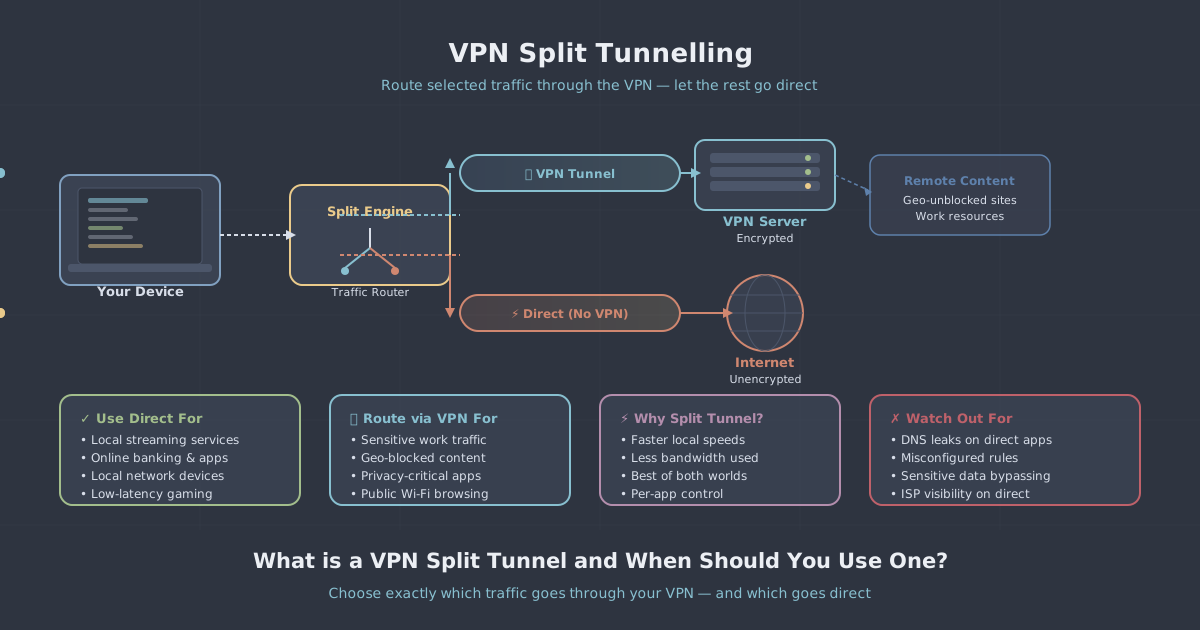
Split tunnelling changes this by maintaining two simultaneous routing paths:
- The VPN tunnel—encrypted, routed through the VPN server, with your VPN IP address visible to the destination.
- The direct connection—your normal ISP connection, with your real IP address, used for traffic you explicitly exclude from the tunnel.
The VPN client manages a routing table that determines which path each packet takes. That decision can be made by application (e.g. only your browser uses the VPN), by destination IP or domain (e.g. only traffic to a specific server is tunnelled), or by an inverse approach sometimes called inverse split tunnelling—where everything goes through the VPN except a defined list of exclusions.
The key point is that split tunnelling is a deliberate routing decision, not a security shortcut. Used with clear intent, it's a legitimate and useful tool.
The Main Types of Split Tunnelling
Application-based split tunnelling
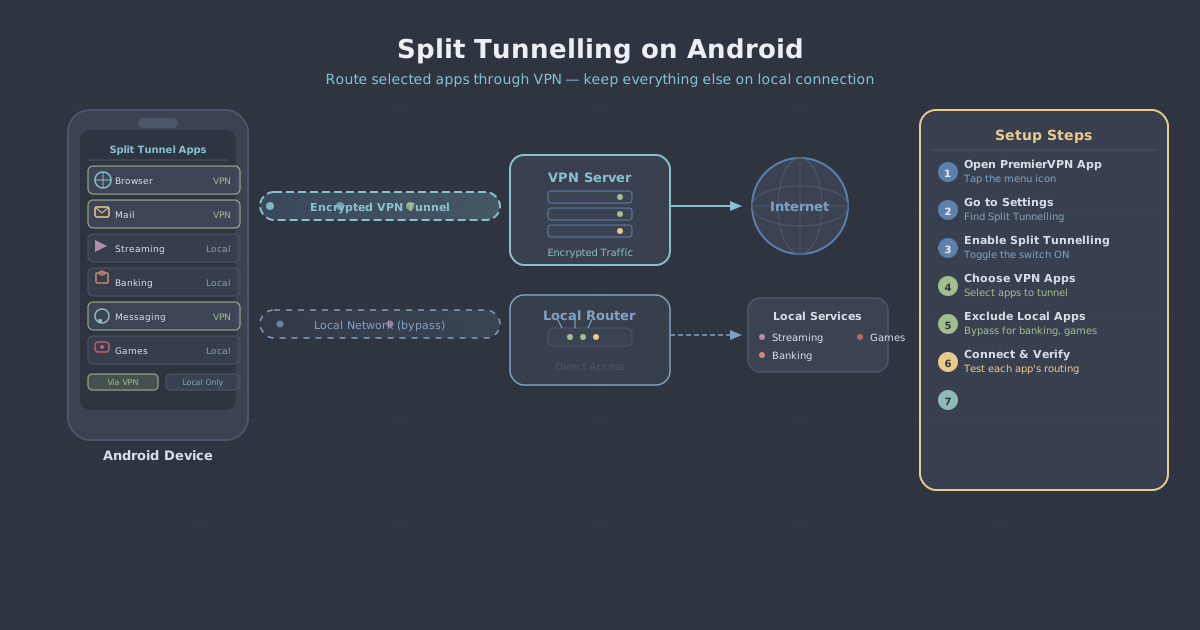
You select specific applications whose traffic should be routed through the VPN (or excluded from it). For example, you might route only your browser and a messaging app through the VPN while leaving your video conferencing software on the direct connection to reduce latency.
IP or domain-based split tunnelling
Traffic destined for specific IP addresses or subnets is routed differently from everything else. This is particularly common in remote work scenarios, where traffic to an office network goes through a corporate VPN tunnel while general browsing goes direct.
Inverse (or exclude-list) split tunnelling
Rather than specifying what goes through the VPN, you specify what doesn't. Everything is tunnelled by default except the items on your exclusion list. This approach is more privacy-preserving because the default behaviour errs on the side of encryption.
When Split Tunnelling Makes Sense
Accessing local network devices
This is probably the most common reason to use split tunnelling. When a VPN is active, your device's traffic is routed away from your local network, which means you may lose access to a network printer, a NAS drive, a local media server, or a router's admin interface. Excluding local subnet traffic (typically 192.168.0.0/16 or 10.0.0.0/8) from the tunnel restores access to these devices without exposing your internet traffic.
Remote work with a personal device
If you use a personal device for work alongside your own browsing, you may want work-related applications—a corporate file system, a remote desktop client, an internal project management tool—to route through your company's network, while personal browsing routes through your own VPN or direct connection. Split tunnelling makes this separation practical without constantly toggling connections.
Reducing latency for real-time applications
Video calls, voice calls, and online gaming are sensitive to latency and packet loss. Routing these through a VPN server adds a hop and can degrade call quality noticeably. If privacy is not your primary concern for these applications, excluding them from the tunnel can meaningfully improve the experience. For gaming specifically, the PremierVPN gaming setup covers how to balance protection with performance.
Streaming local content
If you're using a VPN to access content available in a different region, but you also want to watch locally licensed content on another service, split tunnelling lets you route only the relevant streaming service through the VPN. The alternative—toggling the VPN on and off—is tedious and easy to forget.
Bandwidth-intensive background tasks
Large software updates, cloud backups, and file synchronisation services can consume significant bandwidth. If privacy is not a concern for these (a routine macOS update, for instance), excluding them from the tunnel reduces load on the VPN connection and keeps it faster for the traffic that matters.
When Split Tunnelling Is the Wrong Choice
Split tunnelling is not always the right answer. There are situations where it introduces genuine risk.
When your threat model requires full traffic isolation
If your reason for using a VPN is to prevent your ISP, network operator, or any passive observer from seeing your browsing habits, split tunnelling undermines that goal for any traffic you exclude. Your ISP can still see DNS queries, destination IPs, and SNI headers for unencrypted or excluded traffic. If full network-level privacy matters to you, full-tunnel mode is the appropriate choice.
On untrusted networks
Public Wi-Fi in hotels, airports, and cafés is a case where you generally want everything tunnelled. Splitting traffic on an untrusted network leaves unencrypted packets exposed to whoever controls that network. The minor convenience of direct access to a local device is rarely worth the risk in these environments.
When you're unsure what an application transmits
It's tempting to exclude familiar-looking applications from the VPN to simplify things, but some applications phone home with data that you might prefer to keep private. If you're uncertain what an app is sending, don't exclude it from the tunnel.
A Practical Configuration Approach
Rather than deciding per-application from scratch, a structured approach saves time and reduces mistakes. Consider working through these steps:
- Start with full-tunnel mode as the default. Everything is protected unless you consciously decide otherwise.
- Identify specific friction points. Is your printer unreachable? Is your video call quality poor? These are candidates for exclusion, not your entire traffic profile.
- Use subnet exclusions for local network access rather than disabling the VPN entirely. Exclude
192.168.0.0/16to restore local device access while keeping internet traffic tunnelled. - Audit exclusions periodically. An exclusion added six months ago for a specific use case may no longer be necessary—or may be covering an application whose behaviour has changed.
- Be more conservative on untrusted networks. Consider disabling split tunnelling entirely when you're away from home or the office.
If you want to verify that your configuration is behaving as expected—that traffic you intend to tunnel is actually reaching the internet through your VPN IP—PremierVPN's IP leak test is a quick way to check.
Split Tunnelling and the WireGuard Protocol
WireGuard, the default protocol in PremierVPN's apps, uses an AllowedIPs directive to control which traffic enters the tunnel. In full-tunnel mode, this is set to 0.0.0.0/0—all traffic. Split tunnelling works by modifying this list to include only the destinations you want tunnelled, or by excluding specific CIDRs from it.
This is handled automatically by the VPN client when you configure split tunnelling through the app interface—you don't need to edit WireGuard configuration files manually. But understanding the underlying mechanism is useful if you're ever troubleshooting unexpected routing behaviour or setting up a dedicated WireGuard server with custom routing rules.
OpenVPN uses a similar concept with its route and route-nopull directives, and the same logical principles apply: the routing table determines which packets go through the tunnel and which bypass it.
A Quick Reference: Use Cases at a Glance
| Scenario | Recommended approach | Notes |
|---|---|---|
| Accessing a local printer or NAS | Exclude local subnet | Use 192.168.0.0/16 exclusion |
| Video calls with quality issues | Exclude conferencing app | Only if call privacy is not a concern |
| Streaming geo-restricted content | Application-based tunnelling | Route only the relevant streaming app |
| Public Wi-Fi | Full tunnel, no split | Do not split on untrusted networks |
| Background software updates | Exclude update service | Low privacy risk, high bandwidth saving |
| High privacy requirement | Full tunnel only | Any exclusion creates a privacy gap |
Summary
Split tunnelling is a routing tool, not a compromise. When you configure it deliberately—based on specific needs and a clear understanding of what you're excluding—it makes a VPN more practical without meaningfully weakening its protection for the traffic that matters.
The mistake most people make is treating it as all-or-nothing: either the VPN is on for everything, or they turn it off entirely because something isn't working. Split tunnelling is the middle path that resolves most day-to-day friction while keeping sensitive traffic encrypted.
If you're new to VPNs and want to understand the broader picture before diving into routing configuration, the what is a VPN guide is a good starting point. For those working with PremierVPN on a laptop or desktop, the remote work VPN page covers how split tunnelling fits into a practical work-from-home setup.