8 min read
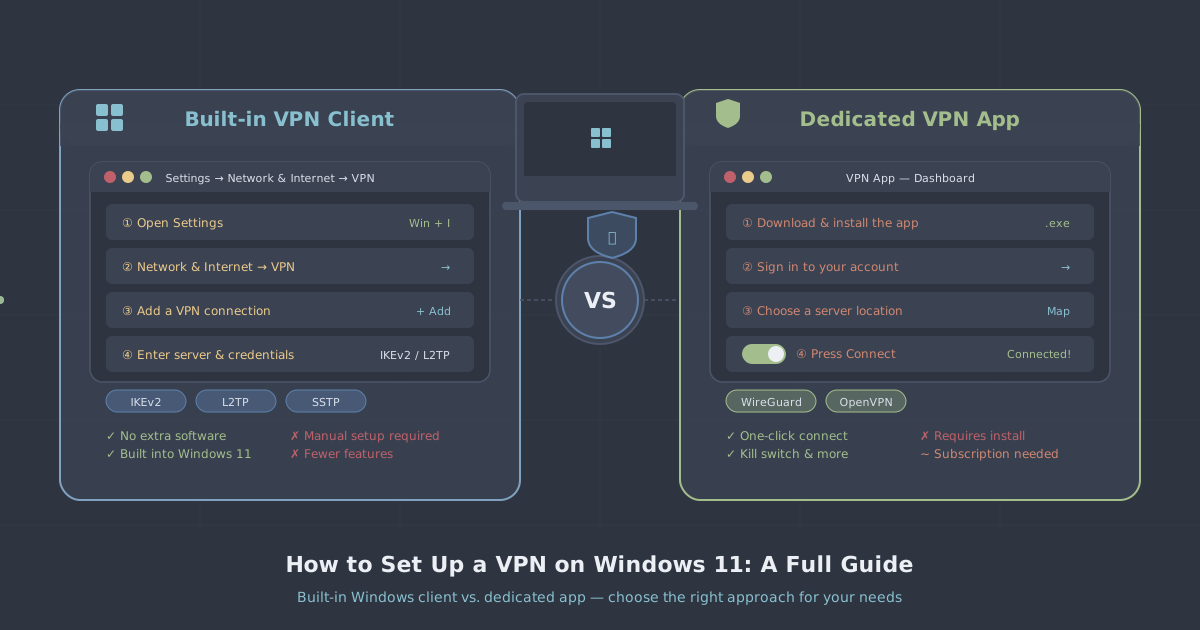
Windows 11 gives you two distinct ways to run a VPN: the built-in VPN client baked into Settings, and a dedicated VPN application. Both work, but they suit different situations, and understanding the difference will save you time and frustration.
This guide walks through both methods in full. It covers what you need before you start, how to configure each option step by step, and which approach makes sense depending on how you plan to use your VPN. If you are new to VPNs altogether, it is worth reading our primer on what a VPN actually does before diving in.
Everything here is tested on Windows 11. Most steps apply to Windows 10 as well, though menu labels differ in places.
Method 1: The Windows built-in VPN client
Windows 11 includes a native VPN client that supports IKEv2, L2TP/IPsec, SSTP, and PPTP. You configure it manually under Settings > Network & internet > VPN. No third-party software is required.
This approach is useful when you need a quick, lightweight connection and you already have server credentials from your VPN provider—a hostname, a username, and a password. The downside is that the built-in client does not support WireGuard, has no kill switch, and requires you to manage settings manually if your provider changes server addresses.
What you need before you start
- A VPN account with an active subscription
- A server hostname or IP address
- Your VPN username and password (these are often different from your account login)
- The protocol your provider supports—IKEv2 is the most reliable choice for the built-in client
- A pre-shared key or certificate, if your provider requires one for IKEv2 or L2TP
Step-by-step: adding a VPN connection
- Open Settings (press
Windows + I). - Go to Network & internet, then click VPN.
- Click Add VPN.
- In the VPN provider dropdown, select Windows (built-in).
- Give the connection a name—something memorable like PremierVPN London.
- Enter the Server name or address provided by your VPN service.
- Choose your VPN type. Select IKEv2 unless your provider specifies otherwise.
- Under Type of sign-in info, select Username and password.
- Enter your VPN username and password.
- Click Save.
To connect, return to Settings > Network & internet > VPN, click the connection name, and press Connect. Alternatively, click the network icon in the taskbar, select the VPN entry, and connect from there.
Verifying your connection
Once connected, your public IP address should reflect the VPN server's location rather than your own. You can confirm this with our IP leak test, which also checks for DNS and WebRTC leaks. If your real IP is still visible, the connection is not routing traffic correctly—double-check the server address and credentials.
Limitations to be aware of
The built-in client has real shortcomings worth knowing before you rely on it:
- No kill switch. If the VPN connection drops, Windows continues sending traffic over your regular connection. Your real IP becomes visible until you manually reconnect.
- No WireGuard support. WireGuard is not available through the native client. You need a dedicated app to use it.
- Manual updates. If your VPN provider adds or changes server addresses, you update the configuration yourself.
- Split tunnelling is limited. The built-in client offers basic per-app routing via PowerShell, but it is not a friendly interface.
For everyday browsing where you want a quick, dependency-free setup and you understand these trade-offs, the built-in client is adequate. For anything more demanding, Method 2 is the better option.
Method 2: Using the PremierVPN Windows app
A dedicated VPN app handles everything the built-in client cannot: automatic kill switch, WireGuard as the default protocol, server list management, and one-click connect. It also removes the need to find and enter server credentials manually.
The PremierVPN Windows app supports WireGuard (default), WireGuard Stealth for restrictive networks, and OpenVPN. Setup takes a few minutes.
Installing the app
- Download the installer from the Windows app page.
- Run the
.exeinstaller. Windows may show a User Account Control prompt—click Yes to allow installation. - Follow the installer prompts. The process is straightforward and takes under a minute.
- Launch the app and sign in with your PremierVPN account credentials.
If you prefer a walkthrough with screenshots, the full Windows setup guide covers each screen in detail.
Connecting for the first time
- Open the app. You will see a server selection screen and a connect button.
- Choose a server location from the list—or leave it on the default recommended server.
- Click Connect. WireGuard establishes the tunnel in seconds.
- The interface shows your new IP address and confirms the connection is active.
Run the IP leak test again to confirm everything is routing correctly. On a properly configured WireGuard connection you should see the server's IP and no DNS leaks.
Key settings worth configuring
Once connected, take a few minutes to review these settings in the app:
- Kill switch. Enabled by default. If the VPN tunnel drops unexpectedly, the kill switch blocks all internet traffic until the connection is restored, preventing your real IP from leaking.
- Auto-connect on launch. Useful if you want the VPN active every time Windows starts.
- Protocol selection. WireGuard is the default and is the right choice for most users. Switch to WireGuard Stealth if you are on a network that blocks standard VPN traffic—corporate networks and some hotel Wi-Fi networks sometimes do this.
- Server locations. PremierVPN operates servers across 12+ locations. Pick the one geographically closest to you for the best performance, or choose a specific country for a particular use case.
Choosing between the built-in client and the dedicated app
| Feature | Windows built-in client | PremierVPN app |
|---|---|---|
| WireGuard support | No | Yes (default) |
| Kill switch | No | Yes |
| Auto-connect | Partial (via Task Scheduler) | Yes |
| Server management | Manual | Automatic |
| Setup complexity | Moderate | Low |
| Third-party software required | No | Yes |
| Stealth/obfuscation mode | No | Yes (WireGuard Stealth) |
The built-in client suits users on locked-down devices where installing software is not permitted, or those who only need occasional VPN access and have credentials to hand. For regular use—especially on personal machines—the dedicated app offers a meaningfully more reliable and safer experience.
Troubleshooting common issues
The VPN connects but traffic is not going through the tunnel
On the built-in client, check that Use default gateway on remote network is enabled. Open Network Connections (ncpa.cpl), right-click your VPN adapter, go to Properties > Networking > Internet Protocol Version 4 > Properties > Advanced, and tick that option.
IKEv2 fails to connect
Some routers block UDP port 500 and 4500, which IKEv2 uses. Try switching to L2TP or SSTP in the connection settings. Alternatively, switch to the PremierVPN app and use WireGuard Stealth, which is designed to traverse restrictive network environments.
DNS leaks detected
The built-in client can leak DNS requests depending on your network adapter settings. The PremierVPN app handles DNS routing automatically. If you are using the built-in client and seeing DNS leaks, setting your adapter's DNS servers manually to your VPN provider's DNS addresses usually resolves the issue.
App does not install or launch
Ensure you are running Windows 11 with up-to-date system files. Right-click the installer and choose Run as administrator. If Windows Defender flags the installer, this is typically a false positive with new software—verify the download came directly from the official app page.
A note on restrictive networks
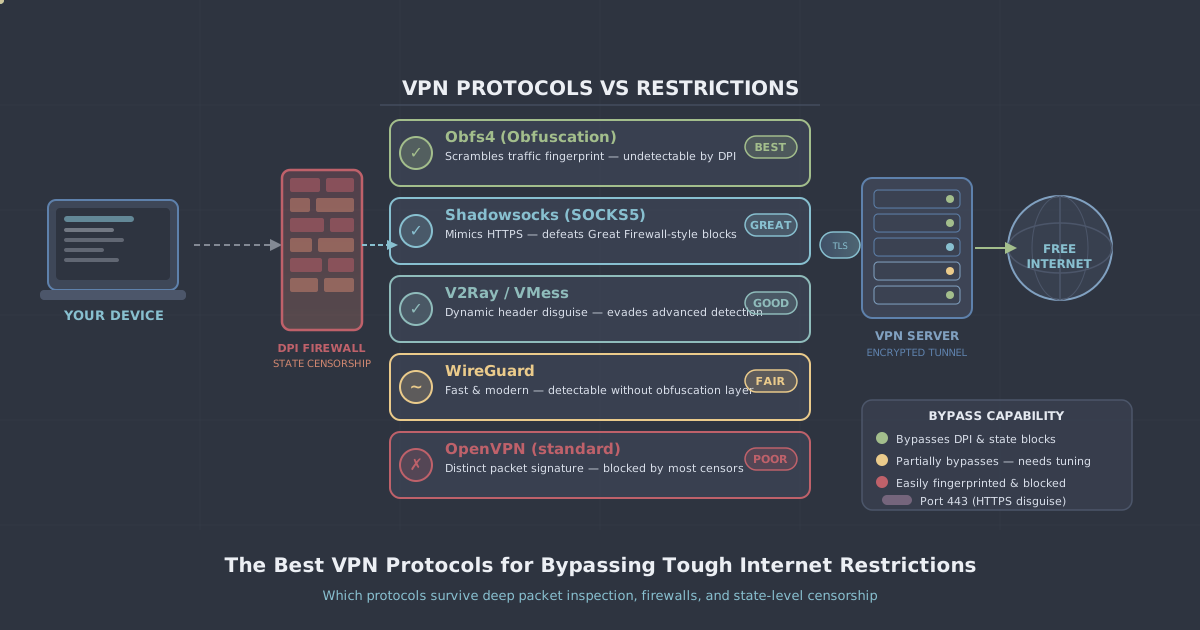
If you need to use a VPN in a country where VPN traffic is actively blocked—such as China, Iran, or Russia—neither the standard built-in client nor standard WireGuard will be sufficient. For those situations, PremierVPN X for Windows uses the VLESS+REALITY protocol, which is specifically designed to be indistinguishable from ordinary HTTPS traffic. You can read more about how that works in our VLESS+REALITY protocol guide.
Summary
Setting up a VPN on Windows 11 comes down to a straightforward choice. Use the built-in client if you have a specific reason to avoid installing software and you understand its limitations—particularly the absence of a kill switch. Use the PremierVPN app for everything else: it is faster to configure, safer by default, and handles protocol selection and server management automatically.
For most Windows 11 users, downloading the app, signing in, and pressing connect is all it takes. The built-in client remains a useful fallback, but it is not a substitute for a properly configured dedicated application when reliability and privacy protection matter.