8 min read
Public Wi-Fi is one of those risks that everyone acknowledges and almost nobody thinks carefully about. People connect in airports, hotels, and coffee shops without a second thought, or they connect through a VPN and assume they are fully covered. Both approaches leave gaps.
The actual threat on public Wi-Fi is more specific than the vague warning of "someone could steal your data." Understanding what an attacker can realistically do in 2026 changes which protections matter. And using a VPN helps significantly—but only if certain settings are configured correctly.
This guide covers the real attack surface, what a VPN does and does not protect, and how to verify your setup is working before you open your laptop in a busy terminal.
What Attackers Can Actually Do on Public Wi-Fi
The landscape has changed over the past few years. The widespread adoption of HTTPS means that simply intercepting traffic on a shared network no longer exposes the contents of most web pages. An attacker sitting on the same café Wi-Fi as you cannot read your Gmail or see your banking transactions the way they could a decade ago.
What they can still do is more subtle but genuinely dangerous:
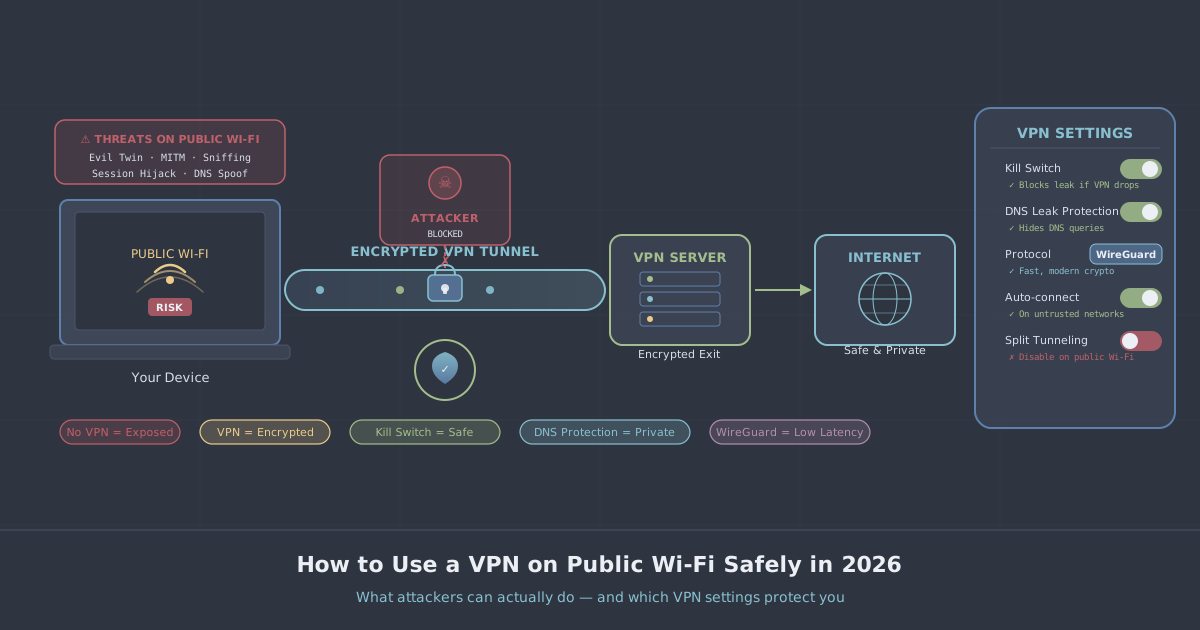
- Traffic analysis and metadata collection. Even with HTTPS, DNS queries are often unencrypted. An attacker can see every domain name you resolve—meaning they know which services you are using, when, and how often—even without seeing the content.
- Evil twin attacks. An attacker creates a Wi-Fi access point with the same name as a legitimate network ("Airport_Free_WiFi", for example). Your device connects automatically, and all your traffic flows through their hardware before reaching the internet.
- SSL stripping on unprotected sites. A small but real portion of the web still serves pages over plain HTTP. On a hostile network, an attacker can intercept and modify this traffic freely.
- Session hijacking via insecure cookies. Some older applications and websites set cookies without the
Secureflag. These cookies can be captured on a shared network and used to impersonate you. - Captive portal credential harvesting. Rogue hotspots mimic legitimate hotel or airport login pages. If you enter credentials, the attacker captures them.
None of these require sophisticated hardware. A cheap laptop running freely available tools is enough. The question is which of these does a VPN actually address.
What a VPN Protects—and What It Does Not
A VPN creates an encrypted tunnel between your device and the VPN server. All traffic—including DNS queries—travels through that tunnel before reaching the open internet. This directly neutralises the most realistic threats on a public network.
With an active VPN connection:
- DNS queries are encrypted inside the tunnel, so no one on the local network can see which domains you are visiting.
- Traffic analysis at the access point level becomes useless—an attacker sees encrypted WireGuard or OpenVPN packets, not recognisable application traffic.
- Even on an evil twin network, your traffic is encrypted before it leaves your device. The attacker sees ciphertext they cannot read.
- SSL stripping and session hijacking attacks against your traffic are blocked because there is no plaintext to strip or intercept.
What a VPN does not protect against:
- Malware already on your device. A VPN is a network tool, not an endpoint security tool.
- Phishing sites that look legitimate. The VPN encrypts your connection to a fake site just as well as to a real one.
- Captive portal credential harvesting—though connecting to a VPN immediately after passing through the captive portal login mitigates downstream risk.
The protection is real and substantial. It is also not magic. Understanding the boundary makes you a more effective user.
The Settings That Actually Matter
Connecting to a VPN is not sufficient on its own. Three specific settings determine whether you are genuinely protected on a hostile network.
Kill Switch
A kill switch blocks all network traffic the moment your VPN connection drops. On a public network, connections are less stable than at home—captive portals, timeouts, and interference can all cause momentary disconnects. Without a kill switch, those gaps expose your real IP address and unencrypted traffic to the local network, however briefly.
In the PremierVPN app, the kill switch is available on Windows, macOS, iOS, and Android. Enable it before connecting to any untrusted network. It is one of the settings where the default-off behaviour catches people out.
DNS Leak Protection
DNS leaks occur when your device sends DNS queries outside the VPN tunnel, typically through the router or ISP-assigned DNS server. On a public network this means your browsing activity is visible to whoever controls the router—even while the VPN is active.
PremierVPN routes DNS through the encrypted tunnel by default, but it is worth verifying this is working. Visit our IP leak test once connected and confirm that the DNS servers shown belong to PremierVPN, not your ISP or a local network resolver.
Protocol Selection
WireGuard is the default protocol and the right choice for most public Wi-Fi scenarios—it is fast, modern, and its cryptographic design is auditable. On networks that actively interfere with VPN traffic (some hotel and corporate networks block standard VPN ports), WireGuard Stealth provides obfuscation that makes VPN traffic harder to identify and block.
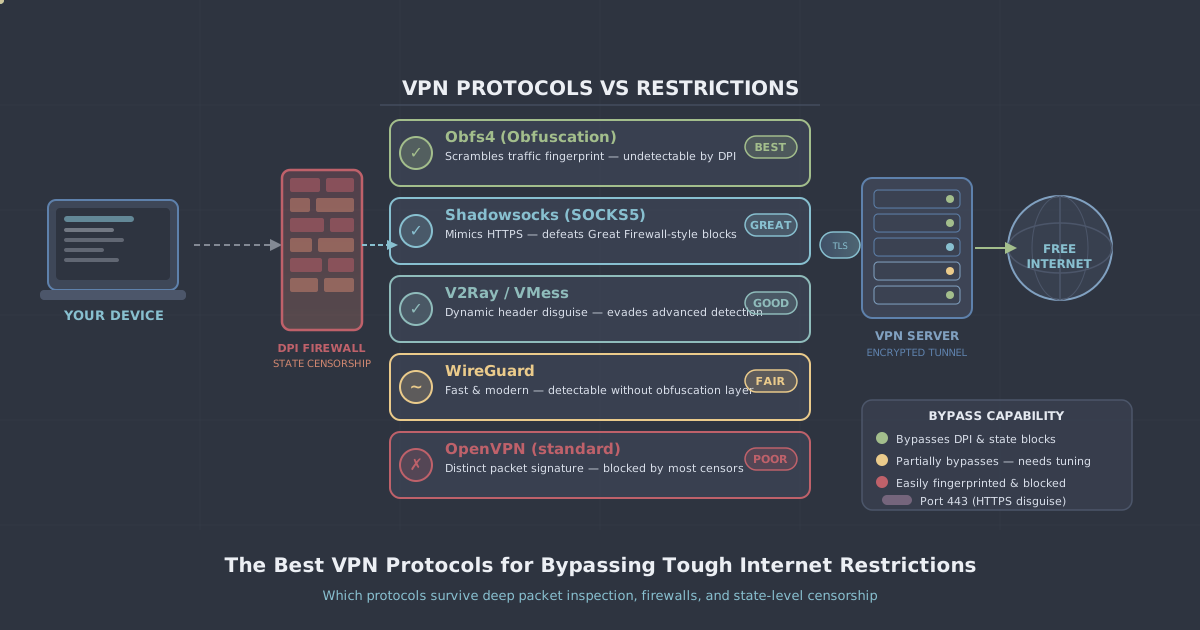
If you are in a country with deep packet inspection—China, Iran, or Russia—standard WireGuard will likely be blocked outright. PremierVPN X for Windows and PremierVPN X for macOS use the VLESS+REALITY protocol, which is specifically designed to survive aggressive network filtering. You can read more about how it works in our VLESS+REALITY protocol guide.
A Checklist Before You Connect
Use this before connecting to any public network:
- Confirm automatic Wi-Fi connection is disabled for networks your device does not recognise. This prevents silent evil twin connections.
- Open the PremierVPN app and verify the kill switch is enabled.
- Connect to the VPN before opening any applications that transmit data.
- If the network requires a captive portal login, connect to the network, complete the portal login with throwaway credentials where possible, then immediately activate the VPN.
- Run the IP leak test to confirm your IP and DNS are being routed correctly.
- For travel to restrictive regions, switch to PremierVPN X before you arrive—configuring obfuscation protocols after landing in a country with internet filtering is harder than doing it in advance.
Device-Specific Notes
iOS and Android
Mobile devices are particularly vulnerable to evil twin attacks because they aggressively seek known networks and connect automatically. iOS 16 and later randomise MAC addresses per network by default, which helps with tracking but does not prevent traffic interception.
On both platforms, enable the kill switch inside the PremierVPN app. On iOS, you can also enable the "Connect on Demand" feature so the VPN activates automatically whenever you join a Wi-Fi network. Setup instructions are in the iOS setup guide.
Windows and macOS
On desktop, the risk of accidental disconnection is lower but still real. The PremierVPN Windows and macOS apps both support the kill switch and WireGuard Stealth. If you use a laptop that travels frequently, consider setting the app to launch at startup and connect automatically.
Fire TV and Streaming Devices
If you travel with a Fire TV Stick and connect it to hotel Wi-Fi, the same risks apply. The PremierVPN Fire TV app encrypts your streaming traffic and prevents the hotel network from seeing what services you are accessing.
When to Use a Dedicated IP
Shared VPN servers work well for the vast majority of public Wi-Fi use cases. However, if you regularly access corporate systems or internal tools remotely from public networks, a dedicated IP address lets your organisation whitelist your VPN exit point. This combines the protection of encrypted tunnelling with the access reliability of a known, fixed IP—particularly useful for remote workers who cannot rely on being at a fixed office location.
Practical Summary
The real risk on public Wi-Fi in 2026 is not a Hollywood-style attacker reading your messages in real time—HTTPS has largely closed that window. The practical risks are DNS leakage, metadata collection, evil twin attacks, and traffic interception on the minority of sites and services that still use unencrypted connections.
A VPN addresses all of these effectively, provided the kill switch is on, DNS routing is verified, and the protocol is appropriate for the network you are on. Spend two minutes running through the checklist above before you open anything sensitive, and use the IP leak test to confirm your configuration is sound. That is genuinely most of what public Wi-Fi security requires.
If you are new to VPNs and want broader context on how they work before diving into settings, our introduction to VPNs is a good starting point.