Black Friday Our biggest deal of the year is coming soon Get notified →
Setup guide · TorrentLock for Mac · Version 2.0

Set up TorrentLock on your Mac

Setup takes about two minutes: install PremierVPN, install TorrentLock, connect. This guide then covers everything else, from feeds and streaming to the Privacy page, every setting and remote access.

Two looks, same app

TorrentLock has two styles, Glass (calm and simple, the default) and Signal (every detail, live). The pages and settings are in the same place in both. Where the status words differ, this guide gives both, for example Protected / Secure.

01 Install

Install TorrentLock

  1. Install PremierVPN for Mac and sign in, if you haven't already.
  2. Download TorrentLock from the Downloads page in your account (TorrentLock-2.0.0.dmg) and open the DMG.
  3. Drag TorrentLock into the Applications folder.
  4. Open TorrentLock from Applications. It's signed and notarised by Apple, so it opens without warnings.
  5. Allow notifications when asked, if you want to know when downloads finish.
  6. Connect PremierVPN. The status in TorrentLock changes from Held to Protected, and transfers can start.

Moving from TorrentLock 1.x

Your settings and RSS feeds are brought across automatically the first time 2.0 opens. Transfers aren't: add them again and point them at the same folder, and TorrentLock checks the files you already have instead of downloading them again.
02 Open your torrents

Make TorrentLock open your torrents

  1. Go to Settings › General.
  2. Click Make TorrentLock the default.
  3. Magnet links in your browser and .torrent files in Finder now open in TorrentLock.
03 First steps

Optional first steps

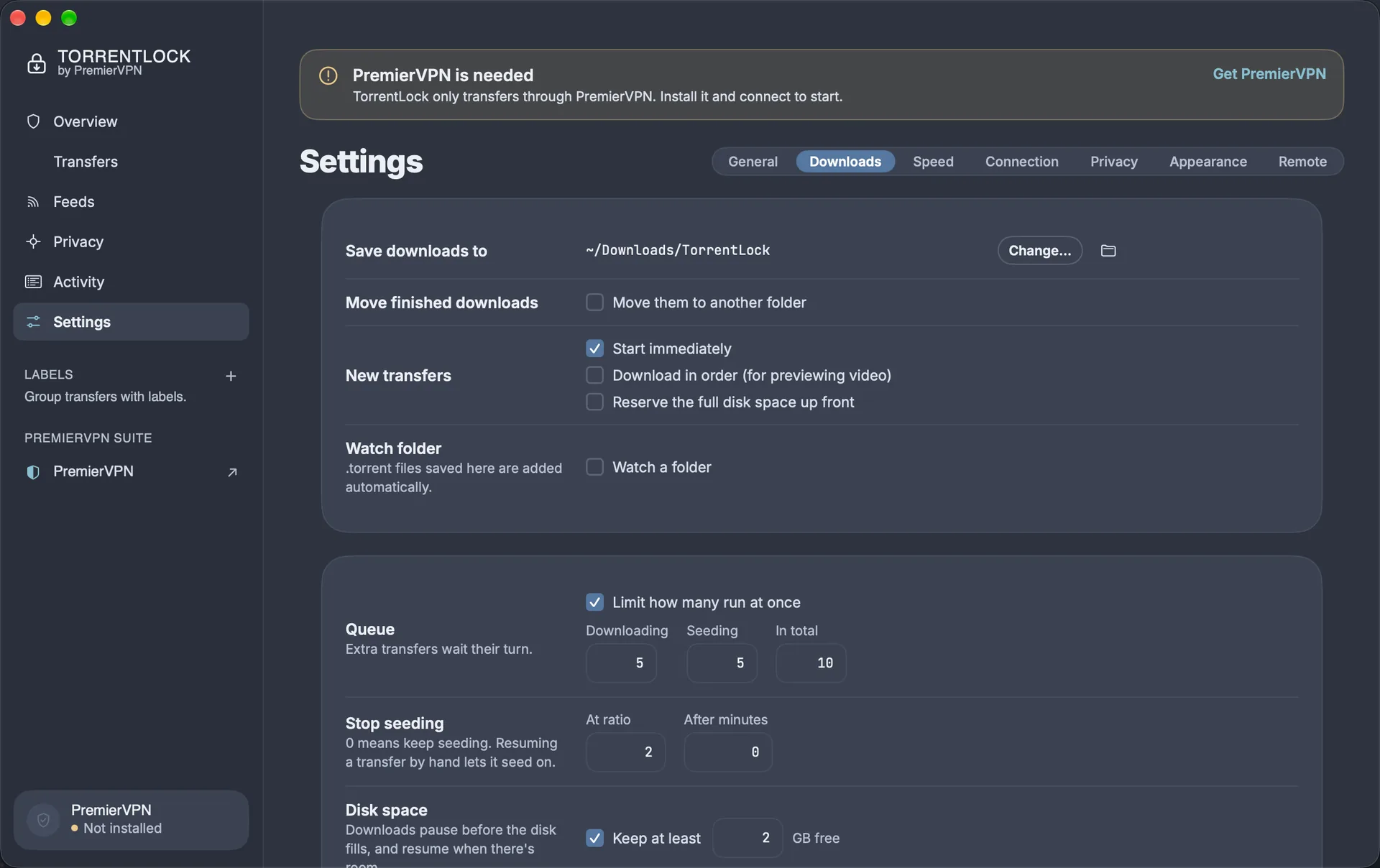
  • Choose where downloads go: Settings › Downloads › Save downloads to. The default is ~/Downloads/TorrentLock.
  • Open TorrentLock at login: Settings › General › Startup.
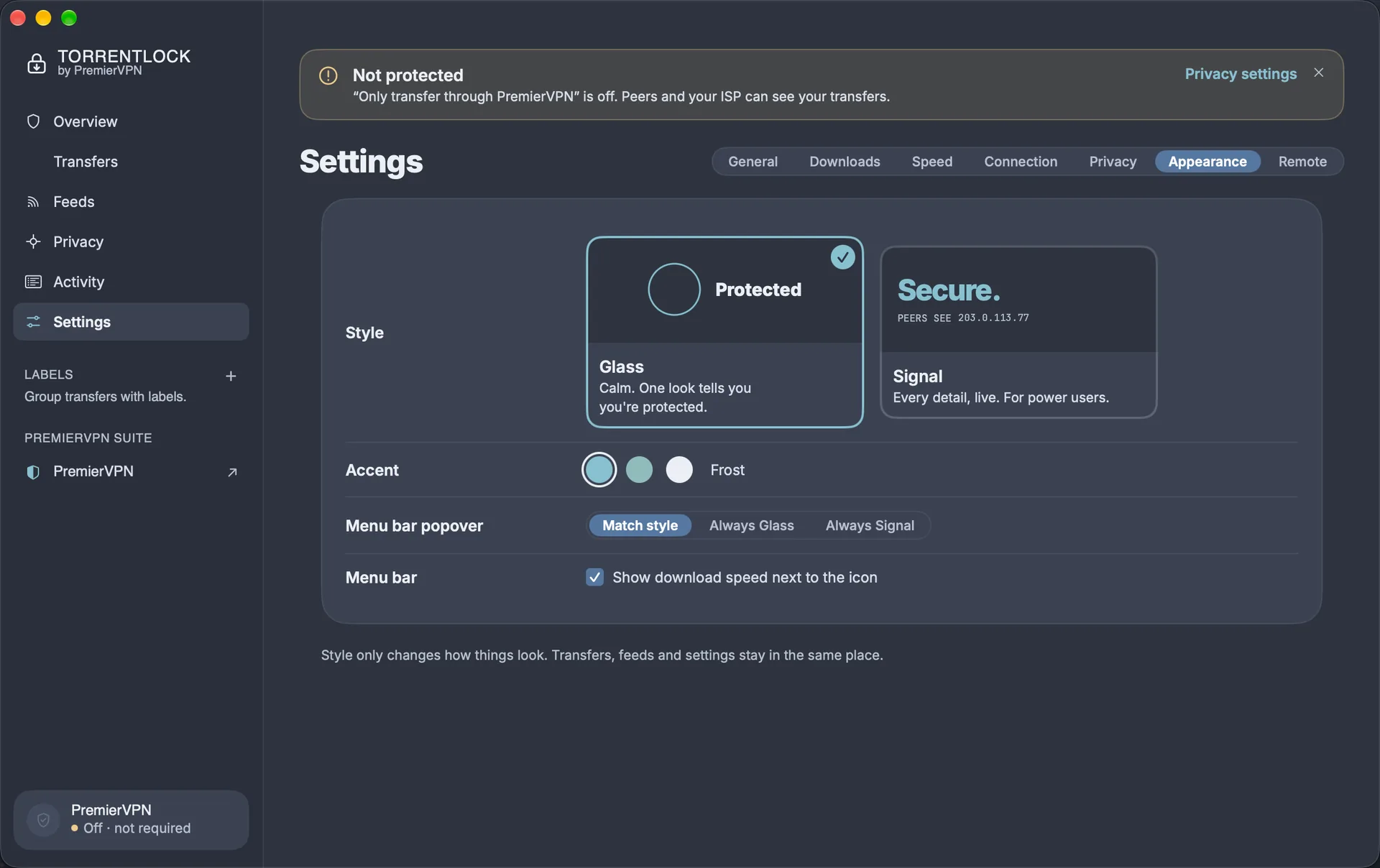
  • Pick a look: Settings › Appearance, Glass or Signal, and an accent colour (Frost, Teal or Snow).
TorrentLock Settings, Downloads tab: Save downloads to ~/Downloads/TorrentLock, move finished downloads, start immediately, download in order, reserve disk space, watch folder, queue limits of 5, 5 and 10, stop seeding at ratio 2 and keep 2 GB free
Settings › Downloads · click to enlarge
TorrentLock Settings, Appearance tab: the Glass and Signal styles, the Frost, Teal and Snow accents, menu bar popover style and the option to show download speed next to the menu bar icon
Settings › Appearance · click to enlarge
04 PremierVPN

How TorrentLock works with PremierVPN

TorrentLock starts every session with transfers held and only lets them run once PremierVPN's tunnel is your Mac's active connection.

Status (Glass / Signal)What it meansWhat to do
Protected / Secure.PremierVPN is connected and TorrentLock is bound to its tunnel. Transfers run.Nothing.
Checking route… / Checking.PremierVPN has just connected and TorrentLock is confirming the exit address.Wait a few seconds.
Transfers held / Held.PremierVPN isn't connected, or another VPN is in use. Nothing downloads or uploads, and no port is open.Click Open PremierVPN and connect. Transfers start by themselves. If PremierVPN isn't installed, the button says Get PremierVPN.
Leak blocked / Blocked.A peer reported your real IP, so every transfer was stopped.Check PremierVPN is connected, then click Check again.
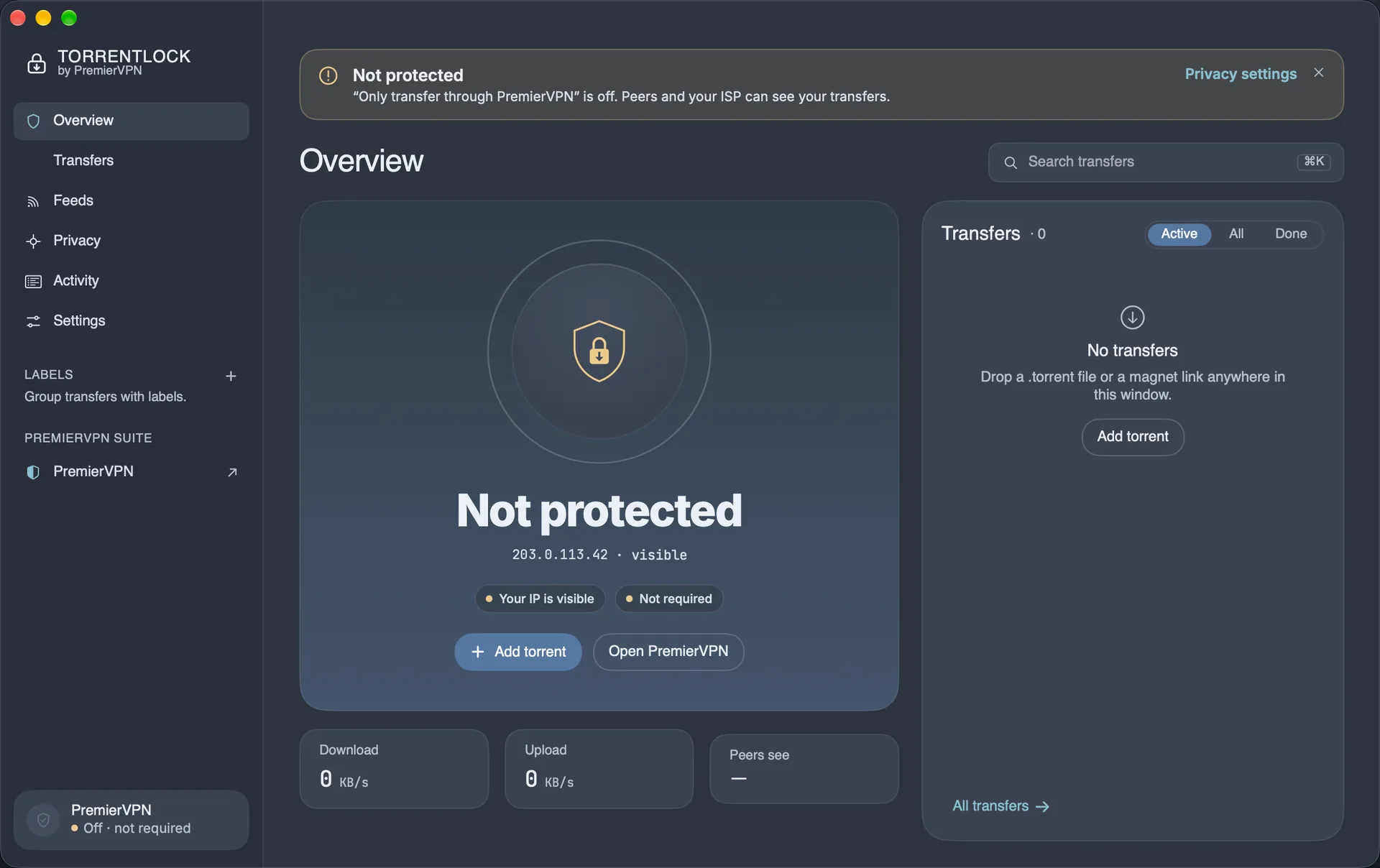
Not protected / Exposed.You turned off "Only transfer through PremierVPN". Peers can see your IP.Turn the setting back on in Settings › Privacy.

Why it can't leak when the VPN drops

Every connection is tied to PremierVPN's network interface, not just to "the internet". If the tunnel disappears, the connections have nowhere to go, even in the split second before TorrentLock notices and holds everything.

  • How it knows it's PremierVPN: macOS names the VPN as PremierVPN, or the PremierVPN app or its tunnel is running and carrying your traffic. The Privacy page lists which of these matched.
  • Your transfers are remembered. If you pause something yourself, it stays paused when PremierVPN reconnects. Everything else picks up where it left off, including after a restart.
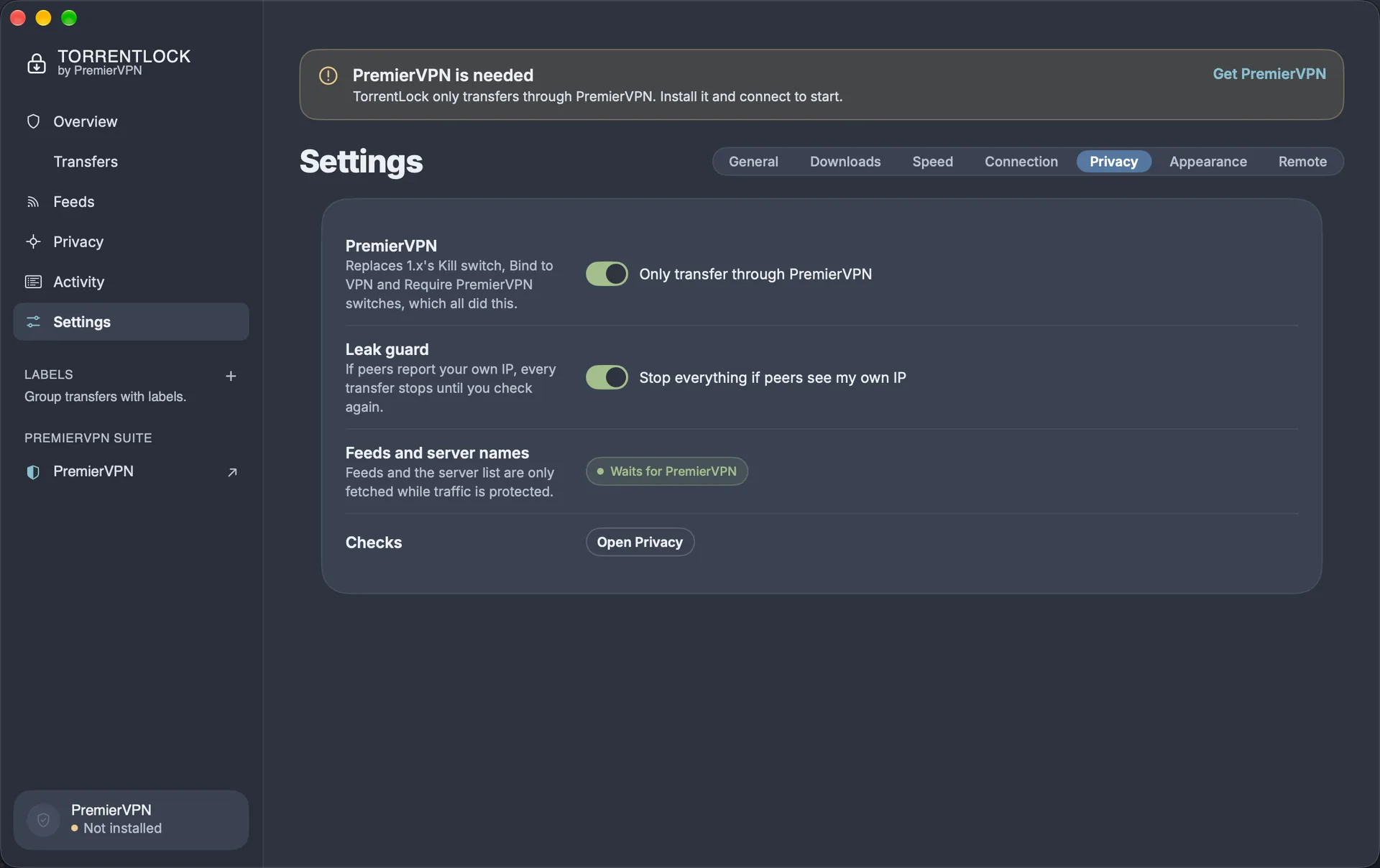
TorrentLock Settings, Privacy tab: Only transfer through PremierVPN and Stop everything if peers see my own IP switched on, feeds wait for PremierVPN, and the banner shown when PremierVPN is not installed
Settings › Privacy · click to enlarge
TorrentLock Overview after Only transfer through PremierVPN was switched off: Not protected, the visible IP address and the Open PremierVPN button
Overview with protection switched off · click to enlarge
05 Transfers

Add and manage transfers

TorrentLock has six pages: Overview, Transfers, Feeds, Privacy, Activity and Settings. Jump between them with ⌘1 to ⌘6.

Add a torrent

Any of these opens the Add sheet:

  • Click a magnet link in your browser, or double-click a .torrent file (once TorrentLock is the default).
  • Drag .torrent files or a magnet link onto the TorrentLock window.
  • Press ⌘O to choose .torrent files, or ⌘U to paste magnet links. A magnet link already on your clipboard is filled in for you.

In the Add sheet you can paste several magnet links at once (one per line), untick files you don't want, choose the save folder and a label, and choose Start now or Download in order. If PremierVPN isn't connected yet, the torrent is added and waits.

Manage transfers

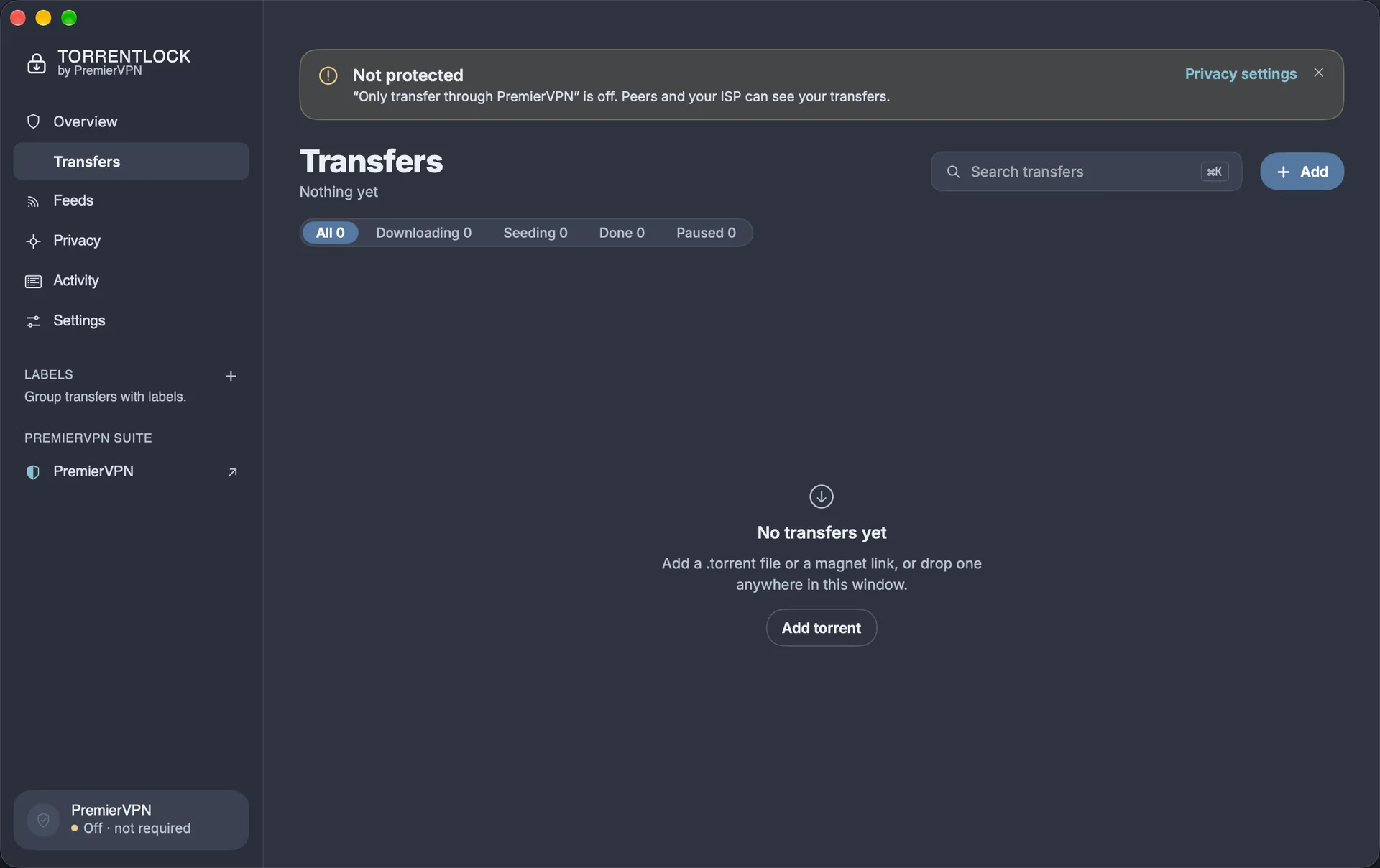
The Transfers page lists everything, filtered by All, Downloading, Seeding, Done or Paused, or by label. Press ⌘K to search.

  • Click a transfer to open its details: progress, a piece map, files, peers and trackers.
  • Right-click for Pause, Resume, Force start, queue order, label, Check files, Copy magnet link and Remove.
  • ⌘P pauses or resumes the selected transfer. ⇧⌘P pauses everything, ⇧⌘R resumes everything.
  • When removing, you can keep the downloaded files or delete them too.

Choose files and priorities

In a transfer's Files tab, untick files to skip them, or set each file to High, Normal, Low or Skip.

Stream a video

  1. Open the transfer's Files tab.
  2. Click the play button next to a video or audio file. TorrentLock downloads that file in order, beginning with the start of it.
  3. When the play button lights up, click it again to open the file in your player.

Labels

Create labels in the sidebar (Glass) or on the Transfers page (Signal), give a transfer a label from its right-click menu, then filter by label. Labels are kept between launches.

The TorrentLock Transfers page with the All, Downloading, Seeding, Done and Paused filters, search on ⌘K and the Add button
Transfers · click to enlarge
06 Feeds

Feeds (automatic downloads)

  1. Go to Feeds and click Add feed. Paste the RSS address.
  2. Click New rule. Enter words the title must contain and must not contain; regular expressions are supported.
  3. Keep Skip episodes already downloaded on to avoid duplicates of the same episode.
  4. Tick Download what rules match on the feed. Matching items are added automatically, with the rule's folder and label.

Feeds refresh every 15 minutes to 6 hours, and only while PremierVPN is protecting you.

08 Privacy

The Privacy page

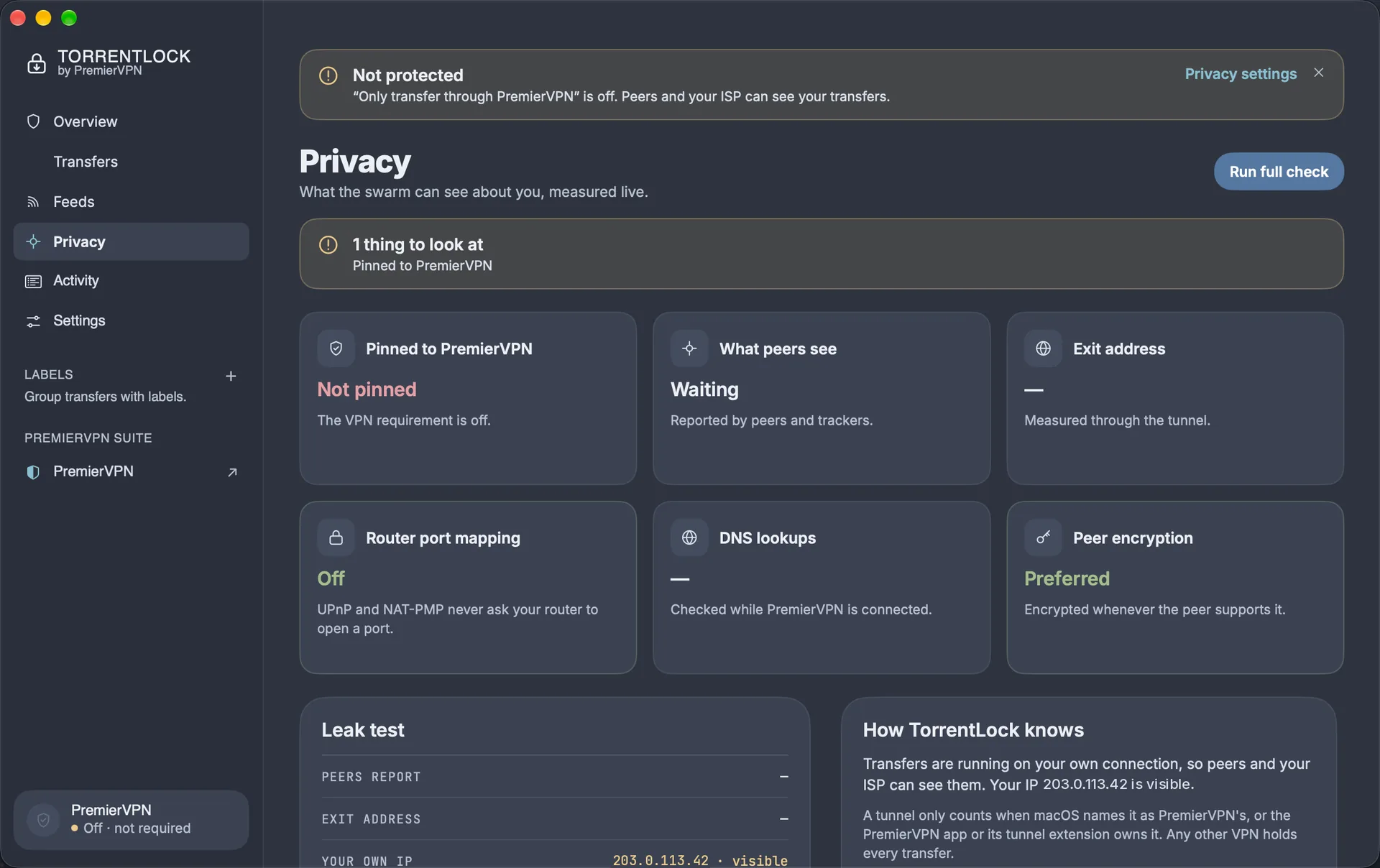
The Privacy page shows what the swarm can see about you, measured live rather than assumed.

CheckWhat it shows
Pinned to PremierVPNThe PremierVPN tunnel and protocol TorrentLock is bound to, or "Held" when nothing can leave your Mac.
What peers seeThe IP address peers and trackers report seeing. It should match your PremierVPN exit address.
Exit addressYour PremierVPN exit IP and server name, measured through the tunnel.
Router port mappingAlways Off: TorrentLock never asks your router to open a port.
DNS lookupsWhether tracker names are looked up through PremierVPN.
Peer encryptionOff, Preferred or Required (Settings › Connection).
  • Run full check makes one extra request outside the VPN to learn your real IP, so TorrentLock can recognise it if a peer ever reports it. If PremierVPN's kill switch blocks that request, the result says Hidden by PremierVPN's kill switch, which is a pass.
  • How TorrentLock knows lists the evidence that identified the tunnel as PremierVPN.
  • The two switches at the bottom are the same as in Settings › Privacy: Only transfer through PremierVPN and Stop everything if peers see my own IP. Both are on by default and we recommend leaving them on.
The TorrentLock Privacy page with its six checks, the leak test readout and How TorrentLock knows, shown here with protection switched off
Privacy · click to enlarge
09 Settings

Settings reference

Open Settings with ⌘,. Every setting takes effect straight away; only Peer exchange needs TorrentLock to be restarted.

General6 settings
SettingDefaultWhat it does
Open TorrentLock at loginOffStarts TorrentLock when you log in.
Magnet links and .torrent filesNot setMakes TorrentLock the app that opens them.
Notify meOnA notification when a download finishes.
Put the Mac to sleep when everything has finishedOffSleeps the Mac once all downloads are done.
Keep the Mac awake while transferringOnStops the Mac sleeping mid-transfer; the display can still sleep.
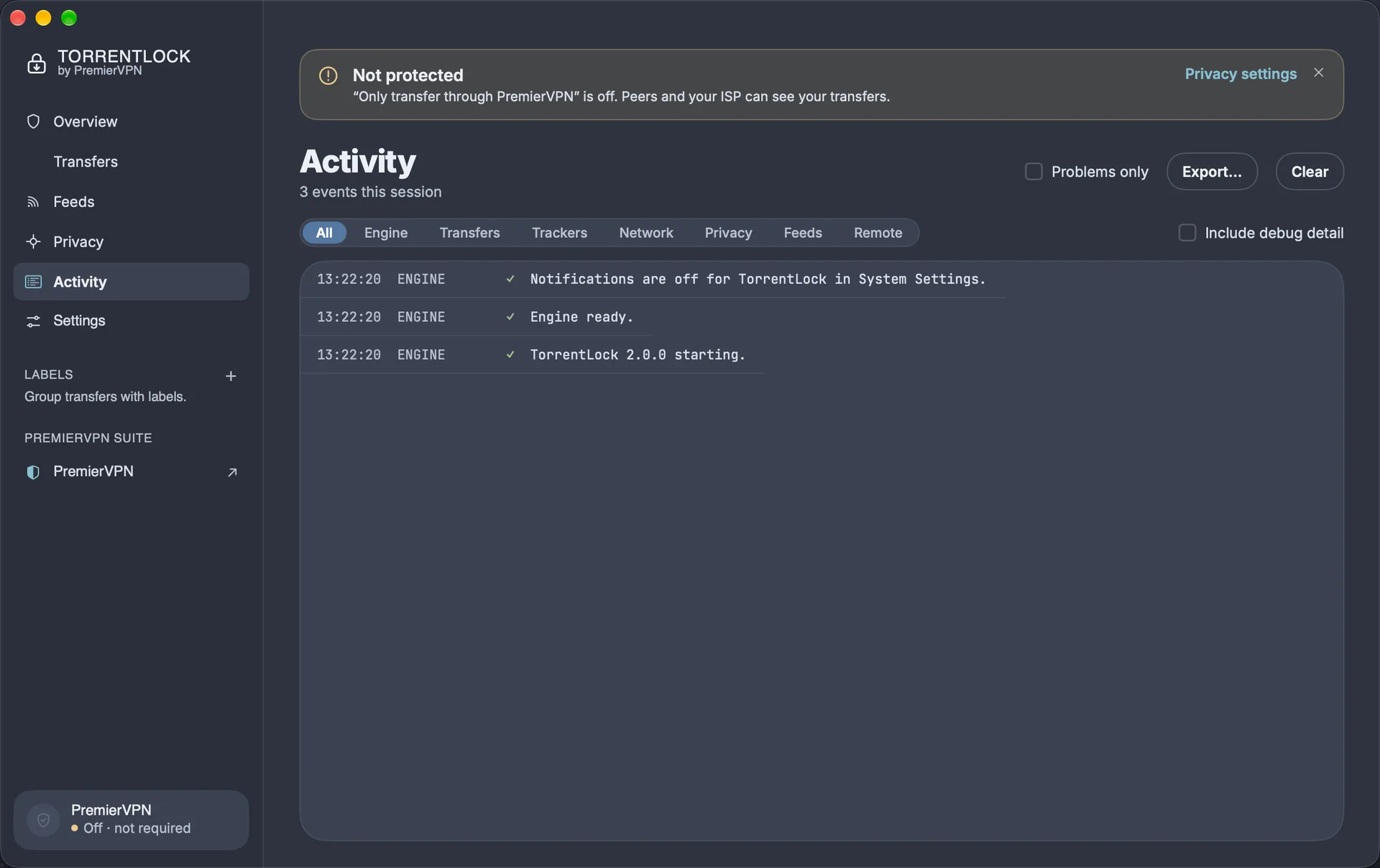
Include debug detailOffAdds technical detail to the Activity log for support.
Downloads9 settings
SettingDefaultWhat it does
Save downloads to~/Downloads/TorrentLockThe default folder for new transfers.
Move finished downloadsOffMoves completed files to another folder.
Start immediatelyOnNew transfers start straight away rather than paused.
Download in orderOffDownloads files start to finish, for previewing video.
Reserve the full disk space up frontOffAllocates the whole size when a transfer is added.
Watch folderOffAdds any .torrent file saved to a chosen folder, then moves it to "Added" or deletes it.
QueueOn: 5 downloading, 5 seeding, 10 in totalExtra transfers wait their turn.
Stop seedingRatio 2, no time limitStops seeding at a ratio or after a number of minutes; 0 means keep seeding. Resuming by hand lets a transfer seed on.
Disk spaceOn, keep 2 GB freePauses downloads before the disk fills and resumes them when there's room.
Speed3 settings
SettingDefaultWhat it does
Normal limitsUnlimitedDownload and upload caps in KB/s.
Alternative limits1,024 / 256 KB/sA second set of limits, switched on by hand or on a schedule.
ScheduleOff; 08:00 to 18:00, Mon to FriWhen the alternative limits apply automatically.
Connection6 settings
SettingDefaultWhat it does
Listening portNew random port each launchThe port peers connect to, open only inside the VPN.
Connections200 in total, 50 per transferMaximum peer connections.
Finding peersDHT, Peer exchange and µTP on; local discovery offHow TorrentLock finds peers.
Peer encryptionPreferOff, Prefer, or Require (refuses peers that won't encrypt).
Anonymous modeOffHides the client name and version; some private trackers refuse it.
Router port mappingAlways offUPnP and NAT-PMP would open a port on your home router, outside the VPN.
Privacy2 settings
SettingDefaultWhat it does
Only transfer through PremierVPNOnHolds every transfer unless PremierVPN is protecting you.
Leak guardOnStops everything if peers report your real IP.
Appearance4 settings
SettingDefaultWhat it does
StyleGlassGlass (calm) or Signal (every detail).
AccentFrostFrost, Teal or Snow.
Menu bar popoverMatch styleFollow the app's style, or always Glass or Signal.
Show download speed next to the iconOnDownload speed in the menu bar.
Remote1 setting
SettingDefaultWhat it does
Web portalOffManage TorrentLock from a browser (see Remote access).
10 Remote

Remote access (web portal)

The web portal lets you check and control TorrentLock from a browser. It's off by default, only this Mac can reach it until you allow your network, and every request needs your access key.

Turn it on

  1. Go to Settings › Remote and switch on Turn on the web portal.
  2. Click Open. Your browser opens the portal and signs in automatically.
  3. To use it from a phone or another computer on the same Wi-Fi, tick Allow devices on my network. Open the address shown (for example http://your-mac.local:9092) and enter the access key when asked.

In the portal you can see your protection status and speeds, add magnet links or .torrent files, and pause, resume or remove transfers.

  • Access key: Settings › Remote shows it (click Show), lets you Copy it, and New key replaces it. Browsers using the old key are asked for the new one.
  • Port: 9092 by default; change it in Settings › Remote.

For scripts

The same API works from the command line. Send the key in the X-TorrentLock-Key header.

RequestWhat it does
GET /api/stateProtection status, speeds and every transfer, as JSON.
POST /api/addAdds a torrent: {"magnet": "magnet:?…"} or {"torrent_b64": "…"}.
POST /api/actionActs on one transfer: {"hash": "…", "action": "pause"}. Actions: pause, resume, remove, remove_files, recheck, reannounce.
POST /api/allPauses or resumes everything: {"action": "pause"} or "resume".
Example curl -H 'X-TorrentLock-Key: YOUR_KEY' http://127.0.0.1:9092/api/state
11 Troubleshooting

Troubleshooting and FAQ

Nothing is downloading and the status says Transfers held

PremierVPN isn't connected, or another VPN is. Open PremierVPN and connect; transfers resume by themselves within a couple of seconds.

PremierVPN is connected but TorrentLock still says held

Make sure PremierVPN, not another VPN, is the active connection, then look at Privacy › How TorrentLock knows. If it still doesn't recognise the tunnel, export the Activity log and send it to support.

It says Leak blocked

A peer reported your real IP, so TorrentLock stopped everything. Reconnect PremierVPN, then click Check again.

Downloads are slow or have no peers

Check the transfer's Trackers and Peers tabs. Try Ask for peers, try a different PremierVPN server, and make sure DHT and Peer exchange are on (Settings › Connection). Some torrents simply have few seeders.

Downloads paused on their own

The disk-space guard paused them because free space fell below your limit (2 GB by default). Free up space and they resume, or change the limit in Settings › Downloads.

A transfer stopped seeding

It reached the seeding limit (ratio 2 by default). Resume it to keep seeding, or change the limit in Settings › Downloads.

Magnet links open in another app

Go to Settings › General and click Make TorrentLock the default.

The window is gone

TorrentLock keeps running in the menu bar. Click the padlock icon and choose Open TorrentLock, or click TorrentLock in the Dock.

Does TorrentLock work without PremierVPN?

It's designed not to: by default it only transfers through PremierVPN. You can turn that off in Settings › Privacy, but your IP is then visible to everyone in the swarm, so we don't recommend it.

Does it work with other VPNs?

No. TorrentLock holds transfers when any VPN other than PremierVPN is active.

Will my 1.x transfers carry over?

Settings and feeds do. Add transfers again pointing at the same folder, and TorrentLock checks the existing files instead of downloading them again.
Getting help

In TorrentLock, go to Settings › General › Help › PremierVPN support, or visit the support and help centre. Attach the exported Activity log.

Use TorrentLock only for content you have the right to download and share.

TorrentLock 2.0 for Mac

Ready to start?

Stay Ahead of Online Threats

Get VPN tips, security insights, and exclusive offers delivered straight to your inbox. No spam — just the essentials.

Unsubscribe at any time. We respect your privacy.

PremierVPN Support