9 min read
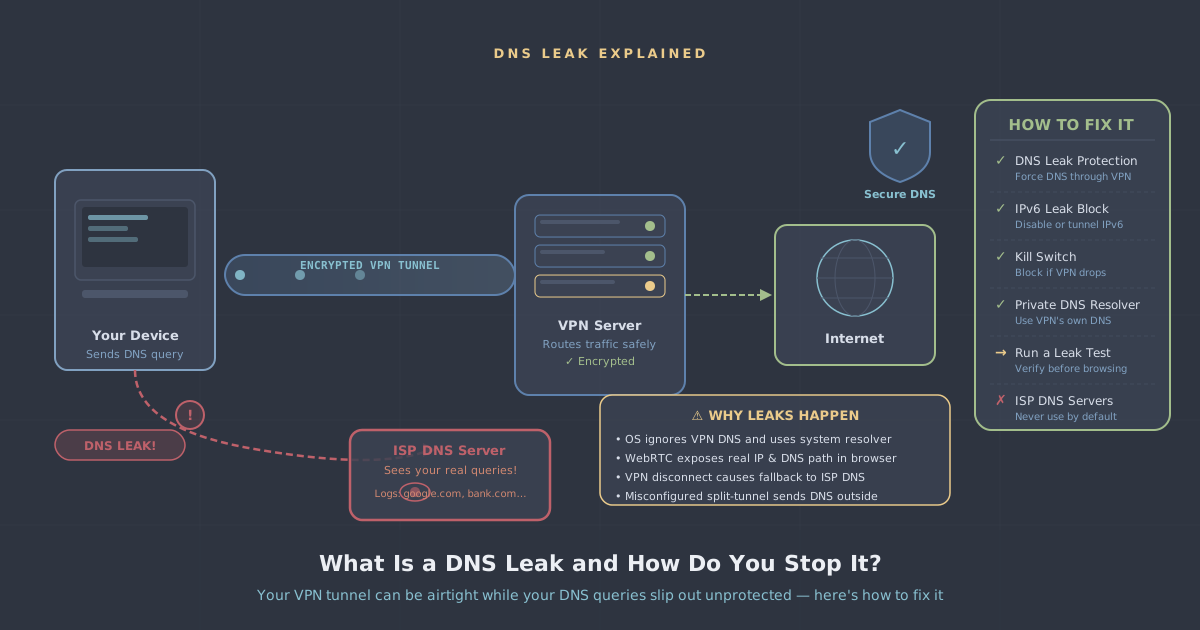
You connected to your VPN, checked that the lock icon is showing, and assumed you were done. In most cases, you are. But there is a specific failure mode that catches a surprising number of VPN users off guard: DNS leaks. Your encrypted tunnel can be functioning perfectly while your DNS queries—the requests that translate domain names into IP addresses—travel outside it, fully visible to your ISP or network operator.
This is not a theoretical concern. It is a practical gap that can undermine the privacy you set the VPN up to provide. The good news is that DNS leaks are straightforward to understand, easy to test for, and fixable. This post walks through all three.
What DNS Actually Does
Before getting into leaks, it helps to understand the role DNS plays in normal browsing. Every time you type a domain name into your browser—say, example.com—your device needs to find out the IP address associated with that name. It does this by sending a query to a DNS (Domain Name System) resolver, which looks up the answer and sends it back.
By default, your device uses the DNS resolver provided by your ISP. That resolver sees every domain you query. It does not see the full content of your requests—HTTPS encryption handles that—but it does see the list of hostnames you looked up, which is a reasonably detailed record of your browsing activity. This is one of the key reasons people use a VPN: to move their DNS queries away from their ISP's servers.
When a VPN is working correctly, your DNS queries go through the encrypted tunnel to the VPN provider's own resolver, and your ISP sees neither the queries nor the answers. A DNS leak is what happens when that handoff fails and some or all of your queries bypass the tunnel.
Why DNS Leaks Happen
DNS leaks are not caused by a single thing. Several different mechanisms can produce the same outcome.
Operating system DNS handling
Windows, in particular, has a feature called Smart Multi-Homed Name Resolution. Intended to speed up DNS lookups, it sends queries to multiple resolvers simultaneously and uses whichever responds first. When a VPN is active, this can mean some queries go to the VPN's resolver and others go directly to your ISP's. The result is a partial leak that can be difficult to notice without explicit testing.
IPv6 without IPv6 tunnel support
Many VPN implementations tunnel IPv4 traffic but do not handle IPv6. If your network connection and your device both support IPv6, DNS queries carried over IPv6 may bypass the tunnel entirely. You might see clean results on an IPv4 leak test and still have IPv6 queries leaking.
DHCP-assigned DNS on reconnection
If your VPN connection drops and reconnects, there is a window—sometimes several seconds—during which your device may revert to the DHCP-assigned DNS from your router. Depending on how quickly the VPN re-establishes and how your kill switch is configured, queries made during that gap can reach your ISP's resolver.
WebRTC in browsers
WebRTC is a browser technology primarily used for video and audio calls. It can expose your real IP address and trigger DNS lookups outside the VPN tunnel, even when the tunnel itself is active. This is a browser-level issue rather than a VPN configuration issue, but the effect is the same: information leaves through an unintended path.
Manual DNS configuration conflicts
If you have previously hardcoded DNS servers in your network adapter settings—perhaps to use a specific resolver—those settings can take precedence over what the VPN tries to assign. The VPN establishes the tunnel, but DNS queries still go to whatever address you configured manually.
How to Test for a DNS Leak
Testing is straightforward. Connect to your VPN, then visit our IP and DNS leak test tool. The test will show you which DNS resolvers your device is actually using. What you want to see is resolvers belonging to your VPN provider, not your ISP.
Things to look for in the results:
- ISP resolver addresses: If you see your ISP's name or resolver IP in the results, you have a leak.
- Your real IP address: The test will also show the IP address your requests appear to come from. It should match a VPN server, not your home connection.
- IPv6 addresses: Check whether any IPv6 addresses appear in the results. If your real IPv6 address shows up, that is a separate but related leak.
It is worth running the test more than once, and running it after a deliberate VPN reconnection to catch any leak that only occurs in the reconnection window.
How PremierVPN Handles DNS Leak Protection
PremierVPN routes all DNS queries through its own encrypted resolvers when you are connected. The apps are built so that DNS handling is part of the tunnel, not an afterthought bolted on top.
On Windows and macOS, the apps manage your system's DNS configuration directly while the tunnel is active, preventing the operating system from sending queries elsewhere. The kill switch—available across all platforms—blocks all traffic if the VPN connection drops unexpectedly, which closes the reconnection window that often causes transient leaks.
If you are on Windows and concerned about Smart Multi-Homed Name Resolution, the PremierVPN Windows app handles this at the adapter level. For macOS users, the macOS app takes a similar approach, working within the system's network extension framework to keep DNS inside the tunnel.
WireGuard—PremierVPN's default protocol—has a clean, minimal design that reduces the surface area for this kind of misconfiguration compared to older protocols. If you are on a network where WireGuard is being interfered with, WireGuard Stealth or VLESS+REALITY via PremierVPN X provide alternatives that maintain the same DNS protections.
Practical Steps to Eliminate DNS Leaks
If your leak test shows a problem, or if you want to be thorough about prevention, work through these steps.
1. Enable the kill switch
In the PremierVPN app, make sure the kill switch is on. This ensures that if the tunnel drops, no traffic—including DNS queries—travels over your regular connection while the VPN reconnects. On mobile, iOS and Android have system-level always-on VPN options that serve a similar function.
2. Check for hardcoded DNS settings
On Windows, go to your network adapter settings and check whether a specific DNS server address has been entered manually. If one has, clear it and let the VPN manage DNS assignment. On macOS, the equivalent is in System Settings → Network → your connection → DNS.
3. Disable Smart Multi-Homed Name Resolution on Windows
If you continue to see leaks on Windows despite using the app, you can disable this feature via Group Policy or the registry. Open gpedit.msc, navigate to Computer Configuration → Administrative Templates → Network → DNS Client, and set Turn off smart multi-homed name resolution to Enabled. On Home editions of Windows where Group Policy is unavailable, the equivalent registry key is:
HKEY_LOCAL_MACHINE\SOFTWARE\Policies\Microsoft\Windows NT\DNSClient
DisableSmartNameResolution = 1 (DWORD)
4. Address IPv6 leaks
If the leak test shows your real IPv6 address, the simplest fix—if you do not depend on IPv6 connectivity—is to disable IPv6 on your network adapter. On Windows, this is in the adapter's properties under Internet Protocol Version 6 (TCP/IPv6). On macOS, you can set IPv6 to Link-local only in the network settings for your active connection.
5. Tackle WebRTC in your browser
WebRTC leaks are a browser concern. In Firefox, you can set media.peerconnection.enabled to false in about:config. For Chrome and Edge, a browser extension that blocks WebRTC is the practical option. PremierVPN's free PremierVPN Protect browser extension includes WebRTC leak protection alongside tracker blocking—it is a straightforward addition if you use Firefox.
6. Retest after changes
After making any of these changes, reconnect your VPN and run the leak test again. Test immediately after connection and again after deliberately disconnecting and reconnecting. If you see clean results both times, you are in good shape.
A Note on Public and Shared Networks
DNS leaks are more likely to surface on networks you do not control—hotel Wi-Fi, coffee shops, airport lounges. These networks often use captive portals and custom DNS configurations that can interfere with VPN DNS handling. If you regularly connect from such locations, enabling the kill switch and verifying your connection with the leak test each time is a sensible habit, not paranoia.
For anyone whose work involves handling sensitive data on the move, a dedicated remote work VPN setup with consistent configuration across devices reduces the chance of these situational leaks going unnoticed.
Summary
A DNS leak is a specific failure where your DNS queries leave your device via your regular network connection rather than through the VPN tunnel. It can happen because of how Windows handles multi-homed DNS, because of IPv6 traffic that the tunnel does not cover, during the gap when a VPN reconnects, through WebRTC in browsers, or because of manually configured DNS settings that conflict with the VPN.
The fix involves a combination of using a VPN app that manages DNS actively, enabling the kill switch, clearing any manual DNS configuration, and—where needed—disabling specific operating system or browser features that route DNS outside the tunnel. Test before and after any changes using a leak test tool to confirm the result.
DNS protection is not a premium add-on or an optional extra. It is a fundamental part of what a VPN is supposed to do. If your queries are leaking, the privacy benefit of the tunnel is significantly diminished. The steps above are enough to close that gap on any common configuration.