9 min read
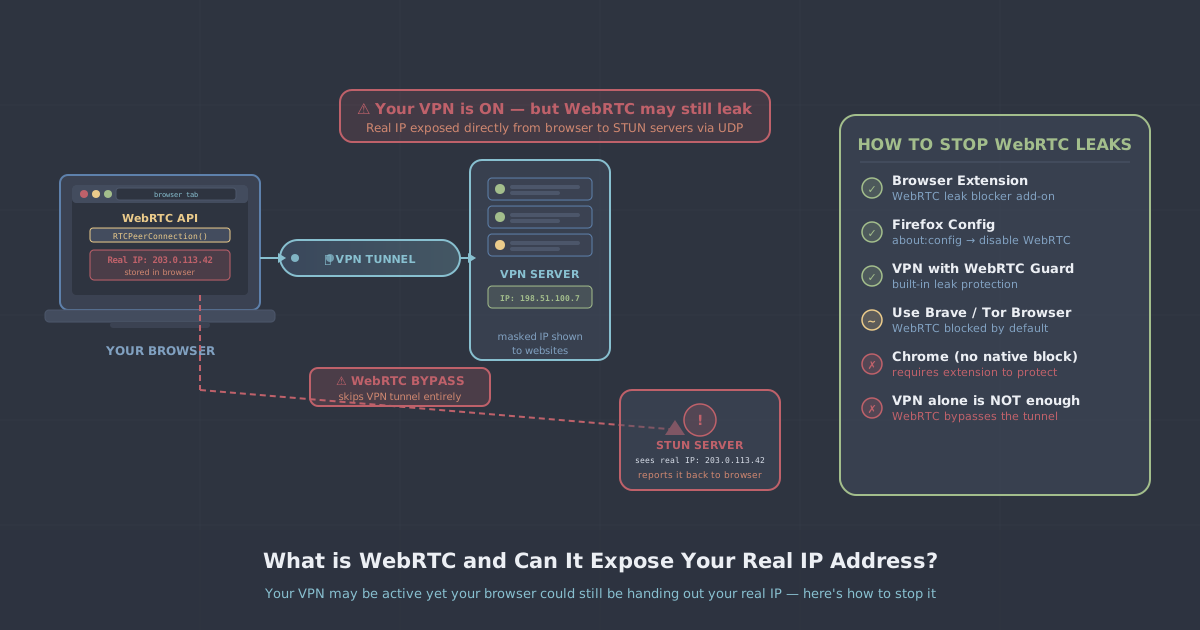
You have connected to your VPN, confirmed your IP has changed, and assumed your browsing is private. That is a reasonable assumption—but it may be incomplete. A browser feature called WebRTC can reveal your real IP address to websites and web applications even while your VPN tunnel is fully active.
This is not a VPN vulnerability in the traditional sense. It is a side-effect of how modern browsers handle real-time communication, and it catches a lot of people off guard. This article explains what WebRTC is, why it creates a potential IP leak, how to check whether your browser is affected, and what you can do about it.
What is WebRTC?
WebRTC stands for Web Real-Time Communication. It is an open standard, built into all major browsers, that allows applications to establish direct peer-to-peer connections between devices without requiring a separate plugin or server relay. Video calls, voice chat, live collaboration tools, and browser-based file sharing all commonly rely on it.
To make a direct peer-to-peer connection work, both devices need to know each other's actual network addresses. WebRTC handles this using a process called ICE (Interactive Connectivity Establishment), which in turn uses protocols called STUN and TURN to discover the best path between two peers.
A STUN server's job is simple: it tells your browser what IP address the outside world sees when you make a connection request. That is enormously useful for legitimate real-time applications. But it also means the browser is actively querying for your real network IP—and it does this outside the normal HTTP request flow that your VPN intercepts.
Why Does This Bypass a VPN?
Most VPNs work by routing your network traffic through an encrypted tunnel. Your browser makes a request, that request goes through the VPN client, and the destination server sees your VPN's IP address rather than your own.
WebRTC does something different. It uses UDP sockets at a low level to communicate directly, and in some configurations the browser can use these sockets in a way that bypasses the VPN's routing table entirely. Even when the traffic does go through the tunnel, the ICE negotiation process may still expose your device's local network IP (such as 192.168.1.x) or, more critically, your public IP address as seen before the VPN was applied.
The result is that a page running JavaScript can use WebRTC's STUN requests to obtain your real public IP and your local network IP, then send that information back to a server—all while your VPN appears to be working normally.
How Serious is a WebRTC Leak?
It depends on your threat model. A WebRTC leak is not the same as your entire browsing history being exposed. It reveals IP addresses, not DNS queries, page content, or encrypted data.
That said, IP address exposure is often exactly what people are using a VPN to prevent. If you are trying to keep your location private, avoid being tracked across sessions, or protect your identity while accessing sensitive information, a leaked real IP address is a significant problem.
For most people, the practical risks include:
- Websites identifying your approximate geographic location despite the VPN
- Ad trackers correlating your real IP with your browsing activity
- Services detecting that you are behind a VPN by comparing the two IP addresses
- Your home or office network address being visible to third parties
It is also worth noting that local IP addresses (your internal 192.168.x.x address) are less dangerous on their own—they are not routable on the public internet—but they can still be used as a stable identifier to fingerprint your device across sessions.
How to Test Whether Your Browser is Leaking
The quickest way to check is to use an IP leak test while your VPN is connected. PremierVPN provides one at /ip-leak-test. The test checks for WebRTC leaks alongside DNS leaks and standard IP address exposure, giving you a clear picture of what information your browser is sending out.
The general process to follow:
- Disconnect from your VPN and note your real public IP address.
- Connect to your VPN and confirm the displayed IP has changed.
- Run the leak test and check whether any IP addresses shown match your real one from step one.
- If your real IP appears under the WebRTC section, your browser has a WebRTC leak.
Repeat this in every browser you use regularly. A leak in Firefox does not mean Chrome is also leaking, and vice versa—the behaviour differs between browsers and browser versions.
How to Stop WebRTC Leaks
Use the PremierVPN Protect Browser Extension
PremierVPN Protect is a free browser extension that includes WebRTC leak protection. It suppresses the WebRTC IP discovery process so that websites cannot use it to obtain your real address. It is available for Firefox now, with a Chrome version currently under review. If you want a low-friction solution that does not require digging into browser settings, this is the most straightforward option.
Disable WebRTC in Firefox
Firefox allows you to disable WebRTC entirely through its advanced configuration panel. This is a more aggressive approach—it prevents WebRTC from functioning at all, which will break browser-based video and voice calls.
- Type
about:configin the address bar and press Enter. - Accept the warning prompt if one appears.
- Search for
media.peerconnection.enabled. - Double-click the entry to set its value to
false.
To re-enable WebRTC for a legitimate video call, simply return to about:config and set the value back to true.
Limit WebRTC in Chrome and Chromium-Based Browsers
Chrome does not expose a built-in toggle to disable WebRTC entirely. Your options are:
- Install a WebRTC control extension—the PremierVPN Protect extension (once available for Chrome) handles this cleanly. Third-party options exist but are outside the scope of what we cover here.
- Use Chrome's enterprise policy flags—if you manage a device through policy, you can set
WebRtcIPHandlingPolicytodisable_non_proxied_udp, which forces WebRTC to only use connections that go through your proxy or VPN tunnel. This is not practical for typical personal use.
It is worth noting that Chrome on Android and iOS behaves somewhat differently from the desktop version in how it handles WebRTC routing, so test on each platform separately.
Safari
Safari's WebRTC implementation has historically been more conservative about IP exposure than Chrome or Firefox. Apple restricts the ICE candidate information that web pages can access, which limits the leak surface. That said, this is not a documented guarantee, and running a leak test remains good practice.
WebRTC Leaks vs DNS Leaks: Understanding the Difference
These two issues are often mentioned together, but they are distinct problems with different causes and fixes.
| Issue | What leaks | How it happens |
|---|---|---|
| WebRTC leak | Your real public IP (and local IP) | Browser uses STUN to discover network addresses outside the VPN tunnel |
| DNS leak | The domain names you visit | DNS queries bypass the VPN and go to your ISP's resolver instead |
A VPN that prevents DNS leaks does not automatically prevent WebRTC leaks, and addressing one does not address the other. The PremierVPN leak test checks for both, so it is a useful first stop when verifying your setup.
A Note on PremierVPN's Approach
PremierVPN's desktop and mobile apps route traffic through a VPN tunnel using WireGuard by default, with WireGuard Stealth, OpenVPN, and VLESS+REALITY also available depending on your plan and the network you are on. On platforms where the app can enforce network-level routing rules—Windows and macOS in particular—the VPN tunnel can capture WebRTC traffic before it leaves the system.
However, browser-level WebRTC behaviour is ultimately controlled by the browser, not the operating system's routing table. That is why the PremierVPN Protect extension exists as a complementary layer. The app secures your connection at the network level; the extension prevents the browser from circumventing that at the application level.
If you are new to PremierVPN and want to understand the broader picture of what a VPN does and does not protect, our introduction to VPNs is a good place to start.
Summary and Recommendations
WebRTC is a legitimate browser technology that exists for good reasons. Its potential to expose your IP address is a side-effect of its design, not malicious behaviour—but that does not make it harmless if privacy matters to you.
Here is what to do:
- Run a leak test now. Visit /ip-leak-test with your VPN connected and check whether your real IP appears in the WebRTC section.
- Install PremierVPN Protect if you use Firefox. It blocks WebRTC IP exposure without requiring any manual browser configuration.
- Disable WebRTC in Firefox manually via
about:configif you do not need browser-based video calls. - Await the Chrome extension or use browser policy settings if you are primarily on a Chromium-based browser.
- Re-test after any browser update. Browser behaviour can change between versions, and settings occasionally reset.
A VPN handles a lot, but it cannot override browser-level decisions about what IP addresses to hand out. Layering the extension on top of the app closes that gap and gives you a more complete picture of what your browser is actually revealing.