7 min read
Linux users are generally comfortable at the terminal, but VPN setup on Linux still catches people out. A misconfigured DNS resolver, a missing kill switch, or a WireGuard interface that silently drops after a suspend-and-resume cycle can leave you exposed without any obvious warning sign. The operating system won't tell you something is wrong—it just quietly routes traffic around the tunnel.
This guide walks through setting up PremierVPN on Linux correctly, from installation to verification. It covers the native Ubuntu app, manual WireGuard configuration for distributions beyond Ubuntu, and the specific checks you should run before you trust the connection for anything sensitive.
Whether you are running Ubuntu 22.04 on a daily-driver laptop or Debian on a headless server, the principles here apply. Let's start from scratch and do it properly.
What you need before you start
A few prerequisites will save you from backtracking later:
- A PremierVPN account. You will need your credentials to hand. Log in at the dashboard before you begin.
- A supported kernel version. WireGuard has been built into the Linux kernel since 5.6 (released April 2020). If you are on anything older than that, either upgrade or install the WireGuard DKMS module separately. Run
uname -rto check your kernel version. - sudo access. VPN configuration writes to network interfaces. You need root privileges.
- An internet connection without the VPN running. Sounds obvious, but it matters during initial setup if you need to download packages.
Option 1: The PremierVPN Ubuntu app
If you are on Ubuntu (18.04 or later), the easiest path is the PremierVPN Ubuntu app. It handles WireGuard tunnel management, DNS configuration, and the kill switch automatically, which removes the most common sources of misconfiguration.
Installing the app
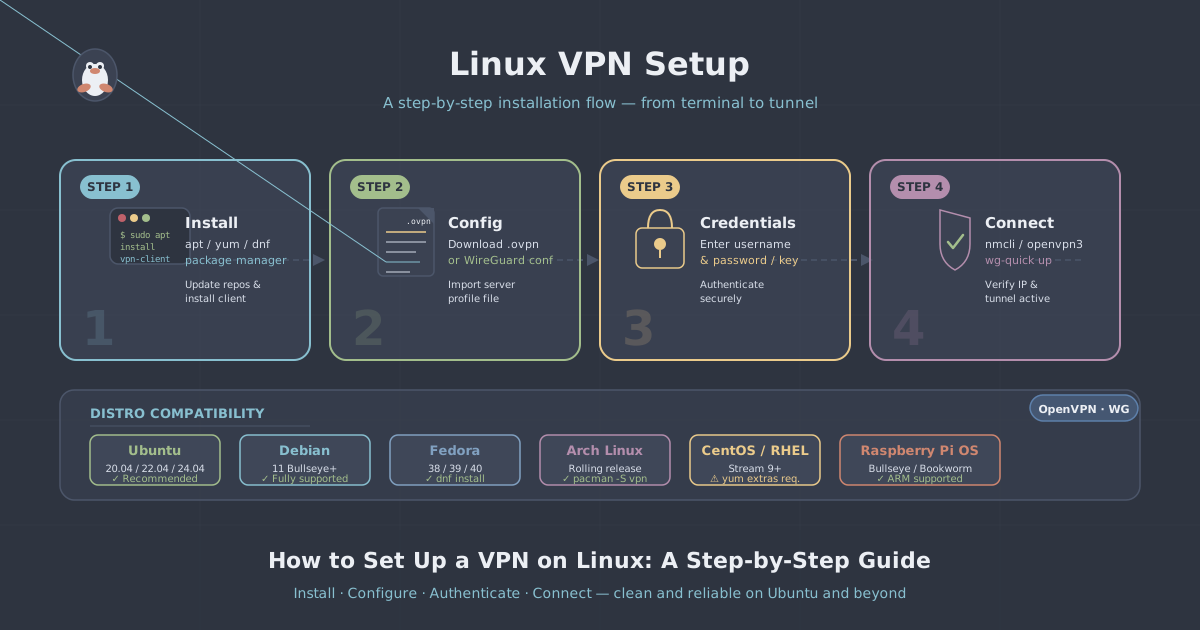
The full installation walkthrough is in the Ubuntu setup guide, but the core steps are:
- Download the
.debpackage from your PremierVPN dashboard. - Install it with:
sudo dpkg -i premiervpn_*.deb - If you see dependency errors, resolve them with:
sudo apt-get install -f - Launch the app, log in with your PremierVPN credentials, and connect to a server.
What the app handles for you
When you connect through the app, it creates a WireGuard interface, sets the VPN server as your DNS resolver, and activates a kill switch that blocks all traffic outside the tunnel if the connection drops. These are the three things most manual setups get wrong, and the app configures all of them correctly by default.
Option 2: Manual WireGuard configuration
If you are not on Ubuntu—Fedora, Arch, Debian, openSUSE, or a minimal server distro—you will want to configure WireGuard directly. This is also worth understanding even if you use the app, because it demystifies what is happening under the hood.
Install WireGuard tools
Most distributions ship WireGuard in their default repositories now. Install the userspace tools:
- Debian / Ubuntu:
sudo apt update && sudo apt install wireguard - Fedora:
sudo dnf install wireguard-tools - Arch:
sudo pacman -S wireguard-tools
Download your WireGuard config from PremierVPN
Log into your PremierVPN dashboard and download the WireGuard configuration file for your chosen server location. It will be a .conf file containing your private key, the server's public key, endpoint address, and allowed IP ranges. Keep this file secure—it contains your private key.
Copy the file to the WireGuard configuration directory:
sudo cp ~/Downloads/premiervpn-london.conf /etc/wireguard/wg0.conf
sudo chmod 600 /etc/wireguard/wg0.conf
The chmod 600 step is important. WireGuard will refuse to use a config file that is world-readable, and rightly so.
Bring the tunnel up
sudo wg-quick up wg0To bring it down:
sudo wg-quick down wg0To check the tunnel status:
sudo wg showYou should see a handshake timestamp, received bytes, and sent bytes. If the handshake time is recent (within the last two minutes), the tunnel is active and exchanging traffic.
Auto-start on boot
If you want the VPN to come up automatically when the system starts:
sudo systemctl enable wg-quick@wg0
sudo systemctl start wg-quick@wg0
The three most common Linux VPN mistakes
Even a correctly installed WireGuard tunnel can leak. Here are the three failure modes that catch people out most often.
1. DNS leaks
Your kernel routes IP traffic through the tunnel, but DNS queries can still go directly to your ISP's resolver—especially on systems using systemd-resolved or resolvconf. Your VPN configuration file should include a DNS = line pointing to PremierVPN's DNS servers. If it does not, add one.
To verify after connecting, run:
resolvectl statusLook for the DNS server assigned to your WireGuard interface (wg0). It should be the VPN's DNS address, not your router or ISP's resolver. You can also use the PremierVPN IP leak test in a browser to confirm no DNS queries are escaping the tunnel.
2. No kill switch
If the WireGuard interface goes down—network change, sleep-and-resume, packet loss causing the tunnel to time out—your traffic will fall back to your regular connection. Manual WireGuard setups do not include a kill switch by default.
A simple approach is to use iptables to block all traffic except through the WireGuard interface. Add these rules before bringing the tunnel up, replacing eth0 with your actual interface name and YOUR_SERVER_IP with the VPN endpoint:
sudo iptables -I OUTPUT ! -o wg0 -m mark ! --mark $(wg show wg0 fwmark) -m addrtype ! --dst-type LOCAL -j REJECT
Alternatively, WireGuard's wg-quick supports a built-in kill switch via two lines in the [Interface] section of your config:
PostUp = iptables -I OUTPUT ! -o %i -m mark ! --mark $(wg show %i fwmark) -m addrtype ! --dst-type LOCAL -j REJECT
PreDown = iptables -D OUTPUT ! -o %i -m mark ! --mark $(wg show %i fwmark) -m addrtype ! --dst-type LOCAL -j REJECT
This blocks outbound traffic the moment the interface goes down and restores normal routing when you explicitly disconnect. It is not foolproof against every failure mode, but it covers the most common ones.
3. IPv6 leaks
WireGuard by default only tunnels IPv4 traffic unless your config includes ::/0 in the AllowedIPs line. If your network has IPv6 connectivity and the tunnel is IPv4-only, your browser may route IPv6 requests outside the tunnel entirely.
Check your config file's AllowedIPs line. It should read:
AllowedIPs = 0.0.0.0/0, ::/0If it only says 0.0.0.0/0, either add ::/0 or disable IPv6 on the interface as a workaround:
sudo sysctl -w net.ipv6.conf.all.disable_ipv6=1The leak test at /ip-leak-test will show you both your IPv4 and IPv6 addresses, making it easy to confirm whether IPv6 is contained.
Verifying your connection is actually working
Once connected, take two minutes to verify properly rather than assuming everything is fine.
| Check | Command / Tool | What to look for |
|---|---|---|
| Tunnel active | sudo wg show |
Recent handshake, non-zero bytes transferred |
| IP address | IP leak test | VPN server IP, not your real IP |
| DNS resolver | resolvectl status or leak test |
VPN DNS, not ISP resolver |
| IPv6 | IP leak test | No IPv6 address shown, or VPN IPv6 if configured |
| Routing table | ip route show |
Default route via wg0 interface |
Server selection and use cases
PremierVPN provides 12+ server locations. For most Linux users the choice is straightforward: pick the location geographically closest to you for the lowest latency, or pick a specific country if you need to appear in that region.
If you are running Linux on a remote work machine and need a stable, consistent IP address for accessing corporate resources, a dedicated IP avoids the issue of shared IP addresses sometimes appearing on blocklists. For a more isolated setup—your own server rather than shared infrastructure—the Dedicated VPN Server option gives you a WireGuard endpoint that only you use.
If you are in a country that actively blocks VPN traffic, the standard WireGuard protocol will not get through deep packet inspection filters. In that case, look at PremierVPN X, which uses the VLESS+REALITY protocol specifically designed to bypass those restrictions—though note that PremierVPN X currently has dedicated apps for Windows and macOS rather than a native Linux client.
A note on split tunnelling
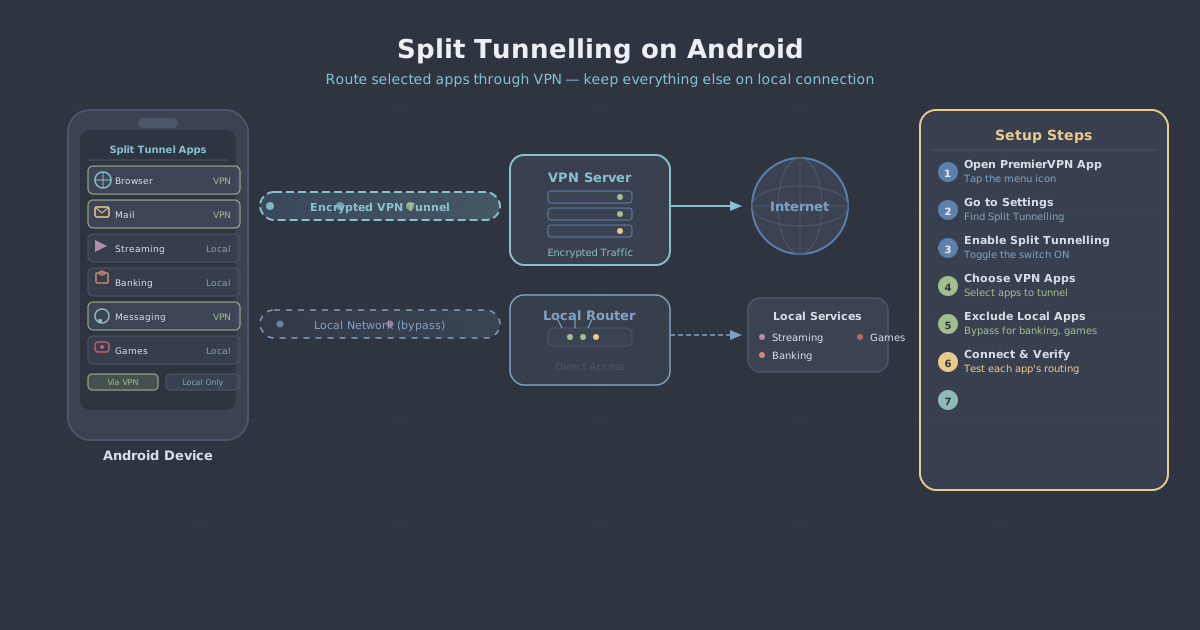
WireGuard supports split tunnelling natively through the AllowedIPs directive. Rather than routing all traffic through the tunnel (0.0.0.0/0), you can specify only the IP ranges you want tunnelled. This is useful on servers where you want VPN protection for outbound web requests but not for local network services.
The trade-off is complexity: maintaining a precise list of allowed IPs requires care, and mistakes can expose traffic you intended to protect. For general-purpose use, routing everything through the tunnel and using the kill switch is the safer default.
Summary and recommendations
Linux VPN setup is reliable once you understand the failure points. The short version:
- Use the PremierVPN Ubuntu app if you are on Ubuntu—it handles DNS, kill switch, and interface management correctly out of the box.
- For other distributions, install WireGuard via your package manager, download a config from the PremierVPN dashboard, and place it in
/etc/wireguard/withchmod 600. - Add a kill switch to your config using the
PostUpandPreDowniptablesdirectives. - Confirm
AllowedIPsincludes::/0to prevent IPv6 leaks. - After connecting, verify with
sudo wg showand the IP leak test before trusting the tunnel.
Take those steps in order and you will have a clean, verifiable Linux VPN setup that does what you expect—and fails safely when something goes wrong.