7 min read
Chromebooks have quietly become one of the most common devices in UK homes and schools, yet VPN setup guides almost always skip straight to Windows and macOS. If you've landed here because every other article ignored your device, this one won't.
Chrome OS is not quite like other desktop operating systems. It doesn't run native Windows or macOS applications, and its Linux environment, while capable, takes a little configuration. That means the path to a working VPN looks different on a Chromebook than it does elsewhere. This guide covers your realistic options clearly, from the simplest to the more involved, so you can pick whatever suits your technical comfort level.
Before diving in, it's worth knowing what a VPN actually does—encrypting your traffic and routing it through a server elsewhere—because that context helps you understand why the setup method matters, not just the steps themselves.
Understanding Your Options on Chrome OS
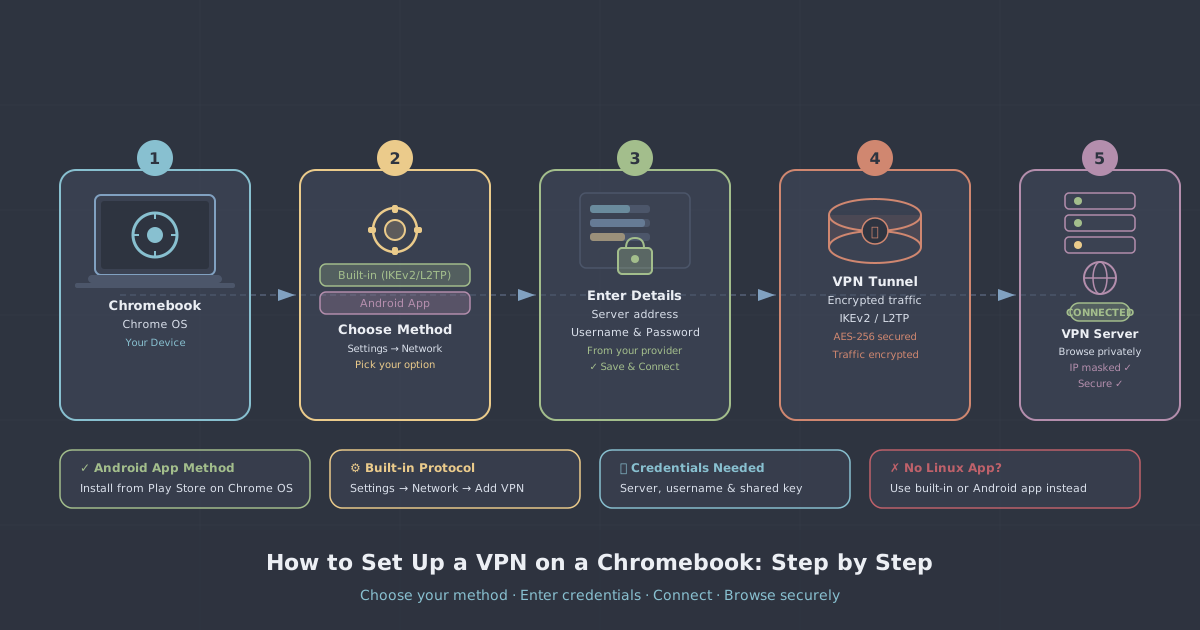
Chrome OS can run VPNs in three main ways:
- Android app — The Play Store is available on most Chromebooks made after 2017, which means you can install the PremierVPN Android app directly.
- Built-in VPN client — Chrome OS has a native VPN client that supports OpenVPN and L2TP/IPsec configurations. You add these manually through the network settings.
- Linux (Crostini) environment — If you have Linux enabled on your Chromebook, you can run command-line VPN tools including WireGuard.
For most people, the Android app is the fastest and most reliable route. The built-in client is useful if you prefer not to use an app. The Linux environment suits those who want full WireGuard configuration and are comfortable with a terminal.
Method 1: Using the Android App (Recommended)
This is the most straightforward approach. If your Chromebook supports the Google Play Store—which the vast majority of devices sold in the last several years do—you can install the PremierVPN Android app just as you would on a phone or tablet.
Check Play Store availability
Open your app launcher and look for the Play Store icon. If it's there, you're ready. If not, go to Settings → Apps and look for an option to enable Google Play. On managed Chromebooks (those issued by schools or employers), this may be restricted by policy.
Install and configure the app
- Open the Play Store and search for PremierVPN.
- Install the app and open it.
- Sign in with your PremierVPN account credentials.
- When prompted to allow a VPN connection, tap OK—this is Chrome OS asking permission to create a VPN profile, which is expected.
- Select a server from the available locations and tap Connect.
The app uses WireGuard by default, which is the right choice for most users—it's fast, modern, and has a clean security record. You can switch to WireGuard Stealth or OpenVPN from within the app settings if your network requires it.
A note on Android apps on Chrome OS
Android apps on Chromebooks run in a compatibility layer rather than natively. In practice, VPN apps function well in this environment, but there is one thing worth knowing: the VPN tunnel created by an Android app on Chrome OS protects traffic from the Android container. On most Chromebooks, this includes your browser traffic and the majority of network activity. However, traffic originating from the Linux environment may route outside the tunnel depending on your device and Chrome OS version. If that matters to you, the Linux method described below addresses it directly.
Method 2: Built-in OpenVPN via Chrome OS Network Settings
Chrome OS includes a built-in VPN client that can handle OpenVPN connections. This method doesn't require installing an app, but it does require an OpenVPN configuration file and your account credentials. It's a good option for users who prefer not to use the Play Store or who are on older Chromebooks without Play Store access.
What you'll need
- Your PremierVPN username and password
- An
.ovpnconfiguration file for the server you want to connect to (available from your PremierVPN account area)
Steps
- Download the
.ovpnfile to your Chromebook's local storage. - Go to Settings → Network → Add connection → Add OpenVPN / L2TP.
- Fill in the server hostname from your config file. This is the line beginning with
remotein the.ovpnfile. - Set the Provider type to OpenVPN.
- Enter your PremierVPN username and password in the relevant fields.
- Under Server CA certificate, import the CA certificate included with your configuration files.
- Save and connect.
This process can feel fiddly the first time, particularly the certificate step. Take your time with it. Once the connection is saved, Chrome OS will remember it and you can reconnect from the system tray.
One practical limitation: the built-in client does not support WireGuard. If you want WireGuard on a Chromebook without using the Android app, the Linux environment is the route to take.
Method 3: WireGuard via the Linux Environment
For users who are comfortable with a terminal, Chrome OS's built-in Linux environment (called Crostini) lets you install and run WireGuard directly. This approach gives you a clean, lightweight tunnel and full control over the configuration.
Enable Linux on your Chromebook
Go to Settings → Advanced → Developers → Linux development environment and turn it on. Chrome OS will download and set up a Debian-based Linux container. This takes a few minutes.
Install WireGuard
Open the Linux terminal (it appears in your app launcher after setup) and run:
sudo apt update && sudo apt install wireguard -yAdd your configuration file
Download your WireGuard configuration file from your PremierVPN account. Move it into the Linux files area (you can drag it into the Linux files folder shown in the Files app), then copy it to the WireGuard directory:
sudo cp ~/premiervpn-uk1.conf /etc/wireguard/wg0.confReplace premiervpn-uk1.conf with the actual filename you downloaded.
Connect and verify
Bring the interface up with:
sudo wg-quick up wg0To check the connection is active:
sudo wg showYou should see handshake information confirming the tunnel is established. To disconnect:
sudo wg-quick down wg0Remember that this method protects traffic within the Linux container. It does not automatically route your Chrome browser traffic through the tunnel. For whole-device protection on Chrome OS, the Android app method is the better choice.
Checking for DNS and IP Leaks
Whichever method you use, it's sensible to verify the VPN is actually working as expected. Visit our IP leak test page after connecting. It will show your visible IP address and whether your DNS requests are leaving through the VPN. If you see your real IP address or your ISP's DNS servers, something in the configuration needs attention.
On Chrome OS this is particularly worth checking after the first connection, since the Android app tunnel behaviour can vary slightly across devices and Chrome OS versions.
Tips for Chromebook Users Specifically
- Guest mode and VPNs: If you connect to a VPN in a standard Chrome OS session, it will not carry over to Guest mode sessions. Guest mode is intentionally isolated.
- School or work-managed devices: If your Chromebook was enrolled by an institution, network and app policies may block VPN connections or restrict Play Store access. There is no workaround for this at the user level—it is controlled by the device administrator.
- Chromebook + Android app on mobile networks: If you use your Chromebook on a mobile data connection, the VPN works the same way as on Wi-Fi. There is no additional configuration needed.
- Automatic reconnection: The PremierVPN Android app includes a kill switch that cuts your connection if the VPN drops unexpectedly. Enable this in the app settings if you're using the Chromebook on public Wi-Fi.
Which Method Should You Choose?
| Method | Ease of setup | Protocol support | Best for |
|---|---|---|---|
| Android app | Easy | WireGuard, WireGuard Stealth, OpenVPN | Most users |
| Built-in OpenVPN client | Moderate | OpenVPN, L2TP/IPsec | No Play Store access |
| Linux (WireGuard CLI) | Advanced | WireGuard | Terminal-comfortable users |
For the overwhelming majority of Chromebook users, installing the Android app is the right call. It takes under two minutes, it's kept up to date automatically, and it gives you access to all of PremierVPN's protocol options including WireGuard Stealth—useful if you're on a network that throttles or blocks standard VPN traffic.
If your Chromebook doesn't have Play Store access, the built-in OpenVPN client is entirely workable. It's less convenient to manage, but the connection itself is solid. And if you're already using the Linux environment for development work, running WireGuard there is a neat solution that keeps everything in one place.
Whatever your setup, a VPN on a Chromebook is genuinely achievable. The device's reputation as a locked-down, limited platform undersells what it can actually do—and now you know exactly how to make it work.