7 min read
A Fire TV Stick is a capable streaming device, but by default it exposes your viewing habits to your internet provider and connects you to content libraries tied to your physical location. Adding a VPN changes both of those things. It routes your traffic through an encrypted tunnel, masks your IP address, and lets you reach content that would otherwise be region-locked.
The tricky part is that most guides either assume you already know how to sideload apps, or they skip the sideload method entirely and leave you stuck if the app you need isn't listed in the Amazon Appstore. This guide covers both routes clearly: the straightforward native app install, and the slightly more involved sideload approach. Either way, you'll end up with PremierVPN running on your Fire TV Stick and a much better understanding of what you've done.
Before you start, have your Fire TV Stick plugged in and your PremierVPN credentials to hand. A working Wi-Fi connection is obviously required too.
What You Need Before You Begin
There are a few things worth confirming before you touch any settings:
- A PremierVPN account. You'll need your username and password. If you're on a shared VPN plan, those details were emailed when you signed up.
- Your Fire TV Stick generation. The steps below work on Fire TV Stick 4K, 4K Max, Fire TV Stick Lite, and the standard Fire TV Stick (2nd generation onwards). The menus look slightly different across generations, but the logic is identical.
- A stable Wi-Fi connection. A VPN app is around 20–40 MB to download. On a slow connection that's fine—just don't start mid-buffered stream.
- The remote in your hand. Navigation is all done via the remote, so make sure the batteries are fresh.
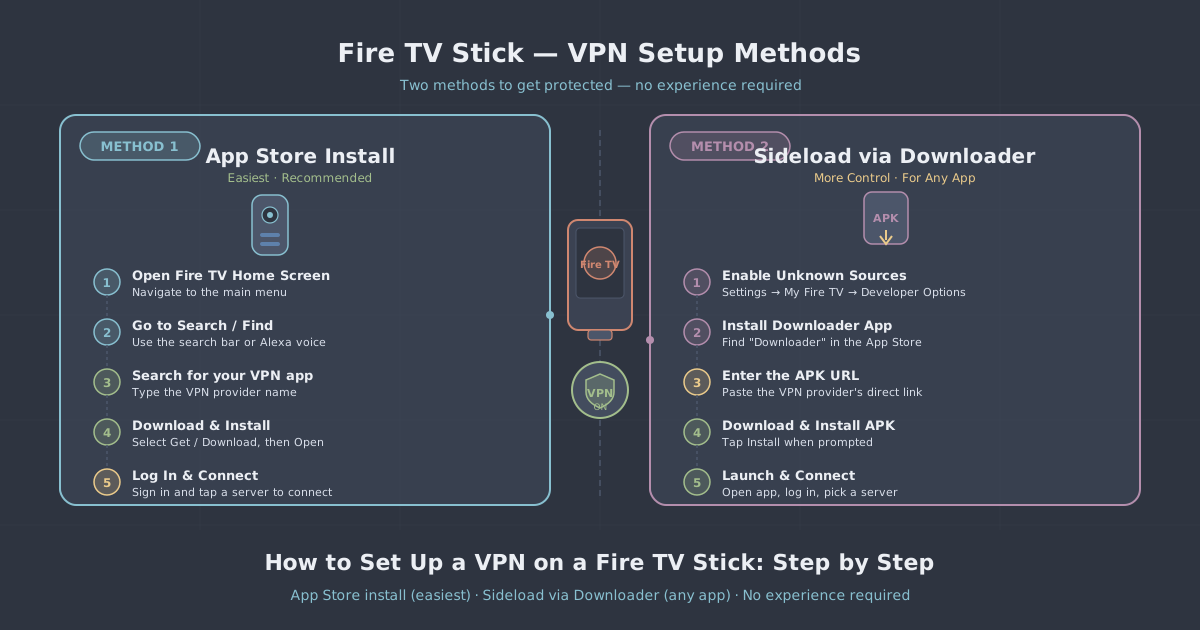
Method One: Install via the Amazon Appstore
This is the simplest route. If PremierVPN is listed in the Appstore for your region, the whole process takes under five minutes and requires no special settings.
Step 1: Open the search bar
From the Fire TV home screen, navigate to the top menu and select the magnifying glass icon (Search). Use the on-screen keyboard—or the Alexa voice button on your remote—to type PremierVPN.
Step 2: Select and install the app
Find PremierVPN in the results, select it, then choose Get or Download. The app installs automatically. When it's done, the button changes to Open—select that to launch it.
Step 3: Sign in
Enter the email address and password associated with your PremierVPN account. The on-screen keyboard is slow by design, so take your time—a mistyped password is the most common stumbling block here.
Step 4: Connect
Once signed in, you'll see a server list. Tap the Connect button for whichever location suits you. PremierVPN uses WireGuard by default, which gives you fast connection times and solid performance for streaming. A confirmation screen will appear asking you to allow the VPN connection—select OK. You're connected.
To verify it's working, open a browser on another device and run an IP leak test—your visible IP address should now match the VPN server location, not your home address.
Method Two: Sideload the APK
Sideloading means installing an Android app directly from a file, bypassing the Appstore. It sounds technical, but Amazon actually built this capability into Fire OS deliberately—they just don't advertise it. You'll need to enable one setting and use a downloader app. That's it.
Use this method if the Appstore search doesn't return PremierVPN for your account's region, or if you simply prefer installing directly from the source.
Step 1: Allow apps from unknown sources
Go to Settings (the cog icon on the top menu) → My Fire TV → Developer Options. If Developer Options isn't visible, select About first, then press the centre button on your remote seven times on the Fire TV Stick entry—this unlocks Developer Options.
Inside Developer Options, switch Apps from Unknown Sources to On. Fire TV will warn you that installing apps from unknown sources carries risk—that's a sensible general-purpose warning. In this case you're downloading an APK from PremierVPN's own servers, so the source is known.
Step 2: Install the Downloader app
Search for Downloader in the Appstore (it's published by AFTVnews and is free). Install it. This small utility lets you enter a URL and download the file directly to your Fire TV Stick.
Step 3: Download the PremierVPN APK
Open Downloader and select the URL bar. Enter the direct download address for the PremierVPN Fire TV APK—you'll find the correct link on the PremierVPN Fire TV app page. Press Go. The file downloads and Downloader will prompt you to install it immediately.
Step 4: Install and sign in
Select Install when prompted. After installation completes, choose Open. Sign in with your PremierVPN credentials, pick a server, and connect exactly as described in Method One above.
Step 5: Clean up the APK file
After installation, Downloader offers to delete the APK. Accept this—it frees storage space, and you no longer need the file now the app is installed.
Choosing a Server Location
Server choice depends on what you're trying to do. A few practical notes:
- Streaming performance: Pick a server geographically close to your actual location for the lowest latency. A UK-based connection routing through a nearby server will be noticeably snappier than one going via a distant location.
- Accessing region-specific libraries: Choose a server in the country whose content library you want to reach. PremierVPN covers 12+ server locations, so check which regions are available in your plan.
- Automatic selection: If you just want protection without thinking about location, the app's default recommendation picks a server based on speed tests. That's a sensible starting point.
Keeping the VPN Connected Automatically
One limitation of running a VPN on Fire TV is that the device doesn't have a system-level kill switch the way a phone or laptop does. If the VPN connection drops, the Fire TV will fall back to your regular internet connection without warning you.
A few habits help here:
- Check the VPN app's status screen before starting a long viewing session.
- Enable the auto-reconnect option inside the PremierVPN app—this reconnects automatically if the tunnel drops.
- If you notice buffering or content errors that weren't there before, it's worth opening the VPN app to confirm it's still connected.
Troubleshooting Common Issues
The app won't sign in
Double-check your credentials by logging into the PremierVPN website on a phone or laptop first. If that works, the problem is keyboard input on the Fire TV—passwords with symbols can be easy to mistype with the on-screen keyboard. If you're still stuck, reset your password via the web and try a simpler temporary password to confirm the app is working, then change it to something stronger.
Slow streaming speeds
WireGuard (PremierVPN's default protocol) is efficient, but your overall speed is still bounded by your home broadband. If streaming is stuttering, try switching to a server in a different location—sometimes a less-loaded server makes a meaningful difference. You can switch servers without disconnecting entirely; just select a new location from the server list.
Developer Options isn't appearing
On newer Fire TV firmware, the unlock sequence (pressing the remote's centre button seven times on the About screen) is still required. Make sure you're pressing it on the specific Fire TV Stick line in the About section, not on any other entry. The counter resets if you navigate away.
The APK won't install
This almost always means Apps from Unknown Sources wasn't saved properly. Go back into Developer Options and confirm the toggle is on, then retry. If the APK download itself failed partway through, delete it via Downloader's file manager and download it again.
A Note on What a VPN Does and Doesn't Do
A VPN on your Fire TV Stick encrypts traffic between the device and the VPN server and replaces your IP address with the server's. It doesn't make you anonymous in any absolute sense—your Amazon account activity is still visible to Amazon, and any service you're signed into can still identify you. What it does meaningfully address is your internet provider being able to observe what you're watching, and content restrictions tied to your physical IP address.
If you want to understand the broader mechanics, the what is a VPN explainer covers it in plain terms.
Summary
Setting up a VPN on a Fire TV Stick is straightforward once you know which route to take. If PremierVPN is available in your regional Appstore, the native install takes less than five minutes. If it isn't, the sideload route via Downloader adds only a couple of extra steps and requires enabling one developer setting. Either way, the result is the same: encrypted traffic and a VPN-assigned IP address for everything your Fire TV Stick sends and receives.
The full setup guide for the PremierVPN Fire TV app includes screenshots and covers any firmware-specific differences if you run into anything this guide doesn't address.