8 min read
Most VPN setup guides treat macOS as an afterthought. A few screenshots of a generic interface, a note about downloading the app, and that's about it. In practice, macOS has several behaviours that can catch you out — permission prompts that look alarming, a built-in privacy feature that quietly conflicts with VPN routing, and a system firewall that occasionally needs coaxing. None of these are deal-breakers, but they're worth understanding before you run into them.
This guide walks you through setting up PremierVPN on macOS from scratch. It covers the initial install, the permissions you'll be asked to grant and why they exist, how to confirm your connection is working, and a handful of settings worth adjusting once everything is running. If you're on a Mac and want a VPN that actually works correctly, read on.
Before you start: a quick check
A few things worth confirming before you download anything:
- macOS version: PremierVPN's macOS app supports recent versions of macOS. If you're running something older than Ventura, check the macOS app page for compatibility notes.
- iCloud Private Relay: If you're on an iCloud+ subscription, Private Relay may be active. It routes Safari traffic through Apple's relay infrastructure, which can conflict with VPN routing. You'll want to disable it — more on this below.
- Existing VPN configurations: If you've previously set up a VPN manually via System Settings, consider removing those profiles before installing a new app. Stale configurations can cause unexpected routing behaviour.
If you're new to what a VPN actually does under the hood, the what is a VPN page is a useful primer before continuing.
Step 1: Download and install the app
Go to the macOS app download page and download the installer. Once the .dmg file has downloaded, open it and drag the PremierVPN app into your Applications folder in the usual way.
Launch the app from Applications or Spotlight. On first launch, macOS will ask whether you want to open an app downloaded from the internet. Click Open. This is a standard Gatekeeper prompt — it appears for any app not installed via the App Store.
The Network Extension permission
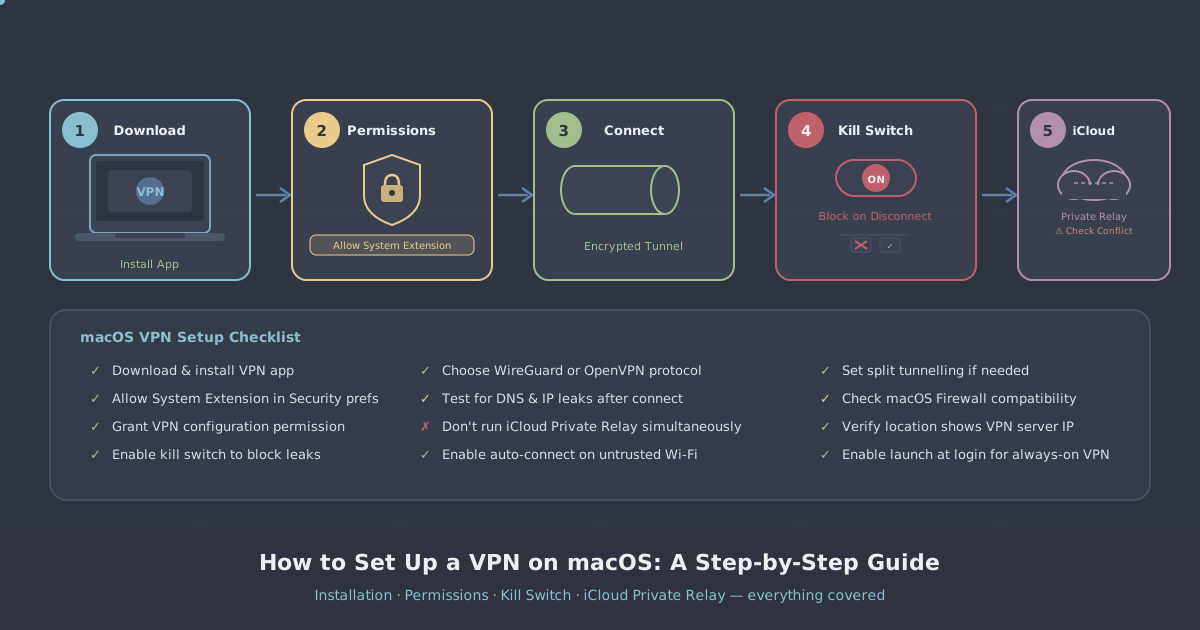
Shortly after launch, you'll see a system prompt asking you to allow a Network Extension. This is the most important permission the app needs, and it's also the one that tends to confuse people.
macOS requires any app that modifies network routing — which is exactly what a VPN does — to request explicit permission via the Network Extension framework. You'll see something like:
"PremierVPN" would like to add VPN configurations.
Click Allow. macOS will then prompt you for your system password or Touch ID to confirm. Without this, the app cannot create a VPN tunnel.
If you accidentally dismiss this prompt, go to System Settings → Privacy & Security and scroll down until you see a message about a system extension being blocked. Click Allow there instead.
Step 2: Sign in and choose a server
Once the extension is approved, sign in with your PremierVPN credentials. The app will display the available server locations. PremierVPN has servers across 12+ locations — the full list is on the server locations page.
For general use, connecting to the server geographically closest to you will give you the lowest latency. If you're connecting for a specific purpose — accessing content in another country, or routing traffic through a particular region for work — choose accordingly.
Hit Connect. The status indicator should move to connected within a few seconds. WireGuard, which PremierVPN uses by default, typically establishes connections faster than older protocols.
Step 3: Verify the connection is working correctly
Don't assume the connection is working just because the app says it is. It takes about thirty seconds to confirm properly.
- Visit the IP leak test page. Your visible IP address should now be the VPN server's address, not your real one.
- Check for DNS leaks on the same page. If DNS queries are resolving through your ISP's servers rather than the VPN's, your browsing activity is still partially visible to your ISP even though your IP appears masked.
- Check for WebRTC leaks if you use a browser that supports it. WebRTC can expose your real IP even through a VPN in some browser configurations.
If the IP address shown matches the VPN server location and DNS is routing correctly, you're good to go. If something looks off, disconnect and reconnect — and check the iCloud Private Relay note below if DNS results look unusual.
Step 4: Disable iCloud Private Relay (if active)
iCloud Private Relay is an Apple feature for iCloud+ subscribers that routes Safari traffic and some DNS queries through two separate relays, so that neither Apple nor the exit node can see both your identity and your browsing destination at once. It's a privacy feature, but it operates at the same network layer as a VPN, and the two can interfere with each other.
The most common symptom is inconsistent DNS behaviour — sometimes queries go through the VPN's DNS, sometimes through Apple's relay infrastructure. This can cause leak test results to look strange, and in some cases it prevents certain VPN-routed connections from working at all.
To disable it:
- Open System Settings
- Click your Apple ID at the top of the sidebar
- Select iCloud
- Scroll to Private Relay and toggle it off
You can re-enable it when you're not using the VPN if you want both features at different times. Running them simultaneously is not recommended.
Step 5: Configure the kill switch and other settings
A kill switch blocks all internet traffic if the VPN connection drops unexpectedly. Without one, a brief disconnection — during a network change, a sleep-wake cycle, or an unstable connection — exposes your real IP until the VPN reconnects.
In the PremierVPN macOS app, you'll find the kill switch option in the app's settings panel. Enable it. On macOS specifically, it's worth testing this once: disconnect the VPN manually while the kill switch is active and confirm that traffic stops rather than falling back to your regular connection.
Auto-connect on launch
If you want the VPN to be active whenever your Mac is on, enable auto-connect in the app settings. This is particularly useful on laptops that move between networks — home broadband, office Wi-Fi, coffee shop hotspots — where forgetting to connect manually is easy.
Protocol selection
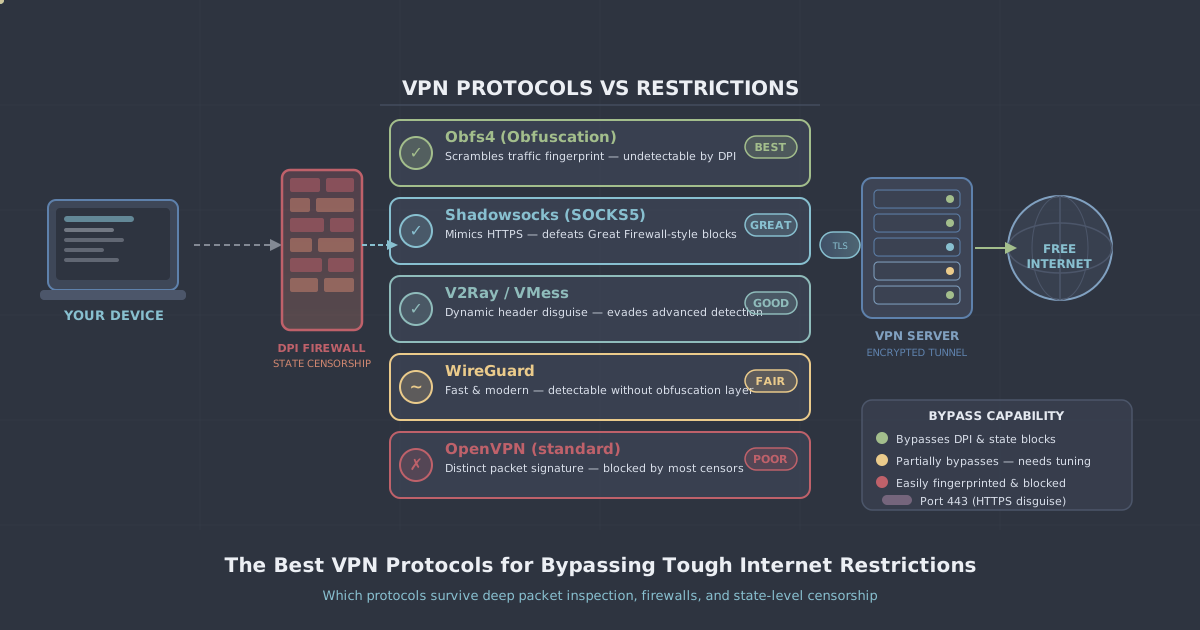
PremierVPN defaults to WireGuard, which is a sensible default for most users. It's fast, efficient on battery, and well-audited. If you're on a network that interferes with WireGuard's UDP traffic — some hotel and corporate networks do this — switch to WireGuard Stealth or OpenVPN in the protocol settings.
If you're trying to connect from a heavily restricted network environment — China, Iran, or similar — the standard app protocols may be blocked at the network level. In that case, PremierVPN X for macOS uses VLESS+REALITY, a protocol designed specifically to evade deep packet inspection. There's a dedicated setup guide for PremierVPN X on macOS if you need it.
Step 6: The macOS system firewall
macOS has a built-in application firewall (separate from the packet filter used by tools like pf). If you have it enabled under System Settings → Network → Firewall, it may prompt you the first time PremierVPN attempts to accept incoming connections.
Allow it. The app needs this for certain VPN configurations to function correctly. If you've set the firewall to block all incoming connections, you may need to add a manual exception for the PremierVPN app.
This is separate from the VPN's own kill switch — the macOS firewall is a system-level control, while the kill switch inside the app operates at the VPN routing level.
A note on the setup guide
If you prefer a visual walkthrough with annotated screenshots at each step, PremierVPN has a dedicated macOS setup guide that covers the installation flow in detail. The guide above focuses on the why behind each step, which is often more useful once you've done an install or two.
Summary
Setting up a VPN on macOS is straightforward once you know what to expect. The Network Extension permission is necessary and safe to grant. iCloud Private Relay should be disabled while the VPN is in use. The kill switch should be on. And it's worth spending sixty seconds on the IP leak test after connecting the first time to confirm everything is routing correctly.
| Step | What to do | Why it matters |
|---|---|---|
| 1 | Download and install the app | Gets the client onto your Mac |
| 2 | Grant Network Extension permission | Required for VPN tunnel creation on macOS |
| 3 | Connect and run a leak test | Confirms routing and DNS are working correctly |
| 4 | Disable iCloud Private Relay | Prevents DNS conflicts and routing inconsistencies |
| 5 | Enable kill switch | Stops traffic exposure if the VPN drops |
| 6 | Check system firewall | Ensures the app isn't silently blocked |
Once these steps are done, the VPN should run reliably in the background with no further attention needed — which is exactly how it should be.