7 min read
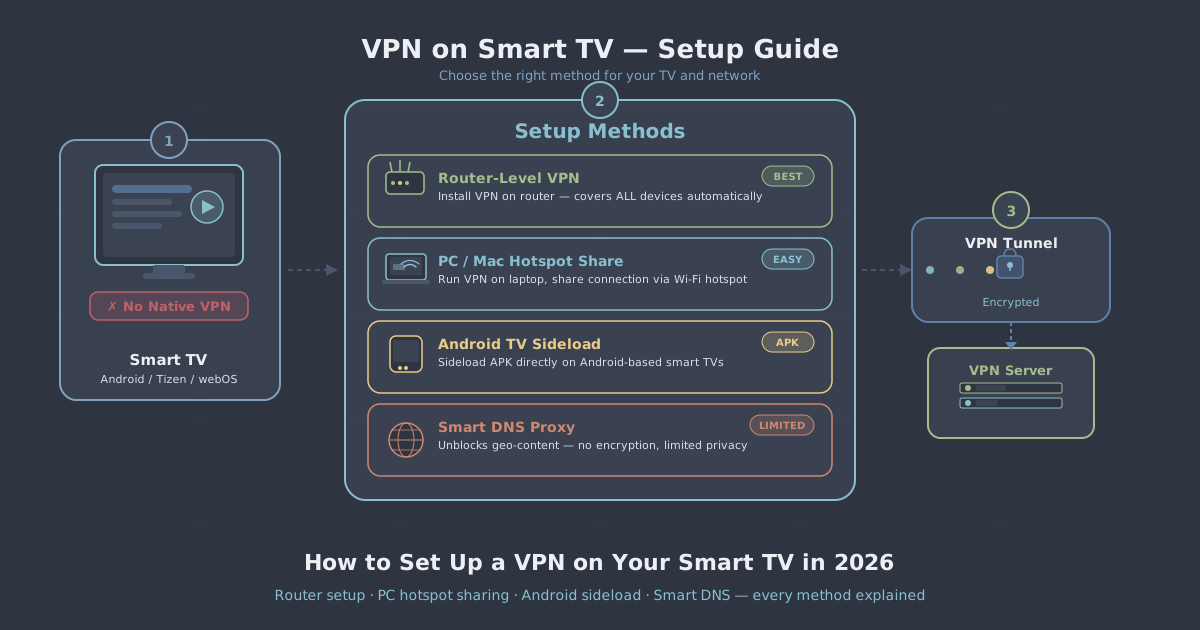
Smart TVs are brilliant until you run into the wall every streaming enthusiast eventually hits: the content you want is geo-restricted, or you simply want your TV traffic routed through a VPN like everything else on your network. The obvious fix—installing a VPN app—only works on a narrow range of devices. Most smart TVs, including the majority of Samsung and LG models, do not support third-party VPN apps at all.
This guide does not pretend otherwise. Instead, it walks through every method that actually works in 2026, explains the trade-offs honestly, and helps you pick the right approach for your setup. Whether your TV runs Android TV, Tizen, webOS, or something else entirely, there is a workable path here.
Why Smart TVs Are Awkward for VPNs
A VPN works by intercepting your device's network traffic and routing it through an encrypted tunnel. On a phone or laptop, you install an app and it handles that interception at the OS level. Smart TVs run locked-down operating systems—Tizen (Samsung), webOS (LG), and similar proprietary platforms—that do not expose the system hooks a VPN app needs. Even when a TV's app store exists, VPN apps are rarely permitted.
Android TV and Google TV are partial exceptions. Because they sit on a more open Android base, some VPN providers publish apps for those platforms. But even there, sideloading and permission quirks can cause problems. For every other TV platform, you need to work around the device rather than through it.
Method 1: Install a VPN on Your Router
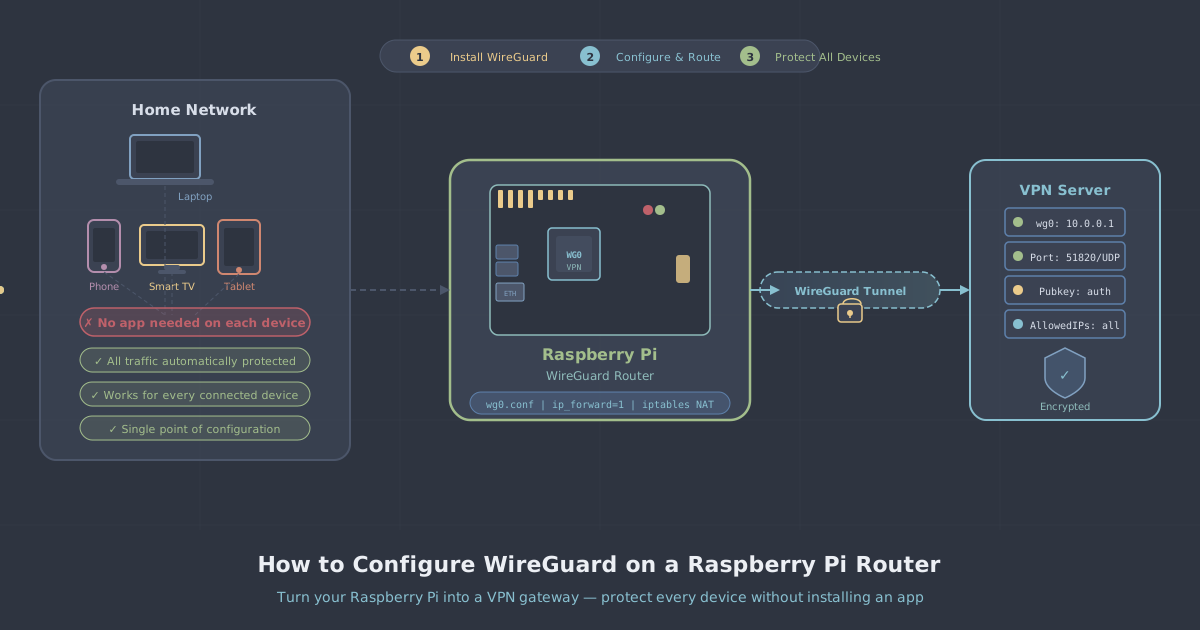
This is the cleanest long-term solution. A VPN configured at the router level covers every device on your network automatically—your TV, games console, smart speaker, everything—without installing anything on the devices themselves.
What you need
- A router that supports VPN client mode. Consumer routers from brands like Asus (running Asuswrt-Merlin), GL.iNet, and certain Netgear models support this. The standard routers supplied by UK broadband providers usually do not.
- A VPN subscription with configuration files or credentials you can enter into the router. PremierVPN supports WireGuard and OpenVPN, both of which are widely supported by VPN-capable routers.
How it works
You log into your router's admin interface, navigate to the VPN client section, and enter your server details. For WireGuard, you'll paste in a configuration file. For OpenVPN, you upload an .ovpn file and provide your credentials. Once connected, all traffic leaving your router goes through the VPN tunnel.
WireGuard is generally the better choice here. It is faster, has a smaller code footprint, and reconnects quickly if the tunnel drops. OpenVPN works reliably but adds more overhead, which can be noticeable on older routers with limited processing power.
Trade-offs
The main limitation is that everything on your network goes through the VPN—which may not always be what you want. Some routers support per-device routing rules (sometimes called selective routing or policy-based routing), letting you send only your TV through the VPN while your other devices use your normal connection. This takes more configuration but is worth setting up if you want flexibility.
If you need a consistent IP address—for example, to access a business resource or to avoid being flagged by a service that dislikes shared VPN IPs—consider pairing router setup with a dedicated IP rather than a shared server address.
Method 2: Share a VPN Connection from a Windows PC
If you have a Windows laptop or desktop near your TV, you can connect it to a VPN and then share that connection over Wi-Fi or ethernet. Your TV connects to the shared hotspot or cable, and its traffic routes through the VPN automatically.
Setting up a Wi-Fi hotspot on Windows
- Connect PremierVPN on your Windows machine using the PremierVPN Windows app.
- Open Settings > Network & Internet > Mobile hotspot.
- Enable the hotspot. By default, Windows shares whichever connection is active—if the VPN is running, that includes VPN-tunnelled traffic.
- Connect your TV to the new hotspot as you would any Wi-Fi network.
In practice, Windows sometimes shares the physical adapter rather than the VPN tunnel. If your TV ends up with an unprotected connection, you may need to go into Network Connections (search for "View network connections" in the Start menu), right-click your VPN adapter, go to Sharing, and allow other devices to connect through it explicitly.
Wired sharing
If your TV supports ethernet and your PC has two network ports (or a USB ethernet adapter), you can share the VPN connection over a direct cable. This is more stable than Wi-Fi and avoids potential hotspot quirks. The steps are similar: enable Internet Connection Sharing on your VPN adapter in Network Connections, then plug the cable between your PC and TV.
Method 3: Share a VPN Connection from a Mac
macOS makes connection sharing straightforward. Connect to PremierVPN using the PremierVPN macOS app, then navigate to System Settings > General > Sharing > Internet Sharing.
Choose your VPN connection as the source (it will appear in the "Share your connection from" dropdown), and select either Wi-Fi or ethernet as the output. Your Mac broadcasts a hotspot or shares over cable, and your TV connects to it. macOS handles the routing transparently—devices on the shared connection go through whatever tunnel the Mac is using.
One practical note: if your Mac goes to sleep, the shared connection drops. You may want to adjust your Energy Saver settings to prevent the display from sleeping while keeping the network active.
Method 4: Use an Android TV or Google TV Device
If your current TV does not run a VPN-friendly operating system, plugging in a streaming stick or box that does is often the simplest upgrade. Devices running Android TV or Google TV can install apps from the Play Store, and PremierVPN has an Android app that works on these platforms.
The experience is close to using a VPN on a phone: open the app, connect to a server, and your streaming apps on the device are protected. If you use Amazon Fire TV devices, the PremierVPN Fire TV app covers that platform directly.
This approach does not cover your TV's built-in apps—only the apps running through the attached streaming device. If that distinction matters to you (for instance, if you rely on a built-in TV tuner app), you will need one of the router or connection-sharing methods instead.
Method 5: Change Your DNS Settings on the TV
This is worth mentioning clearly because it often comes up in smart TV guides—and it is important to understand what it does and does not do.
Changing DNS settings on your TV (entering custom DNS server addresses in the network settings) is not a VPN. It does not encrypt your traffic, does not hide your IP address, and does not create a secure tunnel. Smart DNS services route only certain DNS queries to make geo-checks pass, but your actual traffic goes directly to the destination unencrypted.
If your goal is privacy, security, or genuine geo-routing with a trustworthy server, DNS-only changes do not achieve it. This guide focuses on actual VPN methods for that reason.
Choosing the Right Method for Your Situation
| Method | Covers built-in TV apps? | Hardware required | Effort |
|---|---|---|---|
| Router VPN | Yes | Compatible router | Medium–High |
| Windows connection sharing | Yes | Windows PC near TV | Medium |
| Mac connection sharing | Yes | Mac near TV | Low–Medium |
| Android TV / Fire TV device | No (streaming device only) | Streaming stick or box | Low |
For most households, the router method is worth the one-time setup effort because it protects every device without ongoing fuss. If you are not ready to replace or reconfigure your router, connection sharing from a nearby laptop is a solid stopgap. And if you are primarily interested in streaming rather than network-wide privacy, a Fire TV or Android TV device with the VPN app installed is the fastest route to a working setup.
A Note on Performance
4K streaming is bandwidth-hungry. A VPN adds some overhead, so server choice and protocol matter. WireGuard is PremierVPN's default protocol for good reason—it is consistently faster than OpenVPN at equivalent security levels and handles the throughput that HDR streaming demands. When connecting through a router or shared connection, stick to WireGuard unless your router specifically does not support it.
Choose a server location that is geographically close to you when possible. Routing traffic through a server on the other side of the world adds latency and can reduce throughput. PremierVPN's server locations page lists available options so you can pick the most appropriate one for your needs.
If streaming is your primary reason for setting up a VPN on your TV, the streaming VPN page has more detail on how PremierVPN handles streaming-specific scenarios.
Summary
The honest answer to "how do I set up a VPN on my smart TV" is: it depends on your TV's operating system, your existing hardware, and how much configuration you are willing to do. There is no single universal method because smart TVs are a fragmented ecosystem.
Start by checking whether your TV runs Android TV or Google TV—if it does, installing the VPN app directly is the simplest path. If it runs Tizen, webOS, or any other proprietary platform, your realistic options are a router-level VPN, connection sharing from a laptop or desktop, or attaching a streaming device that supports VPN apps. All of these work well when set up correctly; they just take a bit more initial effort than clicking "install" on an app.