7 min read
Most people working from home fall into one of two patterns. Either they run everything through their VPN—which can slow down streaming, break local printer access, and cause friction with smart home devices—or they skip the VPN entirely and leave work traffic unprotected on a shared home network. Neither approach is ideal.
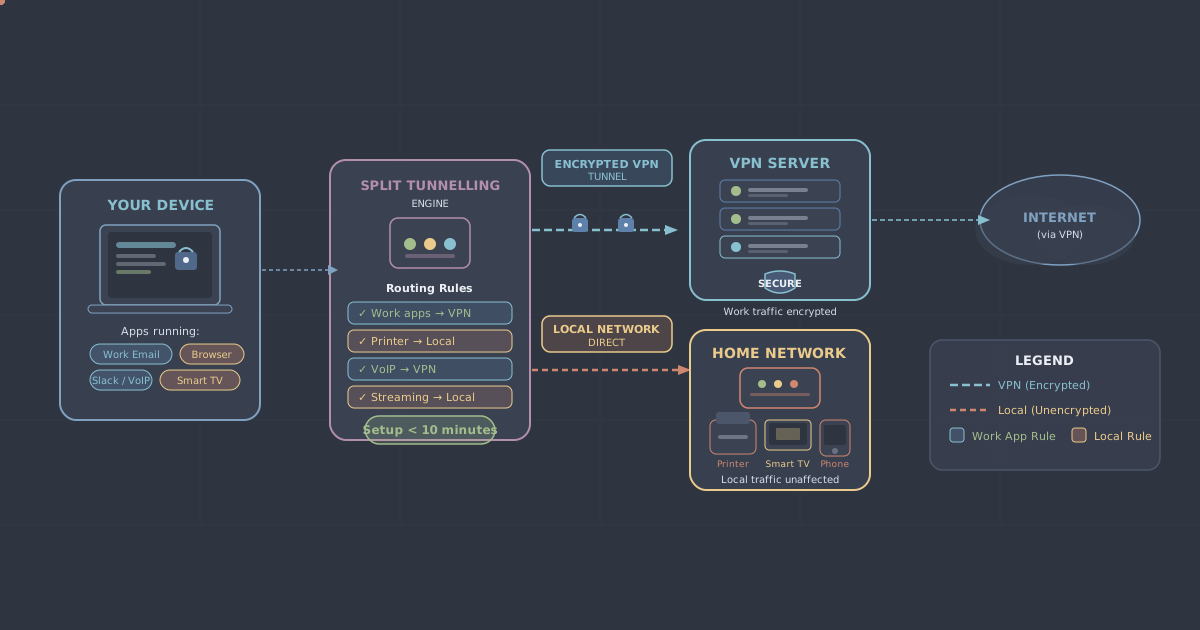
Split tunnelling is the middle ground. It lets you decide which applications or destinations go through the encrypted VPN tunnel and which connect directly to the internet as normal. Your work email, company intranet, and sensitive documents travel through the VPN; your Netflix stream and Sonos speaker stay on the local network where they belong.
This guide explains how split tunnelling works, when you should use it, and how to configure it in PremierVPN in a few straightforward steps.
What Split Tunnelling Actually Does
When you connect to a VPN without split tunnelling, your device sends all traffic through the encrypted tunnel to the VPN server, which then forwards it to its destination. That includes everything—your work tools, your browser, your smart TV app, the software that talks to your printer.
Split tunnelling changes that by giving you a routing policy at the application or IP level. You define which traffic uses the VPN tunnel and which uses your regular internet connection (sometimes called the "bypass" or "direct" route). The result is two simultaneous paths out of your machine, each handling different traffic.
There are two common ways to configure it:
- Include mode (tunnel specific apps): Only the apps you list go through the VPN. Everything else uses your normal connection.
- Exclude mode (bypass specific apps): Everything goes through the VPN except the apps or addresses you list.
For most home workers, include mode is the cleaner choice. You pick your work apps, tunnel them, and the rest of your household traffic carries on unaffected.
Why This Matters for Home Workers
Home networks are shared environments. The same router that carries your video calls also connects the kids' tablets, the smart TV, your partner's laptop, and probably a handful of IoT devices you've half-forgotten about. Routing all of that through a work VPN creates problems:
- Local devices—printers, NAS drives, media servers—often become unreachable when the VPN forces all traffic off the local subnet.
- Streaming services buffer or fail because VPN servers add latency that wasn't there before.
- Video calls sometimes degrade when both the call software and your conferencing platform's CDN are being tunnelled unnecessarily.
- Smart home hubs and mesh network apps may lose connectivity to devices on the same LAN.
At the same time, leaving work traffic entirely unprotected on a home network has genuine risks—particularly if you're handling sensitive client data, logging into internal systems, or working with files subject to data protection obligations. Split tunnelling resolves the conflict: protection where it counts, without friction everywhere else.
Which Traffic Should Go Through the VPN
The honest answer is: anything you would not want intercepted or exposed. That usually means:
- Your work email client (Outlook, Thunderbird, or a browser-based client)
- Your company's project management or CRM software
- Any remote desktop or SSH client connecting to company infrastructure
- File sync tools linked to work document stores
- Your web browser, if you regularly access internal web applications or sensitive client portals
- Communication tools such as Slack, Teams, or Zoom—particularly if conversations involve confidential matters
What generally does not need to go through the VPN:
- Streaming apps (they don't carry sensitive data and benefit from a direct connection)
- Local network discovery and printing software
- Smart home control apps that communicate with devices on your LAN
- Gaming clients (see our gaming VPN page for cases where VPN does help with gaming)
When in doubt, tunnel it. The performance cost of routing a lightweight app through the VPN is usually negligible.
How to Set Up Split Tunnelling in PremierVPN
PremierVPN includes split tunnelling in its desktop and mobile apps. The steps below cover the Windows and macOS apps; the Android app follows a similar pattern.
Windows
- Open the PremierVPN Windows app. If you haven't installed it yet, the Windows setup guide walks you through it.
- Go to Settings and select the Split Tunnelling tab.
- Toggle split tunnelling on.
- Choose your mode: Tunnel only selected apps (include mode) or Bypass selected apps (exclude mode).
- Click Add application and browse to the executables you want to include or exclude. Common choices:
outlook.exe,slack.exe, your browser's executable. - Save and reconnect to the VPN if you were already connected.
macOS
- Open the PremierVPN macOS app.
- Open Preferences and navigate to Split Tunnelling.
- Enable it and select your preferred mode.
- Use the + button to add applications from your Applications folder.
- Apply the changes. The VPN connection will update automatically.
Android
- Open the PremierVPN Android app.
- Tap the menu and go to Settings > Split Tunnelling.
- Toggle the feature on, then select which installed apps should use the tunnel.
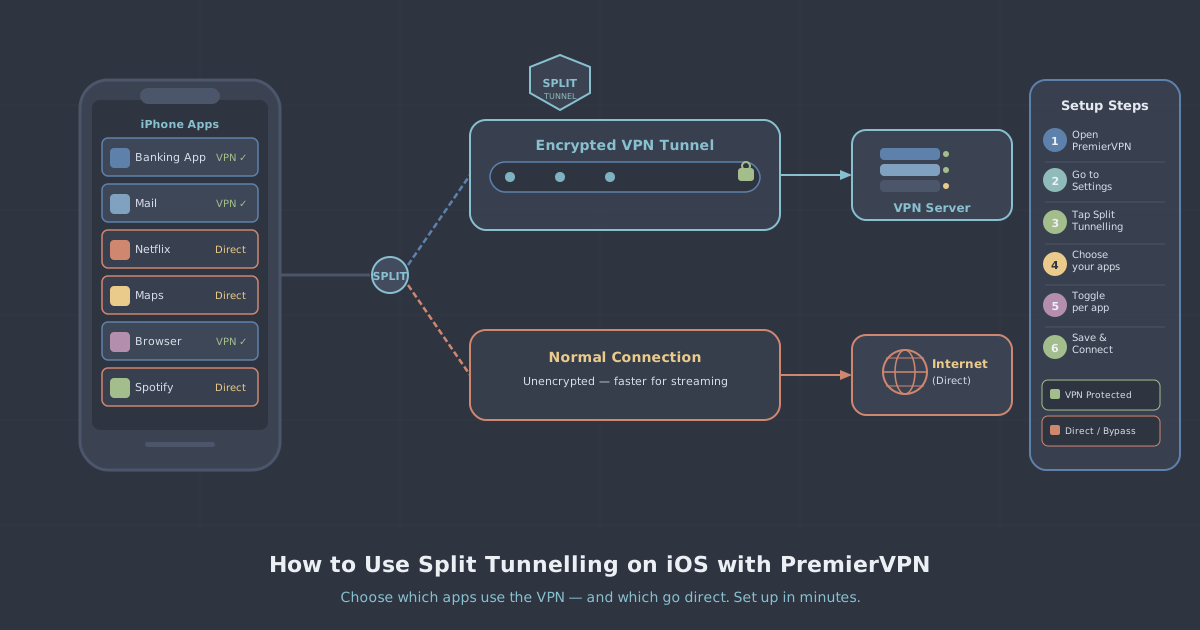
iOS imposes system-level restrictions that limit per-app VPN routing outside of managed device (MDM) environments, so full per-app split tunnelling is not available on iPhone and iPad through the standard consumer app.
A Note on Security Trade-offs
Split tunnelling is a tool, not a blanket solution, and it carries a trade-off worth understanding. Traffic you route outside the tunnel is not encrypted by the VPN. If you exclude your browser from the tunnel but then visit a work-related site in that same browser, that traffic travels unprotected.
A few practices help keep things tight:
- Use separate browser profiles—or separate browsers entirely—for work and personal use. Tunnel the work browser; leave the personal one on the direct connection.
- If your organisation uses a company-managed device, check whether IT has policies that override or conflict with client-side split tunnelling configuration.
- Enable the kill switch in PremierVPN alongside split tunnelling. If the VPN connection drops, tunnelled apps will lose connectivity rather than silently falling back to your unencrypted home connection.
You can verify there are no unexpected leaks using the PremierVPN IP leak test after you've configured your split tunnel. Run the test from both a tunnelled browser and an excluded browser to confirm each is behaving as expected.
Choosing the Right Plan for Remote Work
Split tunnelling is available across PremierVPN's plans, but the right plan depends on your situation. Individuals working from home will find the remote work VPN page a useful starting point—it covers protocol options (WireGuard is the default and performs well on typical home broadband), server locations, and plan details.
If your work involves particularly sensitive data or you need a consistent IP address—for instance, to whitelist with a client's firewall—a dedicated IP gives you a fixed address that only your account uses. For teams where multiple colleagues need the same arrangement, the Business VPN plan is worth reviewing.
Summary
Split tunnelling is one of those features that sounds more complicated than it is. In practice, you open the app settings, switch it on, add the work apps you care about, and you're done. Your email client and remote desktop session travel through an encrypted tunnel; your printer, your streaming apps, and your smart home devices carry on without interference.
The ten minutes you spend configuring it will save you considerably more than that in troubleshooting broken printer connections and buffering streams. And more importantly, it means you're not making a binary choice between full VPN coverage and no VPN at all—your work traffic gets the protection it needs without any compromise to the rest of your home network.