7 min read
Most people who set up a VPN assume they are fully protected the moment it connects. The VPN encrypts traffic, swaps out the IP address, and that's the end of the story. Unfortunately, there is a lesser-known way browsers can undermine all of that—and the vast majority of VPN users have never heard of it.
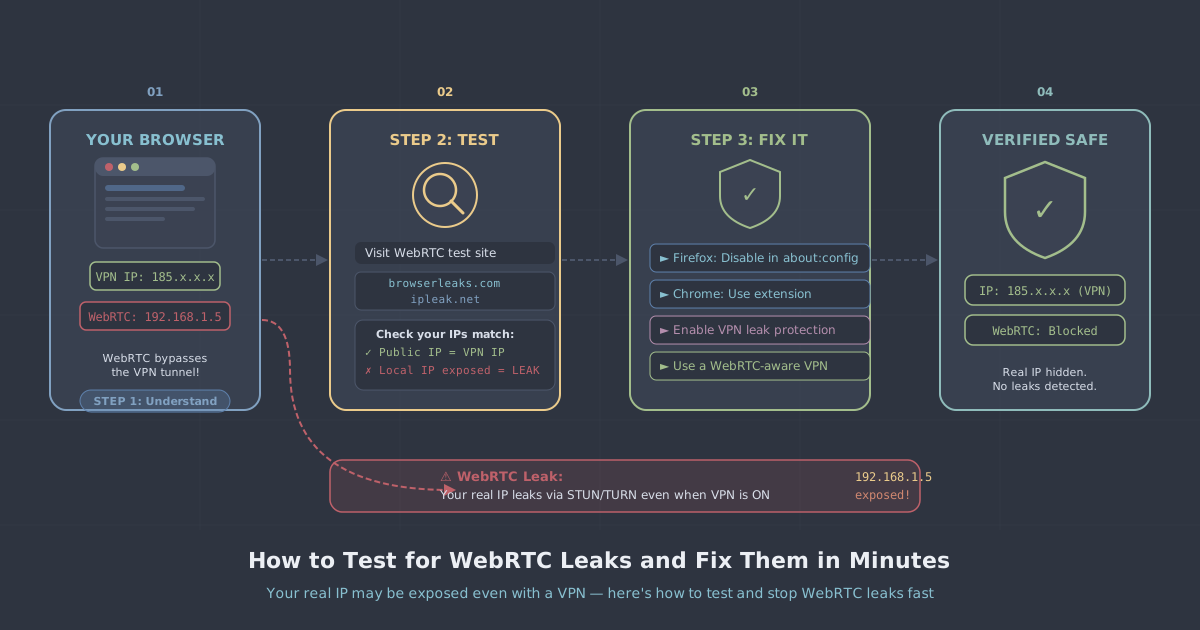
WebRTC is a technology built into modern browsers that enables real-time features like video calls and voice chat without a plugin. It is genuinely useful. It is also capable of leaking your real IP address to any website that asks for it, even when your VPN is fully connected and working as intended. The leak is not a flaw in your VPN—it is a flaw in how browsers handle certain network requests.
The good news is that testing for a WebRTC leak takes about thirty seconds, and fixing it takes under ten minutes. This article walks you through both.
What WebRTC Actually Does
WebRTC stands for Web Real-Time Communication. It is an open standard that lets browsers communicate directly with each other—peer to peer—for things like video calls, screen sharing, and file transfers. To establish a direct connection between two peers, WebRTC needs to know the real network addresses of both parties.
To discover those addresses, browsers use a process called ICE (Interactive Connectivity Establishment), which involves querying STUN servers. A STUN server's job is to tell your browser what your public IP address looks like from the outside world. The problem is that this STUN request can bypass your VPN tunnel entirely, because it operates at a lower level than the traffic your VPN is routing. The result: the STUN server—and any website orchestrating the query—receives your genuine IP address, not the VPN's.
Critically, this can happen without any special permissions. A website does not need your camera or microphone. A few lines of JavaScript are enough to trigger the STUN request silently in the background.
Which Browsers Are Affected
WebRTC is enabled by default in Chrome, Firefox, Edge, Opera, and Brave. Safari has implemented WebRTC with stricter privacy controls in recent versions, so it is generally less vulnerable—but not immune. If you are using any Chromium-based browser, treat yourself as potentially at risk until you have tested and taken action.
How to Test for a WebRTC Leak
Before you change anything, establish a baseline. Follow these steps:
- Connect to PremierVPN and confirm it is active.
- Open your browser and visit our IP leak test page.
- Look at the IP addresses shown. You should see only the VPN server's IP address. If you see your real home or mobile IP address anywhere on the page—particularly in the WebRTC section—you have a leak.
It is worth running the test twice: once with the VPN disconnected (to confirm which IP is your real one) and once connected. If the same IP appears in both tests, that is a leak. If only the VPN IP appears when connected, you are clean.
Local IP addresses (typically in the 192.168.x.x or 10.x.x.x ranges) are less critical—they identify your device on your local network rather than your location on the public internet—but seeing your real public IP in the WebRTC results is the issue to address.
How to Fix WebRTC Leaks in Each Browser
Firefox
Firefox allows you to disable WebRTC directly through its configuration:
- Type
about:configin the address bar and press Enter. - Accept the warning if prompted.
- Search for
media.peerconnection.enabled. - Double-click the entry to toggle its value to false.
That's it. WebRTC is now disabled in Firefox. If you rely on browser-based video calls and need to re-enable it temporarily, return to the same setting and toggle it back.
Chrome and Chromium-based browsers (Edge, Opera, Brave)
Chrome does not expose a built-in toggle to disable WebRTC. Your options are an extension or a browser-level policy.
The most practical approach for most users is to install a reputable WebRTC control extension from the Chrome Web Store. Look for one that lets you disable non-proxied UDP—this is the specific pathway that causes IP leaks. Disabling WebRTC entirely will break browser-based video calls; disabling non-proxied UDP blocks the leak while preserving more functionality.
Brave has a built-in privacy setting worth checking. Go to Settings → Privacy and security → WebRTC IP handling policy and set it to Disable non-proxied UDP. This is the same protective approach, but without needing an extension.
Edge users can try the same approach as Chrome (an extension), or explore the Settings → Privacy, search, and services menu for any available WebRTC controls—these vary by Edge version.
Safari
Older versions of Safari required you to enable the Develop menu and disable WebRTC manually. In recent versions, Safari's implementation is privacy-friendlier by default and does not expose your public IP through STUN requests in the same way. That said, it is still worth running the IP leak test after connecting to your VPN—do not assume you are safe without checking.
Use PremierVPN Protect as an Extra Layer
If you use Firefox, our free browser extension PremierVPN Protect adds an additional layer of protection directly in the browser. It is designed to work alongside the main VPN app rather than replace it. For Chrome users, the extension is currently in review and will be available shortly.
The extension does not replace the browser-level fixes above, but combining both gives you defence in depth: the VPN handles your traffic at the OS level, and the extension tightens up browser-specific leak vectors.
What Won't Fix a WebRTC Leak
It is worth being clear about what does not solve this problem, so you do not waste time on ineffective steps.
- Using incognito or private browsing mode—WebRTC still operates normally in private windows. It clears cookies; it does not change network behaviour.
- Clearing browser cache or cookies—these have no bearing on WebRTC or STUN requests.
- Changing DNS settings—DNS leaks and WebRTC leaks are separate issues. Fixing one does not fix the other.
- Trusting that your VPN is handling it—some VPN apps route WebRTC traffic through the tunnel; some do not. You should not assume. Test.
A Note on DNS Leaks
While you are testing, it is worth checking for DNS leaks at the same time. A DNS leak is a different mechanism—it occurs when DNS queries are sent to your ISP's servers instead of the VPN's—but it has a similar effect: your real location and browsing activity can be inferred. Our IP leak test covers both WebRTC and DNS leak detection in one place.
If you want to understand the broader landscape of privacy tools and how they compare in terms of what they do and do not protect, our VPN vs Proxy vs Tor guide covers the trade-offs in plain language.
Summary and Recommendation
WebRTC leaks are real, they affect most popular browsers by default, and they can expose your true IP address to websites even when your VPN is connected. The fix is straightforward once you know what you are dealing with.
| Browser | Fix method | Difficulty |
|---|---|---|
| Firefox | Toggle media.peerconnection.enabled to false in about:config |
Easy |
| Brave | Set WebRTC policy to Disable non-proxied UDP in Settings | Easy |
| Chrome / Edge | Install a WebRTC control extension; disable non-proxied UDP | Moderate |
| Safari | Test first; recent versions are lower risk but not immune | Low risk |
Start by running the IP leak test now, with your VPN connected. If you see your real IP in the WebRTC results, apply the fix for your browser using the steps above, then test again to confirm it is resolved. The whole process takes under ten minutes and closes a gap that most VPN users do not know exists.