7 min read
Most iPhone users treat their VPN as an all-or-nothing switch. Either every app on the device routes through the encrypted tunnel, or the VPN is off entirely. That binary approach works, but it comes with trade-offs: some apps behave differently behind a VPN, banking apps occasionally flag the connection, and certain streaming services may restrict content based on the server location you're connected to.
Split tunnelling gives you a middle path. You decide which apps go through the VPN and which connect directly—so you can protect your messaging, email, and browsing while letting your bank or a streaming service see your real IP address. The result is a setup that is both more practical and, in many cases, more stable in day-to-day use.
This guide walks through how split tunnelling works in the PremierVPN iOS app, when to use it, and a few sensible configurations to get you started.
What Split Tunnelling Actually Does
When you connect to a VPN without split tunnelling, your device sends every packet through the encrypted tunnel to the VPN server, which then forwards it to the wider internet. Your real IP address is hidden from every destination you contact.
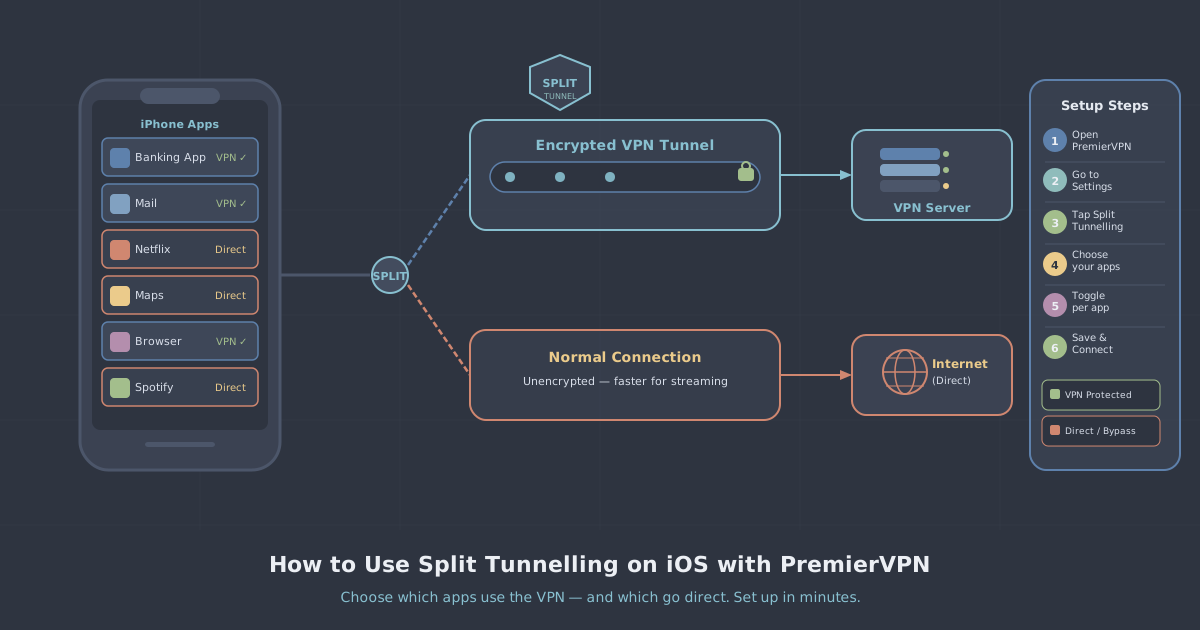
Split tunnelling changes this by letting the device maintain two simultaneous paths: the encrypted VPN tunnel for selected traffic, and your regular internet connection for everything else. The two paths coexist without conflict—your iPhone handles the routing automatically once you've configured the rules.
There are two ways to think about configuration:
- Include mode: Only the apps you select go through the VPN. Everything else uses your normal connection.
- Exclude mode: All traffic goes through the VPN except the apps you specifically exempt.
Which mode suits you depends on what you're trying to achieve. If you want broad protection with a handful of exceptions, exclude mode is simpler to manage. If you only want the VPN for two or three specific apps, include mode keeps things tight.
Before You Start: iOS Considerations
iOS handles VPN configurations differently from Android or desktop operating systems. Apple's networking stack applies VPN routing at the system level, which means split tunnelling on iPhone works on a per-app basis rather than allowing arbitrary IP or subnet rules (which is a desktop feature).
A few things worth knowing before you configure anything:
- Split tunnelling rules apply only while the VPN is connected. If the VPN drops, all traffic reverts to your regular connection—regardless of which apps you'd selected for the tunnel.
- Some apps use shared system frameworks or background processes that may not follow per-app rules precisely. If you're routing a browser through the VPN, extension processes may behave slightly differently.
- Changes to split tunnelling settings take effect the next time you connect, not mid-session. If you adjust the configuration while connected, disconnect and reconnect to apply it.
If you haven't installed the app yet, our iOS setup guide covers the full installation and initial configuration process.
Setting Up Split Tunnelling in the PremierVPN iOS App
Step 1: Open the app and go to Settings
Launch the PremierVPN app on your iPhone. Tap the Settings icon—usually a gear or menu icon depending on your app version. You're looking for a section labelled Split Tunnelling or App Rules.
Step 2: Enable split tunnelling
Toggle split tunnelling on. The app will prompt you to choose your mode: include (tunnel selected apps only) or exclude (tunnel everything except selected apps). Make your choice based on the guidance above—most users find exclude mode easier to maintain.
Step 3: Select your apps
You'll see a list of installed apps. Work through it and mark the ones you want to include or exclude, depending on the mode you chose. The app saves your selections automatically.
Step 4: Reconnect to apply
If you were already connected to a VPN server, disconnect and reconnect. Your split tunnelling rules are now active. You can verify this by checking your apparent IP address from one of the included apps and one of the excluded apps—they should differ.
You can run a quick check using our IP leak test from a browser that's routed through the VPN, to confirm the tunnel is working as expected.
Practical Configurations Worth Considering
Protecting messaging and email, leaving everything else direct
If your main concern is privacy for communications, use include mode and add only your email client, messaging apps, and browser to the tunnel. Banking apps, streaming services, and anything that frequently breaks behind a VPN stay on your direct connection. This is a lightweight setup with minimal impact on speed or app compatibility.
Tunnelling everything except banking apps
Use exclude mode and add your banking and financial apps to the exception list. This is a sensible default for most users who want broad VPN coverage without dealing with the occasional friction that some banking apps introduce when they detect a VPN connection.
Keeping work traffic on the VPN only
If you use your iPhone for work and have a remote working setup, you might want to route your work email, file storage, and collaboration tools through the VPN while keeping personal apps direct. Include mode with your work apps selected achieves this cleanly.
When Split Tunnelling Is Not the Right Choice
Split tunnelling is a convenience feature, not a security upgrade in itself. If your goal is to ensure that no traffic ever leaves your device without encryption—for example, on a hostile or unknown network—then running all traffic through the VPN is the more robust approach.
Similarly, split tunnelling is not useful if you're trying to access geo-restricted content through apps that you've placed outside the tunnel. An app that connects directly will always use your real IP and location, regardless of where the VPN server is.
For users on restrictive networks—where VPN traffic itself needs to be disguised—PremierVPN's WireGuard Stealth and VLESS+REALITY protocols are worth exploring separately. These aren't split tunnelling features, but they affect how the VPN connection itself appears to network observers. You can read more about the latter in our overview of the VLESS+REALITY protocol.
Troubleshooting Common Issues
| Symptom | Likely cause | What to try |
|---|---|---|
| Split tunnelling rules seem to have no effect | Settings applied mid-session | Disconnect and reconnect to the VPN |
| An excluded app still shows the VPN IP | App uses a shared system component | Check if the app uses Safari or a system WebView internally |
| Banking app still flags the connection | Device fingerprinting, not just IP | Exclude the banking app entirely from the tunnel |
| Speed feels the same despite split tunnelling | Your bottleneck is elsewhere | Check server load and try a different server location |
A Note on Protocols and Performance
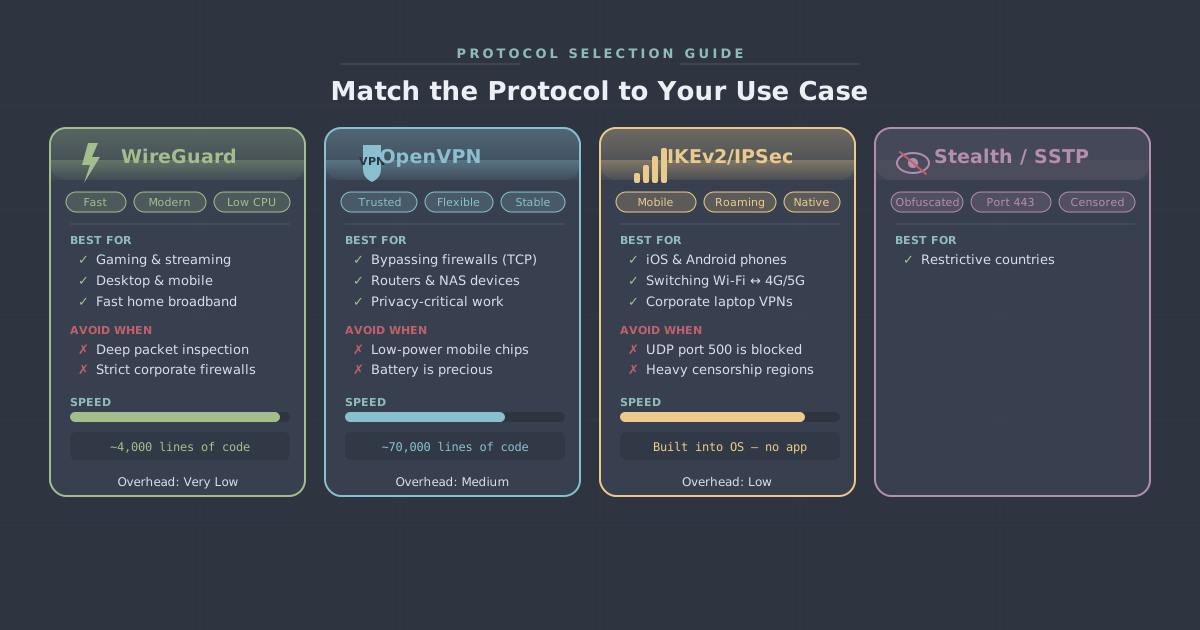
PremierVPN uses WireGuard as its default protocol on iOS, which is well-suited to mobile use: it reconnects quickly when you switch between Wi-Fi and mobile data, and its lightweight design means the performance overhead of tunnelling is small. When split tunnelling is active, WireGuard handles only the traffic you've assigned to the tunnel, so the protocol overhead is proportionally lower still.
If you're on a network that disrupts WireGuard, the app lets you switch to OpenVPN or VLESS+REALITY without changing your split tunnelling configuration. The app preserves your app rules across protocol changes.
Summary
Split tunnelling is one of those features that sounds more complicated than it is in practice. The core idea is simple: some apps through the VPN, others direct, with you in control of which is which. On iOS, PremierVPN implements this through straightforward per-app rules that take a few minutes to configure and rarely need revisiting once you've settled on a setup.
The most practical starting point for most users is exclude mode with banking and streaming apps exempted. That gives you broad protection without the compatibility friction that occasionally comes with running every app through the tunnel. From there, you can refine as you go.
If you haven't set up the app yet, start with the iOS setup guide, then come back here to configure split tunnelling once you're connected.