7 min read
Most people install a VPN, see the "Connected" badge turn green, and assume everything is working exactly as intended. That assumption is usually correct—but not always. A VPN app can report a successful connection while quietly using a different protocol, port, or server than the one you selected. The only way to know for certain is to look at the connection log.
This article walks you through what a VPN connection log actually contains, what the key lines mean, and what to look for when something feels off. It takes about two minutes once you know what you are reading.
None of this requires technical expertise. The log is plain text, and the patterns that matter are easy to spot once someone points them out.
What Is a VPN Connection Log?
A connection log is a timestamped record of every step the VPN client took when establishing (and maintaining) your tunnel. It is generated locally on your device—it is not transmitted to the VPN provider unless you deliberately share it for support purposes.
The log captures things like:
- Which server address the app resolved and attempted to contact
- Which protocol and port were used
- Whether the TLS or WireGuard handshake succeeded
- Any fallback attempts if the first connection failed
- The IP address assigned to your VPN tunnel interface
- DNS configuration applied after connection
- Kill switch activation or deactivation events
In the PremierVPN apps, you can access the connection log directly inside the application—typically under a Diagnostics or Connection Log section in the settings. The Windows app and macOS app both surface this in a scrollable panel you can copy to clipboard.
Finding the Log in Each App
Windows and macOS
Open the app, go to Settings, then look for Diagnostics or Logs. You will see a live log that updates as events happen. If you have just connected, the relevant entries are at the bottom.
iOS and Android
On mobile, the log is accessible from the same diagnostics section in settings. It is shorter by default but still shows the handshake result, assigned IP, and protocol used. The iOS and Android apps let you share the log directly from that screen.
Ubuntu and Linux
On Linux, WireGuard and OpenVPN both write to system journals. You can read them with journalctl -u wg-quick@wg0 --no-pager or equivalent, depending on your configuration. The PremierVPN Ubuntu app also surfaces a log panel similar to the desktop clients.
The Lines That Actually Matter
A full connection log can run to hundreds of lines. You do not need to read all of them. Focus on these specific patterns.
Protocol and port confirmation
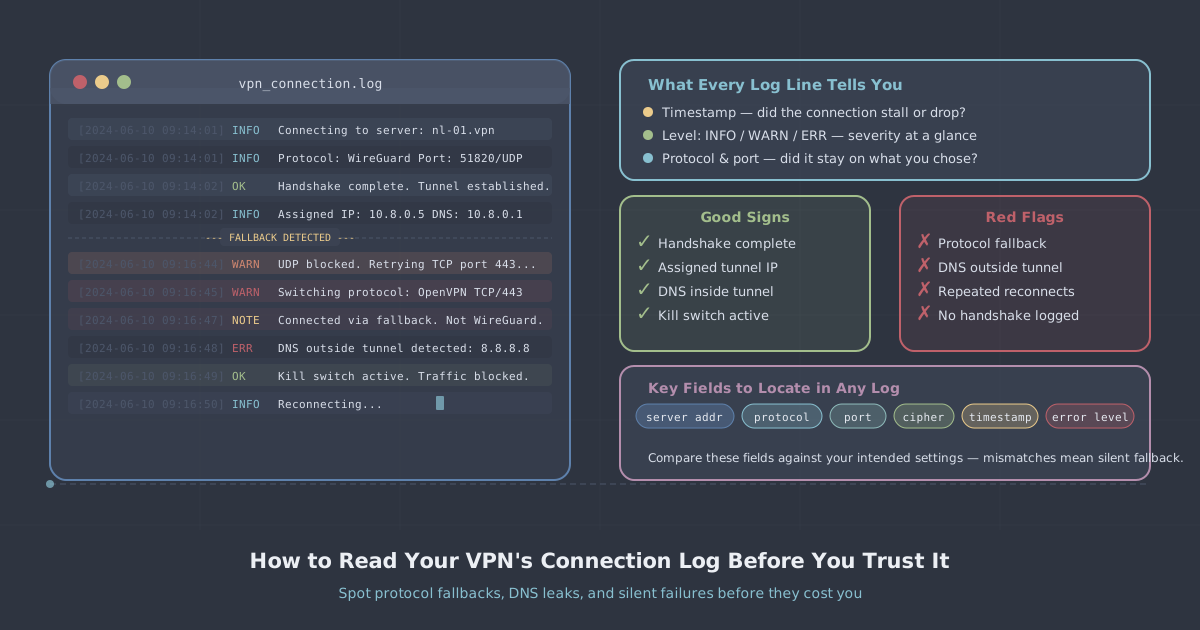
Early in the log, you should see a line confirming which protocol the client is using and which port it is connecting on. For WireGuard it looks something like:
Using protocol: WireGuard
Connecting to 198.51.100.14:51820
For OpenVPN you might see:
Using protocol: OpenVPN UDP
Connecting to 198.51.100.14:1194
Check that the protocol matches what you selected in the app. If you chose WireGuard but see OpenVPN in the log, the app fell back—possibly because UDP was blocked on your network.
The handshake
This is the most important single line in the log. A successful WireGuard connection will show something like:
Handshake with peer succeededA failed handshake will typically show a timeout or a repeated retry. If the app reports "Connected" but you see handshake retries without a success line, your tunnel may not be fully established. Traffic could be leaking outside the VPN.
Assigned tunnel IP
After a successful handshake, the log records the IP address assigned to your VPN tunnel interface—something like 10.x.x.x or another private range. This is not your public IP; it is the address your device uses inside the VPN network. Its presence confirms the interface came up correctly.
DNS configuration
Look for a line confirming that DNS was redirected through the VPN tunnel. A typical entry might read:
DNS set to: 10.8.0.1If you see your router's local DNS address (often 192.168.x.x) still active after connection, your DNS queries may be bypassing the tunnel—a classic DNS leak scenario. You can verify this independently using the PremierVPN IP and DNS leak test.
Fallback events
Protocol fallback is the silent behaviour most users never notice. If a network blocks a specific port or protocol, a VPN client may automatically retry on a different port or switch protocols entirely. This is not always bad—it keeps you connected—but it is worth knowing it happened.
In the log, fallback looks like a sequence of failed connection attempts followed by a successful one on different parameters:
Connecting to 198.51.100.14:51820 ... timeout
Retrying on port 443 ...
Handshake with peer succeeded
Port 443 is standard HTTPS traffic, so it passes through most firewalls. Falling back to it is a reasonable outcome. What you want to avoid is unknowingly falling back to an unencrypted or significantly weaker configuration—something a well-designed client should never do, but the log lets you confirm.
Red Flags to Watch For
| Log pattern | What it may indicate |
|---|---|
| Repeated handshake timeouts with no success | Tunnel not established; traffic may be unprotected |
| Protocol in log differs from your selection | Silent fallback occurred |
| Local DNS address still active after connection | Potential DNS leak |
| No tunnel IP assigned | Interface did not come up correctly |
| Kill switch activation immediately after connect | Connection dropped; kill switch is holding—check why |
WireGuard Stealth and VLESS+REALITY Logs
If you are on a restrictive network—at a workplace with deep packet inspection, or in a country that actively filters VPN traffic—you may be using WireGuard Stealth or the VLESS+REALITY protocol. Both are available in PremierVPN's main apps and are designed to disguise tunnel traffic as ordinary HTTPS.
The log behaviour is slightly different for these protocols. With VLESS+REALITY, you will see the obfuscation layer negotiated before the tunnel is established. A successful sequence looks like a TLS handshake to a cover domain, followed by the inner tunnel coming up. If you see the outer TLS handshake succeed but the inner tunnel fail, the obfuscation passed but the VPN server rejected the connection—worth reporting to support.
You can read more about how VLESS+REALITY works and why it matters in restrictive environments in our VLESS+REALITY protocol explainer.
Making Log-Checking a Habit
You do not need to read the full log every time you connect. A practical routine is to glance at the log in three situations:
- First connection on a new network—hotels, airports, and workplace Wi-Fi all have different firewall rules. Check that the protocol you wanted actually connected.
- After a reconnect event—if the app briefly disconnected and reconnected, confirm the new session used the same parameters as the original.
- When something feels slow or broken—before assuming the server is at fault, confirm the tunnel came up correctly. A half-established connection behaves exactly like a slow server.
Pair the log check with the leak test if you want to verify from the outside that your public IP and DNS are both routing through the VPN as expected. The log tells you what the client did; the leak test confirms what the world sees.
A Practical Summary
The connection log is the most honest record of what your VPN actually did. The green "Connected" badge tells you the app believes the tunnel is up. The log tells you which protocol, which port, whether the handshake completed, and whether DNS redirected correctly.
Spend two minutes with it the first time you connect on any new network. Look for the protocol line, the handshake result, the tunnel IP, and the DNS entry. If all four are present and match your intentions, you can trust the connection. If anything looks unexpected, the log gives you the exact information you need to diagnose or report the problem—without guesswork.
If you are not yet familiar with the fundamentals of what a VPN tunnel actually does before you get to the log, our introduction to VPNs covers the basics clearly.