7 min read
A VPN kill switch is one of those features that sounds reassuring in a features list but is easy to set and forget. You tick the box, assume it works, and carry on. The problem is that a kill switch that fails silently—without ever giving you a warning—offers no protection at all. Your traffic just flows out unprotected, and you have no idea.
This guide explains what a kill switch actually does under the hood, why it sometimes fails to fire, and—most importantly—how to run a straightforward test at home that confirms yours is working correctly. No specialist tools required, no command-line expertise assumed. If you can open a browser, you can do this.
If you're new to VPNs generally, it's worth reading our primer on what a VPN is first. Otherwise, let's get into it.
What a Kill Switch Actually Does
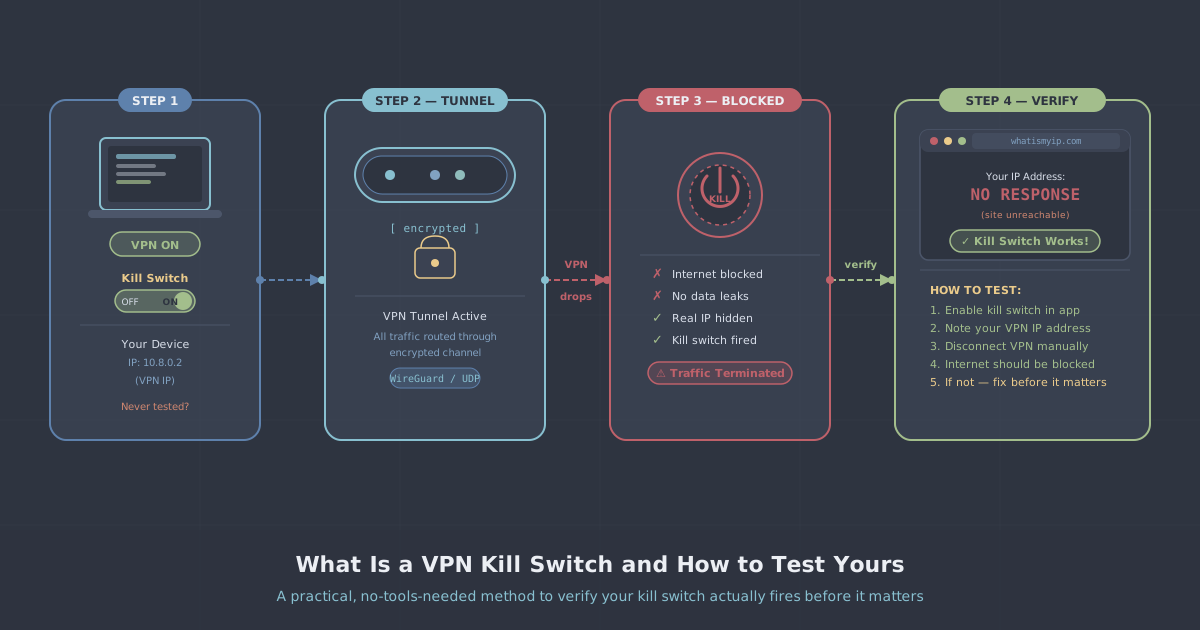
When a VPN is running normally, your device routes all outgoing traffic through an encrypted tunnel to a VPN server. Your real IP address stays hidden, and your ISP sees only encrypted data going to that server. The moment the VPN connection drops—whether because of a server hiccup, a protocol timeout, a network change, or your device waking from sleep—that tunnel disappears. Without a kill switch, your operating system immediately falls back to your normal internet connection. Your real IP becomes visible again, often for just a few seconds, but those seconds are enough to expose your identity or location.
A kill switch prevents that fallback. When it detects the VPN tunnel has gone down, it blocks all network traffic on your device until either the tunnel is restored or you deliberately disconnect. Done properly, it acts at the network or firewall level—not just inside the VPN app itself—so even if the app crashes, the block holds.
There are two common implementations:
- App-level kill switches — the VPN application monitors the tunnel and blocks traffic by manipulating firewall rules when the tunnel drops. Works well when the app is running; less reliable if the app itself crashes unexpectedly.
- System-level (always-on) kill switches — implemented via the operating system's own VPN or firewall framework. Traffic is only permitted through the VPN interface; everything else is blocked at the OS level regardless of whether the VPN app is open.
PremierVPN's kill switch operates at the firewall level on all supported platforms, which means it doesn't rely solely on the app process staying alive to maintain the block.
Why Kill Switches Sometimes Don't Fire
Before you test, it helps to know the common failure modes. A kill switch can fail to protect you for several reasons:
- The setting isn't actually enabled. It sounds obvious, but many apps have the kill switch off by default. Check the settings panel, not just the toggle label.
- Split tunnelling is interfering. If you've set certain apps or traffic to bypass the VPN, those routes can remain open even when the tunnel drops, depending on how split tunnelling is implemented.
- Protocol-specific behaviour. Some kill switch implementations behave differently depending on whether you're using WireGuard, OpenVPN, or another protocol. A kill switch tested on one protocol may not behave identically on another.
- Network interface changes. Switching from Wi-Fi to a mobile hotspot, or from one network to another, can briefly expose traffic before the kill switch catches up—particularly on mobile platforms.
- Sleep and wake cycles. On laptops especially, the VPN session can fail to restore cleanly after the device wakes from sleep. If the kill switch also fails to engage in that window, traffic flows unprotected.
Before You Test: A Quick Checklist
Run through these checks before you start the test, so you're testing the right thing:
- Open the PremierVPN app and confirm the kill switch toggle is on. On the Windows app and macOS app, this is in Settings under the Connection or Security section.
- If you have split tunnelling enabled, disable it temporarily for this test. You want all traffic routed through the VPN so the kill switch behaviour is unambiguous.
- Note your real IP address. Visit our IP leak test page while disconnected from the VPN, and make a note of the IP shown. This is what must not appear during the test.
- Connect to a VPN server, wait for the connection to stabilise, then visit the leak test page again and confirm you're showing a VPN IP, not your real one.
Now you're ready to test.
The Practical Kill Switch Test (No Tools Needed)
This test simulates a VPN tunnel drop and checks whether your traffic leaks before reconnection. There are two methods—try both if you can.
Method 1: Force-quit the VPN app
This is the simplest test and catches the most common failure mode: what happens when the app itself dies unexpectedly.
- Connect to a VPN server in the PremierVPN app and confirm you're connected.
- Open your IP leak test page in a browser tab and leave it there.
- Force-quit (not gracefully close) the VPN application:
- Windows: Open Task Manager (
Ctrl + Shift + Esc), find the PremierVPN process, right-click it, and select End Task. - macOS: Press
Cmd + Option + Esc, select PremierVPN, and click Force Quit. Alternatively, find the process in Activity Monitor and use Force Quit from there.
- Windows: Open Task Manager (
- Immediately reload the IP leak test page in your browser.
What you want to see: The page fails to load, times out, or shows no IP at all. That means the kill switch fired and blocked your internet traffic.
What would indicate a problem: The page loads and shows your real IP address. That means the kill switch did not engage when the app was killed.
Method 2: Disconnect your network briefly
This tests what happens during a momentary connection interruption—the scenario closest to a real-world VPN dropout.
- With the VPN connected and the leak test page open, switch off your Wi-Fi or unplug your ethernet cable for two to three seconds, then reconnect it.
- The moment your connection comes back, reload the IP leak test page immediately—before the VPN has had time to reconnect.
What you want to see: The page either fails to load, or the VPN has already reconnected and you see a VPN IP. At no point should your real IP flash up.
This method is slightly harder to time precisely, which is why Method 1 is more reliable for a clear pass/fail result. Use both to be thorough.
Testing on Mobile
The same logic applies on iOS and Android, though force-quitting apps on mobile is handled differently.
On iOS (using the PremierVPN iOS app): swipe up from the home screen to open the app switcher, then swipe the PremierVPN card away to force-close it. Immediately open your browser and check your IP. Because iOS routes all traffic through the system VPN framework when the app is running, the kill switch behaviour here is tied to the iOS Always-on VPN setting rather than the app itself—check that this is enabled in Settings > VPN on your device.
On Android (using the PremierVPN Android app): Android has a native Always-on VPN and Block connections without VPN option under Settings > Network & Internet > VPN. Enabling both provides system-level protection independent of the app. Test by force-stopping the app via Settings > Apps and then immediately checking your IP in a browser.
Mobile kill switches are more dependent on OS settings than desktop ones, so it's worth double-checking both the app and the system settings together.
What to Do if Your Kill Switch Isn't Working
If the test reveals your real IP during a VPN dropout, work through these steps:
- Confirm the kill switch is enabled in the app settings, not just assumed to be on. Close and reopen the app to make sure the setting has saved.
- Check your protocol. In the PremierVPN app, try switching between WireGuard and OpenVPN and run the test again on each. WireGuard is the default and generally more reliable for reconnection, but kill switch behaviour can occasionally differ.
- Disable split tunnelling if it's on. As noted above, split-tunnel routes can remain open during a dropout and bypass the kill switch logic.
- Check system firewall settings. Third-party firewalls or security suites can sometimes interfere with the rules the VPN app sets. Try temporarily disabling them to see if that's the cause.
- Reinstall the app. A corrupted installation can leave the kill switch in a broken state. Uninstall cleanly, then reinstall from the official download page for your platform.
- Contact support. If none of the above resolves it, get in touch with PremierVPN support with the details of your platform, protocol, and what the test showed. The kill switch is a critical safety feature and any failure should be investigated properly.
How Often Should You Re-Test?
A one-time test is better than nothing, but a few things should prompt you to test again:
- After a major app update, especially if the update touched connection or security settings
- After upgrading your operating system to a new major version
- If you change protocol (e.g. switching from WireGuard to OpenVPN or enabling WireGuard Stealth)
- After making any changes to split tunnelling settings
- If you've noticed the VPN dropping more often than usual
Running the force-quit test takes under two minutes. Adding it to your routine after any significant change is a habit worth building.
Summary
A kill switch you haven't tested is an assumption, not a guarantee. The force-quit method described above is the quickest way to move from assumption to confidence: force-kill the app, reload the leak test, and check whether your real IP appears. If it doesn't, you're protected. If it does, work through the troubleshooting steps above before relying on the kill switch for anything that matters.
If you're using PremierVPN on a platform where you haven't yet set up the app, the setup guides for Windows and macOS walk through enabling the kill switch as part of the initial configuration. Take five minutes to test it once you're set up—it's the kind of check that's easy to defer and important not to.