8 min read
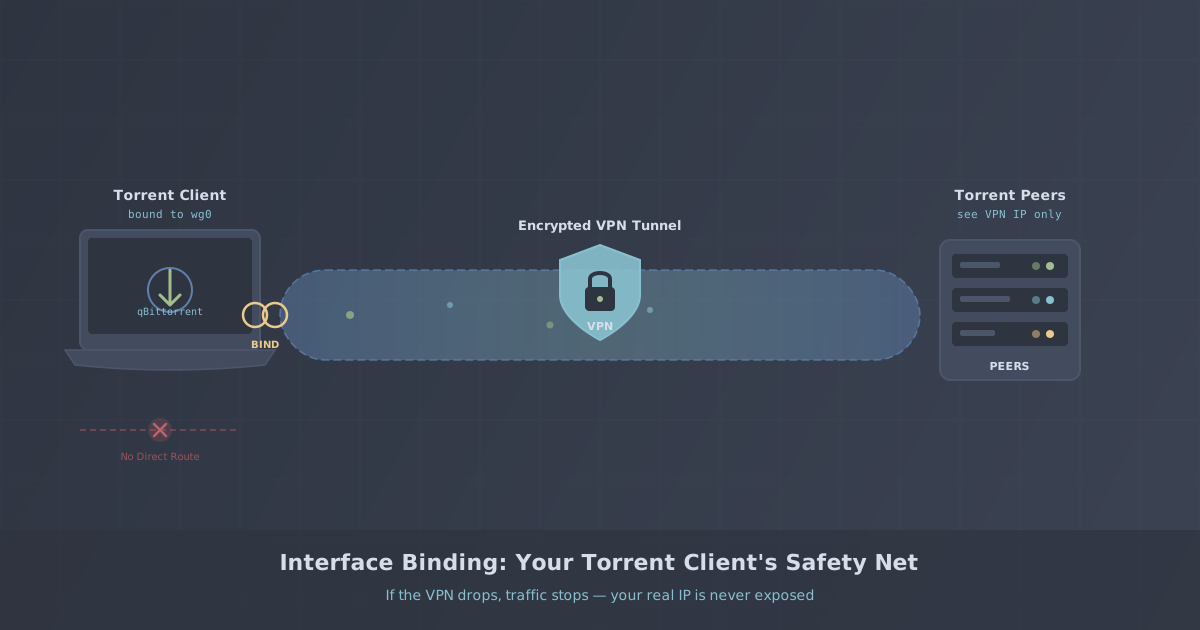
When you torrent over a VPN, your traffic is routed through an encrypted tunnel — but what happens if the VPN connection drops? Without proper safeguards, your torrent client will silently fall back to your real internet connection, exposing your actual IP address to every peer in the swarm.
The most reliable protection against this is interface binding — a feature built into some torrent clients that locks all traffic to a specific network interface (typically the VPN's virtual adapter). If the VPN disconnects, the torrent client simply stops transferring data instead of leaking your IP.
This is more reliable than a system-wide kill switch because it works at the application level, even if the kill switch fails or isn't configured.
Why Interface Binding Matters
Every VPN connection creates a virtual network interface on your device — usually named something like wg0 (WireGuard), tun0 (OpenVPN), or utun3 (macOS). When you bind your torrent client to this interface, you're telling it: "only send and receive data through this specific adapter."
The benefits are significant:
- Your real IP address is never exposed to peers, even during brief VPN reconnections
- No dependency on a kill switch working correctly
- Works independently — even if other apps on your system use the normal connection
- DNS leak protection on the torrent client's traffic
Clients That Support Interface Binding
TorrentLock — The Safest Option for macOS
TorrentLock is PremierVPN's own macOS torrent client, built from the ground up for VPN-bound torrenting. Unlike every other client on this list, you don't need to manually configure interface binding — TorrentLock automatically locks every transfer to your PremierVPN connection and refuses to send or receive a single byte if the VPN isn't active.
Built on the industry-standard libtorrent-rasterbar engine (the same library that powers qBittorrent and Deluge), TorrentLock pairs a familiar BitTorrent experience with zero-config kill-switch behaviour. There's no "Network interface" dropdown to forget about, no IP address to look up, and no risk of a botched reconfiguration leaking your real IP after a software update.
Why we built it: we kept seeing users accidentally leak their IP because they'd updated qBittorrent, reset a preference, or switched VPN servers and forgotten to re-bind. TorrentLock removes that entire class of mistake by making VPN binding non-optional and automatic.
How to set it up:
- Download TorrentLock from our site
- Install and open the app
- Sign in with your PremierVPN account
- Start torrenting — binding is automatic, with no manual configuration required
Platforms: macOS 14 (Sonoma) or later. Windows and Linux versions are on our roadmap — for now, users on those platforms should use qBittorrent (below).
qBittorrent — Best Cross-Platform Choice
For Windows and Linux users, qBittorrent is the top recommendation for VPN-bound torrenting. It's open-source, has no ads, and the binding feature is straightforward to configure — though, unlike TorrentLock, the binding is manual and can be accidentally undone.
How to set it up:
- Open qBittorrent and go to Tools → Preferences → Advanced
- Find the "Network interface" dropdown
- Select your VPN interface (look for your VPN adapter name — with PremierVPN this is typically the WireGuard or OpenVPN interface)
- Click Apply and restart qBittorrent
Once bound, qBittorrent will refuse to send any data if the VPN interface is unavailable. You can verify this by disconnecting your VPN — all torrents should immediately stop transferring.
Platforms: Windows, macOS, Linux
Deluge — Lightweight Alternative
Deluge is another open-source client with interface binding support, though the setup requires a configuration edit rather than a simple dropdown.
How to set it up:
- Go to Preferences → Network
- In the "Interface" field, enter the IP address assigned to your VPN interface
- To find this IP: on Windows run
ipconfig, on Linux/macOS runifconfigorip addr, and look for the VPN adapter's IP (usually a10.x.x.xaddress) - Apply and restart Deluge
Note: Deluge binds to an IP address rather than an interface name, which means you may need to update it if your VPN assigns a different local IP after reconnecting.
Platforms: Windows, macOS, Linux
Transmission — Simple and Effective
Transmission supports interface binding on Linux and macOS through its settings file or the daemon configuration.
How to set it up (Linux/macOS daemon):
- Edit the Transmission settings file (usually at
~/.config/transmission-daemon/settings.json) - Set
"bind-address-ipv4"to your VPN's local IP address - Set
"bind-address-ipv6"to"::"to disable IPv6 and prevent leaks - Restart the Transmission daemon
On the macOS GUI version, you can set the bind address by editing ~/Library/Application Support/Transmission/settings.json directly.
Platforms: macOS, Linux (Windows version is unofficial and less maintained)
rTorrent — For Advanced Users
rTorrent is a terminal-based client popular on Linux servers and seedboxes. It supports binding through the .rtorrent.rc configuration file.
How to set it up:
Add the following lines to your .rtorrent.rc:
network.bind_address.set = YOUR_VPN_IP
network.local_address.set = YOUR_VPN_IP
Replace YOUR_VPN_IP with the local IP assigned by your VPN. Restart rTorrent for changes to take effect.
Platforms: Linux, macOS (terminal only)
Vuze (Azureus) — Feature-Rich Option
Vuze has built-in VPN binding support and can even detect VPN interfaces automatically.
How to set it up:
- Go to Tools → Options → Connection → Advanced Network Settings
- In "Bind to local IP address or interface", select your VPN adapter
- Check "Enforce IP bindings" to prevent fallback to your real connection
- Apply and restart Vuze
Vuze is more resource-heavy than qBittorrent but offers additional features like built-in search and media playback.
Platforms: Windows, macOS, Linux
Client Comparison
Here's how the clients stack up, plus a few popular ones to avoid:
| Client | Binding Support | Notes |
|---|---|---|
| TorrentLock | ✅ Automatic | Built for PremierVPN — zero configuration (macOS only) |
| qBittorrent | ✅ Full | Interface dropdown — best cross-platform option |
| Deluge | ✅ IP-based | Requires manual IP entry |
| Transmission | ✅ Config file | Edit settings.json |
| rTorrent | ✅ Config file | Terminal-based, advanced users |
| Vuze | ✅ Full | Auto-detects VPN interfaces |
| µTorrent | ❌ None | Contains ads, security issues — avoid |
| BitTorrent | ❌ None | Same codebase as µTorrent |
| Tixati | ⚠️ Partial | IP binding exists but unreliable |
How to Find Your VPN Interface Name
If you're using qBittorrent, Deluge, Transmission, rTorrent or Vuze, you'll need to know your VPN adapter's name or IP address to bind to it. (TorrentLock users can skip this section — it's handled automatically.) Here's how to find it on each platform.
Windows
Open Command Prompt and run:
ipconfig /allLook for an adapter named "WireGuard Tunnel" or "TAP-Windows Adapter" (for OpenVPN). The IPv4 address listed under that adapter is your VPN IP — typically something like 10.x.x.x or 172.x.x.x.
macOS
Open Terminal and run:
ifconfigLook for utun interfaces. The one with an IP in the 10.x.x.x range is usually your VPN.
Linux
Run either of these commands:
ip addr
# or
ifconfig
Look for wg0 (WireGuard), tun0 (OpenVPN/OpenConnect), or similar. The IP listed is your bind address.
Testing Your Setup
After configuring interface binding, always verify it's working. Here's the test:
- Connect your VPN and start a torrent
- Confirm it downloads normally
- Disconnect the VPN while the torrent is still active
- The torrent should immediately stop — zero data transfer
- Reconnect the VPN — the torrent should resume automatically
If the torrent continues downloading after the VPN disconnects, the binding is not configured correctly. Double-check the interface name or IP address.
Our Recommendation
On macOS: use TorrentLock. It's the only torrent client designed specifically for PremierVPN, and its automatic VPN binding means there's no way to misconfigure it or accidentally leak your IP between software updates. If you're on a Mac, this is the easiest and safest choice — full stop.
On Windows or Linux: use qBittorrent with interface binding. It's the most user-friendly and well-maintained cross-platform option, and pairs well with PremierVPN's WireGuard protocol for high-bandwidth torrenting. Just remember to re-verify your binding after any major update.
Whichever client you pick, we recommend using PremierVPN's WireGuard protocol, which provides faster speeds and more stable connections compared to traditional OpenVPN — especially important for high-bandwidth activities like torrenting.
Remember: Interface binding is a second layer of protection on top of your VPN. Always connect to your VPN first, then start your torrent client. This ensures there's never a window where your real IP is exposed.