7 min read
When friends or family visit and ask for your Wi-Fi password, most people hand over access to the same network that handles their banking, smart home devices, and personal laptops. A guest network solves the isolation problem—but it doesn't do anything for your visitors' privacy once their traffic leaves your router and heads out onto the open internet.
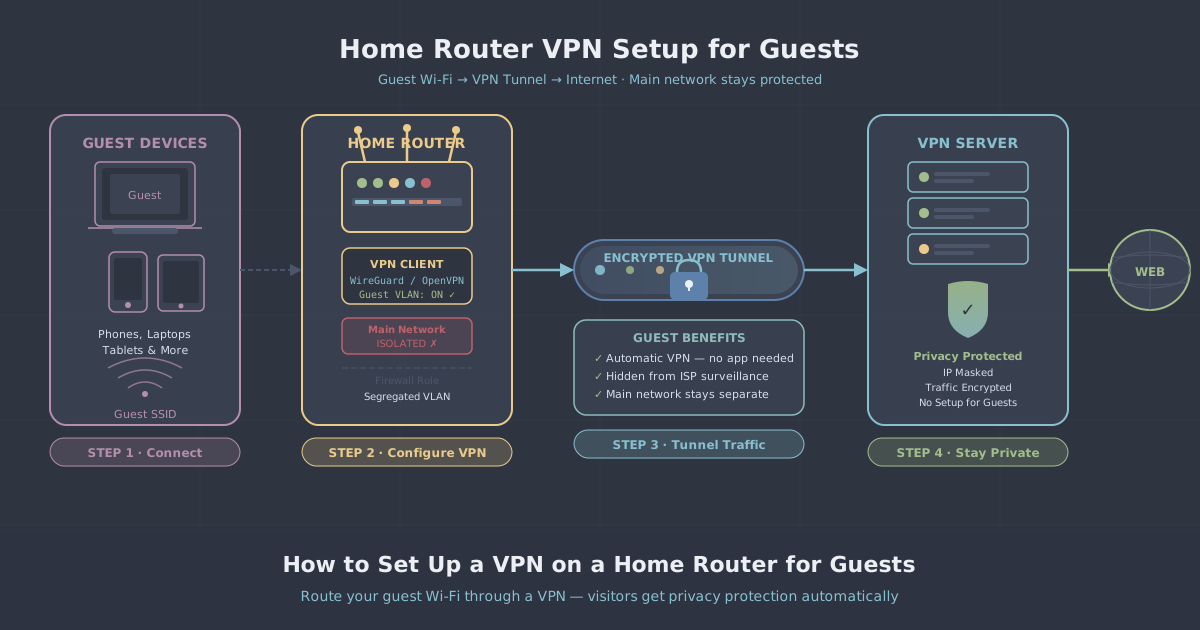
Routing your guest Wi-Fi through a VPN changes that. Every device that connects to the guest SSID gets its traffic tunnelled automatically, with no app to install and no configuration for the visitor to worry about. This guide walks through the logic, the router requirements, and the practical steps to make it work.
This is a moderately technical project. You don't need to be a network engineer, but you'll need to be comfortable logging into your router's admin panel and following instructions carefully. If you've never done that before, it's worth reading your router's manual alongside this guide.
Why Separate the Guest Network at All?
A properly configured guest network does two things. First, it keeps visitor devices away from your main LAN—they can't browse your shared drives, printers, or smart home hubs. Second, it gives you a separate SSID to apply different rules to, which is exactly what you need for VPN routing.
Without the separation, you'd have to route all your home traffic through the VPN, including your own devices. That's fine for some households, but it means your streaming services, smart speakers, and work devices all go through the tunnel too—which can cause problems with local network features or region-locked content you want to access directly.
The guest-only approach gives you precision: your main network behaves normally, and visitors get the tunnelled connection.
What Your Router Needs to Support This
Not every home router can do this. Before you spend time on configuration, confirm your router meets these requirements.
VPN client support
Your router needs to act as a VPN client—meaning it connects to the VPN server on behalf of the devices behind it. Many ISP-supplied routers don't support this. Routers running DD-WRT, OpenWrt, or Tomato firmware generally do. Some consumer routers from Asus (running AsusWRT), GL.iNet, and similar brands support it natively.
VLAN or guest network with policy routing
You need the ability to assign specific network traffic—from the guest SSID—to go through a specific interface (the VPN tunnel). On OpenWrt, this is done through firewall zones and policy-based routing. On DD-WRT, it's done via VLAN tagging and routing rules. GL.iNet routers often have a simplified GUI for exactly this use case.
WireGuard or OpenVPN support
Check whether your router firmware supports WireGuard or OpenVPN. WireGuard is the better choice: it's faster, uses less CPU (important on routers with modest processors), and is simpler to configure. OpenVPN is more widely supported on older firmware but carries more overhead.
PremierVPN supports both WireGuard and OpenVPN, so you can use whichever your router handles. If you're buying a new router specifically for this project, choose one with WireGuard support—GL.iNet's travel and home routers are a popular choice for exactly this reason.
Getting Your VPN Credentials
You'll need to generate a WireGuard or OpenVPN configuration file from your VPN account. With PremierVPN, log into your account dashboard and navigate to the manual configuration or router setup section. You'll download a .conf file (WireGuard) or .ovpn file (OpenVPN) tied to a specific server location.
Choose a server location that makes sense for your guests. If they're visiting from abroad and want a UK exit point, pick a UK server. You can see available locations at PremierVPN's server locations page. If privacy rather than location is the main goal, simply pick the nearest server to minimise latency.
PremierVPN operates a strict no-logs policy, which means visitor traffic passing through the tunnel isn't recorded on the VPN side—a reasonable thing to be able to tell your guests.
Setting Up on OpenWrt (Step-by-Step)
OpenWrt is the most flexible open-source router firmware and gives you precise control over routing. Here's the outline for a WireGuard setup with a separate guest zone.
Step 1: Install the WireGuard packages
SSH into your router or use the LuCI web interface terminal. Install the required packages:
opkg update
opkg install wireguard-tools kmod-wireguard luci-proto-wireguard
Reboot after installation.
Step 2: Create the WireGuard interface
In LuCI, go to Network > Interfaces > Add new interface. Name it something like wg_guest and select WireGuard VPN as the protocol. Paste in the private key, peer public key, endpoint, and allowed IPs from your PremierVPN WireGuard config file. Set Allowed IPs to 0.0.0.0/0 to route all traffic through the tunnel.
Step 3: Create the guest wireless network and VLAN
Under Network > Wireless, add a new wireless network with a distinct SSID (for example, HomeGuests). Assign it to a new network interface—not your existing lan interface. Create a new interface called guest with a different subnet (for example, 192.168.2.1/24) and enable DHCP on it.
Step 4: Create a firewall zone for guests
Go to Network > Firewall > Zones and add a new zone for the guest interface. Set it to reject forwarding to the lan zone (so guests can't reach your main devices) and accept forwarding to the wg_guest zone.
Step 5: Policy-based routing
This is the critical part. You need to ensure traffic from the guest subnet goes through the WireGuard interface rather than your default WAN. Install ip-full and add routing rules:
ip rule add from 192.168.2.0/24 table 200
ip route add default dev wg_guest table 200
To make this persistent across reboots, add these commands to a startup script under System > Startup in the LuCI interface, or place them in /etc/rc.local.
Step 6: Test the setup
Connect a phone or laptop to the guest SSID. Visit PremierVPN's IP leak test to confirm the exit IP is the VPN server's address and that there are no DNS leaks. Also confirm you cannot reach devices on your main LAN from the guest network.
Setting Up on GL.iNet Routers
GL.iNet routers are a popular shortcut for this project because they run OpenWrt underneath but add a simplified GUI. The guest network and VPN client are both configurable through the web interface without touching the command line.
- Log into the GL.iNet admin panel (usually at
192.168.8.1). - Go to VPN > WireGuard Client and import your PremierVPN
.conffile. - Enable the VPN connection and confirm it's active.
- Go to Wireless > Guest Network and enable the guest SSID.
- Under VPN > VPN Dashboard, look for the option to apply VPN to specific interfaces or use the VPN Policies section to route only the guest network through the tunnel.
The exact menu names vary by firmware version, so consult GL.iNet's documentation for your specific model. The principle is the same: bind the VPN tunnel to the guest interface, not the main LAN.
Common Problems and How to Fix Them
Guests can reach the main LAN
This means your firewall zone configuration is wrong. On OpenWrt, double-check that the guest zone has no forwarding rule pointing to the lan zone. Also verify that inter-VLAN routing is disabled at the switch level if your router uses managed switching.
Guest traffic isn't going through the VPN
Run ip rule show and ip route show table 200 on the router to check whether your policy routing rules are in place. If they disappear after a reboot, your startup script isn't running. Also check whether the WireGuard interface is actually up with wg show.
DNS leaks on the guest network
Even if IP traffic is tunnelled, DNS queries might still go to your ISP's resolver. Set the DHCP server on the guest interface to push the VPN's DNS servers (or a privacy-respecting resolver like 1.1.1.1) rather than the router's own address. On OpenWrt, set this under the guest interface's DHCP options.
Slow speeds on the guest network
Router CPUs are modest. WireGuard is significantly lighter than OpenVPN, but a heavily loaded router will still bottleneck throughput. If speeds are poor, check CPU usage during a speed test. Upgrading to a router with hardware crypto acceleration helps considerably.
A Note on Dedicated VPN Infrastructure
The approach above uses a shared VPN account configured on your router. If you run a small business from home and want more control—fixed exit IPs, guaranteed bandwidth, or the ability to whitelist your office IP—a dedicated VPN server or a dedicated WireGuard server gives you an endpoint that's yours alone. That's overkill for most guest setups, but worth knowing about if your needs grow.
Summary
Routing guest Wi-Fi through a VPN is one of the more practical things you can do with a capable home router. Visitors get privacy protection automatically, your main network stays isolated, and you don't have to ask anyone to install an app. The setup involves three distinct pieces—a VPN tunnel on the router, a separate guest SSID, and policy routing to bind one to the other—and each piece needs to be correct for the whole thing to work reliably.
Start by confirming your router supports WireGuard and has proper guest network or VLAN capabilities. OpenWrt gives you the most control; GL.iNet routers offer the friendliest interface for this specific task. Once it's running, use the IP leak test to verify everything is working as expected before you hand out the guest password.
If you want a VPN account to use for this, PremierVPN's personal VPN plan includes WireGuard support and manual configuration files suitable for router use.