8 min read
A VPN that keeps dropping your connection is worse than no VPN at all. Every time the tunnel collapses, your real IP address is exposed until it reconnects—and if you are mid-session on something sensitive, that matters. The frustrating part is that dropped connections on Windows 11 rarely have a single obvious cause.
This guide works through the most common culprits in a logical order, starting with the simplest checks and moving towards more involved fixes. Work through each section in sequence. Most people find their answer before the end.
Before You Start: Establish a Baseline
Troubleshooting is easier when you know exactly what is happening. Before changing anything, note down the following:
- How often does the connection drop—every few minutes, hourly, or only under certain conditions?
- Does it happen on all networks (home Wi-Fi, mobile hotspot, office ethernet) or only one?
- Does it happen on all VPN servers or only specific locations?
- Did it start after a Windows Update, driver update, or change to your router?
These answers will help you skip sections that do not apply to your situation and focus on what is most likely causing your problem.
Step 1: Check Windows Power Management
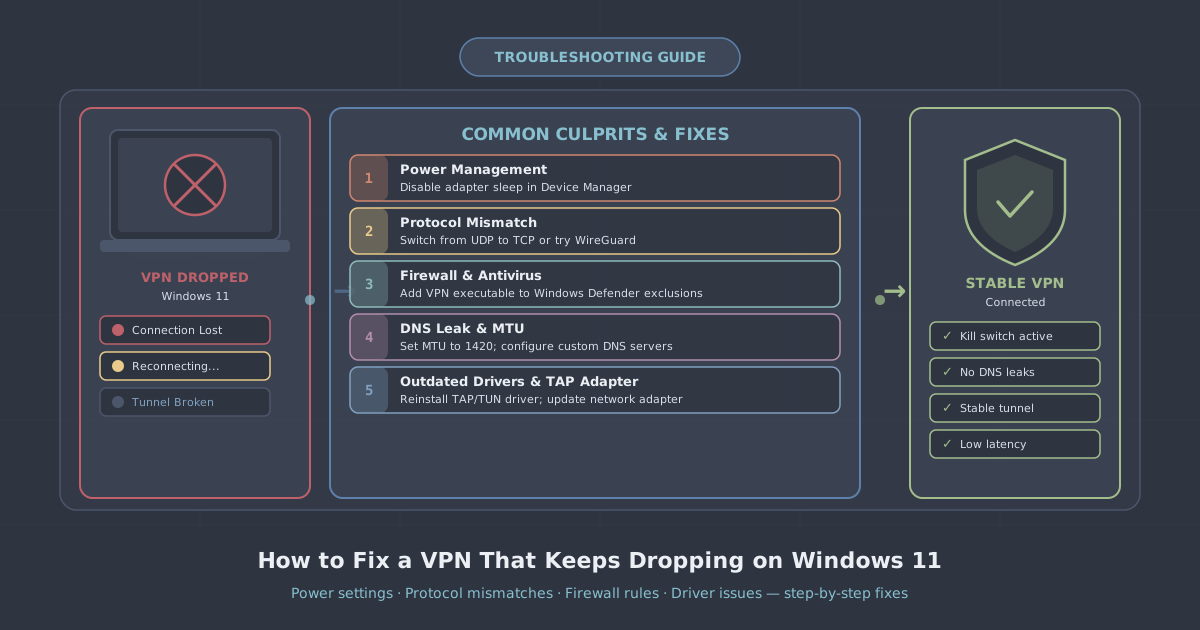
This is the single most common cause of VPN drops on Windows 11 and takes two minutes to fix. Windows aggressively suspends network adapters to save power, which silently kills your VPN tunnel in the background.
Disable power management on your network adapters
- Press
Windows + Xand select Device Manager. - Expand Network adapters.
- Right-click your Wi-Fi adapter (or ethernet adapter if wired) and choose Properties.
- Go to the Power Management tab.
- Uncheck Allow the computer to turn off this device to save power.
- Click OK and repeat for any other listed network adapters.
Set your power plan to High Performance
Open the Control Panel (search for it in the Start menu), go to Power Options, and select High performance. If you are on a laptop, be aware this will reduce battery life—switch back when you are not needing a stable VPN connection.
Step 2: Switch VPN Protocol
Not every protocol behaves the same on every network. WireGuard is fast and efficient, but on some corporate networks, hotels, or ISPs, UDP traffic—which WireGuard uses—is throttled or intermittently blocked. When this happens, the connection looks fine but drops silently under load.
The PremierVPN Windows app supports WireGuard, WireGuard Stealth, OpenVPN, and VLESS+REALITY. If you are on the default WireGuard setting and experiencing drops, try switching to OpenVPN, which runs over TCP and is more tolerant of unreliable or restricted networks. TCP connections actively confirm delivery of packets, making them more resilient on flaky links even if slightly slower.
To switch protocols in the PremierVPN app, open Settings, go to Protocol, and select a different option. Reconnect and monitor stability for ten to fifteen minutes before drawing conclusions.
If you are on a heavily filtered network—such as in a workplace with deep packet inspection—try WireGuard Stealth or VLESS+REALITY, both of which are designed to avoid protocol-based throttling.
Step 3: Check Your Firewall and Antivirus
Windows Defender Firewall, and many third-party antivirus products, can interfere with VPN tunnels in ways that are not immediately obvious. The firewall may allow the initial connection but then block the keepalive packets that maintain the tunnel—causing periodic drops rather than an outright failure to connect.
Test with Windows Defender Firewall temporarily disabled
Go to Settings > Privacy & Security > Windows Security > Firewall & network protection. Temporarily disable the firewall for your active network profile. Reconnect to the VPN and see if the drops stop. If they do, the firewall is interfering and you will need to add an exception for the VPN application rather than leaving the firewall off permanently.
Add the VPN app as a firewall exception
- Open Windows Security > Firewall & network protection > Allow an app through firewall.
- Click Change settings, then Allow another app.
- Browse to the PremierVPN executable and add it.
- Ensure both Private and Public are ticked.
If you use a third-party antivirus, check its network protection or web shield settings. These often have their own packet inspection layer that can interfere with VPN tunnels independently of Windows Firewall.
Step 4: Flush DNS and Reset Network Stack
A corrupted DNS cache or misconfigured network stack can cause the VPN to connect but then drop when it encounters DNS resolution failures. This is a quick fix that also resolves a range of other network oddities.
Open a Command Prompt as administrator (search for cmd, right-click, select Run as administrator) and run the following commands one at a time:
ipconfig /release
ipconfig /flushdns
ipconfig /renew
netsh int ip reset
netsh winsock reset
Restart your computer after running these. Then reconnect to the VPN and monitor for drops. If you were experiencing DNS-related instability, this often resolves it completely.
You can also use our IP leak test after reconnecting to confirm that DNS requests are routing correctly through the VPN tunnel.
Step 5: Update or Roll Back Network Drivers
Windows 11 automatically updates drivers via Windows Update, and occasionally a driver update introduces instability. Conversely, if you are running old drivers, a known bug may have already been patched in a newer version.
Update drivers
Open Device Manager, right-click your network adapter, and select Update driver > Search automatically for drivers. You can also visit your laptop or motherboard manufacturer's website and download the latest driver package directly—these are often more current than what Windows Update provides.
Roll back a driver
If drops started after a recent update, right-click your adapter in Device Manager, go to Properties > Driver, and click Roll Back Driver if the option is available. This restores the previous version.
Step 6: Check for MTU Mismatches
MTU (Maximum Transmission Unit) mismatches are a less obvious but surprisingly common cause of VPN instability. VPN tunnels add overhead to each packet. If your MTU is set too high, packets get fragmented or silently dropped by intermediate routers, which causes the tunnel to become unstable or disconnect entirely.
WireGuard uses a default MTU of 1420 bytes, which accounts for the tunnel overhead on a standard 1500-byte ethernet connection. However, some ISPs—particularly those using PPPoE connections such as many UK ADSL and VDSL lines—have a lower effective MTU, compounding the problem.
To test whether MTU is your issue, open Command Prompt and run:
ping -f -l 1400 8.8.8.8Increase the value in steps of 10 until packets start failing. The highest value that succeeds, plus 28 bytes of header overhead, is your effective MTU. If it is below 1500, you may need to lower the MTU setting in your VPN or network adapter configuration to match.
In the PremierVPN Windows app, you can adjust the MTU setting under Settings > Advanced. If you are unsure, lowering it to 1380 is a conservative starting point that resolves most fragmentation issues.
Step 7: Check Your Router and ISP
If you have worked through every step above and the drops continue, the problem may sit outside your Windows machine entirely.
- Router firmware: Log into your router's admin panel and check whether a firmware update is available. Some older firmware versions have known issues with long-lived UDP connections, which affects WireGuard tunnels specifically.
- VPN passthrough settings: Some routers have VPN passthrough options that can interfere with certain protocols. Look in your router's firewall or advanced settings and ensure these are either enabled or disabled depending on your router's documentation.
- ISP throttling: Some ISPs throttle or deprioritise VPN traffic during peak hours. If drops happen consistently in the evenings, this is worth investigating. Switching to WireGuard Stealth or OpenVPN TCP can help bypass protocol-based throttling.
- Test on a mobile hotspot: Connect your Windows 11 machine to your phone's hotspot and reconnect the VPN. If drops stop entirely, your home router or ISP is the culprit.
Use the Kill Switch While You Troubleshoot
Regardless of which step fixes your drops, enable the kill switch in the PremierVPN app while you are working through this process. The kill switch blocks all internet traffic if the VPN tunnel drops unexpectedly, so your real IP is never exposed during the brief window between a drop and reconnection. You will find it under Settings > Kill Switch in the Windows app.
If you want to understand what a VPN is actually doing under the hood before diving deeper into configuration, our introduction to VPNs covers the fundamentals clearly. And if you need a full walkthrough of the initial app setup, the Windows setup guide covers everything from installation to first connection.
Summary: Most Likely Fix by Symptom
| Symptom | Most likely cause | Start at |
|---|---|---|
| Drops every few minutes, especially on battery | Power management suspending adapter | Step 1 |
| Drops on hotel, office, or public Wi-Fi only | UDP blocked or throttled | Step 2 |
| Drops started after installing antivirus | Firewall or web shield interference | Step 3 |
| Drops with DNS errors in logs | Corrupted DNS cache or network stack | Step 4 |
| Drops started after a Windows Update | Driver regression | Step 5 |
| Connection unstable under load, slow transfers | MTU fragmentation | Step 6 |
| Drops only at home, stable on hotspot | Router or ISP issue | Step 7 |
Work through the table above to jump straight to the most relevant section for your situation. For the majority of users on Windows 11, the fix is either power management (Step 1) or a protocol switch (Step 2)—and both take under five minutes to try.