7 min read
Amazon's Fire TV devices are capable streaming boxes, but they ship with no VPN protection and a fair amount of built-in tracking. Adding a VPN changes that—your ISP can no longer see what you're watching, your real IP address stays hidden, and you can connect through any of PremierVPN's server locations without leaving the sofa.
This guide covers everything from enabling the right device settings to verifying that your tunnel is actually working. Whether you have a Firestick Lite, a Fire TV Stick 4K, or a Fire TV Cube, the process is the same.
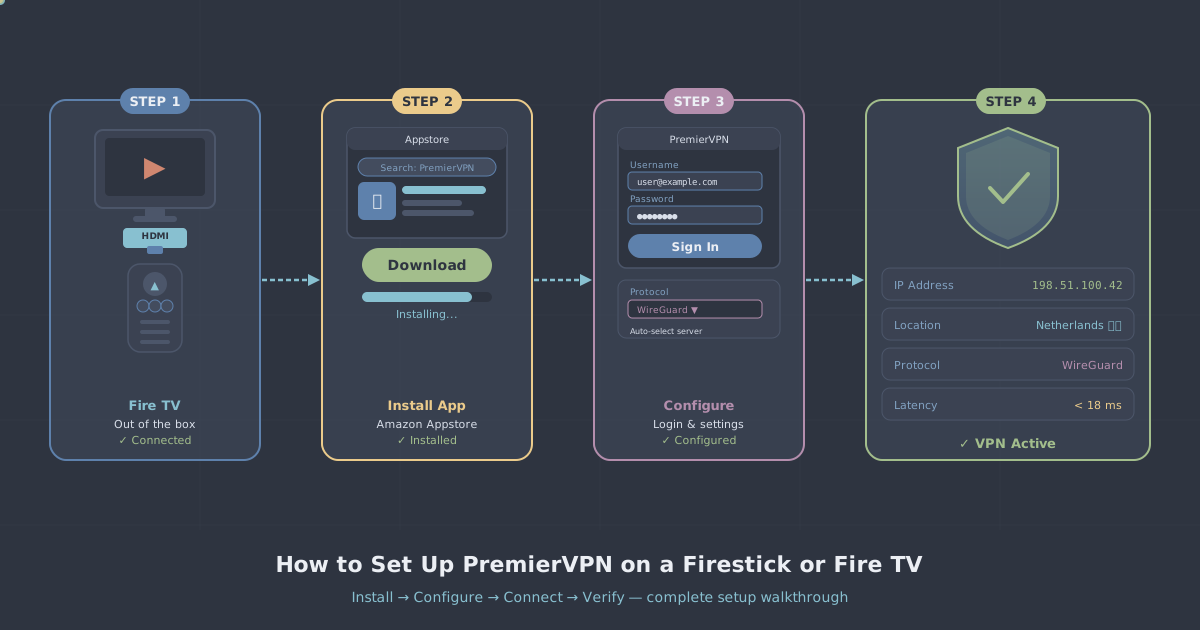
One important note before you start: PremierVPN has a dedicated Fire TV app, so you won't need to fiddle with manual OpenVPN configuration files or third-party clients. The app handles everything and defaults to WireGuard, which is the fastest and most modern protocol available.
What You'll Need
Before touching the Fire TV remote, make sure you have:
- An active PremierVPN account (your login credentials will be needed during setup)
- Your Fire TV or Firestick connected to the internet and signed into an Amazon account
- A few minutes—the whole process takes around ten minutes once you know the steps
The PremierVPN Fire TV app is not listed on the Amazon Appstore, so you will sideload it. That sounds more technical than it is. Amazon builds sideloading support directly into Fire OS, and the steps below walk you through it without requiring a laptop or any additional hardware.
Step 1: Enable Apps from Unknown Sources
By default, Fire OS only installs apps from the Amazon Appstore. You need to allow installations from other sources first.
- From the Fire TV home screen, navigate to Settings (the gear icon in the top menu).
- Select My Fire TV, then Developer Options.
- Toggle Apps from Unknown Sources to On.
- Confirm the warning prompt that appears. Amazon is simply letting you know you're installing outside the Appstore—this is safe and reversible.
If you don't see Developer Options, go to My Fire TV, then About, and click on your Fire TV name seven times in quick succession. This unlocks the developer menu. This quirk affects some older Fire OS versions.
Step 2: Install the Downloader App
Downloader is a free utility app that lets you fetch and install APK files directly on your Fire TV using a URL. It is listed in the Amazon Appstore, so this part is straightforward.
- From the home screen, use the search function (the magnifying glass) and search for Downloader.
- Select the app by Orange Labs and choose Download or Get.
- Once installed, open Downloader and allow it storage permissions when prompted.
You will use Downloader in the next step to fetch the PremierVPN APK directly from our servers.
Step 3: Download and Install the PremierVPN App
With Downloader open, you'll see a URL input field.
- Enter the following URL exactly as shown:
https://premiervpn.net/premiervpn-firetv-app - Press Go. Downloader will fetch the APK file from our servers. This usually takes under a minute depending on your connection speed.
- Once downloaded, Downloader will prompt you to install the file. Select Install.
- When installation completes, you can choose to Open the app immediately or return to Downloader to delete the APK file (which saves a little storage space).
You can also find the direct download link and additional notes on the PremierVPN Fire TV app page, which is useful if you want to double-check the URL before entering it.
Step 4: Log In and Configure the App
Open the PremierVPN app. You'll be greeted with a login screen.
- Enter your PremierVPN account email and password. If you've forgotten your credentials, log in via the PremierVPN website on another device and reset your password first.
- Once logged in, the app will ask you to allow a VPN connection request from Fire OS. Select OK. This is a standard Android/Fire OS permission required for any VPN app to function.
Choosing a Protocol
The app defaults to WireGuard, which is the right choice for most Fire TV users. WireGuard is fast, lightweight, and well-suited to the modest CPU inside Firestick hardware. You are unlikely to notice any speed reduction on HD or 4K streams when connected.
If you're on a network that actively blocks VPN traffic—a hotel Wi-Fi that restricts connections, for instance—you can switch to WireGuard Stealth or OpenVPN from the protocol menu within the app. For severely restrictive environments, the app also includes VLESS+REALITY, the same obfuscation protocol used by PremierVPN users in countries like Iran and China.
Choosing a Server
Tap the server selector to browse PremierVPN's locations. The right choice depends on what you're trying to do:
- For general privacy with the lowest latency, pick a server geographically close to you.
- For accessing content tied to a specific country, pick a server in that country. You can see all available locations on the server locations page.
Step 5: Connect and Verify the Tunnel
Tap the large connect button. Within a few seconds—WireGuard handshakes are fast—the app will show a connected status and display your new VPN IP address.
Verifying the connection is working properly is an important step that many guides skip. Here's how to do it properly on a Fire TV:
- Open the Fire TV browser (Silk browser, available from the Appstore if not already installed).
- Navigate to premiervpn.net/ip-leak-test.
- The page will show your current public IP address and check for DNS leaks. If the IP shown matches what the PremierVPN app displayed after connecting—and not your real home IP—the tunnel is working correctly.
- The DNS leak test should show PremierVPN's DNS resolvers, not your ISP's. If you see your ISP's DNS servers, something is misconfigured; try disconnecting, switching to a different protocol, and reconnecting.
If everything looks correct, your Fire TV traffic is now encrypted and routed through PremierVPN's servers. Your ISP sees an encrypted connection; nothing more.
Making the App Easy to Access
Fire TV buries sideloaded apps in a slightly awkward place by default. Here's how to keep PremierVPN accessible:
- From the home screen, navigate to Your Apps & Channels (or Apps on some Fire OS versions).
- Find PremierVPN in the list, press and hold the select button on your remote, and choose Move to Front. This pins it to the beginning of your app row.
- Alternatively, add PremierVPN to your home screen favourites from the same context menu.
Getting into the habit of opening PremierVPN and connecting before launching any streaming app means you'll never accidentally stream without protection.
A Note on Performance
Running a VPN on a Firestick does consume some CPU, and older devices—the original Firestick or the Firestick Lite—have modest processors. In practice, WireGuard's efficient design means most users won't see meaningful buffering or quality drops. If you do experience issues, try a server closer to your physical location, as lower latency generally means more headroom for the device to work with.
For households with a large number of streaming devices, it's worth knowing that a dedicated WireGuard server gives you a fixed IP, consistent performance, and no shared bandwidth with other users—which can make a difference if you're running multiple Fire TVs or other devices simultaneously.
Troubleshooting Common Issues
The app won't install
Double-check that Apps from Unknown Sources is enabled in Developer Options. If you've recently factory-reset the device, that setting resets too.
The connection keeps dropping
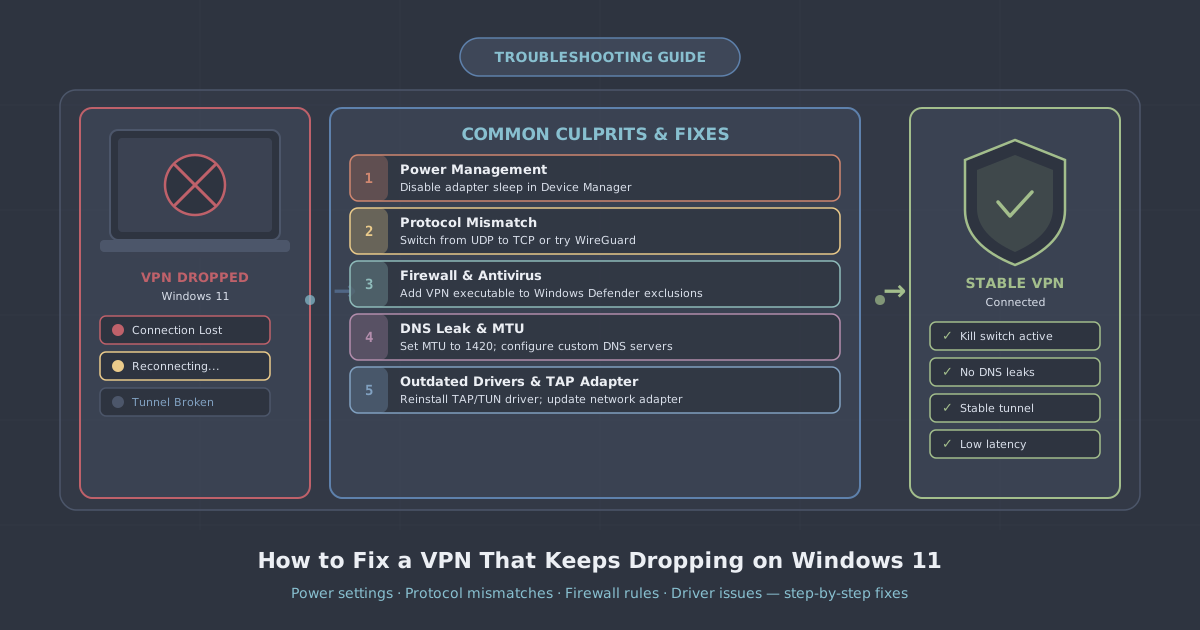
Try switching from WireGuard to WireGuard Stealth, or switch to OpenVPN. Some ISPs and routers apply aggressive timeouts to UDP traffic (which WireGuard uses by default). OpenVPN over TCP is slower but more stable on restrictive networks.
The IP leak test shows my real IP
This usually means the VPN connection failed silently. Disconnect, force-close the app, reopen it, and reconnect. If the problem persists, check the protocol settings and try a different server.
I can't find Developer Options
Go to Settings > My Fire TV > About and click your Fire TV name seven times quickly. Developer Options should then appear in the My Fire TV menu.
Summary
Setting up PremierVPN on a Fire TV involves four main steps: enabling sideloading in Developer Options, installing the Downloader app, fetching the PremierVPN APK via Downloader, and logging in. The whole process takes around ten minutes and results in a fully encrypted WireGuard connection managed through a proper app interface—no manual configuration required.
The most important thing to do after connecting is run a quick check at our IP leak test page to confirm your real IP is hidden and your DNS is not leaking. Once that's confirmed, your Fire TV is properly protected. Full setup instructions with screenshots are also available in the official Fire TV setup guide.