8 min read
Apple TV is one of the best streaming devices available, but it has a frustrating limitation: tvOS does not support third-party VPN apps. Unlike Android or Fire TV—where you can install a VPN app directly—Apple locks down the App Store on Apple TV, and that means no native VPN client. If you want the privacy and access benefits of a VPN on your Apple TV, you need to take a different route.
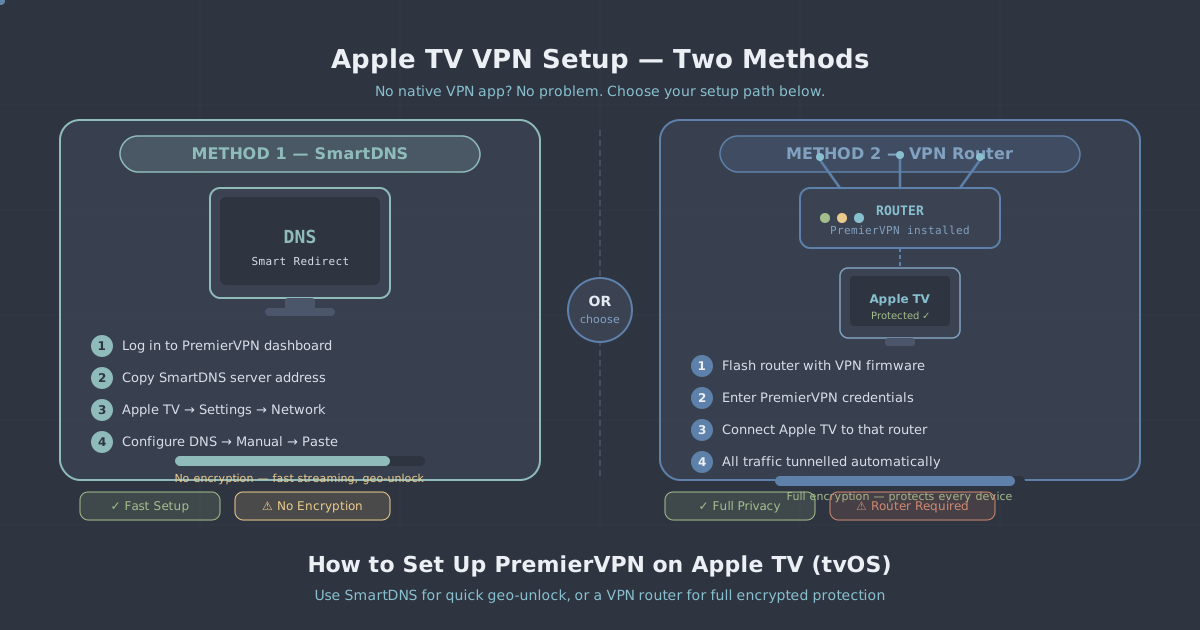
Two approaches reliably work: configuring SmartDNS on the Apple TV itself, or running PremierVPN at the router level so that every device on your network is covered, including your Apple TV. This guide walks through both methods clearly, so you can choose whichever suits your setup and finish with a working, protected streaming configuration.
Before you begin, you will need an active PremierVPN account. If you are primarily interested in a setup optimised for streaming, have a look at our streaming VPN plan to make sure you have the right configuration from the start.
Understanding the Two Methods
It helps to understand what each approach actually does before you decide which one to use.
SmartDNS
SmartDNS changes the DNS resolver your Apple TV uses. Rather than routing all your traffic through an encrypted VPN tunnel, it selectively redirects DNS queries so that geo-restricted content sees a different apparent location. This is fast—there is no encryption overhead—and it is straightforward to configure directly on the Apple TV without touching your router. The trade-off is that your traffic itself is not encrypted, so SmartDNS alone does not provide the privacy protection of a full VPN tunnel.
Router-level VPN
Installing PremierVPN on a compatible router means the VPN tunnel runs between your router and PremierVPN's servers. Every device connected to that router—including your Apple TV—benefits automatically without any configuration on the device itself. This approach gives you full encryption and the complete privacy benefits of a VPN. The trade-off is that it requires a router that supports VPN client mode (not all consumer routers do), and setup is more involved.
If privacy is your primary concern, the router method is the right choice. If you mainly want to access geo-restricted streaming content with minimal fuss, SmartDNS is simpler and faster.
Method 1: SmartDNS on Apple TV
SmartDNS configuration on tvOS is done through the network settings. The steps below apply to Apple TV 4K and Apple TV HD running current versions of tvOS.
- Open Settings on your Apple TV.
- Go to Network, then select your active Wi-Fi network.
- Select Configure DNS.
- Switch from Automatic to Manual.
- Enter the SmartDNS IP address provided in your PremierVPN account dashboard. This address is specific to your account—log in at the PremierVPN member area to find it under the SmartDNS section.
- Confirm and exit settings.
After saving, restart your Apple TV. Open a streaming app that was previously geo-restricted and check whether it now resolves correctly. If you see an error or the content library has not changed, double-check the DNS address you entered—a single digit wrong will prevent it from working.
IP registration
SmartDNS services typically tie access to your registered home IP address. If your ISP assigns you a dynamic IP (which changes periodically), you may find SmartDNS stops working after an IP change. Your PremierVPN dashboard includes an option to update your registered IP address manually, and some setups support automatic IP update via a URL you can ping on a schedule. Check the SmartDNS section of your account dashboard for the specific URL and instructions.
Method 2: Router-Level VPN with WireGuard
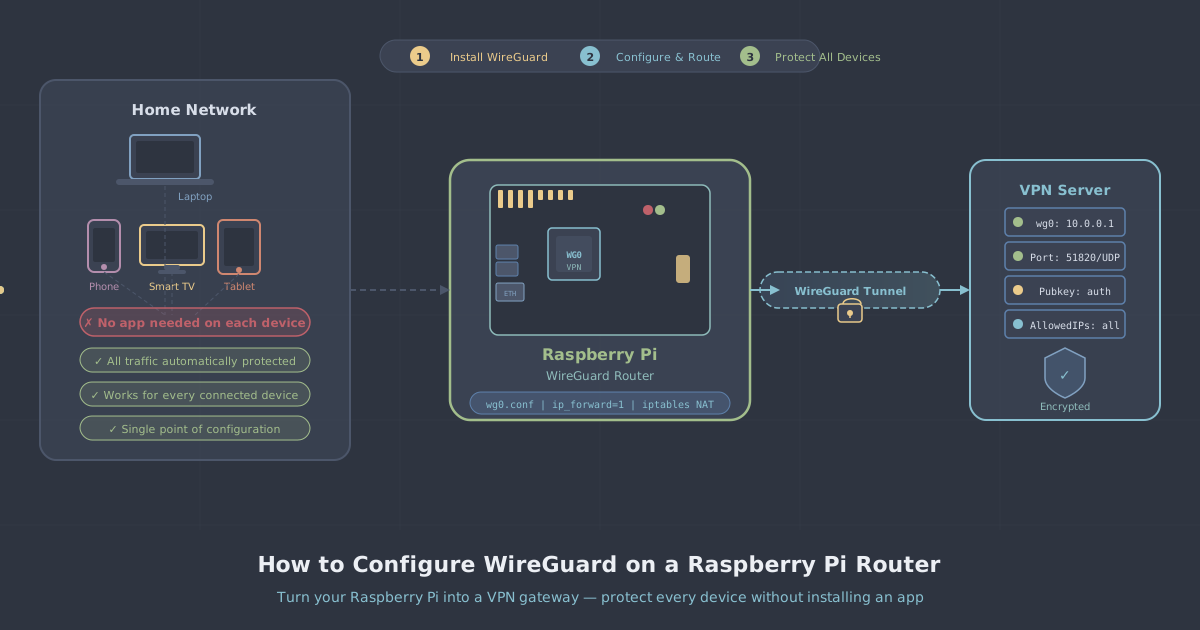
This method requires a router that supports WireGuard in client mode. Popular firmware options include DD-WRT, OpenWrt, and Tomato. Some routers ship with these pre-installed; others can be flashed. Check your router model's compatibility before proceeding—flashing unsupported hardware can brick the device.
PremierVPN supports WireGuard as its default protocol, and WireGuard configuration files can be generated from your account dashboard. For the fastest and most stable router setup, WireGuard is the recommended protocol.
Generating a WireGuard configuration file
- Log in to your PremierVPN account dashboard.
- Navigate to Manual Config or WireGuard in the sidebar (exact label depends on your account view).
- Choose a server location from our server locations list. If streaming is your goal, pick a location relevant to the content library you want to access.
- Generate a configuration file and download it. It will look something like this:
[Interface]
PrivateKey = YOUR_PRIVATE_KEY
Address = 10.x.x.x/32
DNS = 10.x.x.1

[Peer]
PublicKey = SERVER_PUBLIC_KEY
Endpoint = server.example.com:51820
AllowedIPs = 0.0.0.0/0
PersistentKeepalive = 25
Keep this file safe. The private key grants access to your VPN tunnel—treat it like a password.
Configuring WireGuard on OpenWrt
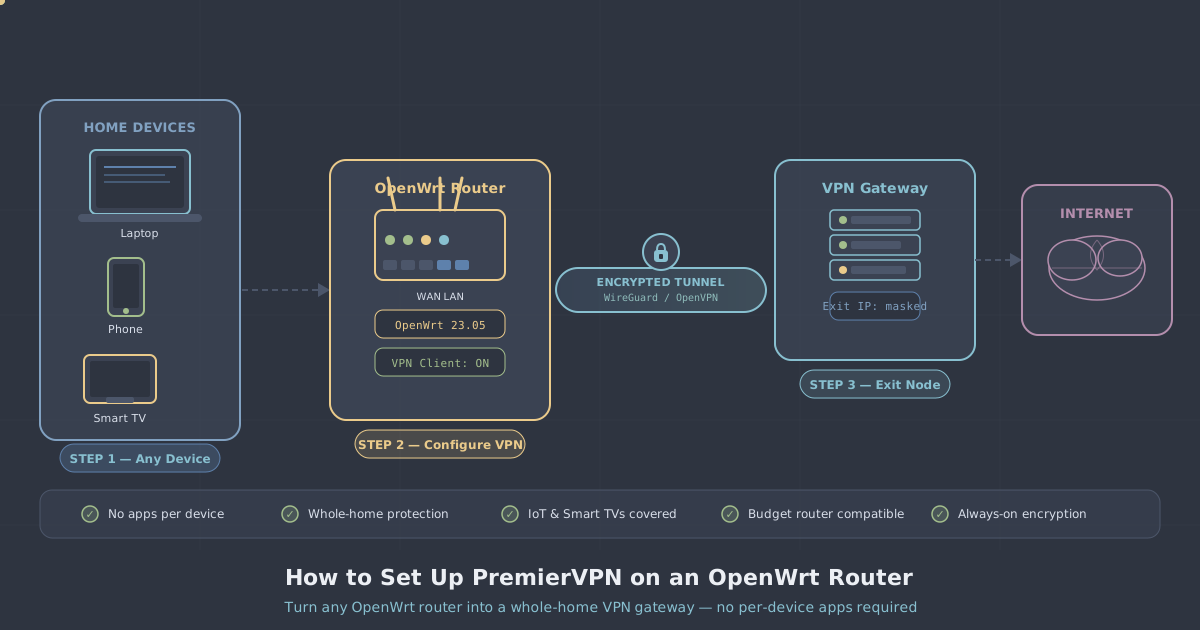
OpenWrt is one of the most widely supported open-source router firmware options and has solid WireGuard support. The steps below are a general guide; your specific router interface may differ slightly.
- SSH into your router or open the Luci web interface.
- Install the WireGuard package if it is not already present:
opkg update && opkg install wireguard-tools luci-proto-wireguard - Reboot the router after installation.
- In Luci, go to Network > Interfaces and add a new interface. Set the protocol to WireGuard VPN.
- Paste in your private key and set the IP address from the
[Interface]section of your config file. - Under Peers, add the server's public key, endpoint address, port, and set Allowed IPs to
0.0.0.0/0to route all traffic through the tunnel. - Save and apply. Assign the new interface to a firewall zone and ensure it has outbound access.
- Under Network > Firewall, add a masquerading rule for the WireGuard interface so traffic from your LAN is properly NATed.
Once the interface is up, every device on your LAN—including your Apple TV—will route traffic through PremierVPN automatically. You can verify the tunnel is active by checking the interface status in Luci; you should see a handshake timestamp updating.
Configuring WireGuard on DD-WRT
DD-WRT added WireGuard support in more recent builds. Navigate to VPN > WireGuard in the DD-WRT administration panel, enable the WireGuard client, and paste the values from your generated config file into the corresponding fields. The interface is largely self-explanatory if you have your config file open alongside it. After saving and applying, check Status > WireGuard to confirm the peer handshake is established.
Verifying Your Setup
Regardless of which method you used, you should verify it is working before relying on it.
- For SmartDNS: Open a streaming app on your Apple TV and attempt to browse content that was previously unavailable in your region. If it loads, your DNS is resolving correctly.
- For router VPN: From a device connected to the same router (a laptop or phone), visit our IP leak test page. Your visible IP address should match the PremierVPN server location you configured, not your real ISP address.
If the router VPN is active but your Apple TV still behaves as though it is unprotected, check that the Apple TV is connected to the router running the VPN—not a separate access point or guest network that bypasses the tunnel.
Choosing a Server Location
The server location you select determines what content libraries or regional services your Apple TV appears to be accessing from. PremierVPN operates servers across 12+ locations. For streaming, latency matters—pick a server geographically close to you within the target region for the smoothest playback. A server on the other side of the world may technically unlock content but introduce buffering at higher bitrates.
If you travel frequently and want your Apple TV to behave as though it is at home, the router method is particularly useful since you can carry a travel router pre-configured with your PremierVPN WireGuard tunnel. Plug it in at the hotel, connect your Apple TV to it, and your setup is identical to home.
A Note on Privacy
SmartDNS does not encrypt your traffic. If you are on a network you do not control—a hotel, a holiday rental—SmartDNS alone does not protect your viewing activity from the network operator. In those situations, the router-level VPN approach is worth the additional setup effort. PremierVPN operates under a strict no-logs policy, so even at the VPN level, your activity is not stored or monitored on our end.
Summary and Recommendation
Apple TV's closed ecosystem means there is no one-click VPN app, but both methods described here are reliable and, once configured, require no ongoing maintenance. Here is a simple decision guide:
| Goal | Recommended method |
|---|---|
| Access geo-restricted streaming content, minimal setup | SmartDNS on Apple TV |
| Full traffic encryption and privacy | Router-level WireGuard VPN |
| Protect multiple devices at once, including Apple TV | Router-level WireGuard VPN |
| Travelling with Apple TV | Travel router with WireGuard pre-configured |
If you are not yet on the right plan for streaming, our streaming VPN page covers the configuration options available. For a dedicated server with consistent IP addresses and no shared infrastructure, a dedicated VPN server is worth considering—it gives you a stable endpoint to point your router or SmartDNS configuration at without any variability from shared server pools.
Both methods take under 15 minutes to configure once you have your account credentials and config file to hand. Work through the steps once, verify with the IP leak test or a streaming check, and your Apple TV will behave exactly as you need it to.