7 min read
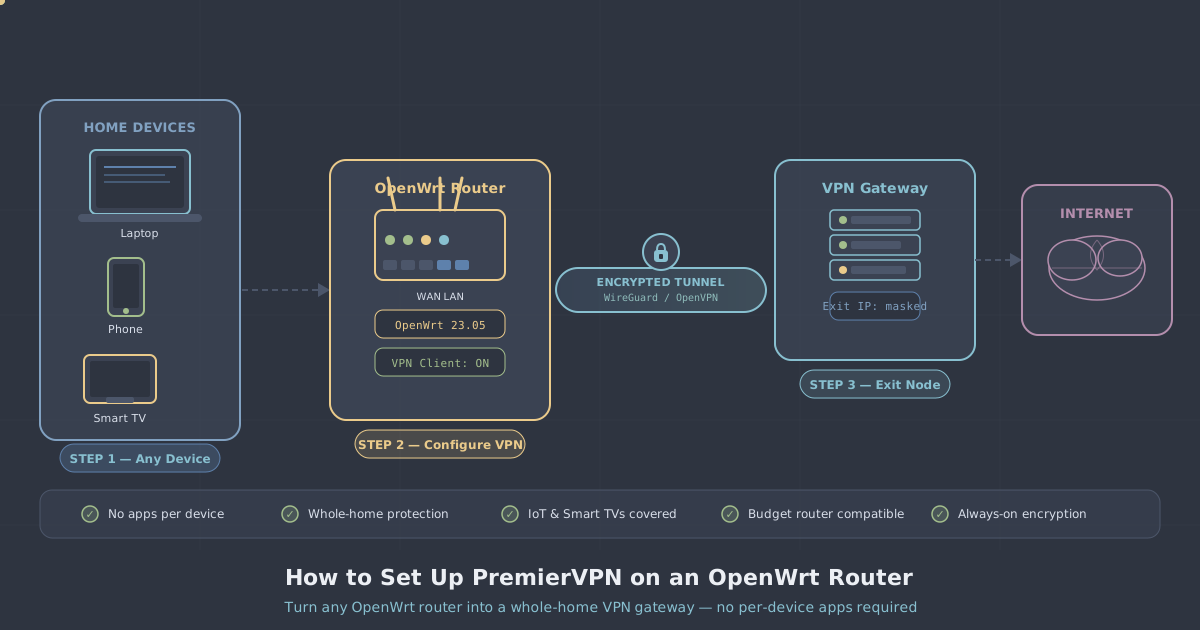
If you have ever wished every device in your home were automatically routed through a VPN—your smart TV, games console, phone, laptop, the lot—without installing an app on each one, a VPN-enabled router is the answer. OpenWrt, the open-source Linux firmware that runs on hundreds of routers, makes this genuinely achievable on modest hardware.
This guide walks through the complete process: installing the necessary packages, creating a WireGuard interface, writing the firewall rules, and verifying the tunnel is actually working. By the end, your router will act as a whole-home VPN gateway using PremierVPN's WireGuard infrastructure.
This is a command-level walkthrough. You will need SSH access to your router and a PremierVPN account. If you are new to WireGuard as a protocol, it is worth knowing that it is PremierVPN's default—fast, modern, and considerably leaner than OpenVPN in both code and CPU overhead, which matters on router hardware.
What You Need Before You Start
- A router running OpenWrt 21.02 or later (earlier versions have incomplete WireGuard support)
- At least 8 MB of flash storage free for packages
- SSH access to the router (default:
ssh [email protected]) - A PremierVPN account—log in to the dashboard to retrieve your WireGuard credentials
- Your chosen server location endpoint, available in the PremierVPN dashboard
From your PremierVPN dashboard, download or copy your WireGuard configuration file for the server you want to use. It will contain a private key, a peer public key, the server endpoint (IP and port), and the allowed IPs. Keep this file open—you will reference it throughout.
Step 1: Install WireGuard Packages
SSH into your router and update the package list, then install the WireGuard kernel module and the wireguard-tools userspace utilities:
opkg update
opkg install wireguard-tools kmod-wireguard luci-app-wireguard
luci-app-wireguard is optional but adds a status page to the LuCI web interface, which is useful for monitoring. On routers with very limited flash, you can skip it and manage everything from the command line.
After installation, confirm the kernel module loaded:
lsmod | grep wireguardYou should see wireguard listed. If not, reboot the router and check again.
Step 2: Generate or Import Keys
If your PremierVPN dashboard provided a complete WireGuard config file, your client private key and the server's public key are already in it. You do not need to generate new keys—use the ones provided.
If you are configuring a manual peer and need to generate a fresh keypair on the router itself:
wg genkey | tee /etc/wireguard/privatekey | wg pubkey > /etc/wireguard/publickey
chmod 600 /etc/wireguard/privatekey
You would then submit the public key to PremierVPN (via your dashboard's manual peer setup, if that option is available on your plan) and receive back the server public key and endpoint details. For most users, the dashboard-generated config file is the simpler path.
Step 3: Create the WireGuard Interface
OpenWrt manages network interfaces through UCI (Unified Configuration Interface). Rather than editing /etc/config/network by hand, use uci commands—they are safer and easier to script.
Replace the placeholder values below with the actual values from your PremierVPN config file:
# Create the WireGuard interface
uci set network.wg0=interface
uci set network.wg0.proto='wireguard'
uci set network.wg0.private_key='YOUR_CLIENT_PRIVATE_KEY'
uci set network.wg0.addresses='10.x.x.x/32'
uci set network.wg0.listen_port='51820'

# Add the PremierVPN server as a peer
uci set network.wgpeer=wireguard_wg0
uci set network.wgpeer.public_key='PREMIERVPN_SERVER_PUBLIC_KEY'
uci set network.wgpeer.endpoint_host='SERVER_IP_OR_HOSTNAME'
uci set network.wgpeer.endpoint_port='51820'
uci set network.wgpeer.allowed_ips='0.0.0.0/0'
uci set network.wgpeer.route_allowed_ips='1'
uci set network.wgpeer.persistent_keepalive='25'

uci commit network
/etc/init.d/network restart
The allowed_ips='0.0.0.0/0' entry tells WireGuard to route all traffic through the tunnel. The persistent_keepalive='25' value sends a keepalive packet every 25 seconds, which prevents NAT mappings from expiring on most home broadband connections.
The addresses value (the internal tunnel IP) comes from the Address line in your PremierVPN WireGuard config. Use that exact value.
Step 4: Configure the Firewall
OpenWrt's firewall works in zones. You need to add wg0 to the wan zone (or create a dedicated VPN zone) and allow forwarding from your lan zone through it.
The simplest approach—adding wg0 to the existing wan zone—works for most home setups:
# Find the wan zone index (usually 1) and add wg0 to its network list
uci add_list firewall.@zone[1].network='wg0'
uci commit firewall
/etc/init.d/firewall restart
If you prefer a dedicated VPN zone with explicit masquerading (cleaner, better for troubleshooting):
# Create a vpn zone
uci add firewall zone
uci set firewall.@zone[-1].name='vpn'
uci set firewall.@zone[-1].network='wg0'
uci set firewall.@zone[-1].input='REJECT'
uci set firewall.@zone[-1].output='ACCEPT'
uci set firewall.@zone[-1].forward='REJECT'
uci set firewall.@zone[-1].masq='1'
uci set firewall.@zone[-1].mtu_fix='1'

# Allow forwarding from lan to vpn
uci add firewall forwarding
uci set firewall.@forwarding[-1].src='lan'
uci set firewall.@forwarding[-1].dest='vpn'

uci commit firewall
/etc/init.d/firewall restart
The masq='1' flag enables NAT on the VPN zone, which is required so that your LAN devices' traffic appears to originate from the tunnel interface rather than their private addresses.
Step 5: Set DNS to Prevent Leaks
Routing traffic through the tunnel is only half the job. If your router still sends DNS queries to your ISP's resolver, those queries bypass the VPN and reveal the domains your household visits. Override the DNS settings in /etc/config/dhcp to use a resolver that travels through the tunnel.
uci set dhcp.@dnsmasq[0].noresolv='1'
uci del dhcp.@dnsmasq[0].server
uci add_list dhcp.@dnsmasq[0].server='1.1.1.1'
uci add_list dhcp.@dnsmasq[0].server='1.0.0.1'
uci commit dhcp
/etc/init.d/dnsmasq restart
These queries to Cloudflare's resolver will now travel through the WireGuard tunnel rather than going out over your bare ISP connection. You can substitute any resolver you trust—the key point is that it travels inside the tunnel.
Once everything is running, use the PremierVPN IP leak test from a device on your network to confirm DNS and IP are both showing the VPN endpoint, not your real connection.
Step 6: Verify the Tunnel
Bring the interface up and check its status:
ifup wg0
wg show
The output of wg show should display the peer with a latest handshake timestamp a few seconds old. If you see no handshake, the tunnel has not connected. Common causes:
- Incorrect private or public key (copy-paste errors are frequent—verify character by character)
- The endpoint IP or port is wrong
- Your ISP blocks outbound UDP on port 51820—try an alternate port if your PremierVPN plan supports it
- A firewall rule on the router is blocking outbound UDP
To test connectivity through the tunnel directly from the router:
curl --interface wg0 https://ifconfig.meThat should return the IP address of the PremierVPN server, not your home IP. If it does, your tunnel is working. Any device that connects to your router's Wi-Fi or LAN port will now have its traffic routed through PremierVPN automatically.
Keeping the Tunnel Alive After Reboots
The UCI-based configuration you created is persistent—OpenWrt will attempt to bring up wg0 on every boot. However, it is worth double-checking that the interface is set to auto-start:
uci show network.wg0 | grep autoIf nothing is returned, the interface will still come up because OpenWrt brings up all configured interfaces by default. To be explicit:
uci set network.wg0.auto='1'
uci commit network
You may also want to add a basic health-check cron job that pings through the tunnel and restarts the interface if it is unresponsive—particularly useful on routers left unattended for long periods. That is beyond the scope of this guide, but the principle is straightforward with a short shell script and crontab -e.
Which PremierVPN Plan Works Best for This
A standard Personal VPN plan gives you access to WireGuard across all server locations and is sufficient for most households. If you want a stable, unchanging IP address for the gateway—useful if you are also running services, managing allow-lists, or connecting remote devices back to your home network—a Dedicated IP makes more sense. For a fully isolated server with root-level control, a Dedicated WireGuard Server is the logical choice.
Whatever plan you are on, the WireGuard configuration file you download from the dashboard is the same format used in this guide.
Summary
To recap what you have done: installed WireGuard on OpenWrt, imported your PremierVPN credentials, created a wg0 interface, configured firewall forwarding and masquerading, pointed DNS through the tunnel, and verified the connection. Every device on your network—whether or not it supports VPN apps—now has its traffic encrypted and routed through PremierVPN.
The main things to watch over time are key rotation (if your PremierVPN plan rotates credentials periodically, update privatekey and the peer public_key in UCI), and OpenWrt firmware updates, which occasionally reset package lists and require reinstalling kmod-wireguard. Keep a copy of your UCI commands in a text file so reconfiguration takes minutes rather than an hour.