8 min read
If your VPN connection feels slower than it should—pages load hesitantly, video buffers unexpectedly, or large file transfers stall—the usual suspects get the blame: server distance, network congestion, your broadband package. One culprit almost nobody checks is the MTU setting. It's a low-level configuration value that most VPN apps set automatically, but when the value is wrong, it silently degrades every packet you send and receive.
The good news is that diagnosing and correcting an MTU mismatch is straightforward. You don't need specialist knowledge or unusual tools—just a terminal window and about ten minutes.
This article explains what MTU is, why VPN tunnels make it particularly sensitive, and exactly how to find the right value for your connection.
What MTU Actually Means
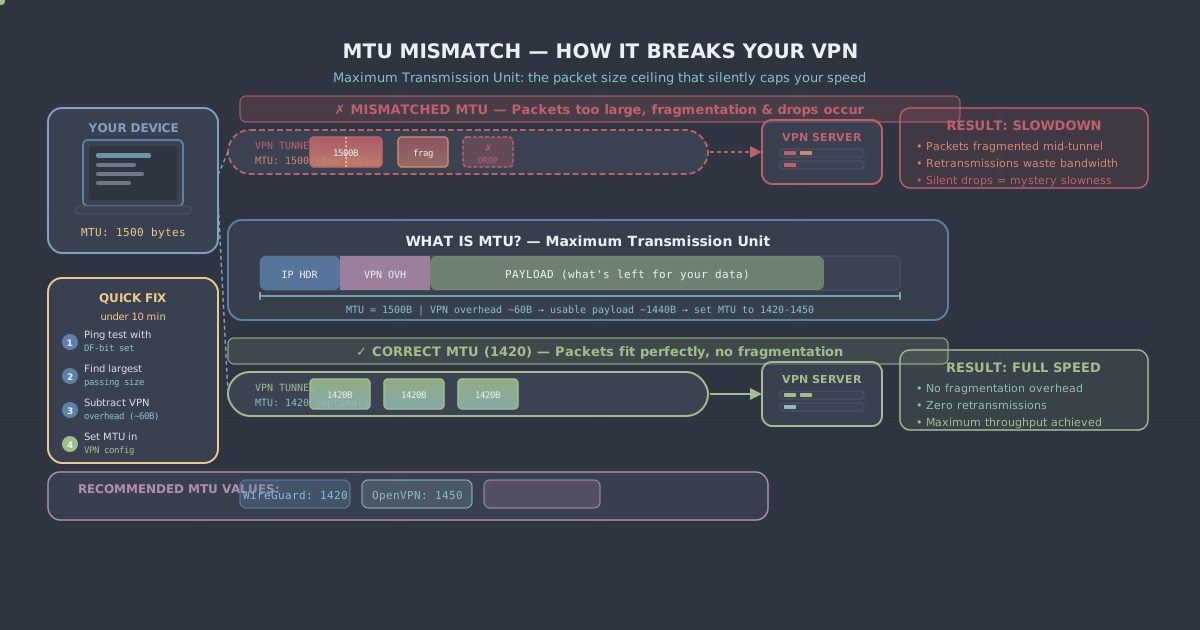
MTU stands for Maximum Transmission Unit. It's the largest block of data, in bytes, that a network interface will send in a single packet. The standard value on most Ethernet and Wi-Fi networks is 1500 bytes. That figure has been the default since Ethernet was standardised, and most of the internet is built around it.
When a packet exceeds the MTU of any link along its route, one of two things happens:
- The packet is fragmented—split into smaller pieces, reassembled at the destination—which adds overhead and latency.
- The packet is dropped entirely, if the "Don't Fragment" flag is set (which is common with modern protocols).
Both outcomes hurt performance. Fragmentation wastes processing time. Dropped packets trigger retransmissions, which means your connection effectively stalls while waiting for data to be resent.
Why VPN Tunnels Make This Worse
A VPN wraps your original packet inside another packet. That outer wrapper—containing encryption headers, authentication data, and tunnel metadata—adds extra bytes. The exact overhead depends on the protocol.
WireGuard, for example, adds roughly 60 bytes per packet for its UDP header and cryptographic overhead. OpenVPN over UDP typically adds somewhere between 50 and 100 bytes depending on cipher and compression settings. VLESS+REALITY, which PremierVPN includes for use on restrictive networks, has its own framing overhead too.
Here's the problem in plain terms: if your network's MTU is 1500 bytes and WireGuard adds 60 bytes of overhead, your VPN's effective payload limit is around 1440 bytes. If the VPN interface is still trying to send 1500-byte packets, every single one of them is either getting fragmented or dropped before it leaves your machine.
This is why a VPN can feel noticeably slower than your unencrypted connection—even when the server is close and the route is clean.
How to Find Your Correct MTU Value
The reliable method is a ping test with the Don't Fragment flag set. You send pings of decreasing size until you find the largest one that gets through without fragmentation. That gives you your path MTU. You then subtract the VPN protocol overhead to get the value you should set on the VPN interface.
On Windows
Open Command Prompt and run:
ping -f -l 1472 8.8.8.8The -f flag sets Don't Fragment. The -l value is the payload size. Start at 1472 (which corresponds to a 1500-byte packet once the 28-byte IP and ICMP headers are added). If you see "Packet needs to be fragmented", reduce the value by 10 and try again. Keep reducing until the ping succeeds, then narrow it down by increments of 1.
Once you find the largest successful payload size, add 28 to get your path MTU.
On macOS and Linux
The flags differ slightly. On macOS:
ping -D -s 1472 8.8.8.8On Linux:
ping -M do -s 1472 8.8.8.8Same logic applies—reduce -s until the ping succeeds, then add 28 to find your path MTU.
Calculating Your VPN MTU
Once you have your path MTU, subtract the overhead for your VPN protocol:
| Protocol | Typical overhead | Recommended deduction |
|---|---|---|
| WireGuard | 60 bytes | 60 |
| OpenVPN (UDP) | 50–100 bytes | 80 (conservative) |
| OpenVPN (TCP) | 60–110 bytes | 100 (conservative) |
For example: if your path MTU is 1500 and you're using WireGuard, set your VPN MTU to 1420. That's a common starting point and the value WireGuard's own documentation suggests as a safe default.
If your path MTU is lower—say, 1492, which is typical on PPPoE broadband connections—then your WireGuard MTU should be set to 1412.
How to Apply the Setting
Where you change the MTU depends on how you're connected to PremierVPN.
In the PremierVPN App
The Windows, macOS, Android, and iOS apps each have a settings area where you can adjust the MTU for WireGuard connections. Look under the connection or protocol settings. Enter the value you calculated and reconnect. The change takes effect immediately on the next connection.
Via WireGuard Config File
If you're running a dedicated WireGuard server or managing your own config, open your .conf file and add or update the MTU line in the [Interface] section:
[Interface]
Address = 10.0.0.2/32
PrivateKey = your_private_key
MTU = 1420
DNS = 10.0.0.1
Save the file and reconnect. On Linux you can also set it live with:
ip link set mtu 1420 dev wg0Replace wg0 with your actual WireGuard interface name if it differs.
Signs That MTU Was Your Problem
After adjusting the value, you should notice fairly quickly whether it made a difference. Signs that MTU was the culprit include:
- Large downloads that previously stalled now complete cleanly
- Video streaming that buffered intermittently now plays without interruption
- SSH sessions or remote desktop connections that dropped characters or froze now feel stable
- Measurably faster throughput on speed tests run through the VPN
If speed improves but you're still not getting the throughput you'd expect, the remaining gap is more likely explained by server load or physical distance to the server. Check the PremierVPN server locations page to see whether connecting to a closer server helps.
A Note on MSS Clamping
If you manage your own router or firewall, there's a related mechanism worth knowing about: MSS clamping. MSS (Maximum Segment Size) is a TCP-layer setting that limits how much data can go in a single TCP segment. Routers can be configured to automatically clamp MSS to a value compatible with the link's MTU, which prevents fragmentation without requiring you to configure every device individually.
On Linux routers running iptables, the rule looks like this:
iptables -t mangle -A FORWARD -p tcp --tcp-flags SYN,RST SYN \
  -j TCPMSS --clamp-mss-to-pmtu
This is particularly useful in home lab setups or small offices where multiple devices connect through a VPN gateway. It's a more robust solution than manually setting MTU on every client, because it adapts to the actual path MTU rather than relying on a fixed value.
Quick Reference: Recommended Starting Points
If you'd rather not run the ping test, these values are sensible defaults that work reliably on the majority of connections:
- WireGuard over standard broadband: 1420
- WireGuard over PPPoE (many UK DSL lines): 1412
- OpenVPN UDP: 1400
- OpenVPN TCP: 1350
These are conservative values that avoid fragmentation on nearly all common setups. If you want to squeeze out every last byte of efficiency, run the ping test to find the precise value for your connection—but for most people, these defaults will deliver a noticeable improvement over whatever the app picked automatically.
Summary
MTU mismatches are one of the quieter reasons a VPN connection underperforms. The encapsulation that makes a VPN tunnel work also shrinks the usable packet size, and if the VPN interface doesn't account for that, every packet either gets fragmented or dropped. The fix is simple: find your path MTU with a ping test, subtract the protocol overhead, and set that value in your VPN configuration.
For most people using WireGuard on standard UK broadband, setting the MTU to 1420 is the right starting point. If you're on a PPPoE connection—common with older ADSL and VDSL lines—try 1412. Make the change, reconnect, and you'll likely see an immediate improvement. It genuinely does take under ten minutes, and it's one of those rare configuration tweaks where the effort-to-reward ratio is very much in your favour.
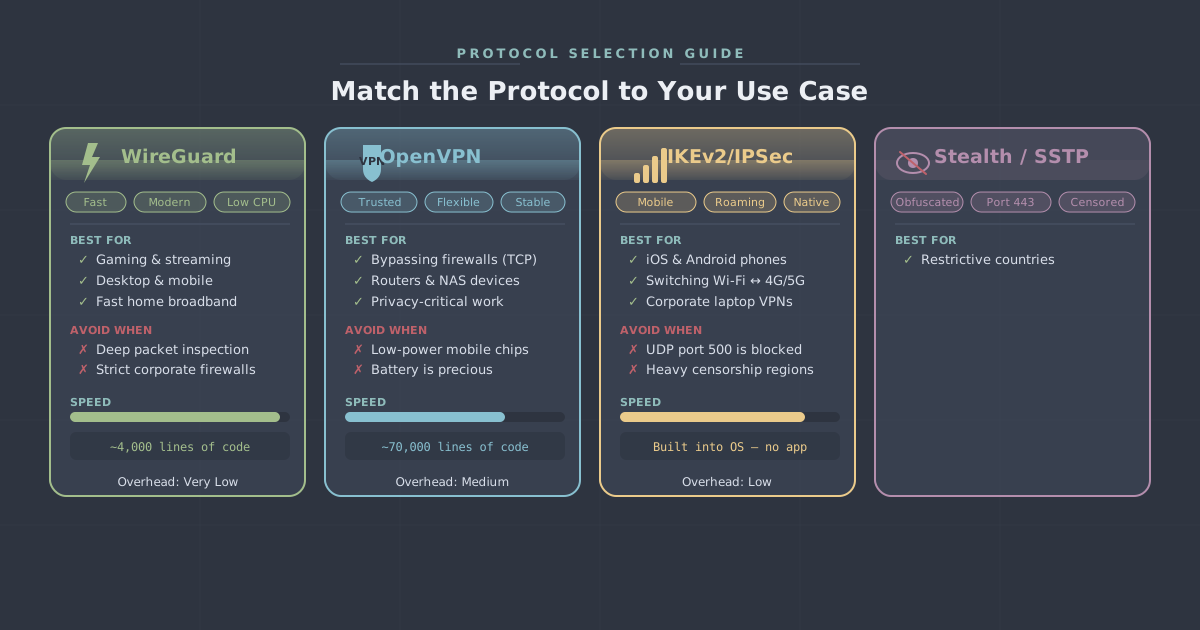
If you haven't yet looked at which protocol you're running, PremierVPN's apps support WireGuard (the default), WireGuard Stealth, OpenVPN, and VLESS+REALITY. Each has different overhead characteristics, so the right MTU value will vary—but now you know exactly how to find it. You can also check our no-logs policy if you want to understand how PremierVPN handles your data while you're connected.